Proton Drive to TeraBox: Free Up Space for Bulk Files You Don't Need Encrypted
Move non-sensitive Proton Drive files to TeraBox's 1 TB free tier and keep Proton's small encrypted space for what matters. Browser download or CloudsLinker.
Introduction
TeraBox advertises 1 TB free, which is roughly two hundred times Proton Drive's 5 GB free allowance — useful when you are mostly storing bulky, non-sensitive files like downloads, installers, or shared media that do not need Proton's end-to-end encryption. Proton Drive is built for privacy, and its small free tier reflects that focus; paying Proton for raw capacity to hold files that are not sensitive is a poor fit. Offloading that bulk to TeraBox frees Proton's encrypted space for the documents that actually warrant it. One thing to be clear about up front: TeraBox is not encrypted the way Proton is, so this move is for non-sensitive data only. TeraBox has no OAuth API, so the destination connects by browser cookie. This guide covers a browser download and a cloud-to-cloud transfer with CloudsLinker.
Proton Drive is the encrypted storage service from Proton AG in Switzerland, with end-to-end encryption applied to files, names and metadata. The free tier is 5 GB.
- End-to-end encryption: files, filenames and metadata encrypted.
- Free tier: 5 GB; paid plans bundled with Mail and VPN.
- Hosting: Switzerland and the EU.
- Focus: privacy, not bulk capacity.
- Access: account email + password (2FA must be switched off).
TeraBox is a consumer file locker from Flextech Inc. with a 1 TB advertised free tier. It is not zero-knowledge — the provider holds the keys — so it suits non-sensitive bulk storage.
- Free quota: 1 TB advertised; ~80 GB practical (20-file cap).
- Per-file cap: 4 GB free / 20 GB Premium.
- Encryption: server-side; provider holds keys.
- Best for: non-sensitive, bulky files.
- Access: browser cookie (
ndus,ndut_fmt); no OAuth.
These services point in opposite directions: Proton optimizes for privacy on a small free tier, TeraBox for capacity without encryption. The sensible split is to use each for what it is good at rather than treating them as interchangeable.
| Feature | Proton Drive | TeraBox |
|---|---|---|
| Free quota | 5 GB | 1 TB advertised; ~80 GB practical |
| Encryption | Zero-knowledge end-to-end | Server-side; provider holds keys |
| Best-fit data | Sensitive documents | Non-sensitive bulk files |
| Per-file cap | Quota-bound | 4 GB free / 20 GB Premium |
| Third-party access | Account credentials | Browser cookie only |
On the Proton Drive side
- Separate sensitive from bulk: only move files that do not need encryption. Keep IDs, contracts, and private records in Proton.
- Have your credentials ready: CloudsLinker connects Proton with your account email and password, and two-factor authentication has to be switched off — there is no code field.
- Note files over 4 GB: they exceed the free TeraBox per-file cap.
On the TeraBox side
- Create a TeraBox account at terabox.com.
- Create a target folder such as
/Proton-Bulk/. - Pick a tier: free if everything is under 4 GB, Premium otherwise.
Method 1: Browser Download from Proton Drive, Upload to TeraBox
Step 1: Download from Proton Drive
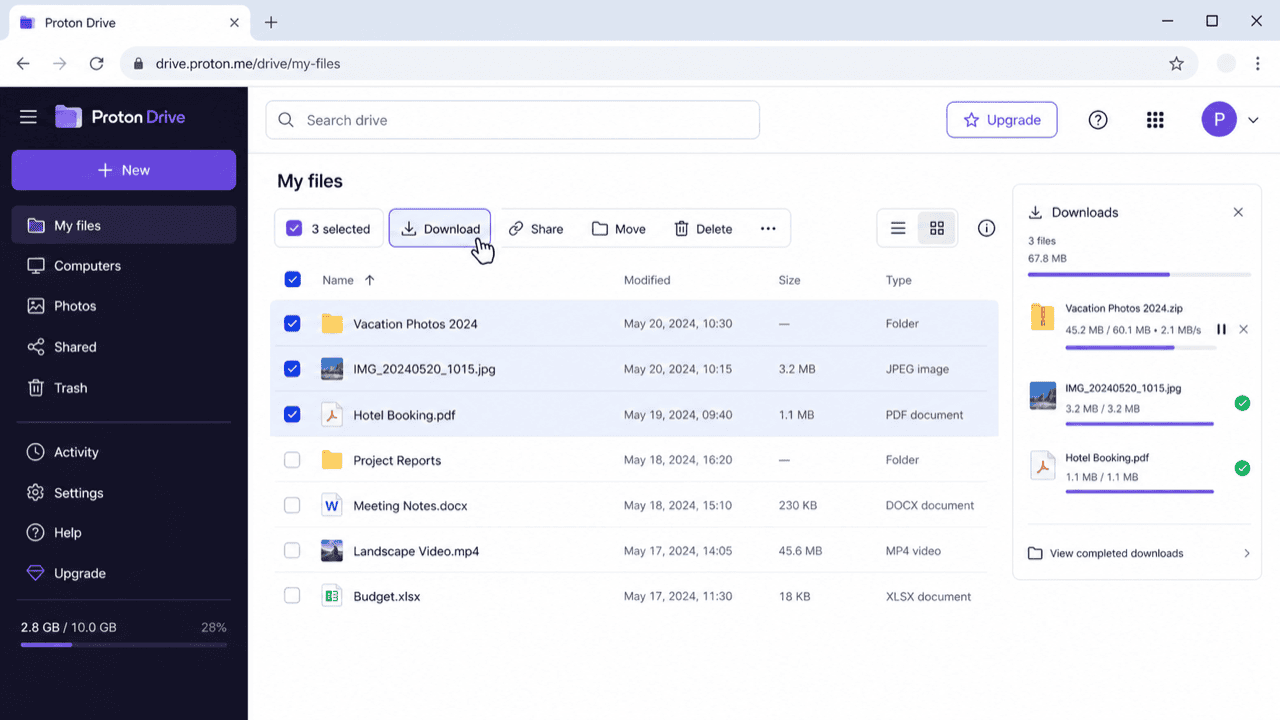
Open drive.proton.me and sign in. Select the non-sensitive files or folders you want to offload and choose Download. Proton decrypts them in your browser and packages folders as ZIP archives.
Step 2: Upload to TeraBox
Open terabox.com,
open your /Proton-Bulk/ folder, and drag the extracted files in. Set aside anything
over 4 GB on a free account. Free-tier uploads are throttled, so large batches take time.
Method 2: Cloud-to-Cloud Transfer with CloudsLinker
Offload Bulk Files Server-Side
CloudsLinker connects Proton Drive with your account credentials and TeraBox with its session cookie, moving files between them without downloading to your machine first.
Step 1: Connect Proton Drive
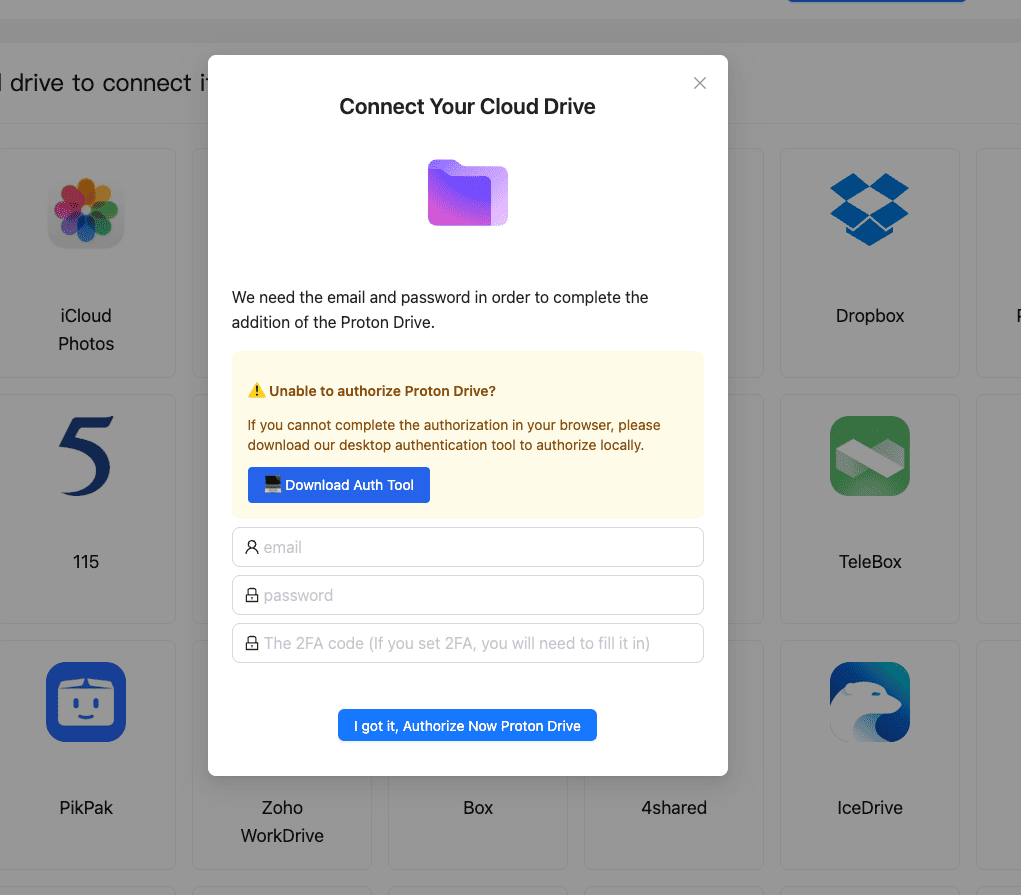
In CloudsLinker, click Add Cloud → Proton Drive. Enter your Proton email and password — two-factor authentication has to be switched off on the account, because the sign-in runs on CloudsLinker's servers and no code can be entered. Proton Drive appears as a connected source.
Step 2: Connect TeraBox (Browser Cookie)
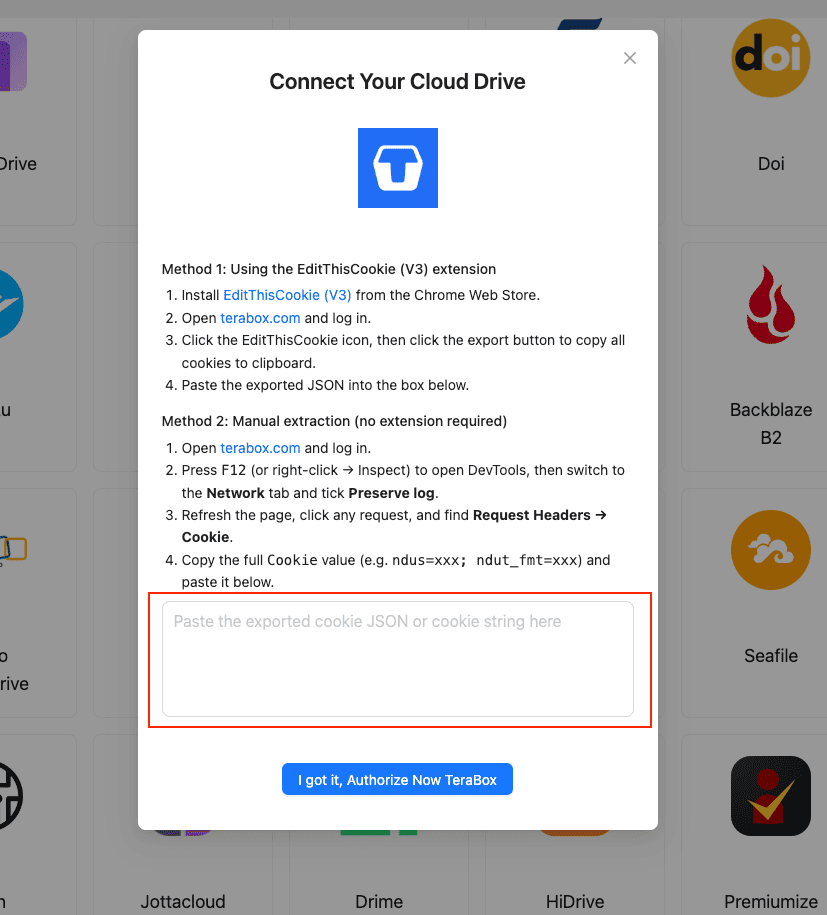
TeraBox has no OAuth, so use the session cookie:
- Install EditThisCookie (V3) in Chrome.
- Open
www.terabox.comin the same browser, signed in. - Click EditThisCookie → Export to copy the cookie JSON, and paste it into CloudsLinker.
Or copy the Cookie header (ndus=...; ndut_fmt=...) from DevTools
(F12) → Network.
Step 3: Configure the Transfer
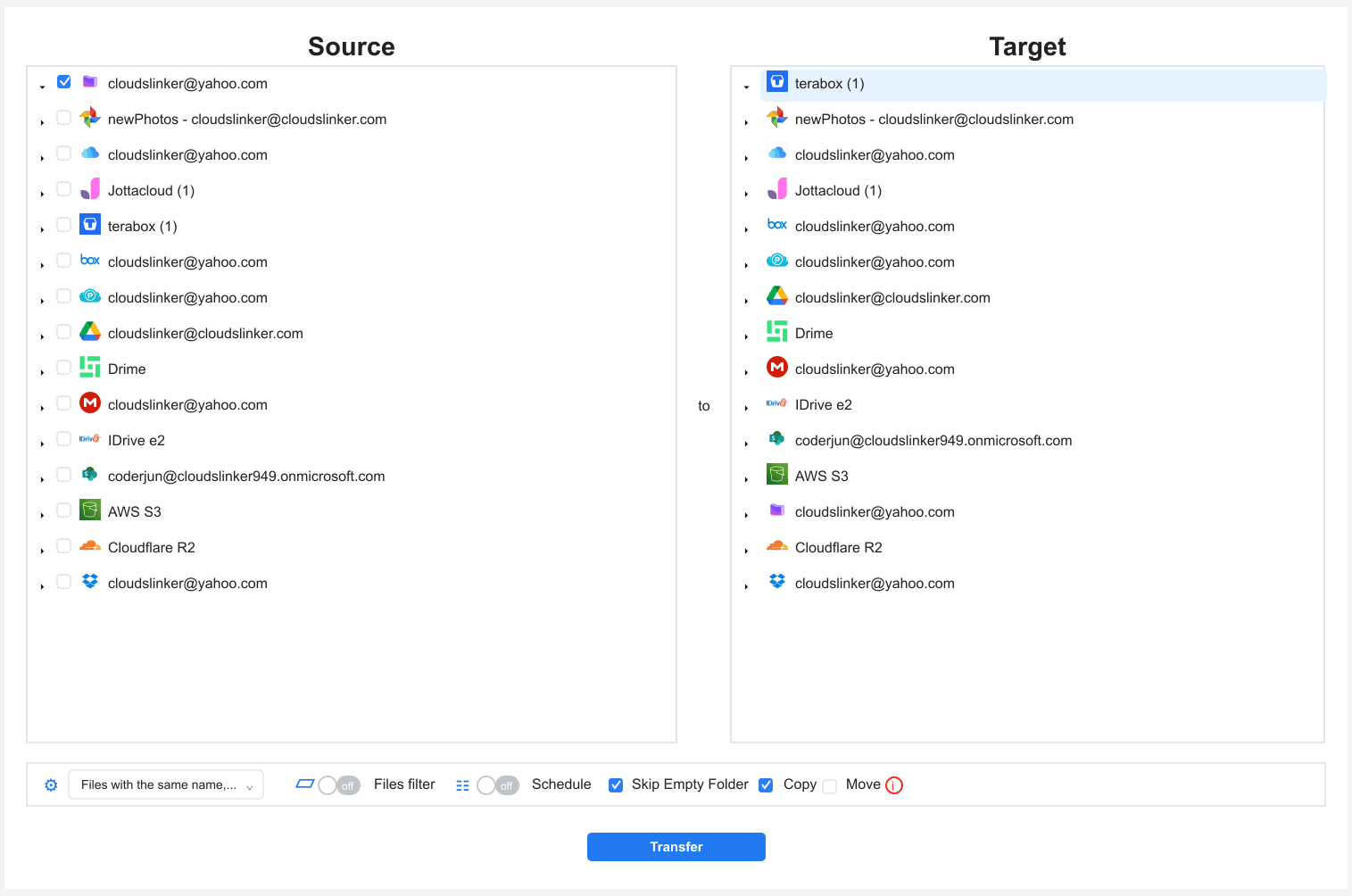
In the Transfer section, set Proton Drive as the source and
TeraBox as the destination with your /Proton-Bulk/ folder. Apply a
4 GB size filter for free TeraBox. Copy keeps Proton intact until
TeraBox is verified.
Step 4: Start and Monitor
Start the task and track it in the Task List. If the TeraBox cookie expires, the task pauses for a fresh one. Verify in TeraBox before clearing space in Proton.
Method Comparison
| Method | Ease of Use | Speed | Best For | Uses Local Bandwidth | Skill Level |
|---|---|---|---|---|---|
| Browser Download + Upload | ★★★★☆ | ★★☆☆☆ | A few bulk folders | Yes | Beginner |
| CloudsLinker | ★★★★★ | ★★★★☆ | Larger offloads, hands-off | No | Beginner |
- Keep sensitive files in Proton: the whole point of this split is that bulk, non-private data goes to TeraBox while encrypted material stays put.
- Filter files over 4 GB: the free TeraBox per-file cap is the main constraint. Identify large files in Proton first.
- Change the Proton password after the move: CloudsLinker needs the account password itself to derive the encryption keys, so rotating it afterwards invalidates the stored session.
- Refresh the TeraBox cookie before long jobs: re-login right before exporting it.
- Verify before deleting: confirm files open in TeraBox before freeing Proton's 5 GB.
- Do not treat TeraBox as a backup of private data: it stores files under provider-held keys.
Frequently Asked Questions
Conclusion
For a few folders, downloading from Proton Drive and uploading to TeraBox in the browser is enough. For a larger pile of bulk files, CloudsLinker connects Proton Drive by account credentials and TeraBox by session cookie and runs the move server-side. Keep the split clear in your head: sensitive material stays in Proton's encrypted storage, and only non-sensitive bulk goes to TeraBox, where files sit under provider-held keys. Watch the 4 GB free per-file cap on the TeraBox side before you start.
Online Storage Services Supported by CloudsLinker
Transfer data between over 58 cloud services with CloudsLinker

OneDrive

Google Drive

Google Photos

Shared Drive

OneDrive for Business

Dropbox

Box

Mega

pCloud

Yandex

ProtonDrive

AWS

GCS

iDrive

Storj

DigitalOcean

Wasabi

1fichier

PikPak

TeleBox

OpenDrive

Backblaze B2

Fastmail file

SharePoint

Nextcloud

ownCloud

Premiumize me

HiDrive

Put.io

Sugar Sync

Jottacloud

Seafile

Ftp

SFtp

NAS

WebDav

4shared

Icedrive

Cloudflare R2

Scaleway

Hetzner Object Storage

Synology C2 Object Storage

S3 Compatible

Doi

iCloud Drive

iCloud Photos

FileLU

Zoho WorkDrive

Telia Cloud / Sky

Drime

Filen

TeraBox

Internxt

Degoo

Gofile

Pixeldrain

Shade

Koofr
Didn' t find your cloud service? Be free to contact: [email protected]
Further Reading
Effortless FTP connect to google drive: Transfer Files in 3 Easy Ways
Learn More >
Google Photos to OneDrive: 3 Innovative Transfer Strategies
Learn More >
Google Photos to Proton Drive: 3 Effective Transfer Techniques
Learn More >