How to Transfer Files from TeraBox to PikPak Without Downloading Them First (2026)
Move your TeraBox library into PikPak without fighting throttled free-tier downloads: manual and cloud-to-cloud methods compared, with the exact cookie and login steps.
Introduction
Short answer: the practical way to move files from TeraBox into PikPak is a cloud-to-cloud copy — connect TeraBox with its login cookie, connect PikPak with your account email and password, and let the files move between data centres. This pair keeps coming up for one reason: media. TeraBox's free 1 TB makes it a natural dumping ground for video, but watching that video means living with throttled free-tier download speeds, while PikPak is built around in-browser playback and polished mobile apps. Downloading everything just to re-upload it pushes every gigabyte through TeraBox's slowest pipe and then through your own uplink again. This guide covers the manual route anyway, explains why there is no rclone shortcut for this particular pair, and walks through the server-side transfer step by step — including the one storage fact you should check before starting: PikPak's free tier holds 6 GB, not a terabyte.
TeraBox hands out 1 TB of storage on the free tier — which is why so many video collections end up there. Getting content back out is the weak side: free-tier downloads are speed-throttled, the web uploader caps files at 4 GB, and there is no official API for third-party apps, only cookie-based access.
- 1,024 GB free; Premium adds a second terabyte at $3.49/month.
- Throttled free downloads: pulling a library out takes days, not hours.
- Cookie access only: third-party tools connect via your browser session, not a login API.
PikPak comes at storage from the playback side: a built-in video player that streams smoothly in the browser, mobile apps, and cloud download of links and magnets. The free tier is small — 6 GB — because the product is aimed at people who watch their library, not just warehouse it.
- Streams instead of downloads: video plays in the browser and apps without saving locally.
- 6 GB free / 10 TB Premium: size the migration against your tier before starting.
- Standard login connection: third-party tools connect with your email and password on any tier.
| Feature | TeraBox | PikPak |
|---|---|---|
| Free storage | 1,024 GB | 6 GB |
| Premium storage & price | 2 TB — $3.49/month or $35.99/year | 10 TB — roughly $100/year (global plan; regional plans cost less) |
| Max single file | 4 GB free / 20 GB Premium (app or PC client) | 4 GB via web upload / 20 GB via PC client |
| Getting media out / watching | Free downloads speed-throttled; playback secondary | Built-in player, mobile apps; 1 TB/month basic transfer quota |
| Third-party connection | Browser login cookie (no official API) | Account email + password, any tier |
Sources: TeraBox pricing plans · PikPak transfer quota help page
Two checks save the most trouble. First, compare sizes: open TeraBox and note how much you actually intend to move. A full free-tier library can be close to 1 TB, which fits a PikPak Premium account but not the 6 GB free tier — decide between upgrading PikPak and moving a subset before you configure anything. Second, if any of the content sits in someone else's TeraBox share rather than your own account, save it to your TeraBox first (or follow the TeraBox shared-link guide) — transfers operate on your own storage.
One tool you may expect is missing: rclone has no TeraBox backend, because TeraBox offers no official third-party API. That removes the usual command-line option for this pair and leaves two realistic routes — manual, or a cloud service that handles TeraBox's cookie-based access for you.
Method 1: Download from TeraBox and Upload to PikPak Manually
The no-tooling route. In the TeraBox web app or client, select your folders and download them to a local disk; then sign in to PikPak, open the target folder, and upload. PikPak recreates the folder hierarchy as uploaded.
The catch is the free-tier download pipe. TeraBox throttles free downloads aggressively — real-world speeds are commonly well under 2 MB/s — so a 100 GB batch can take days of the machine staying awake, and the files need local disk space in between. Two more ceilings apply: TeraBox's own 4 GB free-tier file limit (larger files in your account were uploaded from a Premium app) and PikPak's 4 GB web-upload cap, which forces the PC client for big videos. Treat this as the small-batch option for a handful of files, not a library move.
Method 2: Cloud-to-Cloud Transfer from TeraBox to PikPak with CloudsLinker
Overview: The Copy Runs Where the Files Live
CloudsLinker connects to TeraBox through its cookie-based access — the same mechanism TeraBox itself uses in the browser — and to PikPak with a normal account login, then copies files between the two services server-side. Your computer never downloads anything, the 4 GB browser-upload ceilings on both ends never apply, and a task started tonight is still running after the laptop lid closes.
Step 1: Connect TeraBox with Your Login Cookie
Sign in to app.cloudslinker.com, click Add Cloud, and choose TeraBox. The connection credential is your browser login cookie. Easiest path: install the EditThisCookie (V3) extension, open terabox.com while logged in, click the extension icon and hit Export — the full cookie set lands on your clipboard as JSON.
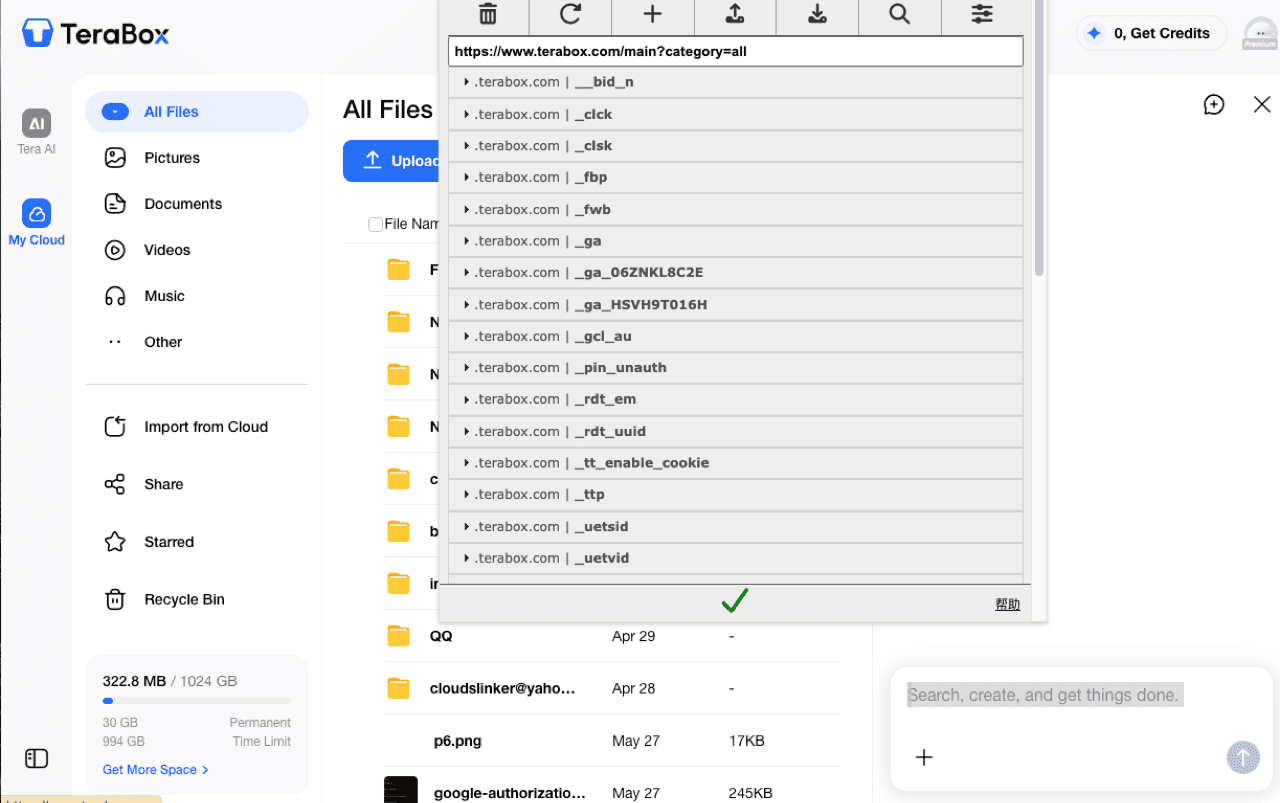
No extension? Press F12 on terabox.com, open the Network tab, refresh,
click any request and copy the Cookie value from Request Headers. Back in
CloudsLinker, give the connection a display name and paste the cookie — JSON export and raw string
both work. Treat the cookie like a password: it is your live TeraBox session.
Step 2: Connect PikPak
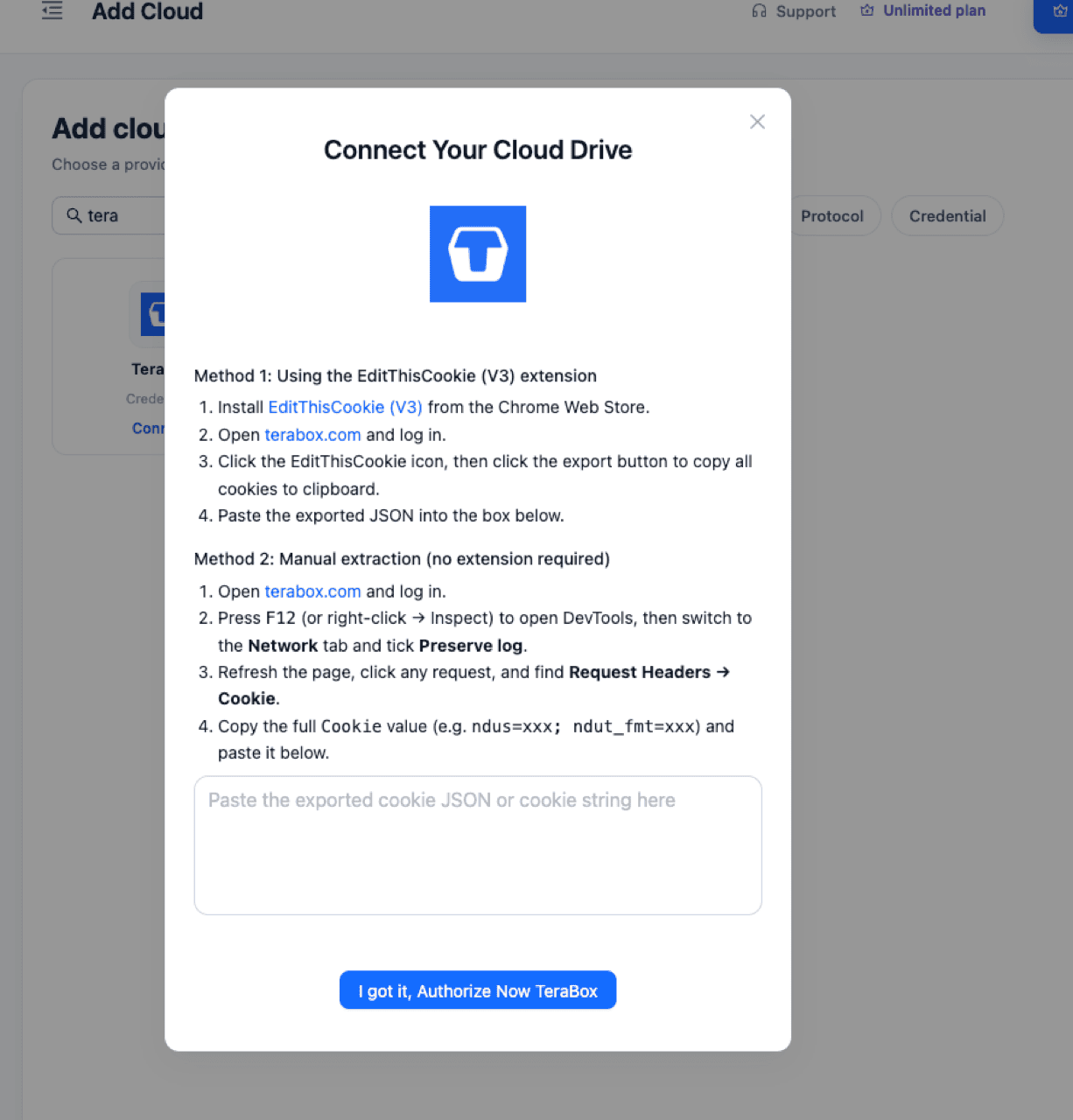
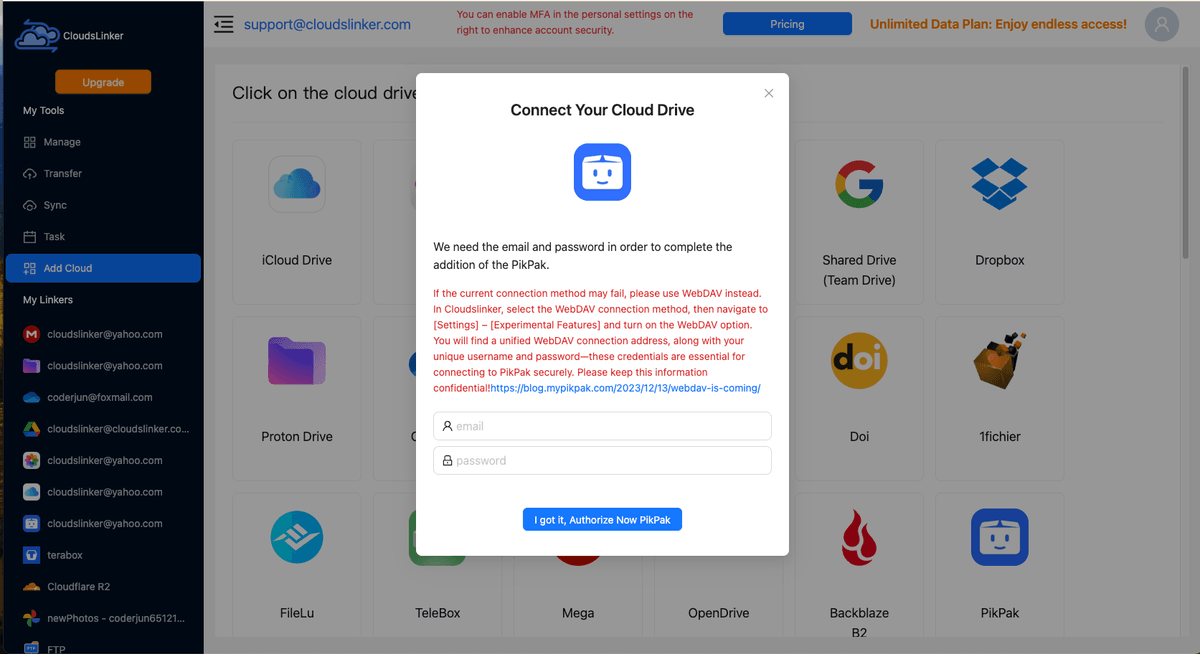
Click Add Cloud again and choose PikPak. Enter your PikPak account email and password — this standard route works on every PikPak tier, free included, and is read-write. If you registered PikPak through Google or Facebook, set a password first at mypikpak.com (avatar → Account and Security → Set Password). Should the direct connection ever fail, Premium accounts have a WebDAV fallback under Settings → experimental features, using the dedicated credentials PikPak generates there.
Step 3: Configure the Transfer
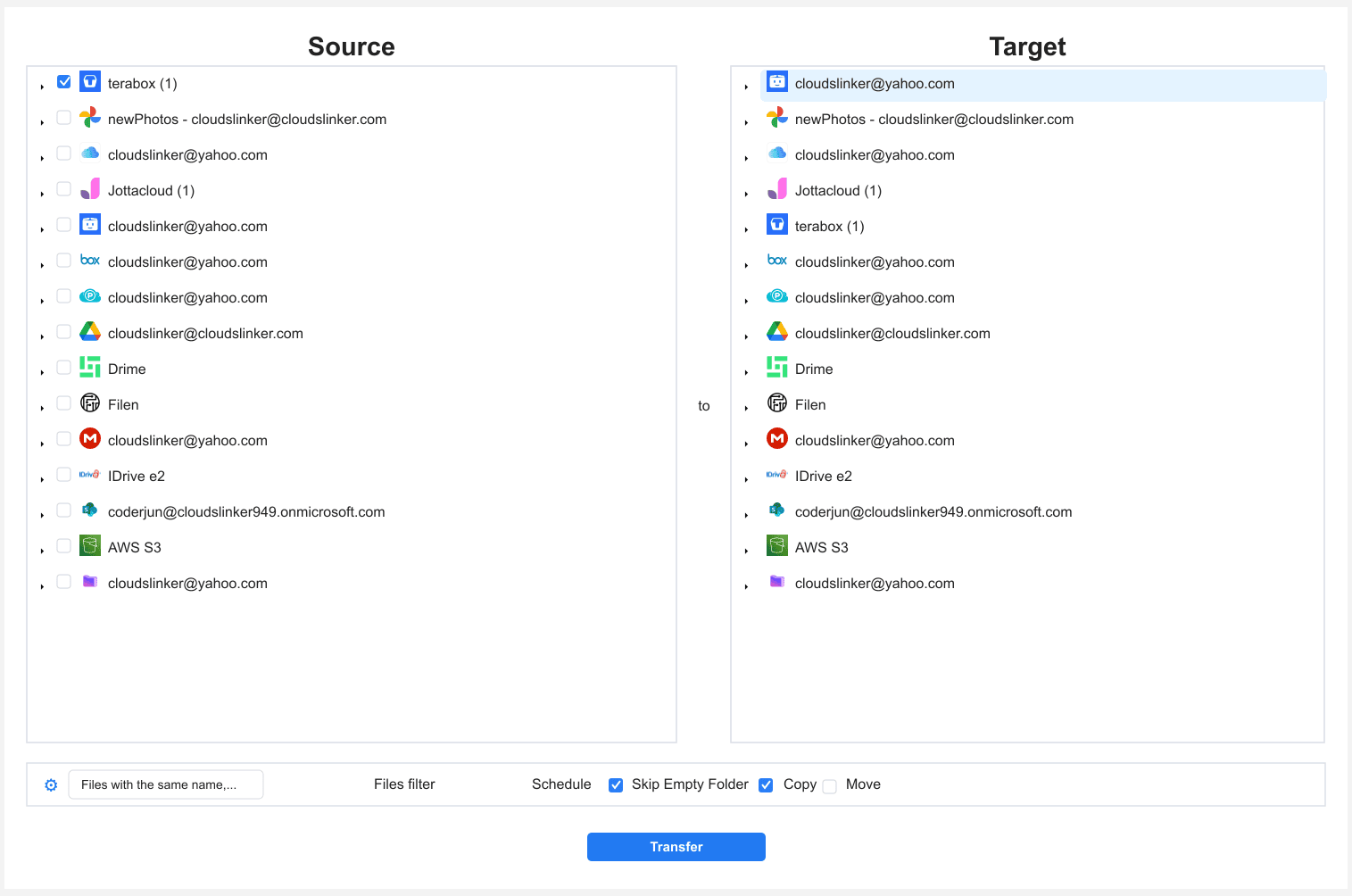
Open the Transfer page. Select TeraBox on the source side and browse to the folders you want to move; select PikPak on the destination side and choose or create the target folder. File-type filters are worth using here — restricting the task to video extensions leaves behind the thumbnails and stray archives that accumulate in a TeraBox library. Copy mode leaves the TeraBox originals in place; Move mode removes them after a successful transfer — for a first migration, copy, verify, then clean up manually.
Step 4: Start and Monitor the Transfer
Start the task and follow it in the Task List: progress, transferred size, and per-file errors if anything fails. The copy runs in the cloud, so closing the browser or shutting down does not interrupt it. When it finishes, open a couple of the larger videos in PikPak's player and compare file counts against TeraBox before deleting anything at the source.
Comparing the Ways to Transfer from TeraBox to PikPak
| Method | Ease of Use | Speed | Best For | Uses Local Bandwidth | Skill Level |
|---|---|---|---|---|---|
| Manual Download & Upload | Simple but tedious | Capped by TeraBox's throttled free downloads | A few files under 4 GB | Yes — twice (download + upload) | Beginner |
| CloudsLinker (Cloud-to-Cloud) | Set up once, runs unattended | Server-side; TeraBox's rate limits still apply, but nothing to babysit | Media libraries, whole-folder migrations | No | Beginner |
There is no middle option for this pair: rclone and similar CLI tools have no TeraBox backend, so the choice is genuinely binary — through your machine, or between the two clouds directly.
- Do the quota math first: a TeraBox free tier holds up to 1,024 GB; PikPak free holds 6 GB. Either shortlist what you actually watch, or plan on PikPak Premium before starting a full-library task. Note that TeraBox's terabyte is not all permanent — the account panel splits it into a small permanent base (30 GB) plus time-limited bonus space, one more reason not to treat it as a forever archive.
- Mind PikPak's monthly transfer quota: the basic allowance is 1 TB of traffic per month. A near-full TeraBox library is the one case that can brush against it — split the migration across two months or expect the tail to queue.
- Filter to video extensions: TeraBox libraries
accumulate thumbnails,
.torrentfiles and half-finished archives. A file-type filter keeps the junk out of PikPak from day one. - Expect a cookie refresh eventually: the TeraBox cookie expires on logout, password change, or long inactivity. If a long-running task reports an authentication error, re-export the cookie and resume — nothing already transferred is lost.
- Copy first, delete later: run the task in Copy mode, spot-check the landed files in PikPak's player, compare counts, and only then clear space on TeraBox.
- Keep both accounts if the split works for you: TeraBox as the free deep archive, PikPak as the watching layer — a selective transfer of the active folders sets this up without paying for 10 TB.
Watch: Move Files from TeraBox to PikPak with CloudsLinker
A real-time walkthrough: connecting TeraBox with a session cookie via EditThisCookie, adding PikPak with account email and password, copying the video library server-side in Copy mode, then opening the result in PikPak's cloud player — with the honest note that TeraBox's speed limit still applies to the transfer, which simply runs unattended in the cloud.
Frequently Asked Questions
Conclusion
A TeraBox-to-PikPak move is a trade of free space for usability: 1 TB of slow storage on one side, a media-first player and apps on the other. For a folder or two under a few gigabytes, the manual download-and-re-upload works. For the video libraries this migration usually involves, run it server-to-server with [CloudsLinker](https://www.cloudslinker.com) — TeraBox connects with its login cookie, PikPak with your email and password, and the copy keeps running after you close the tab. Check your PikPak quota first, and keep the TeraBox originals until you have spot-checked the landed files. Working with someone else's TeraBox share instead of your own account? Save it via [how to download TeraBox shared links](/guides/download-terabox-shared-link-files/) first. Going the other direction, see [PikPak to TeraBox](/guides/transfer-files-from-pikpak-to-terabox/).
Online Storage Services Supported by CloudsLinker
Transfer data between over 58 cloud services with CloudsLinker

OneDrive

Google Drive

Google Photos

Shared Drive

OneDrive for Business

Dropbox

Box

Mega

pCloud

Yandex

ProtonDrive

AWS

GCS

iDrive

Storj

DigitalOcean

Wasabi

1fichier

PikPak

TeleBox

OpenDrive

Backblaze B2

Fastmail file

SharePoint

Nextcloud

ownCloud

Premiumize me

HiDrive

Put.io

Sugar Sync

Jottacloud

Seafile

Ftp

SFtp

NAS

WebDav

4shared

Icedrive

Cloudflare R2

Scaleway

Hetzner Object Storage

Synology C2 Object Storage

S3 Compatible

Doi

iCloud Drive

iCloud Photos

FileLU

Zoho WorkDrive

Telia Cloud / Sky

Drime

Filen

TeraBox

Internxt

Degoo

Gofile

Pixeldrain

Shade

Koofr
Didn' t find your cloud service? Be free to contact: [email protected]
Further Reading
Effortless FTP connect to google drive: Transfer Files in 3 Easy Ways
Learn More >
Google Photos to OneDrive: 3 Innovative Transfer Strategies
Learn More >
Google Photos to Proton Drive: 3 Effective Transfer Techniques
Learn More >