How to Download Files from a TeraBox Shared Link (2026) — and Fix 'Zero Files' Downloads
Got a TeraBox share link? Save its files to your own TeraBox, download them, or copy them straight to Google Drive — and fix downloads that show 0 KB.
Introduction
To download files from a TeraBox shared link, sign in to a TeraBox account, save the share to your own storage, and download from there — or skip the download entirely and copy the saved files server-to-server into Google Drive or another cloud. The detour through your own account exists because TeraBox share links are fragile: links created on free accounts expire after 7 days, and the third-party 'TeraBox downloader' sites that promise a direct grab routinely break, returning empty file lists or 0 KB files. Free-account downloads are also throttled — officially 1.5–6.5 MB/s, and often 300 KB/s–2 MB/s in practice on shared links — which is painful for the multi-GB video folders TeraBox shares tend to contain. This guide covers the official route and the server-to-server alternative.
Quick Navigation
Understanding TeraBox Share Links
TeraBox gives every account 1 TB (1,024 GB) of free storage, which is why it has become a default host for large shared video and file collections. Sharing works through links: the owner generates a URL (optionally with an extraction code), and anyone who opens it sees the shared file or folder in the TeraBox web interface.
A share link is a view into someone else's storage, not a download in itself. Links made on free accounts expire 7 days after creation, and the owner can delete one at any time, so the first move is always to press Save to TeraBox and copy the contents into your own account. From there the files are yours to download, stream, or transfer — even after the original link dies.
How TeraBox Sharing Works
- Links with a shelf life: Free-account share links auto-expire after 7 days; the sharer can also revoke a link early. Saved copies in your own TeraBox are unaffected.
- Save to TeraBox first: The Save button copies shared files into your account instantly without downloading — the 1 TB free quota gives plenty of room to receive them.
- Free-tier speed caps: TeraBox states free download speeds of 1.5–6.5 MB/s; on shared content, real-world rates of 300 KB/s–2 MB/s are common, one file at a time. Premium lifts this to 15–20 MB/s.
- Third-party access by cookie: TeraBox has no public OAuth, so tools like CloudsLinker authenticate with your exported browser login cookie instead of a password.
Why Downloads Fail — the 'Zero Files' Problem
Searches like “TeraBox zero files” exist because so many attempted downloads end with nothing. The failures cluster into three causes, none of which are fixed by trying another downloader site:
- Downloader sites break constantly: Third-party 'TeraBox downloader' pages scrape an unofficial API. When TeraBox changes it, these sites list zero files for a valid link, or produce 0 KB downloads that contain no data.
- The link itself is dead or truncated: A free link past its 7-day window is permanently deactivated, and messaging apps often cut long share URLs, leaving a link that loads but resolves to nothing.
- Local downloads at throttled speed: Even when everything works, pulling a multi-GB folder at free-tier shared-link speed ties up your connection for hours and fills your disk.
Why Save a TeraBox Share to Your Own Cloud
After saving a share to your TeraBox, you do not have to bring the files down to your device at all. A server-to-server transfer copies them from TeraBox directly into a cloud you already rely on — Google Drive, MEGA, OneDrive, Dropbox, pCloud and 140+ others — while your computer stays out of the data path.
To be clear about speed: TeraBox's free-tier rate limits apply to any client, CloudsLinker included — a server-to-server copy is not faster. What changes is who does the waiting: the task runs unattended in the cloud, retries failures on its own, and nothing lands on your disk. It also converts a time-limited share into a permanent copy under your own account, in a cloud with desktop sync and proper search.
What You Gain by Saving to Your Cloud
- No download to babysit: TeraBox's speed caps still apply server-side, but the waiting happens in the cloud — close the laptop and the task keeps grinding until it finishes.
- Nothing touches your device: A 100 GB video folder moves without consuming your disk space or home bandwidth.
- A copy that outlives the link: Once the files sit in your Google Drive or MEGA, the 7-day expiry and the sharer's delete button are irrelevant.
- Usable storage on the other side: Files end up in a cloud with real desktop clients and search — TeraBox's own apps are built for hosting and streaming, not for working with files.
Good Destinations for Saved Shares
- Google Drive / OneDrive: Everyday working storage with full-text search and office integration — the natural home for documents and mixed folders.
- MEGA: 20 GB free and end-to-end encryption; a common landing zone for video collections leaving TeraBox.
- S3 / Wasabi / Backblaze B2: Object storage at archive prices, for very large collections you want to keep but rarely open.
Download Locally or Copy to Your Cloud?
Both routes begin identically — open the link, sign in, Save to TeraBox. What happens to the saved files next is the fork:
- Local download — a few small files: Fine below a few hundred MB. Expect free-tier speeds and one file at a time; the 4 GB free-account file cap rarely matters for downloading, but the throttle does.
- Cloud copy — large folders: For multi-GB video folders, a server-to-server copy into Google Drive or MEGA finishes without occupying your connection or disk.
- Preservation: Either way, the saved copy in your own storage survives the share link's 7-day expiry.
- Cost: Both routes work from a free TeraBox account; the cloud copy just needs enough free space in the destination.
Use the TeraBox web app when you need a couple of files on your device now; use the server-to-server copy when the share is a folder you intend to keep.
Before You Start
Three things prevent most failed attempts:
- Have a TeraBox account and stay signed in: Saving a share requires an account; the free tier's 1 TB is more than enough to receive shared folders. Sign in before opening the link.
- Save the share the day you receive it: Free links self-destruct after 7 days and the sharer can revoke earlier. Open the link and press Save to TeraBox immediately — sorting out where the files go can wait.
- Check the link if nothing appears: A share that opens to an empty page usually means an expired or truncated URL. Ask the sender to re-share rather than feeding the link to downloader sites.
With the share saved into your own TeraBox, pick the method that matches how much data you are moving.
How to Download or Save TeraBox Shared Link Files
Method 1 keeps everything inside TeraBox: save, then download officially. Method 2 copies the saved share straight into another cloud with CloudsLinker — no local download, no machine to babysit; TeraBox's rate limits still apply, server-side.
Method 1: Save and Download Through TeraBox
Step 1: Open the link and save it to your TeraBox
Open the shared link in your browser (enter the extraction code if the sharer set one) and sign in. Click Save to TeraBox and choose a folder in your own storage. The copy is instant — no data moves to your device yet.
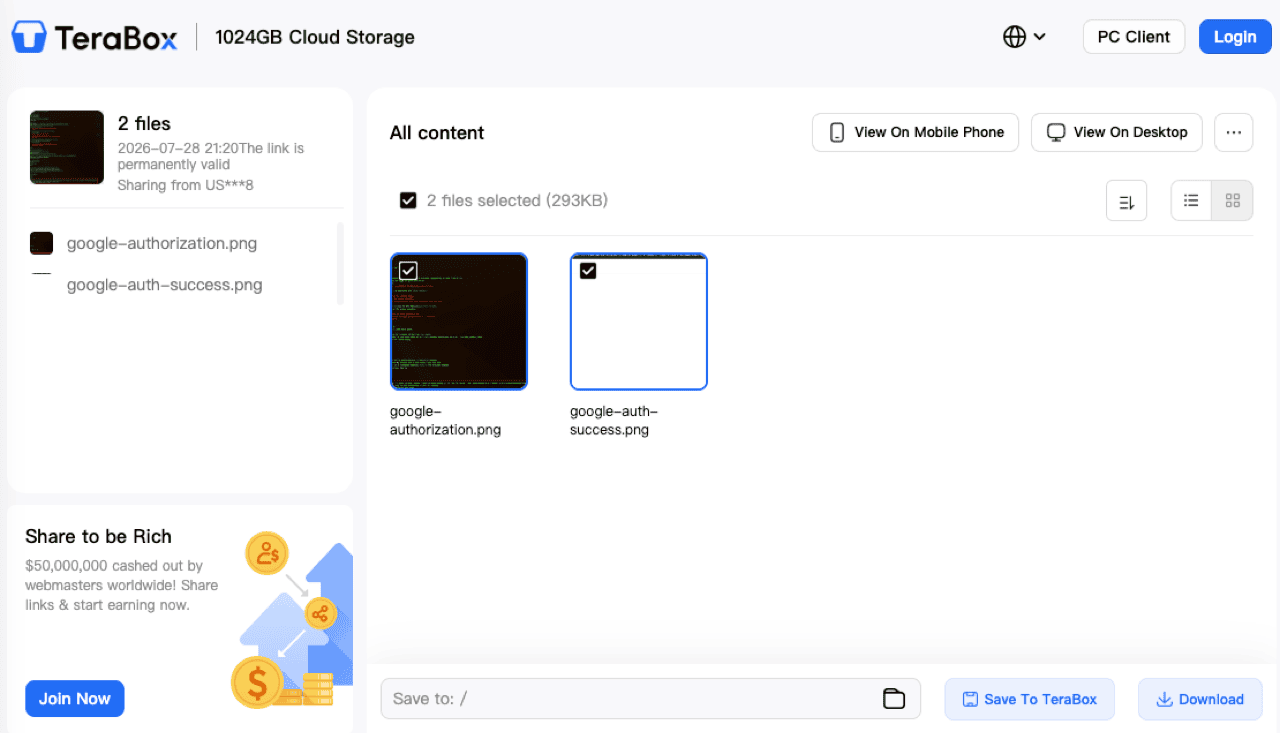
Step 2: Locate the saved files in your account
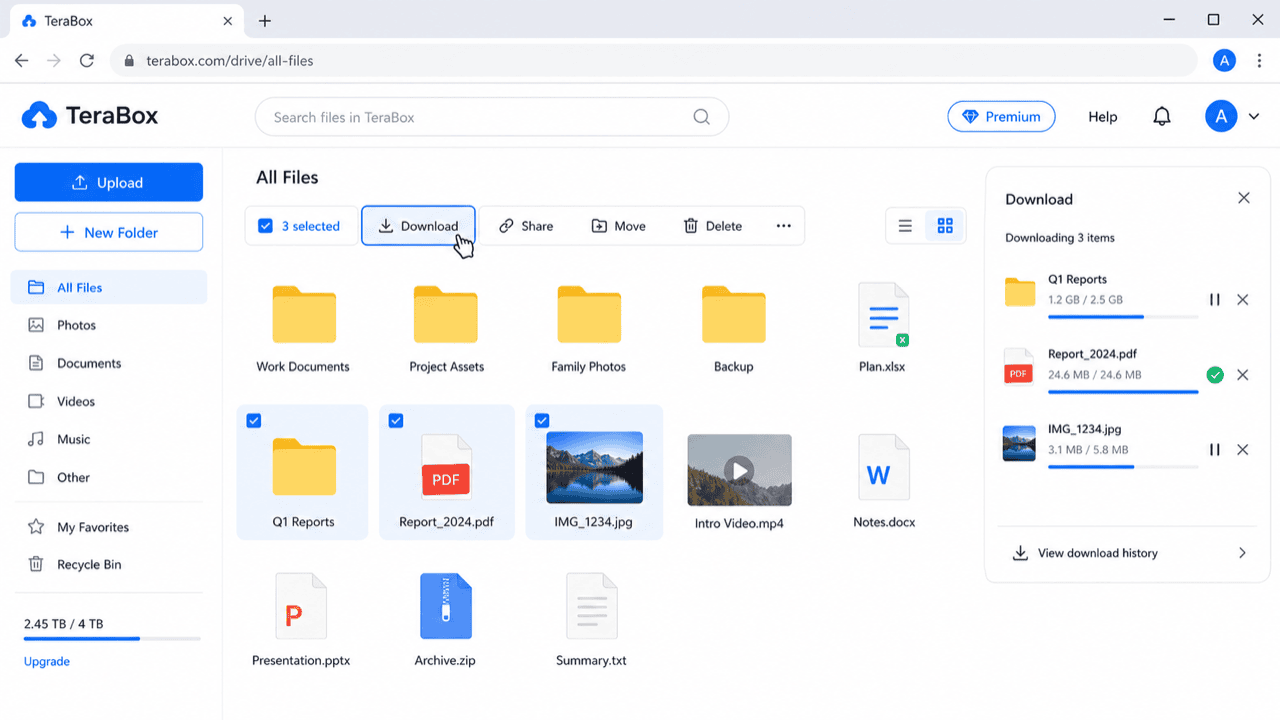
Switch to your own TeraBox file list and open the folder you just saved into. From here the files behave like any of your uploads: videos stream in the built-in player, and everything is selectable for download. The original link can now expire without consequence.
Step 3: Download to your device
Select the files and click Download. On a free account, expect one file at a time at throttled speed — TeraBox quotes 1.5–6.5 MB/s, and shared-link downloads often run at 300 KB/s–2 MB/s.
This is the reliable official route, but for a large folder the arithmetic is brutal: 50 GB at 1 MB/s is roughly 14 hours of tying up your connection. If the goal is keeping the files rather than having them locally, Method 2 avoids the download entirely.
Method 2: Copy a Saved TeraBox Share Straight to Another Cloud with CloudsLinker
Server-to-server, past the free-tier throttle
CloudsLinker connects to TeraBox with your exported browser cookie — TeraBox offers no OAuth — and copies saved shares directly into Google Drive, MEGA, OneDrive and 140+ other clouds. The transfer runs between data centres, so the shared-link speed cap and your own bandwidth never enter the picture; a folder too large to download comfortably moves in a single background task.
Step 1: Save the share into your TeraBox
Exactly as in Method 1: open the link, sign in, Save to TeraBox. CloudsLinker reads from your account, not from the raw share URL, so the files must sit in your own storage first.
Step 2: Export your TeraBox login cookie
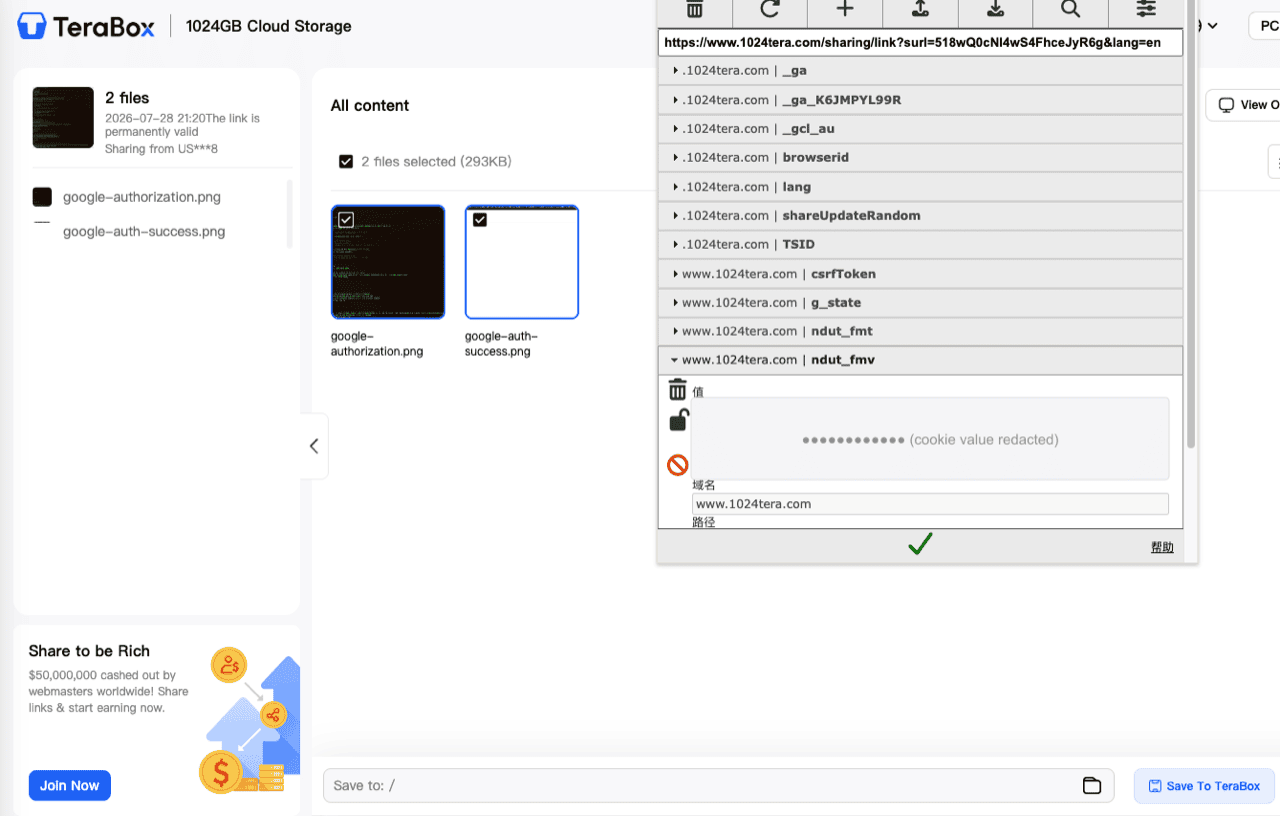
Install the EditThisCookie (V3) extension from the Chrome Web Store, open terabox.com while logged in, click the extension icon and press Export — the full cookie set is copied as JSON. No extension? Press F12 → Network tab → refresh, open any request and copy the Cookie request header instead. Treat the exported value like a password.
Step 3: Connect TeraBox to CloudsLinker
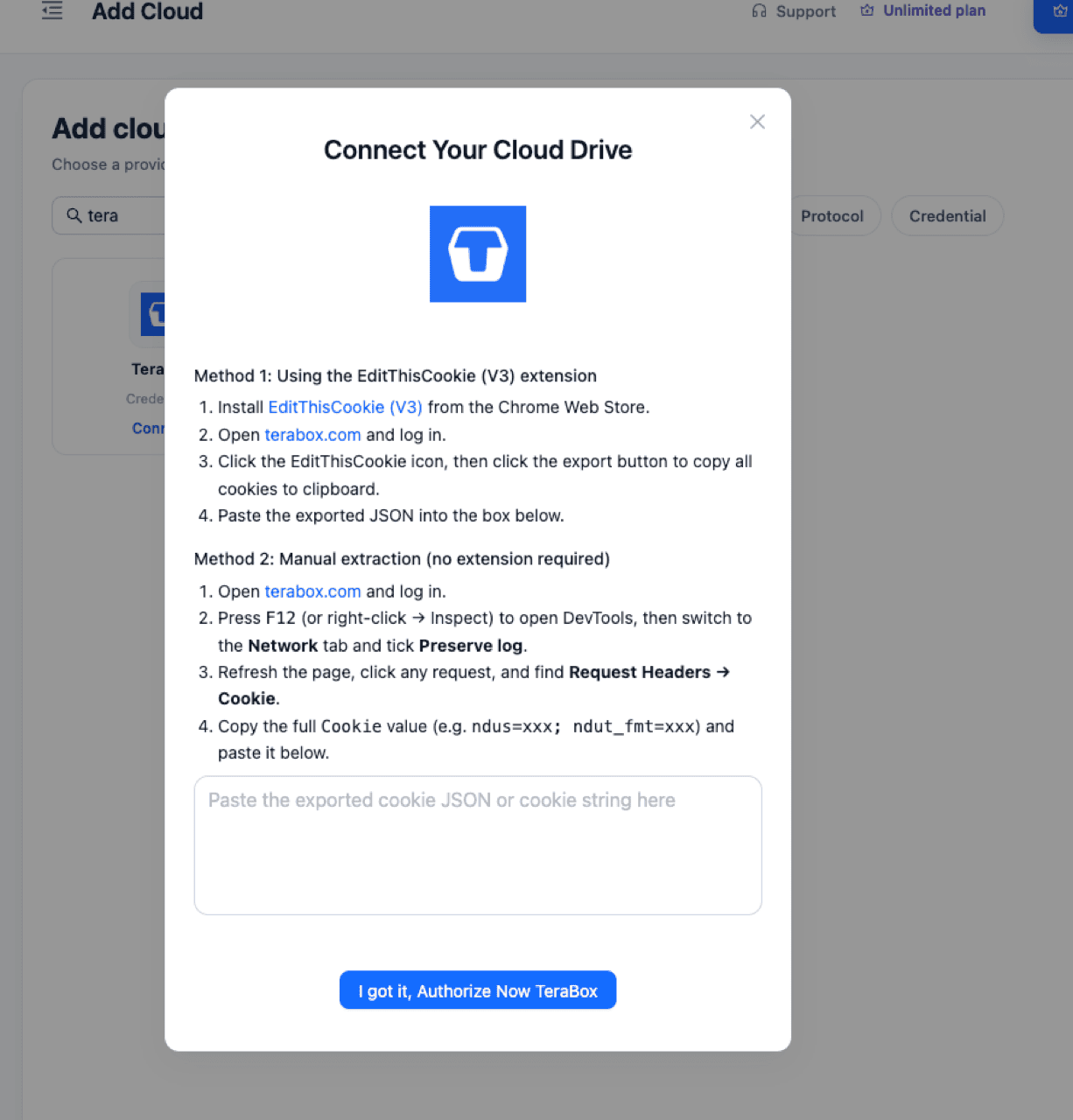
Sign in to CloudsLinker, click Add Cloud and choose TeraBox. The connection dialog repeats both cookie-extraction methods; paste the exported cookie into the box (the JSON export and the raw header string are both accepted) and click Authorize Now TeraBox. Cookies invalidate if you later log out of TeraBox or change the password — re-export and reconnect if that happens.
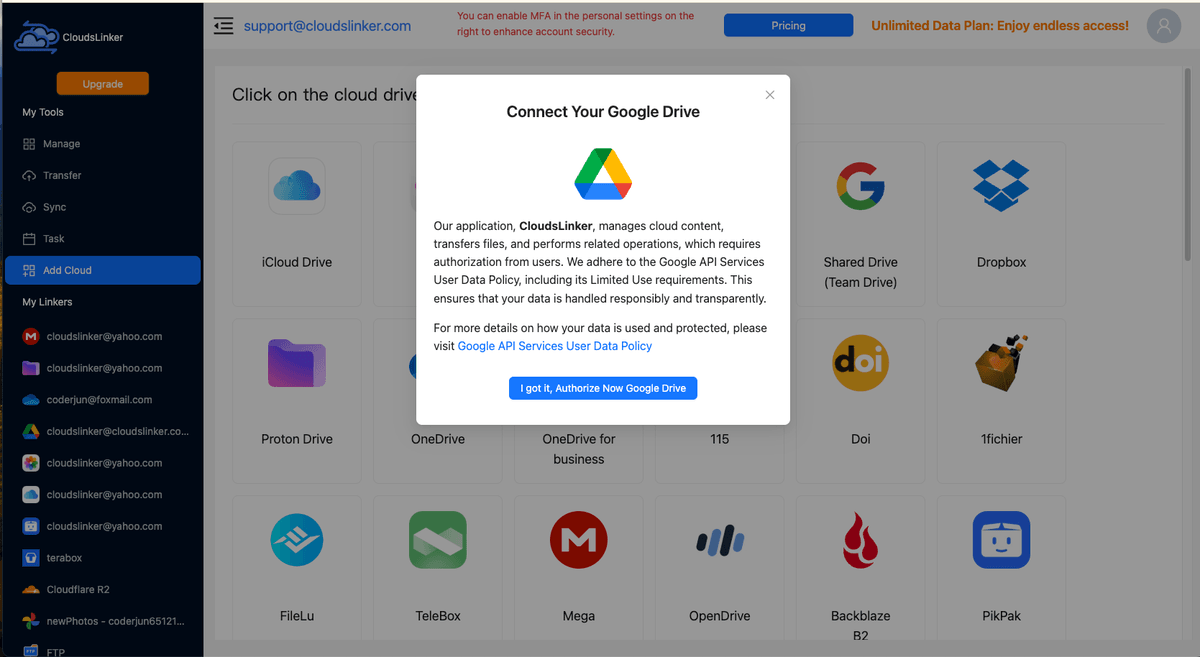
Step 4: Connect the destination cloud
Click Add Cloud again and attach where the files should land — Google Drive or OneDrive authorize through the provider's own OAuth page, MEGA connects with account credentials, S3-compatible stores take access keys.
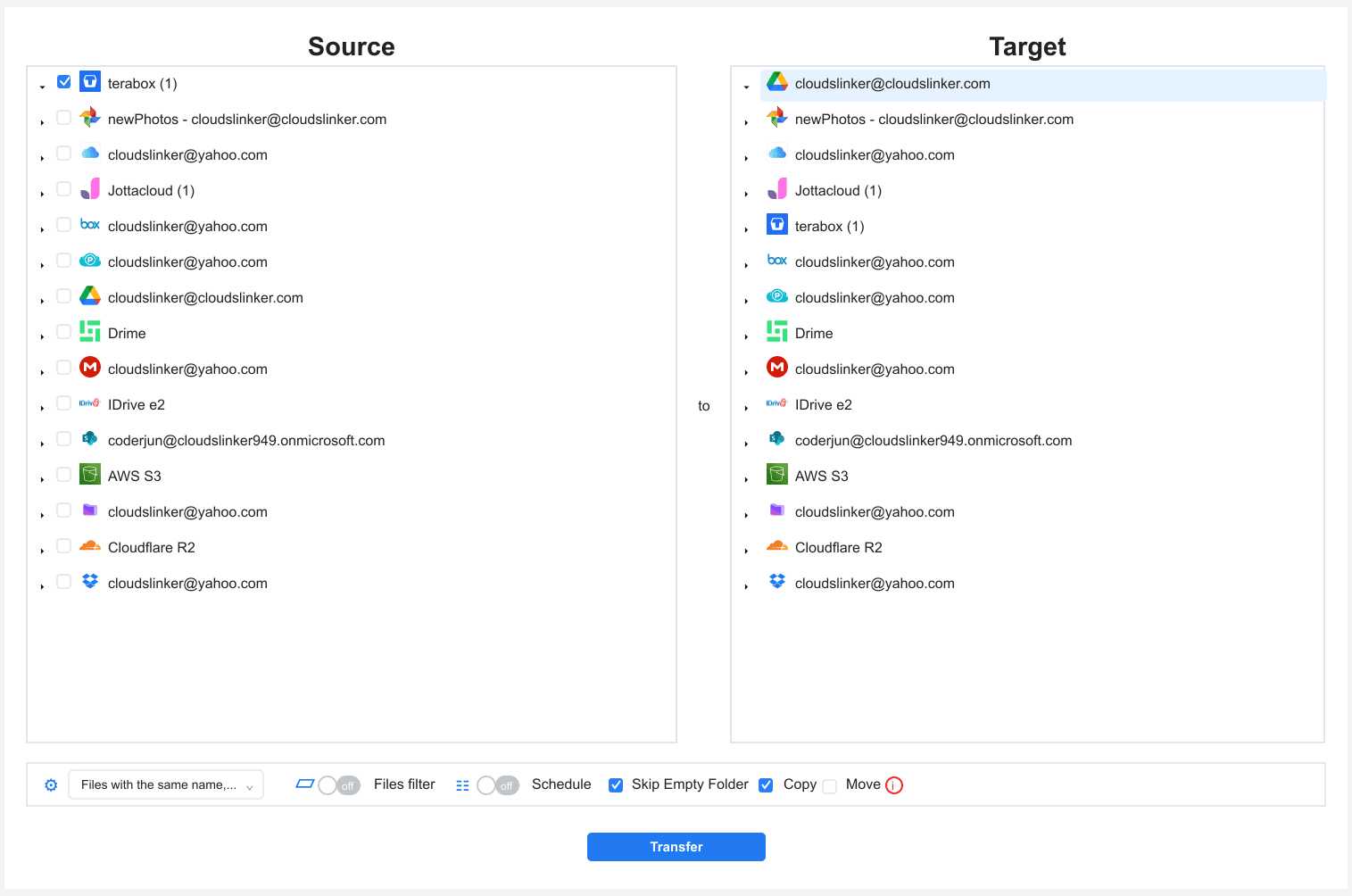
Step 5: Configure and start the transfer
Open the Transfer section, pick TeraBox as the source and browse to the saved shared folder, then set the destination cloud and target directory. Filters can restrict the copy to videos only, or to files above or below a size. Start the task and follow it in the Task List — it runs in the cloud, so you can close the tab.
After You Save the Share
Verify the copy
Before deleting anything, confirm the destination received everything:
- Compare counts and sizes: The destination folder's file count and total size should match the saved TeraBox folder — mismatches usually mean the task is still finishing.
- Open one large video: Play a big file end to end in the destination cloud; a working playback rules out the truncated 0 KB failure mode entirely.
Clean up and go further
Once the copy is verified:
- Reclaim TeraBox space if you want it: The saved share can be deleted from TeraBox — your destination copy is independent. With 1 TB free there is rarely pressure, but hoarded shares add up.
- Moving more than one share?: For a full account migration rather than a single folder, see the dedicated TeraBox to Google Drive and TeraBox to MEGA guides — same cookie connection, whole-library scope.
TeraBox Shared Link — Frequently Asked Questions
Why does a TeraBox downloader show zero files or download 0 KB files?
Is there a TeraBox link downloader that actually works?
Can I download from a TeraBox link without an account?
How long do TeraBox share links last?
How fast are TeraBox downloads on a free account?
Can I save TeraBox shared files directly to Google Drive?
How does CloudsLinker connect to TeraBox?
Is there a file size limit I should worry about?
Is this official? Is it safe to paste my TeraBox cookie?
Watch: Save TeraBox Shared Files to Google Drive Before the Link Expires
Why TeraBox share links stop working (7-day expiry, sharer deletion, 0 KB downloader sites), then the fix in CloudsLinker: save the share into your own TeraBox, add TeraBox and Google Drive, pick source and destination, and start the server-side transfer — no local download, and a copy that outlives the link. TeraBox's speed cap still applies.
Conclusion
For one or two small files, saving the share to your TeraBox and downloading through the official web app is the dependable route — slower on a free account, but it produces real files instead of the 0 KB stubs downloader sites often deliver. For a large shared folder, the local download is the bottleneck: at free-tier shared-link speeds, 50 GB of video can occupy a full day. Copying the saved share server-to-server into Google Drive or MEGA with CloudsLinker does not lift TeraBox's speed cap — nothing does — but it moves the wait off your machine: the task runs unattended in the cloud without touching your disk. Whichever you choose, save the share first — free TeraBox links are gone 7 days after they are created.
Online Storage Services Supported by CloudsLinker
Transfer data between over 60 cloud services with CloudsLinker

OneDrive

Google Drive

Google Photos

Google Takeout

Shared Drive

OneDrive for Business

Dropbox

Box

Mega

pCloud

Yandex

ProtonDrive

AWS

GCS

iDrive

Storj

DigitalOcean

Wasabi

1fichier

PikPak

TeleBox

OpenDrive

Backblaze B2

Fastmail file

SharePoint

Nextcloud

ownCloud

Premiumize me

HiDrive

Put.io

Sugar Sync

SmugMug

Jottacloud

Seafile

Ftp

SFtp

NAS

WebDav

4shared

Icedrive

Cloudflare R2

Scaleway

Hetzner Object Storage

Synology C2 Object Storage

S3 Compatible

Doi

iCloud Drive

iCloud Photos

FileLU

Zoho WorkDrive

Telia Cloud / Sky

Drime

Filen

TeraBox

Internxt

Degoo

Gofile

Pixeldrain

Shade

Koofr
Didn' t find your cloud service? Be free to contact: [email protected]
Further Reading
Effortless FTP connect to google drive: Transfer Files in 3 Easy Ways
Learn More >
Google Photos to OneDrive: 3 Innovative Transfer Strategies
Learn More >
Google Photos to Proton Drive: 3 Effective Transfer Techniques
Learn More >