Move iCloud Drive Files to Another Apple ID: Before, During and After the Switch
Apple has no way to move iCloud Drive files between Apple Accounts. Here is how to prepare both accounts, copy the files three ways, and retire the old ID.
Introduction
Apple does not transfer iCloud Drive files from one Apple Account (formerly Apple ID) to another. There is no merge, no export to a second account, and Apple's own support answers point to the same workaround: get the files out of the old account and put them into the new one. People hit this when they set up a new Apple Account after a school or work address expires, when a shared family ID is split into personal ones, or when an old account with years of Documents and Desktop files is being retired.
The copy itself is the easy part. What makes or breaks the switch is the preparation — storage on the new plan, two-factor codes for both accounts, Advanced Data Protection — and the clean-up afterwards. This guide follows that order: what can move at all, what to set up on both accounts before moving day, three ways to copy the files, and what to check before you stop using the old Apple Account.
The Short Answer
You can't move iCloud Drive files between Apple Accounts inside iCloud — you copy them. For a few folders, share them with the new account and copy them on a device. For a whole iCloud Drive, either download it on a Mac and upload it again, or connect both accounts to a cloud-to-cloud service and copy without a download. Either way, prepare both accounts first: storage, verification codes and Advanced Data Protection decide how smooth it is.
What Can Move Between Apple Accounts
| Data in the old Apple Account | Can it go to the new one? |
|---|---|
| Files and folders in iCloud Drive | Yes, as copies — the subject of this guide |
| Desktop and Documents folders synced from a Mac | Yes; they are ordinary folders in iCloud Drive |
| Pages, Numbers and Keynote documents | Yes; they sit in iCloud Drive folders named after the apps |
| Sharing settings and collaborators | No; copies start unshared, so re-share from the new account |
| Earlier versions of files | No; only the current version is copied |
| iCloud Photos, Notes, Messages, Contacts, Calendars | Not through iCloud Drive; each needs its own export |
| App Store purchases and subscriptions | Not part of iCloud Drive; check Apple's options for the account itself |
Before Moving Day: Prepare Both Accounts
Most failed switches stall here rather than during the copy. Go through the list for each account:
| Check | Old Apple Account | New Apple Account |
|---|---|---|
| Storage | Note how much iCloud Drive uses (Settings → your name → iCloud) | Pick a plan with room for it: 5 GB free; iCloud+ 50 GB, 200 GB, 2 TB, 6 TB or 12 TB |
| Files only on one Mac | Make sure every file has finished uploading to iCloud before you start | — |
| Verification codes | A trusted device or phone number you can still reach | The same, for the new account |
| Password | The regular password you use at icloud.com | The regular password |
| Advanced Data Protection | Off on both accounts if a web or cloud tool will read or write the files; turn it back on afterwards | |
| Pending account updates | Sign in at appleid.apple.com once and accept any new terms or phone verification Apple asks for | |
Also decide where the files will land. Copying the old Desktop and Documents
straight into the new account's folders of the same names mixes them with whatever a Mac signed in to the
new account is already syncing. A separate folder, such as From old Apple Account, keeps the
two apart until you have sorted through them. Files larger than 50 GB can't be stored in iCloud Drive at
all.
Moving Day: Three Ways to Copy the Files
Option 1: Share a folder, then copy it into the new account
iCloud Drive folders can be shared with another Apple Account from a Mac running macOS 10.15.4 or later, an iPhone or iPad on iOS 13.4 or later, or icloud.com. Share each folder from the old account with the new account's email address, allowing changes. On a Mac or iPhone signed in to the new account, open the shared folder in Files or Finder and copy its contents into a folder the new account owns.
The share alone is not a move: the folder still belongs to the old account and uses its storage, and it disappears for the new account once the old one stops sharing it. The copy step is what moves the data, and the device downloads every file while copying. This is the right tool for a handful of folders and for keeping one folder in use by both accounts during the switch.
Option 2: Download on a Mac, upload as the new account
- On a Mac signed in to the old Apple Account, turn off Optimize Mac Storage for iCloud Drive, or right-click the top folders and choose Download Now, and wait until nothing is left in the cloud only.
- Copy the iCloud Drive folders to an external drive or a folder outside iCloud Drive.
- Sign out of the old Apple Account in System Settings and sign in with the new one, turning on iCloud Drive.
- Copy the folders from the external drive into the new iCloud Drive, ideally into a separate folder, and leave the Mac on until uploading finishes.
This works without any third-party service but needs a Mac with enough free disk space for the whole iCloud Drive, and the upload runs over your home connection. A second macOS user account signed in to the new Apple Account avoids signing out of the old one on your main user.
Option 3: Copy between both iCloud Drives with CloudsLinker
CloudsLinker can hold two iCloud Drive connections at once — one per Apple Account — and copy from one to the other on its servers. Nothing is downloaded to your devices, so no Mac and no free disk space are needed; what you do need is the regular password and a verification code for each account.
Step 1: Connect the Old Apple Account's iCloud Drive
Turn off Advanced Data Protection on the old account (Settings → your name → iCloud → Advanced Data Protection). In CloudsLinker, click Add Cloud, choose iCloud Drive and enter the account's email address — or its phone number with the country code — and the regular password you use at icloud.com; app-specific passwords are rejected. Click I got it, Authorize Now iCloud Drive and type the six-digit code Apple sends to the account's trusted devices. If no code arrives, open Having trouble with the verification code? in the dialog to have it sent by SMS.
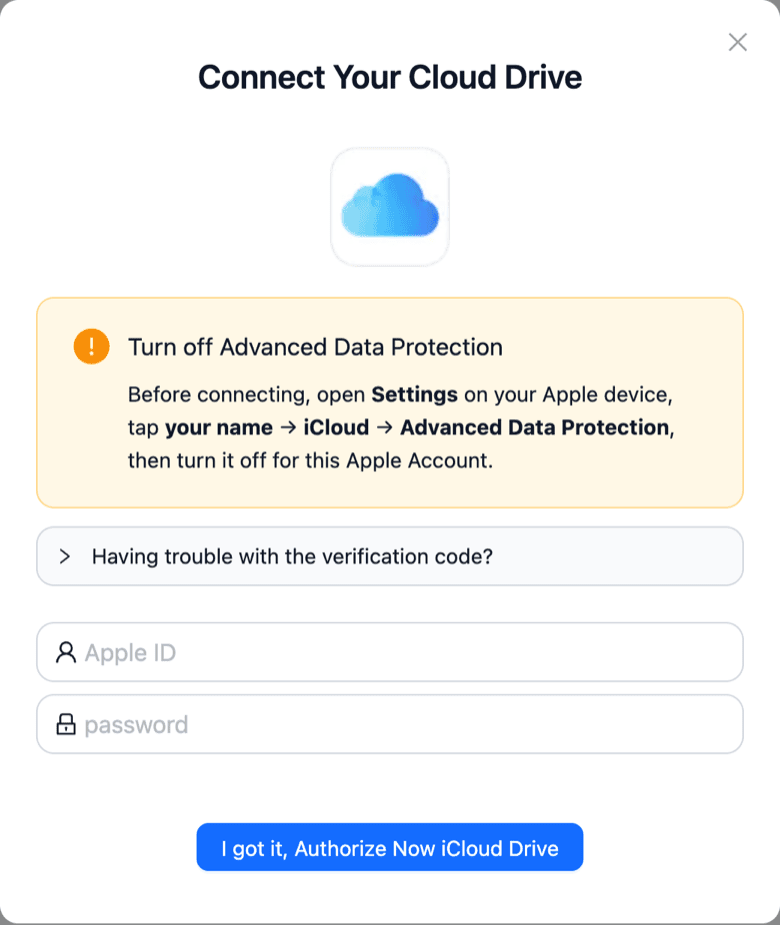
If the code is accepted but Apple asks for an account update first — confirming the trusted phone number or accepting new terms — sign in at appleid.apple.com, complete what Apple shows, and connect again.
Step 2: Connect the New Apple Account's iCloud Drive
Repeat the same steps with the new Apple Account: Advanced Data Protection off, Add Cloud → iCloud Drive, its email and regular password, and the code sent to its own trusted devices. Both connections now appear under your clouds, each named after its Apple Account, which keeps them apart on the Transfer page.
Step 3: Pick Folders and a Landing Folder
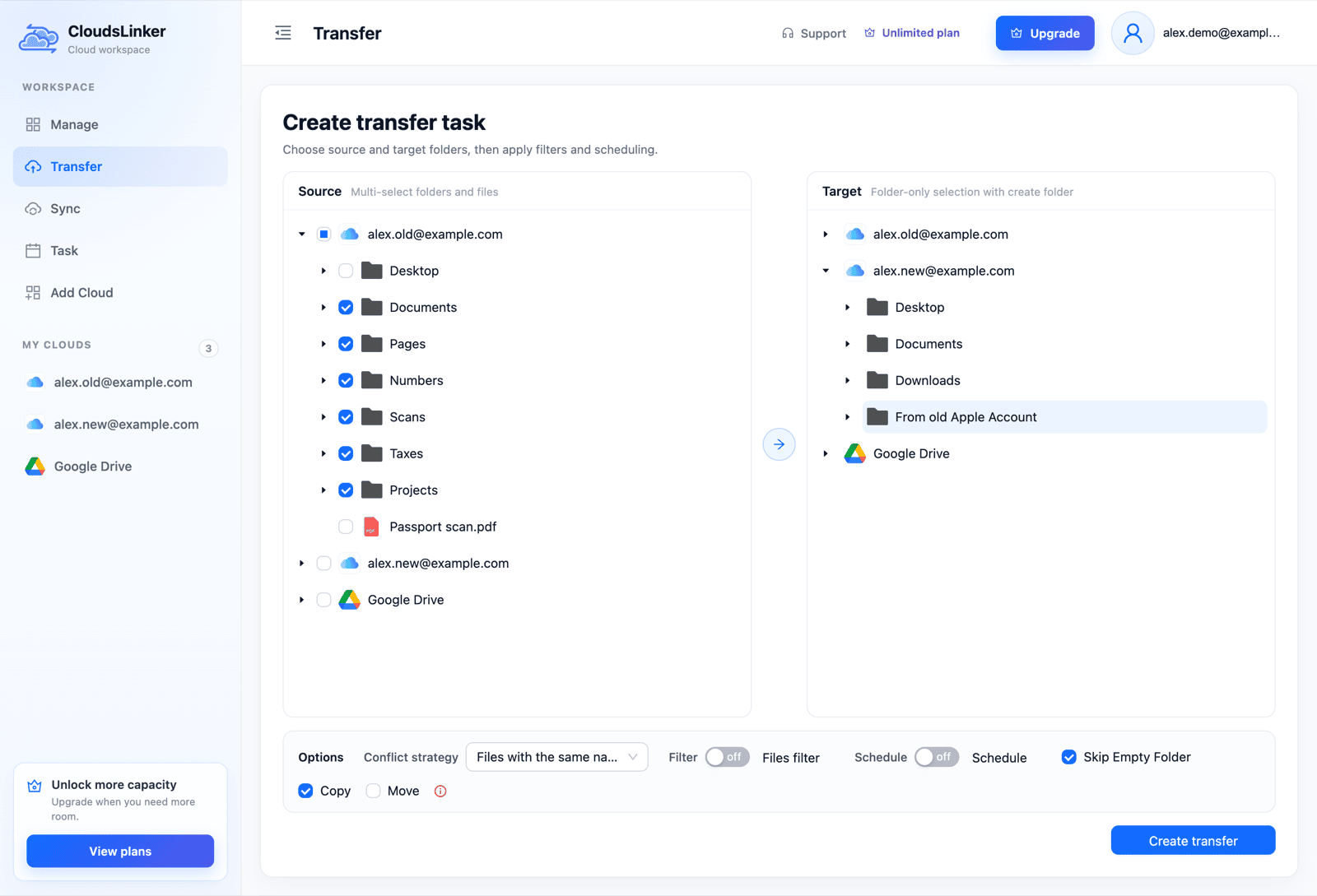
Open Transfer. In Source, expand the old account and tick the folders
to copy. In Target, expand the new account, hover over it and create a folder such as
From old Apple Account, then select it. Keep Copy selected:
Move would delete each file from the old account after copying it.
Step 4: Start the Copy and Check It
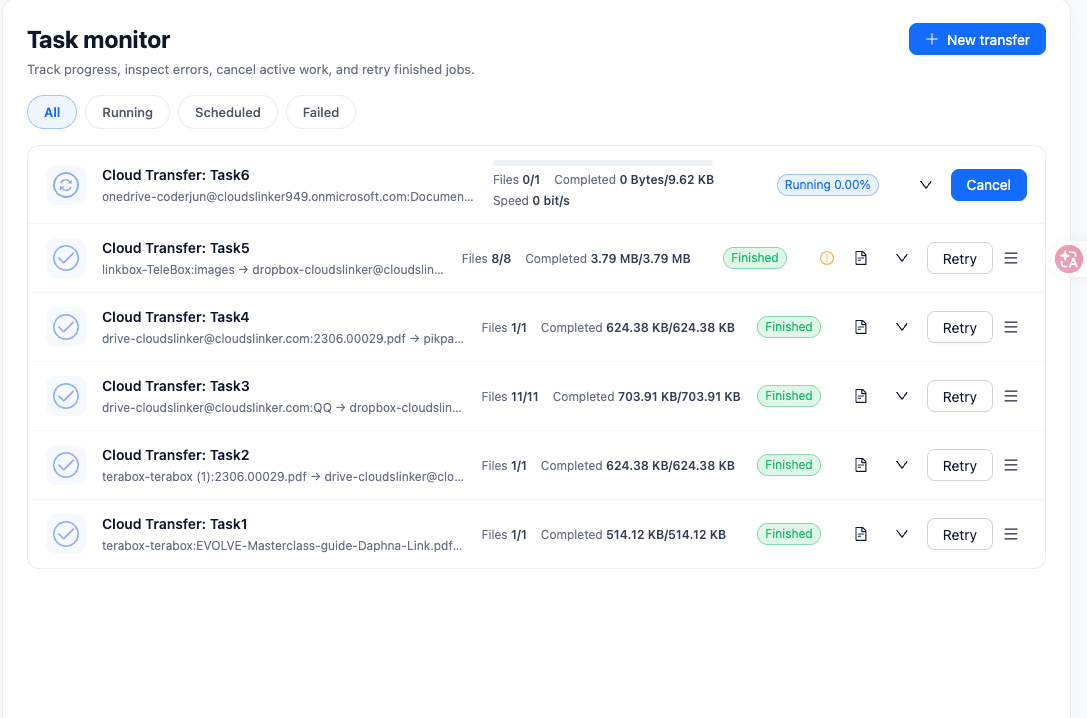
Click Create transfer. Task monitor shows files and bytes done, and the copy continues after you close the browser. When it finishes, open a few folders on a device signed in to the new account and compare their sizes with the old account before deleting anything.
After the Switch: Retire the Old Apple Account
- Check the copy. Open files from each top-level folder on a device signed in to the new account, including a large video and a Pages or Numbers document.
- Sort the landing folder. Move files from
From old Apple Accountinto the new Desktop, Documents or app folders as you need them. - Re-share. Folders that others used were shared by the old account; share the new copies and send the new links.
- Tidy up access. Remove both iCloud Drive connections from CloudsLinker, and turn Advanced Data Protection back on for each account.
- Handle everything that isn't iCloud Drive — photos, notes, contacts, purchases and subscriptions — before deleting or abandoning the old Apple Account.
- Free the old storage last. Delete the old files, or downgrade the old iCloud+ plan, only once the new account has been in use for a while.
Frequently Asked Questions
Conclusion
For a few folders, share them from the old Apple Account and copy them into the new one on a Mac or iPhone. For a full iCloud Drive with a Mac at hand, download everything, switch accounts and upload it again. To skip the download — or when there is no Mac — CloudsLinker connects both Apple Accounts and copies the folders from one iCloud Drive to the other on its servers; you only need the regular password and a verification code for each account, with Advanced Data Protection switched off during the copy. Whichever route, land the files in their own folder, compare counts, then re-share what others used and turn Advanced Data Protection back on.
Related: iCloud Drive connection notes, iCloud Drive to Google Drive and iCloud Drive to OneDrive.
Online Storage Services Supported by CloudsLinker
Transfer data between over 60 cloud services with CloudsLinker

OneDrive

Google Drive

Google Photos

Google Takeout

Shared Drive

OneDrive for Business

Dropbox

Box

Mega

pCloud

Yandex

ProtonDrive

AWS

GCS

iDrive

Storj

DigitalOcean

Wasabi

1fichier

PikPak

TeleBox

OpenDrive

Backblaze B2

Fastmail file

SharePoint

Nextcloud

ownCloud

Premiumize me

HiDrive

Put.io

Sugar Sync

SmugMug

Jottacloud

Seafile

Ftp

SFtp

NAS

WebDav

4shared

Icedrive

Cloudflare R2

Scaleway

Hetzner Object Storage

Synology C2 Object Storage

S3 Compatible

Doi

iCloud Drive

iCloud Photos

FileLU

Zoho WorkDrive

Telia Cloud / Sky

Drime

Filen

TeraBox

Internxt

Degoo

Gofile

Pixeldrain

Shade

Koofr
Didn' t find your cloud service? Be free to contact: [email protected]
Further Reading
Effortless FTP connect to google drive: Transfer Files in 3 Easy Ways
Learn More >
Google Photos to OneDrive: 3 Innovative Transfer Strategies
Learn More >
Google Photos to Proton Drive: 3 Effective Transfer Techniques
Learn More >