How to Transfer Google Photos to Synology NAS: A Comprehensive Guide
Transferring your memories from Google Photos to a Synology NAS (Network Attached Storage) is a brilliant move towards securing your digital life. This article serves as a guide to safely and efficiently migrate your photo library, ensuring that your cherished moments are not just a cloud away but securely stored under your control
Introduction
Google Photos has been a go-to for many to store photos and videos, thanks to its seamless backup capabilities and ease of use. However, with growing concerns over privacy, data control, and the need for a more personalized storage solution, many are turning towards Synology NAS. This guide provides a detailed walkthrough on how to transfer your Google Photos library to a Synology NAS device, including a route that copies a Google Takeout export from Google Drive straight to the NAS, albums included, without downloading it first.
Exploring Google Photos Features
Google Photos stands out for its seamless photo and video storage, smart organization, and sharing capabilities. Key features include:
- Intelligent Organization: Utilizes AI to automatically categorize photos by date, location, and people, simplifying search and access.
- Easy Sharing: Facilitates the sharing of albums and photos with friends and family, including shared albums that others can contribute to.
- Edit and Create: Provides built-in tools for editing photos and creating collages, animations, and movies with music.
- Integration with Google Ecosystem: Seamlessly integrates with other Google services for a cohesive user experience.
Despite these advantages, users might look for alternatives like Synology NAS for enhanced privacy, control over their data, and avoiding the limitations of cloud storage services, such as subscription costs and data privacy concerns.
Why Choose Synology NAS?
Synology NAS is not just about storage; it's about taking control of your data. With its comprehensive data protection and easy access from anywhere, it's the perfect home for your digital memories. Here are some key benefits:
- Privacy and Control: Keep your photos private and secure, away from third-party servers.
- Advanced Backup Options: Customize your backup settings to fit your needs, ensuring your photos are safe.
- Accessible from Anywhere: Access your photos from any device, anytime, with Synology's intuitive interface.
- Expandable Storage: Unlike cloud services with fixed storage limits, Synology NAS allows for easy expansion to fit your growing photo library.
Why Transfer Google Photos to Synology NAS
Choosing to transfer your photo library from Google Photos to Synology NAS offers unique advantages, enhancing not only how you store and access your photos but also how you control your digital data:
- Enhanced Privacy and Security: Synology NAS provides robust security measures, ensuring your photos are stored securely on your own private server.
- Complete Control Over Your Data: Unlike cloud services, Synology NAS puts you in full control of your data, without the concerns of third-party access or data mining.
- Scalable Storage Solutions: Easily expand your storage capacity as needed, without the recurring costs associated with cloud storage services.
- Personalized Access and Sharing: Synology offers personalized sharing options, allowing you to decide exactly how and with whom your photos are shared.
- Access from Anywhere: With Synology's QuickConnect feature, access your photos securely from anywhere without the need for complex network configuration.
Understanding these advantages elucidates the strategic importance of moving your digital memories from Google Photos to a Synology NAS, providing a more secure, personalized, and scalable photo storage solution.
Preparing for the Move
Before initiating the transfer of your photos from Google Photos to your Synology NAS, organizing your library and understanding the functionalities of Synology DSM (DiskStation Manager) are crucial steps. This preparation ensures a smooth transition and optimal organization in your new storage environment.
Review and Organize Your Google Photos Library
-
Clean Up: Start by purging unnecessary items from your Google Photos. This step involves deleting duplicates, blurry images, and any photos you no longer wish to keep. A cleaner library means a more efficient transfer. -
Utilize Albums: Organize your photos into albums based on events, dates, or personal preferences. This organization will be beneficial when you re-create these groupings on your Synology NAS.
Get Acquainted with Synology DSM
-
Explore Synology Features: Familiarize yourself with the DSM interface and its photo management capabilities. Synology offers apps like Synology Photos, which seamlessly integrates photo organization and sharing features. -
Plan Your Folder Structure: Reflect on your album organization in Google Photos and consider how you can replicate or optimize this structure in Synology DSM. Planning ahead can help you leverage Synology's advanced file management and sharing capabilities.
Backup Your Photos:
- Ensure you have a comprehensive backup of your Google Photos library before proceeding with the transfer. This measure protects against potential data loss during the move. Consider using Synology's Hyper Backup or USB Copy for physical backups.
Method 1: Manual Download and Upload
Exporting Photos from Google Photos
- Navigate to Google Takeout: Start by visiting the Google Takeout website. Log in with your Google account if prompted.
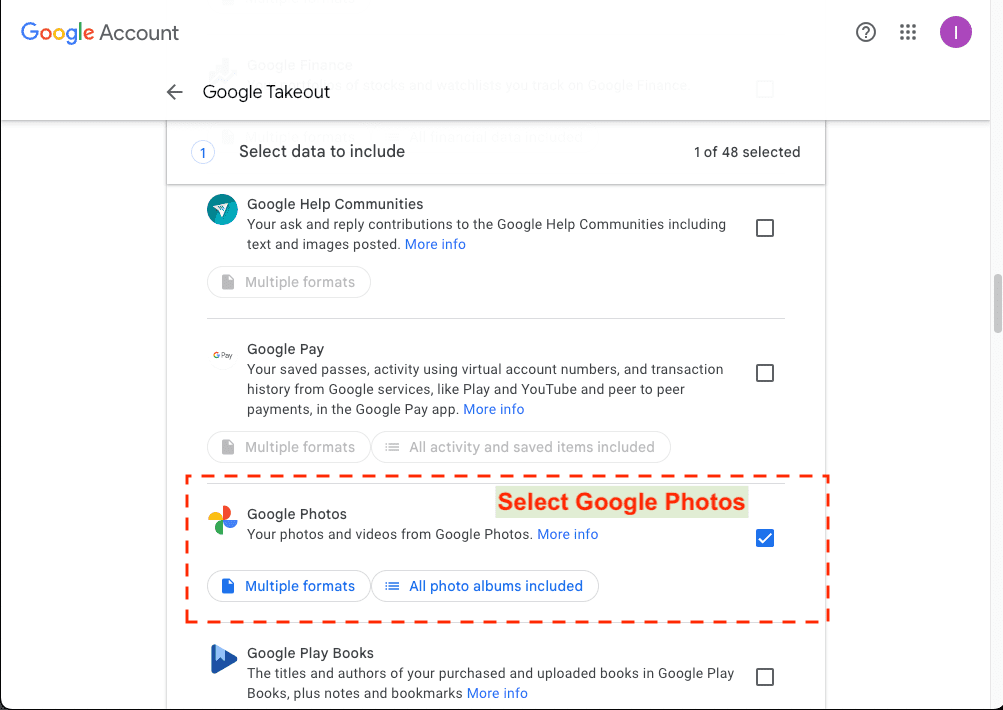
- Select Your Data: Click "Deselect all" and scroll down to select only "Google Photos." You can also choose specific albums if you don't want to export everything.
- Choose Export Frequency: Select "Export once" for a one-time download. For regular updates, choose to schedule exports every 2 months for a year.
- Select File Type & Size: Choose your preferred file format and maximum archive size. .zip format and 2GB size are recommended.
- Create Export: Click "Next step" and then "Create export." Google will prepare your download, which can take a few hours to several days.
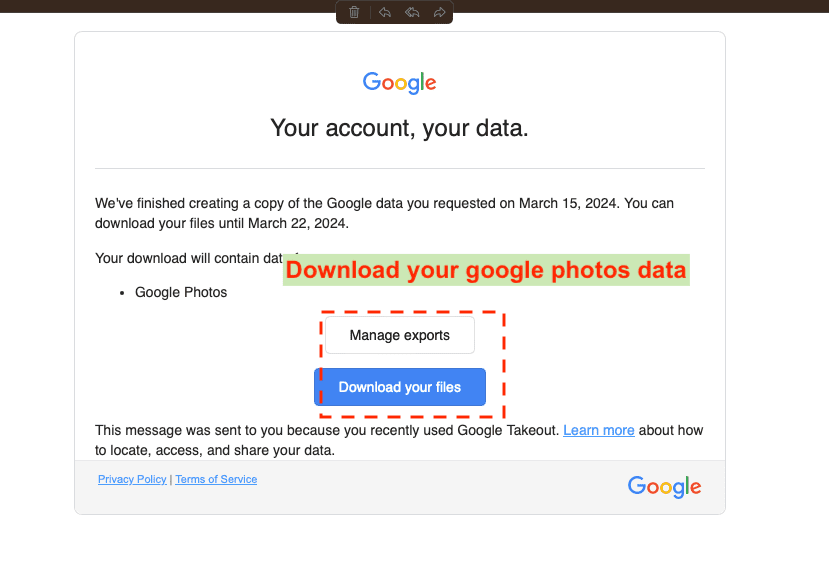
- Download Your Photos: Google will email you a download link. Follow the link and download the archives to your computer.
Extracting Google Photos Archive
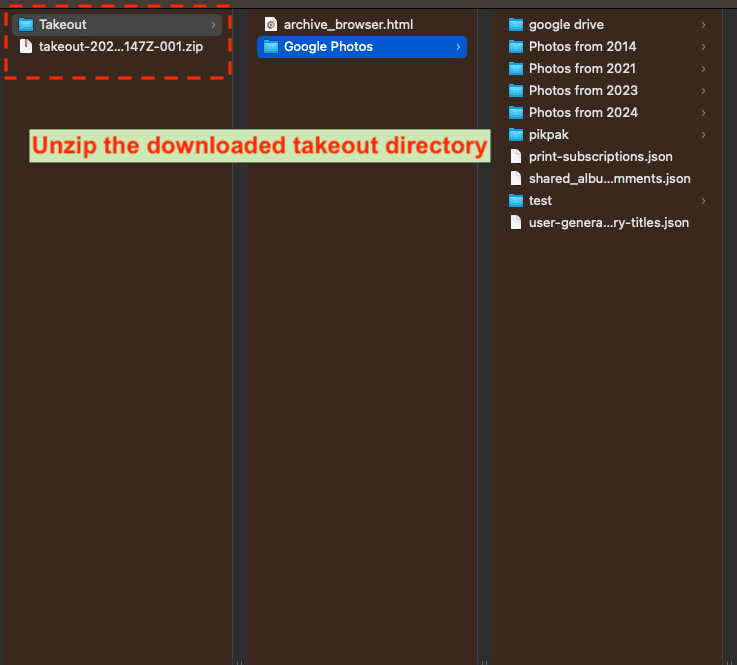
- Locate the Downloaded Archive: Find the downloaded .zip files from Google Takeout on your computer.
- Extract the Files: Use a file extraction tool or simply right-click on the .zip file and select "Extract All..." to unpack the contents of the archive, revealing the folders and files containing your Google Photos data.
- Review Extracted Content: Open the extracted folders to ensure that all your photos and albums from Google Photos are present and correctly extracted. This is also a good time to reorganize or rename files and folders if needed for easier management once uploaded to your NAS.
Importing Photos to Synology NAS
- Access Your Synology NAS: Log in to DSM (DiskStation Manager) on your Synology NAS using a web browser.
- Prepare Your Storage: Consider organizing your photos within Synology NAS by creating shared folders or using Synology Photos to create albums for different years, events, or subjects.
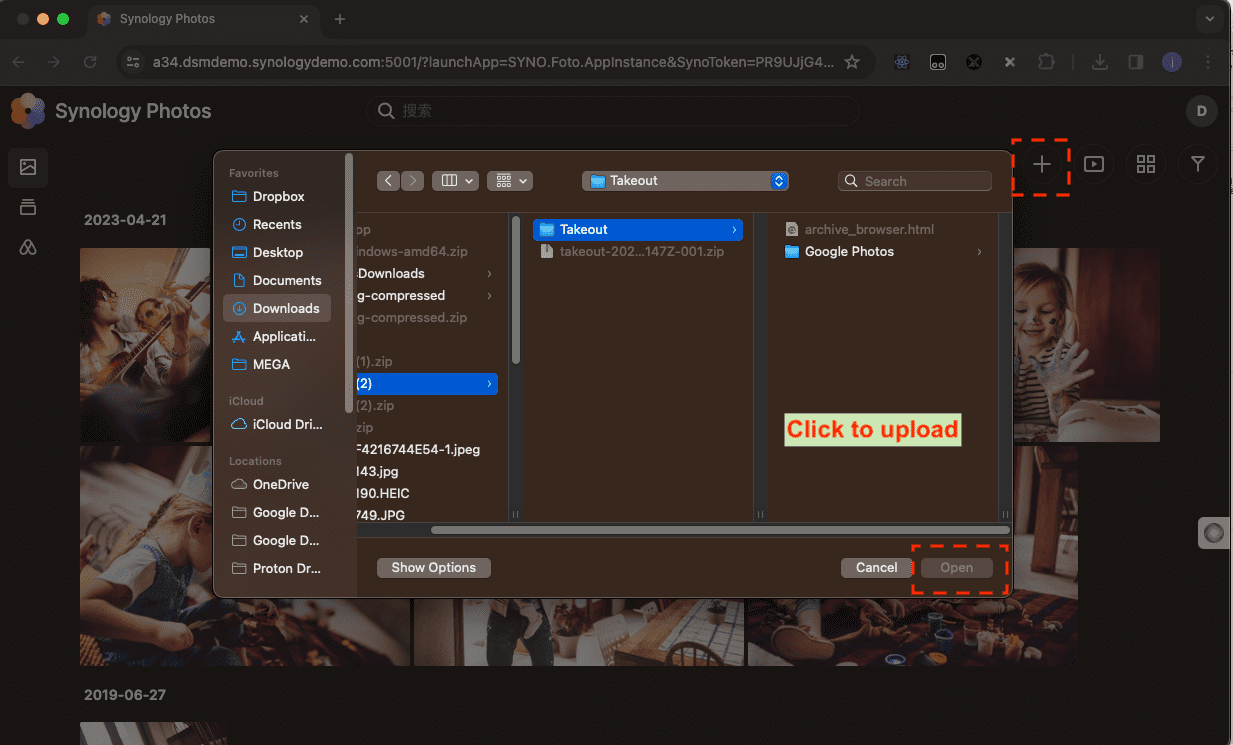
- Upload Photos: You can upload your photos through the File Station in DSM, drag-and-drop directly into Synology Photos, or use Synology Drive Client for continuous backup and synchronization.
Additional Tips for Synology NAS
- Check Upload Progress: DSM provides progress indicators for uploads within File Station or Synology Photos.
- Verify Uploads: Ensure all photos have been correctly uploaded by navigating through your Synology folders or albums in Synology Photos.
- Organize Within DSM: Take advantage of Synology's file management and photo organization features to rename files, create additional folders, and sort photos for easy access and sharing.
Method 2: Using Synology Photo Station
Setting Up Photo Station
- Install Photo Station: Log in to DSM on your Synology NAS. Open Package Center, find Photo Station, and click Install.
- Configure Photo Station: Once installed, open Photo Station. Go through the initial setup wizard to configure basic settings according to your preference.
- Create Albums: In Photo Station, create albums to organize your photos. You can replicate the organization from Google Photos or establish a new structure that suits your needs.
- Set Permissions: Adjust the privacy settings and sharing permissions for each album, ensuring your photos are as public or private as you wish.
Importing Photos Automatically
- Enable Auto-Import: In DSM, navigate to Control Panel > Application Portal. Ensure that Photo Station is configured to allow automatic import from designated folders.
- Prepare Folders: On your computer, organize your exported Google Photos into folders that mirror the albums you want in Photo Station.
- Use Synology File Station or Drive: Upload your organized folders to the 'photo' shared folder on your NAS using File Station or Synology Drive Client. Photo Station will automatically import these photos into the corresponding albums.
- Check the Import: Once the upload is complete, open Photo Station to verify that your photos have been imported into the albums correctly. You may need to refresh or wait a few moments for all photos to appear.
Method 3: Third-Party Tools
Two CloudsLinker Routes — Pick One First
CloudsLinker connects to the NAS over the internet (Step 1 below) and copies to it on its own servers, so no computer has to stay on. On the Google side there are two sources:
| You want to move | Use | What arrives in the NAS |
|---|---|---|
| The whole library, albums included | Google Takeout route | Google's original files in year and album folders, ready for Synology Photos |
| Up to 2,000 photos you pick | Photo Picker route (Steps 1–5) | Individual files; no albums, no location data; videos as Google's transcoded copy |
Selected Photos with the Photo Picker
Step 1: Integrating NAS with CloudsLinker
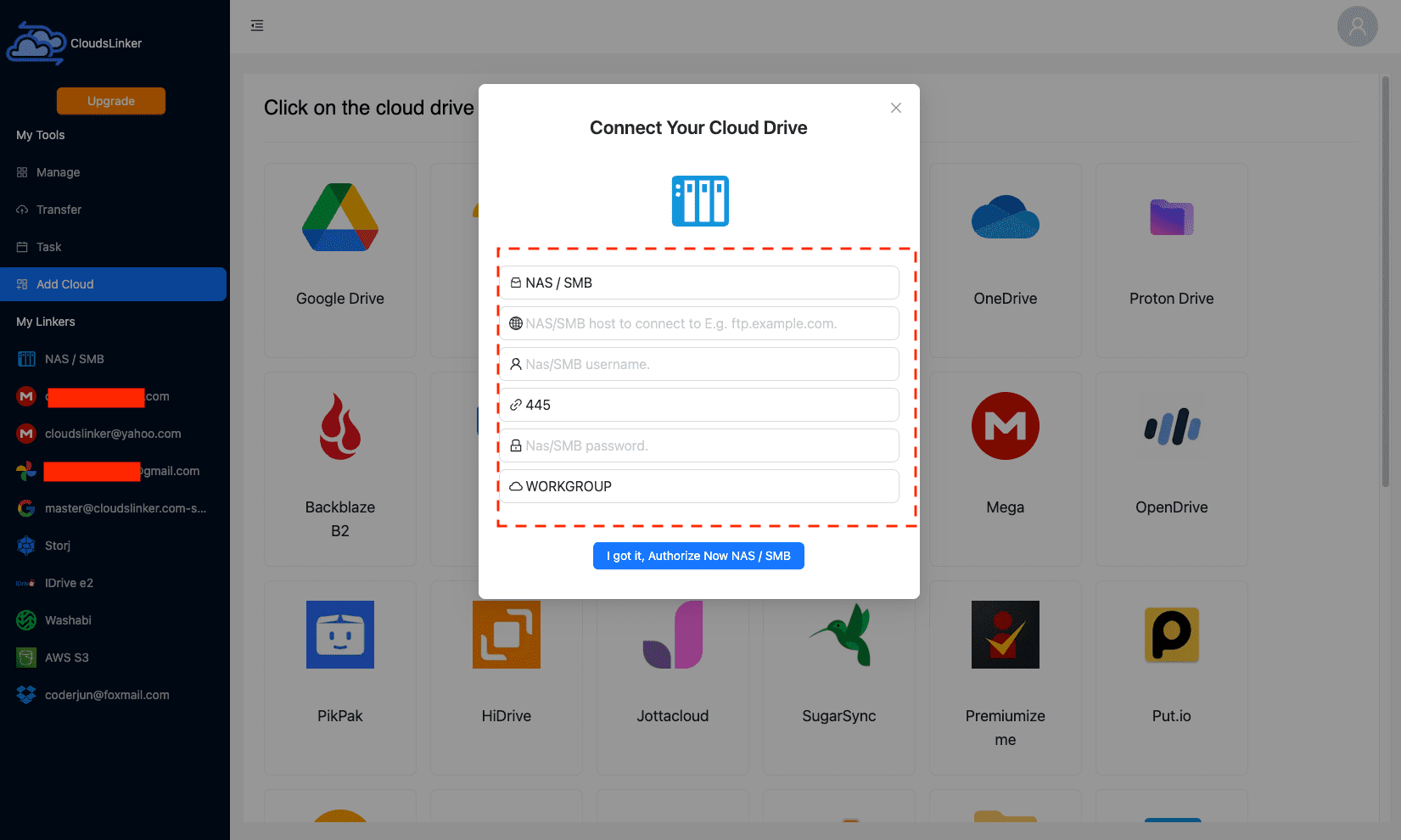
Begin by connecting your NAS to CloudsLinker. Make sure your NAS is accessible over the internet. In CloudsLinker, select 'Add Cloud' and choose NAS. Fill in the necessary details such as the NAS access host, username, password, and domain name (default is WORKGROUP). Click 'Add' to establish the connection.
Step 2: Setting Up Google Photos on CloudsLinker
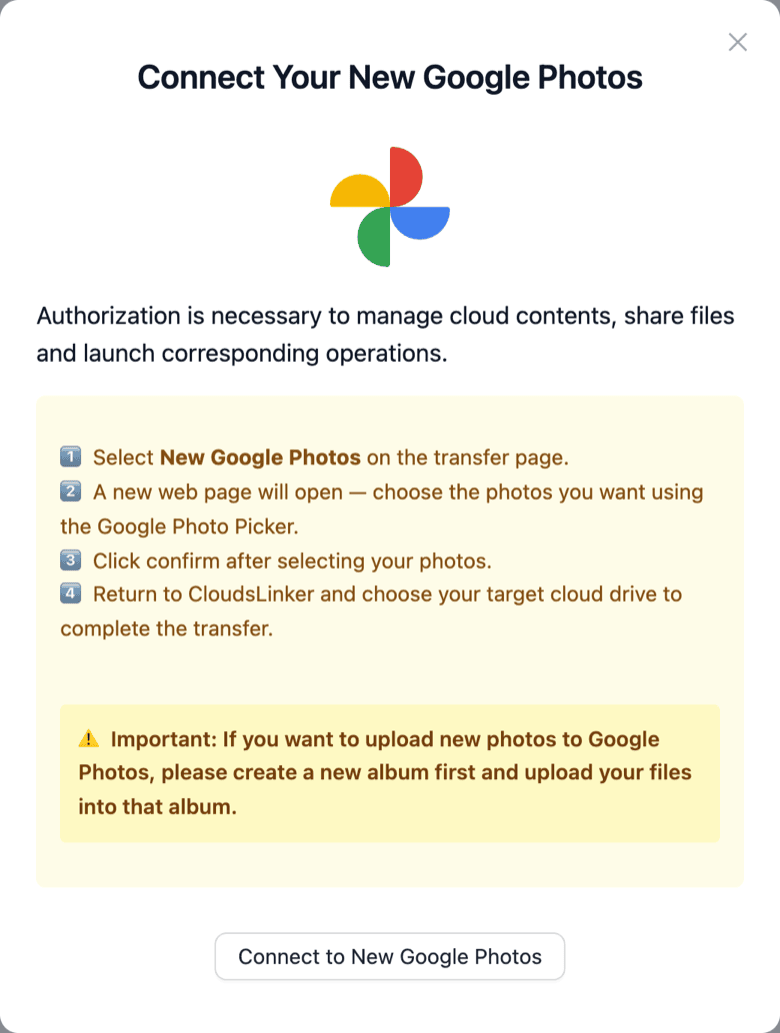
In CloudsLinker, click Add Cloud, choose New Google Photos and sign in on Google's own page. Since April 2025 Google no longer lets apps read a whole Photos library, so the photos are picked in Google's Photo Picker in Step 3; for the whole library, use the Takeout route after Step 5.
Step 3: Initiate the Transfer from Google Photos to Synology NAS
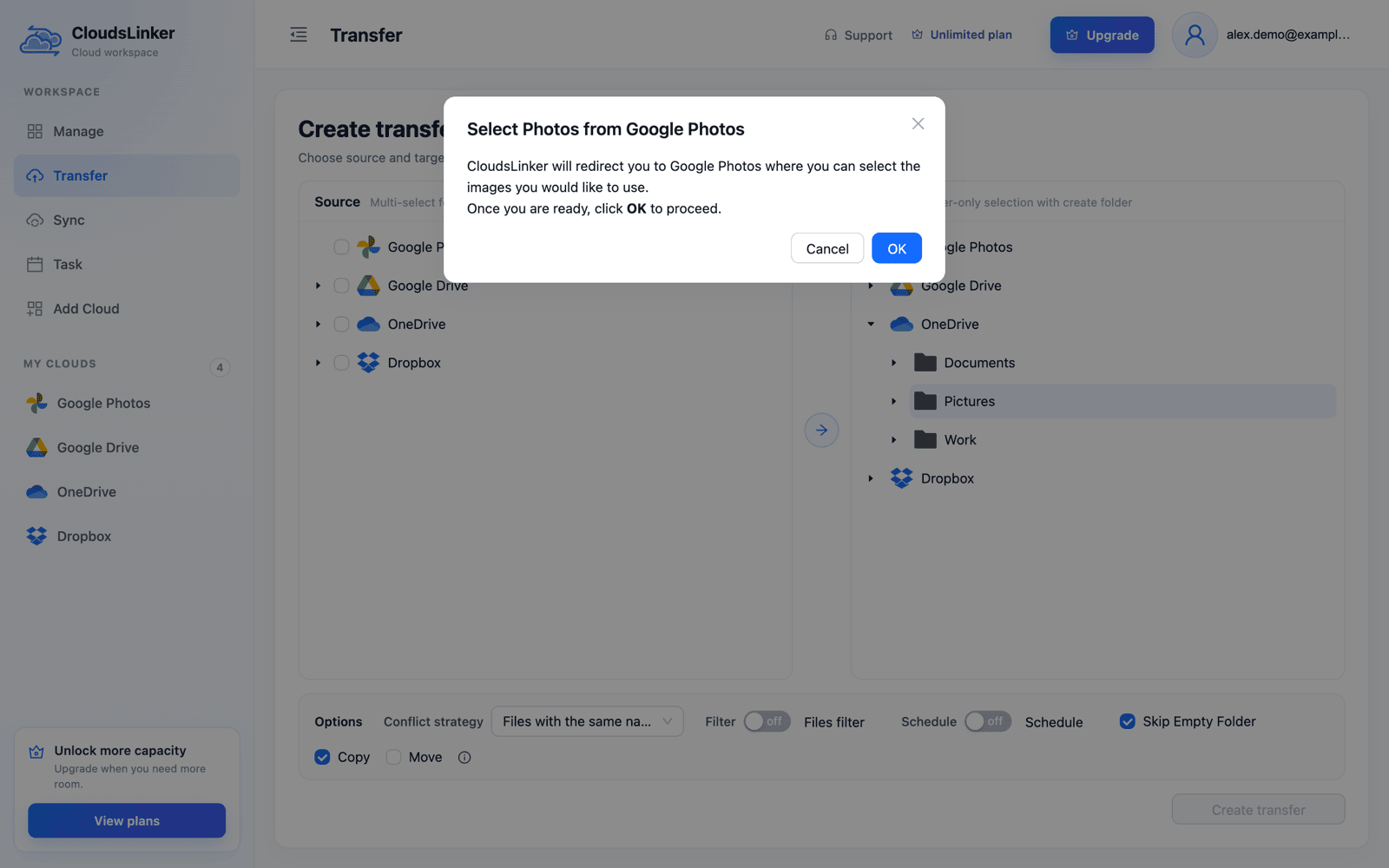
Open Transfer and tick New Google Photos as the source. Click OK in Select Photos from Google Photos, pick up to 2,000 photos and videos in the Google Photos tab that opens, confirm, and return to CloudsLinker. Select a shared folder on the Synology NAS — for Synology Photos, the photo folder or your personal Photos folder — as the destination and click Create transfer. Picked items arrive without albums and without location data, and videos as Google's transcoded copy.
Step 4: Monitor Transfer Tasks
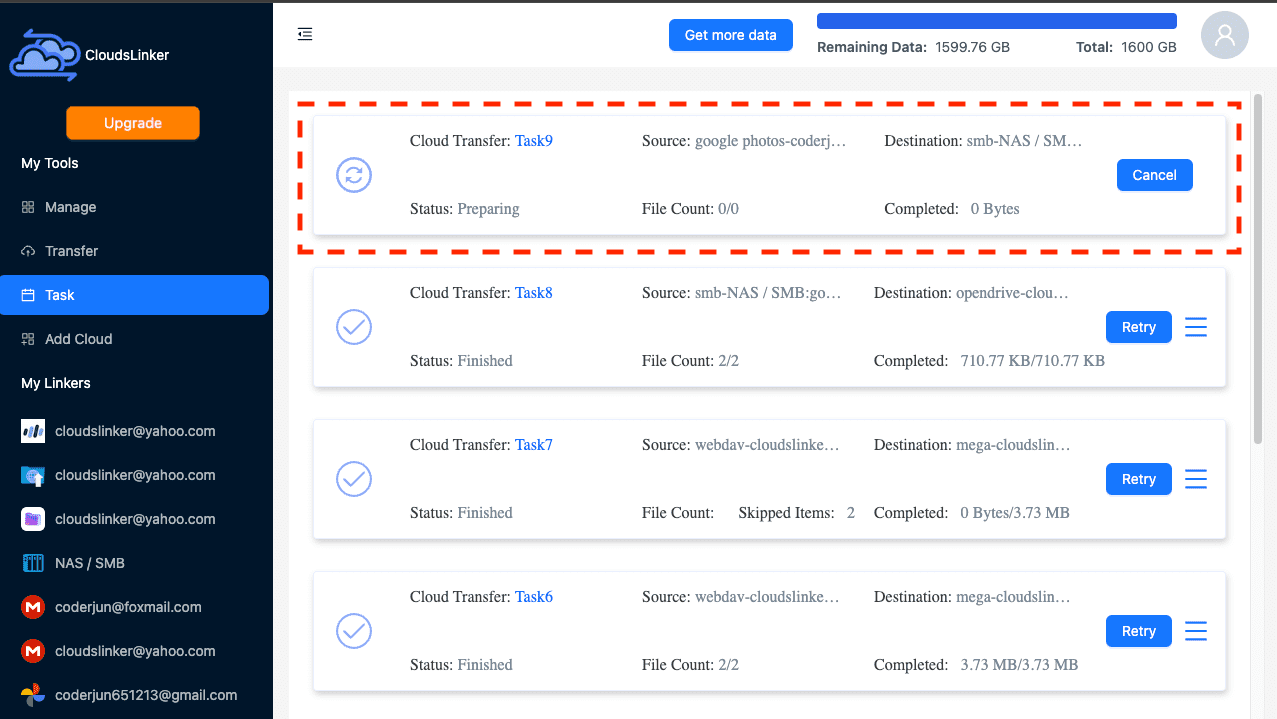
After initiating the transfer, monitor its progress in CloudsLinker's 'Task' section. Here, you can manage or adjust the transfer tasks as necessary, providing full control over the migration process.
Step 5: Confirm Transfer Completion
CloudsLinker will notify you once the transfer is complete. Verify the migration by opening the destination folder on your NAS, or Synology Photos once it has indexed the new files. This step ensures all desired content has been moved and is accessible from your Synology NAS.
The Whole Library with Google Takeout
A NAS is where many people want the complete, untouched library — and Google Takeout is the only export that still contains it, as original files with a folder per album. Instead of downloading the zips and extracting them on a computer as in Method 1, send the export to Google Drive and let CloudsLinker copy the photos out of the zips onto the NAS.
Step 1: Export Google Photos to Google Drive
At takeout.google.com select only Google Photos, keep .zip with 2 GB or 10 GB parts and choose Add to Drive as the delivery method. The zips go into Drive's Takeout folder and count toward your Google storage until you delete them. Connect that Google Drive in CloudsLinker once Google emails that the export is ready.
Step 2: Add the Export as a Google Takeout
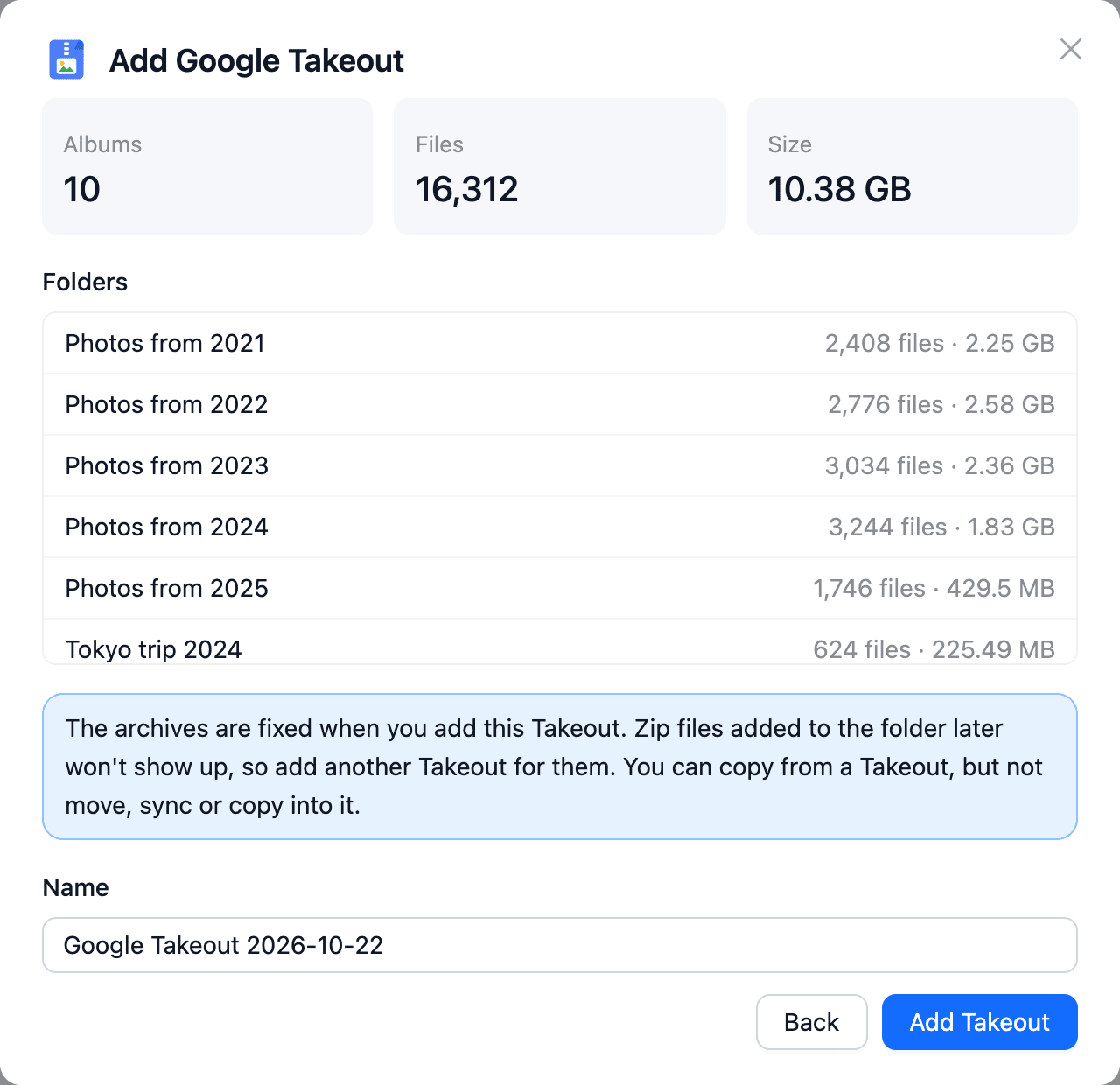
Choose Add Cloud → Google Takeout, select the Google Drive under Cloud with your export, tick the Takeout folder and click Check archives. Check the folders, file count and unpacked size against the free space on the NAS volume, then click Add Takeout.
Step 3: Copy the Year Folders to the NAS
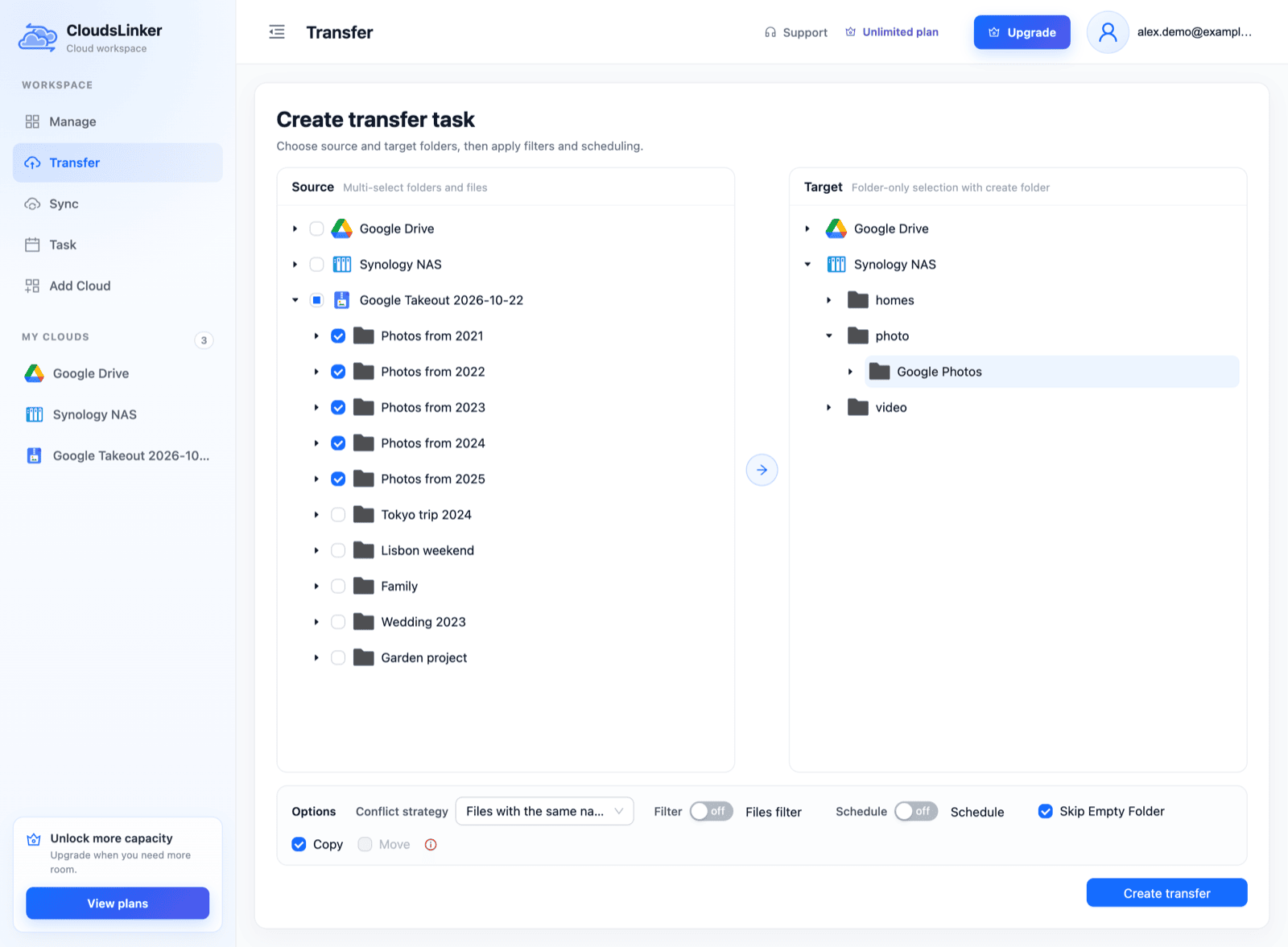
On Transfer, tick the Takeout's Photos from YYYY folders and, under the NAS connection from Step 1, select a folder Synology Photos indexes — for example a new Google Photos folder inside the photo share. Keep Copy and click Create transfer. The NAS has to stay reachable from the internet for the whole task.
Synology Photos builds its timeline from the dates stored inside Google's original files. The .supplemental-metadata.json files are worth keeping in a NAS archive — they record the capture date of pictures that have none embedded — but exclude json with Filter if you'd rather not see them in File Station. Album folders repeat album photos, so add them only if you want the album structure as folders. Full walkthrough: Unzip Google Takeout in the Cloud.
Utilizing CloudsLinker for transferring photos offers a streamlined, efficient cloud-to-NAS data migration. It's designed to be user-friendly, providing a robust solution for managing digital content transfers with minimal effort.
Maximizing Synology NAS After Photo Migration
Streamlining File Organization in Synology NAS
Post-migration, optimizing the arrangement of your files in Synology NAS is key for streamlined access and management:
- Implement folder structures: Construct folders in Synology NAS to systematically categorize your photos based on event, date, or priority, facilitating swift file location.
- Utilize Synology's robust sharing features: Employ Synology NAS’s comprehensive sharing features to securely distribute files and folders, with detailed control over permissions.
- Harness Synology's version control: Use Synology's version control capability to monitor edits and revert to older versions when necessary, improving file handling efficiency.
Bolstering Your Synology NAS Security
Given Synology NAS's emphasis on security, further measures can enhance the protection of your stored photos:
- Activate two-factor authentication (2FA): Implementing 2FA for your Synology account introduces an additional security layer, safeguarding against unwarranted access.
- Update your password frequently: Periodically refreshing your Synology account password helps in preserving account security and deterring unauthorized entry.
- Monitor sharing permissions meticulously: Regularly assess your shared files and folders, modifying sharing settings as needed to retain oversight of your digital content.
Maximizing Synology NAS's Potential Post-Transfer
Adapting to Synology NAS’s ecosystem after transferring photos can unlock new efficiencies and capabilities:
- Explore Synology's mobile apps: Utilize Synology’s mobile applications for access on the go, ensuring your files are always within reach, regardless of your location.
- Integrate with third-party apps: Connect Synology NAS with other applications you use for a streamlined workflow, enhancing productivity and collaboration.
- Customize your storage setup: Take full advantage of Synology NAS’s flexible storage solutions and customization options to tailor your digital content management to your needs.
Frequently Asked Questions
Conclusion
Transferring your Google Photos library to a Synology NAS is more than just a backup strategy; it's a step towards owning and controlling your digital legacy. With the right tools and approaches, you can ensure that your digital memories are preserved, organized, and secure on your terms. For the full library, the Google Takeout route with CloudsLinker gets every original file onto the NAS without a local download.
Online Storage Services Supported by CloudsLinker
Transfer data between over 60 cloud services with CloudsLinker

OneDrive

Google Drive

Google Photos

Google Takeout

Shared Drive

OneDrive for Business

Dropbox

Box

Mega

pCloud

Yandex

ProtonDrive

AWS

GCS

iDrive

Storj

DigitalOcean

Wasabi

1fichier

PikPak

TeleBox

OpenDrive

Backblaze B2

Fastmail file

SharePoint

Nextcloud

ownCloud

Premiumize me

HiDrive

Put.io

Sugar Sync

SmugMug

Jottacloud

Seafile

Ftp

SFtp

NAS

WebDav

4shared

Icedrive

Cloudflare R2

Scaleway

Hetzner Object Storage

Synology C2 Object Storage

S3 Compatible

Doi

iCloud Drive

iCloud Photos

FileLU

Zoho WorkDrive

Telia Cloud / Sky

Drime

Filen

TeraBox

Internxt

Degoo

Gofile

Pixeldrain

Shade

Koofr
Didn' t find your cloud service? Be free to contact: [email protected]
Further Reading
Effortless FTP connect to google drive: Transfer Files in 3 Easy Ways
Learn More >
Google Photos to OneDrive: 3 Innovative Transfer Strategies
Learn More >
Google Photos to Proton Drive: 3 Effective Transfer Techniques
Learn More >