Effortless Guide to Shifting from Google Photos to pCloud
Discover a seamless approach to moving your cherished photo collection from Google Photos to pCloud, and learn how this switch can elevate your cloud storage strategy.
Introduction
As our digital lives grow richer, securing and organizing memories through cloud services has become indispensable. This guide introduces top-tier cloud storage practices, highlighting the strengths of leading platforms, and offers a comprehensive pathway for transferring your data from Google Photos to pCloud. For the complete library with its albums, use the Google Takeout route, which copies a Takeout export from Google Drive into pCloud.
Quick Navigation
A Closer Look at Google Photos
Google Photos continues to be a trusted platform for automated photo backups and smart organization, simplifying how users manage and revisit their visual history. Its AI-driven search, sharing features, and clean interface make it a practical solution for personal photo libraries.
Shifting to pCloud from Google Photos offers a more versatile and privacy-focused environment. It enables users to expand their storage scope and enjoy enhanced control over their data without sacrificing convenience.
Standout Capabilities of Google Photos
- Seamless Backup and Sorting: Uploads your photos automatically and classifies them logically, making retrieval fast and intuitive.
- AI-Powered Search Engine: Allows instant location of images through object, location, or facial recognition.
- Quick and Simple Sharing: Lets you share content effortlessly with anyone using albums, links, or collaborative tools.
- Cross-Platform Consistency: Keeps your media in sync across all connected devices for uninterrupted access.
Why Users Prefer Google Photos
Google Photos offers a streamlined and intelligent experience tailored for everyday users. Transitioning to pCloud unlocks new potentials with secure storage, intuitive collaboration tools, and a greater focus on user privacy and data ownership.
- User-Friendly Navigation and Smart Tagging: Delivers a clean interface and advanced sorting features that make managing media easy for everyone.
- Flexible Sharing and Integration: Integrates smoothly with countless apps and services, supporting a connected and efficient media-sharing workflow.
Getting to Know pCloud
pCloud is a rising star in the cloud storage sector, praised for its robust encryption, user-controlled privacy settings, and flexible storage plans. It’s designed for those who value both security and ease of use, providing a trustworthy space to manage, store, and share digital assets.
Migrating to pCloud changes how you interact with cloud storage by placing a premium on user rights and data confidentiality. With features like zero-knowledge encryption and offline access, pCloud delivers a secure yet user-centric storage experience.
Core Features of pCloud
- Customizable Storage Options: Allows you to tailor storage plans based on personal or professional needs, with flexible upgrade paths.
- Powerful File Management Interface: Includes robust tools for organizing, searching, and sharing files efficiently within a sleek UI.
- Top-Tier Security and Offline Access: Offers client-side encryption and file access even without an internet connection, reinforcing reliability and privacy.
The Advantages of Transitioning from Google Photos to pCloud
Moving your photo archive from Google Photos to pCloud introduces a refined and privacy-focused approach to cloud storage, unlocking a range of meaningful advantages:
- Flexible and Affordable Storage Plans: Unlike Google Photos, where free space is limited and paid tiers can quickly become costly, pCloud offers scalable and cost-effective storage options—some even as one-time payments—giving users more value and long-term flexibility for growing photo libraries.
- Enhanced Privacy and Data Control: pCloud stands apart with its zero-knowledge encryption (available via pCloud Crypto), ensuring that only you have access to your most private files. This level of privacy protection surpasses what’s offered in Google Photos, giving you full command over your data.
- Robust File and Folder Management: With pCloud, users gain access to powerful file structuring, versioning, and advanced syncing features. This superior management ecosystem allows for better organization than Google Photos, especially when handling mixed media files and folders.
- Secure and Versatile Sharing Features: pCloud equips users with enhanced file-sharing controls—link expiration, password-protected access, and detailed permissions—providing a greater degree of customization and security than traditional Google Photos sharing.
Switching from Google Photos to pCloud is more than a routine transfer—it’s a strategic upgrade to a cloud environment centered on user privacy, intelligent storage flexibility, and robust file handling. Whether you’re looking for secure sharing or efficient management, pCloud delivers the tools to take your digital storage setup to the next level.
Prepping for Your Seamless Migration to pCloud
To facilitate a successful transition to pCloud’s secure and flexible storage system, some preliminary steps are key. Here’s how to get ready for a streamlined migration:
- Account Preparation: Make sure your Google Photos account is active and that you’ve set up your pCloud account. If you plan to use pCloud Crypto, consider enabling it early to benefit from added privacy during the migration process.
- File Structuring in Advance: Organizing your photo folders and albums in Google Photos before transferring helps you retain clarity and structure in your pCloud account, making post-migration browsing more intuitive.
- Planning for Smart Storage Use: Even though pCloud offers ample space, sorting and grouping your content ahead of time will enhance how efficiently you utilize its folder-based organization, syncing, and sharing capabilities.
Preparing both accounts, curating your files, and planning your folder layout in advance will ease the shift to pCloud and help you make the most of its user-oriented features. With a little preparation, your cloud storage experience can become more private, efficient, and future-ready.
Navigating Your Move from Google Photos to pCloud
Step 1: Export Your Google Photos via Google Takeout
Head over to https://takeout.google.com/ to begin exporting your media. Select 'Google Photos' from the available services and choose the albums or files you want to include. Google Takeout will compile these into downloadable archive files, which may take several hours for large libraries.
Step 2: Retrieve and Inspect Your Downloaded Archive
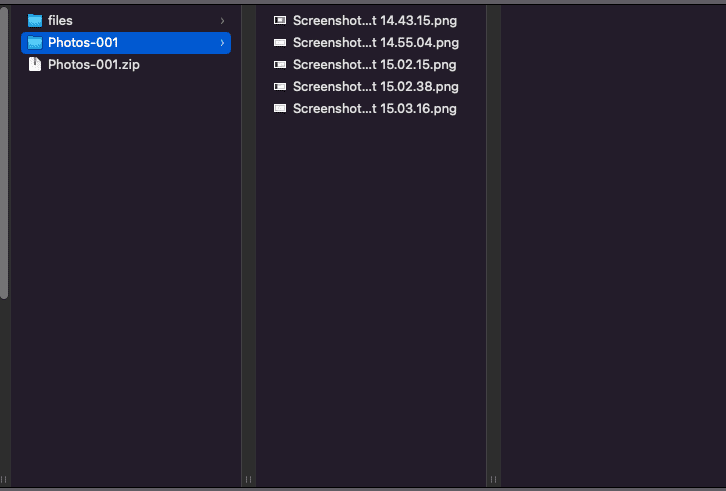
Once the archive is ready, Google will notify you via email with a download link. Save the archive to your device and unzip it to verify your photos and videos are intact and accessible before proceeding.
Step 3: Sign in to Your pCloud Account
Visit https://www.pcloud.com/ and log in with your credentials. If you haven’t yet enabled pCloud Crypto or two-factor authentication, consider activating them to maximize data privacy and security.
Step 4: Upload Your Files to pCloud
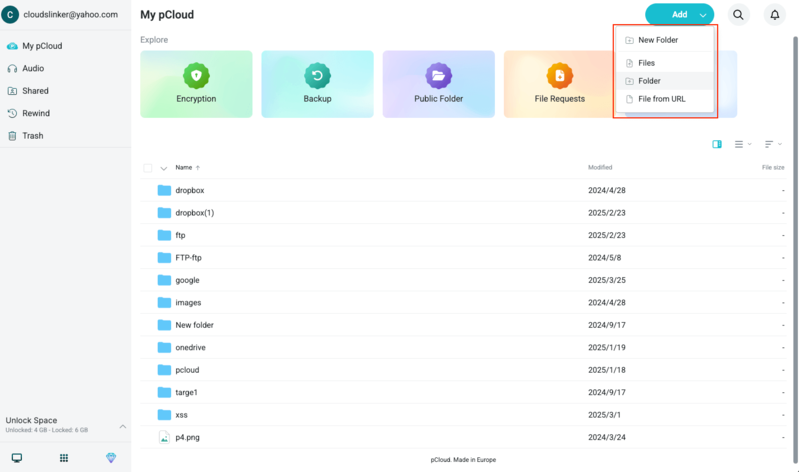
Within your pCloud dashboard, choose 'Upload' and select the files or folders from your extracted archive. You can upload all files at once or in batches. pCloud supports drag-and-drop and bulk uploads, making the process smooth and user-friendly.
By uploading your Google Photos archive to pCloud, you’re moving your data into a privacy-respecting environment with advanced storage and sharing features. This step not only secures your digital memories but also future-proofs your media management.
Essential Tools and Services for Smooth Photo Migration
Discover CloudsLinker:
CloudsLinker transforms the way users migrate data across 36+ cloud platforms, streamlining the journey from Google Photos to pCloud. Celebrated for its secure and bandwidth-free cloud-to-cloud transfers, CloudsLinker uses strong encryption and eliminates the need to download files locally. Designed for both individuals and enterprises, it simplifies large-scale migrations with powerful syncing and a user-friendly interface. Explore more about its features in our detailed Knowledge Base.
Which route suits your move to pCloud?
Google lets CloudsLinker read your photos in two ways:
| You want to move | Use | What arrives |
|---|---|---|
| Everything, with your albums as folders | Google Takeout + CloudsLinker | Google's original files in year and album folders |
| A curated set of up to 2,000 photos | Photo Picker — the steps below | Individual files; no albums or location data; transcoded videos |
Step 1: Add Google Photos to CloudsLinker
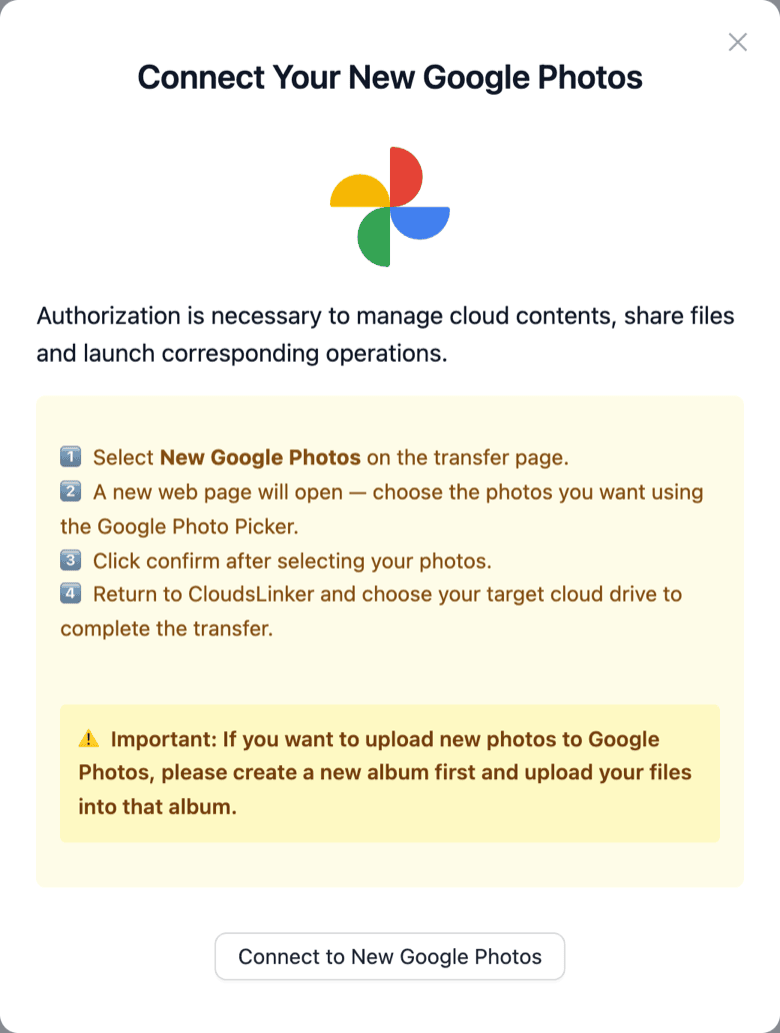
Log into CloudsLinker, click Add Cloud and choose New Google Photos, then sign in on Google's own page. Since April 2025 Google no longer lets apps read a whole Photos library, so this connection does not list your albums: you pick the photos for each transfer in Google's Photo Picker when you set up the transfer.
Step 2: Connect Your pCloud Account
Add button to successfully link your pCloud account.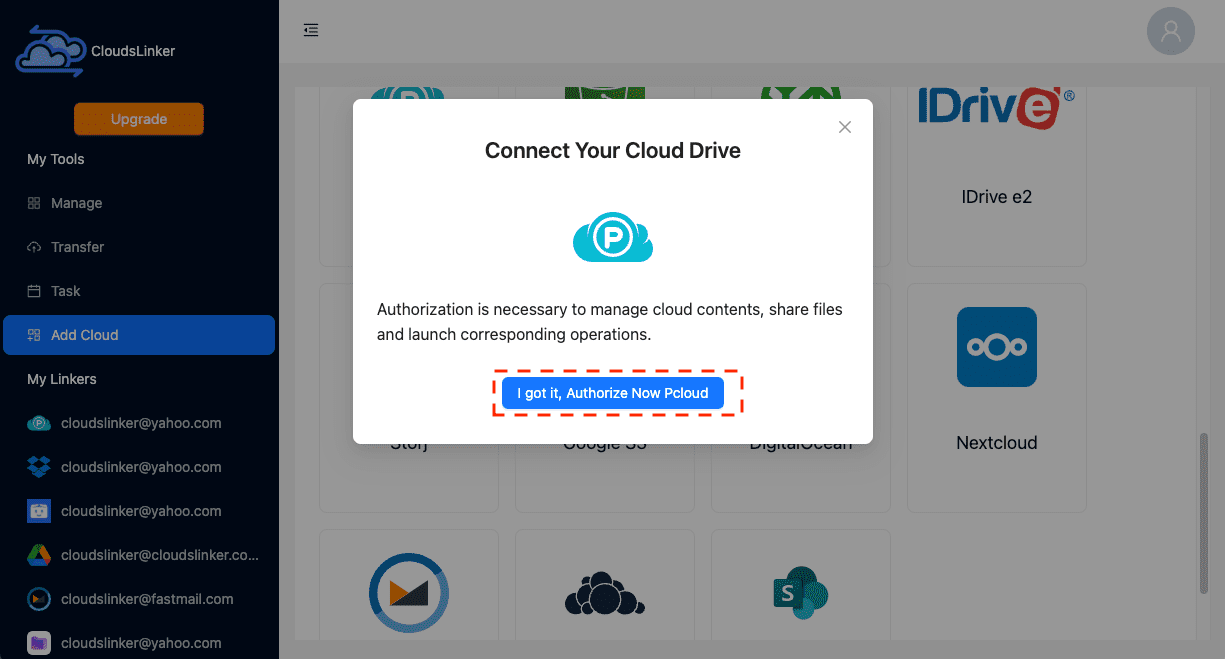
Step 3: Configure Transfer from Google Photos to pCloud
Open Transfer and tick New Google Photos as the source. CloudsLinker shows Select Photos from Google Photos: click OK, pick up to 2,000 photos and videos in the Google Photos tab that opens, confirm the selection and come back to CloudsLinker. Then select a pCloud folder such as My Pictures/Google Photos as the target and click Create transfer. Picked items are copied as individual files: albums are not recreated, photos arrive without their location data and videos as Google's transcoded copy.
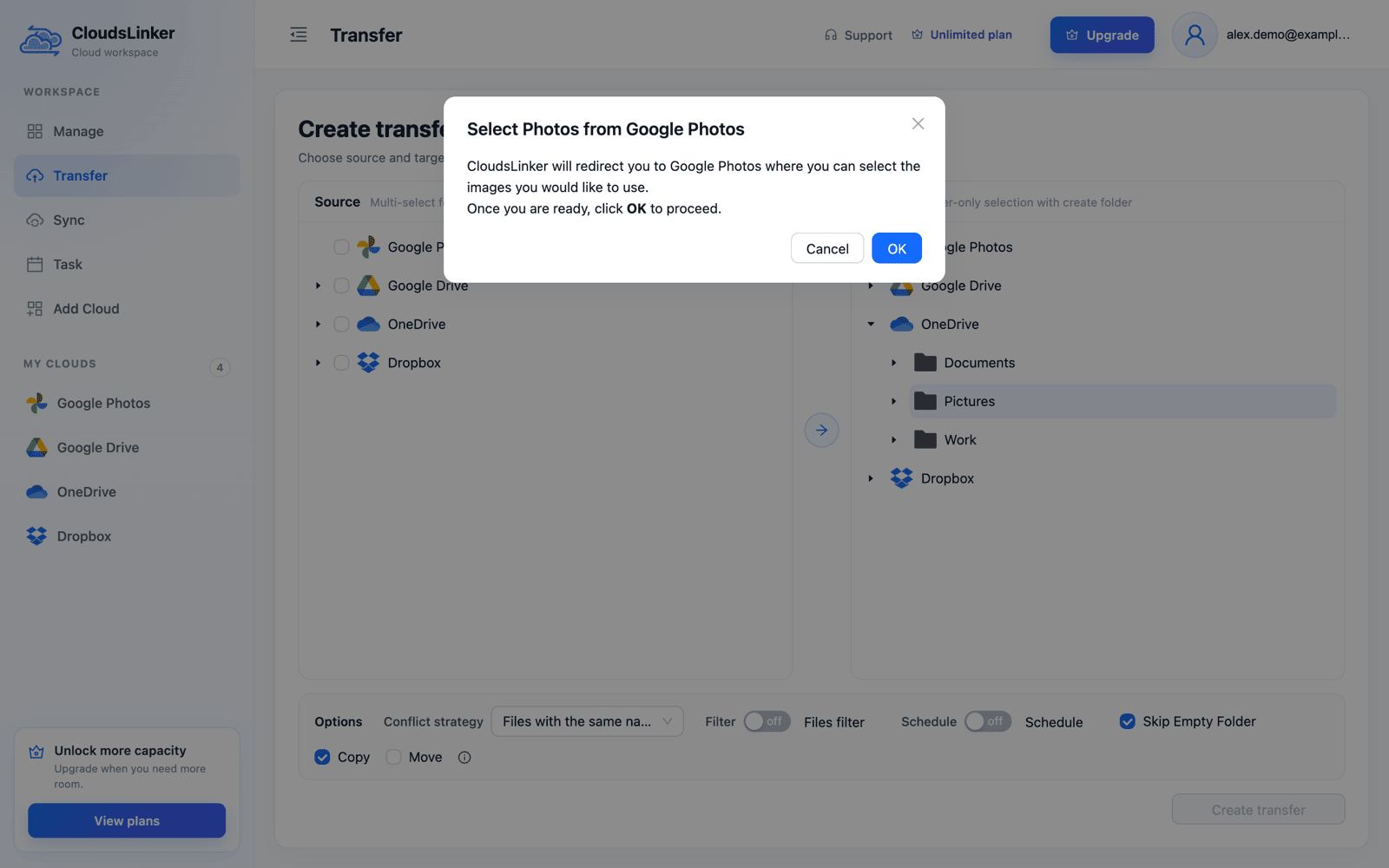
Moving the whole library, albums included? The Google Takeout route is built for that.
Step 4: Launch the Transfer
Double-check your configurations and initiate the migration. CloudsLinker directly transfers your media from Google Photos to pCloud over the cloud, without downloading anything locally. Real-time progress can be monitored through the intuitive dashboard.
Step 5: Confirm the Transfer in pCloud
Once the migration is complete, log into your pCloud account to verify everything arrived as expected. Check your folders and files to ensure your photos and videos are properly transferred and neatly organized.
Method 3: Move the Whole Library to pCloud with Google Takeout + CloudsLinker
The Photo Picker is fine for a curated set, but a full move to pCloud calls for Google Takeout: it exports the entire library as original files, one folder per year and per album. pCloud sets no limit on file size, so long videos from the export go through as they are. CloudsLinker copies the export from Google Drive to pCloud without the download-unzip-upload loop.
Step 1: Export Google Photos to Google Drive
In Google Takeout (takeout.google.com) select only Google Photos, choose Add to Drive as the delivery method and .zip files of 2 GB or 10 GB. When the export is complete, connect that Google Drive to CloudsLinker. The zips take Google storage until you delete them.
Step 2: Add the Export as a Google Takeout
Back in CloudsLinker, go to Add Cloud → Google Takeout, select Google Drive under Cloud with your export and tick the zips or the folder they are in. Check archives lists the folders inside — each year and each album — with file counts and the unpacked size. One Takeout can hold up to 500 zips. Click Add Takeout.
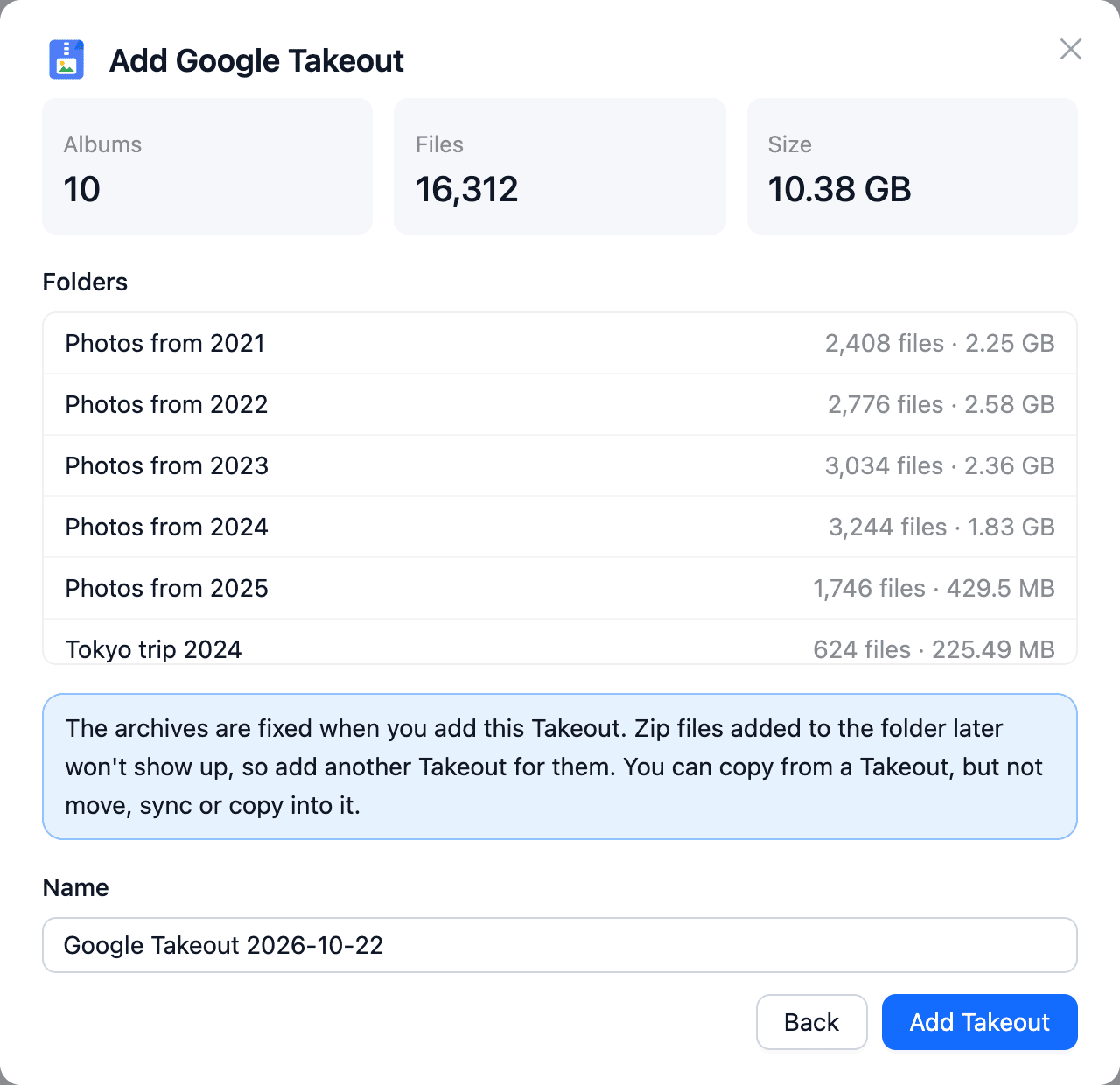
Step 3: Copy the Folders into pCloud
On Transfer, tick the Takeout's Photos from YYYY folders, then select pCloud as the target and create a folder under My Pictures, for example My Pictures/Google Photos. A Takeout only allows Copy. Click Create transfer and watch the progress in the task list.
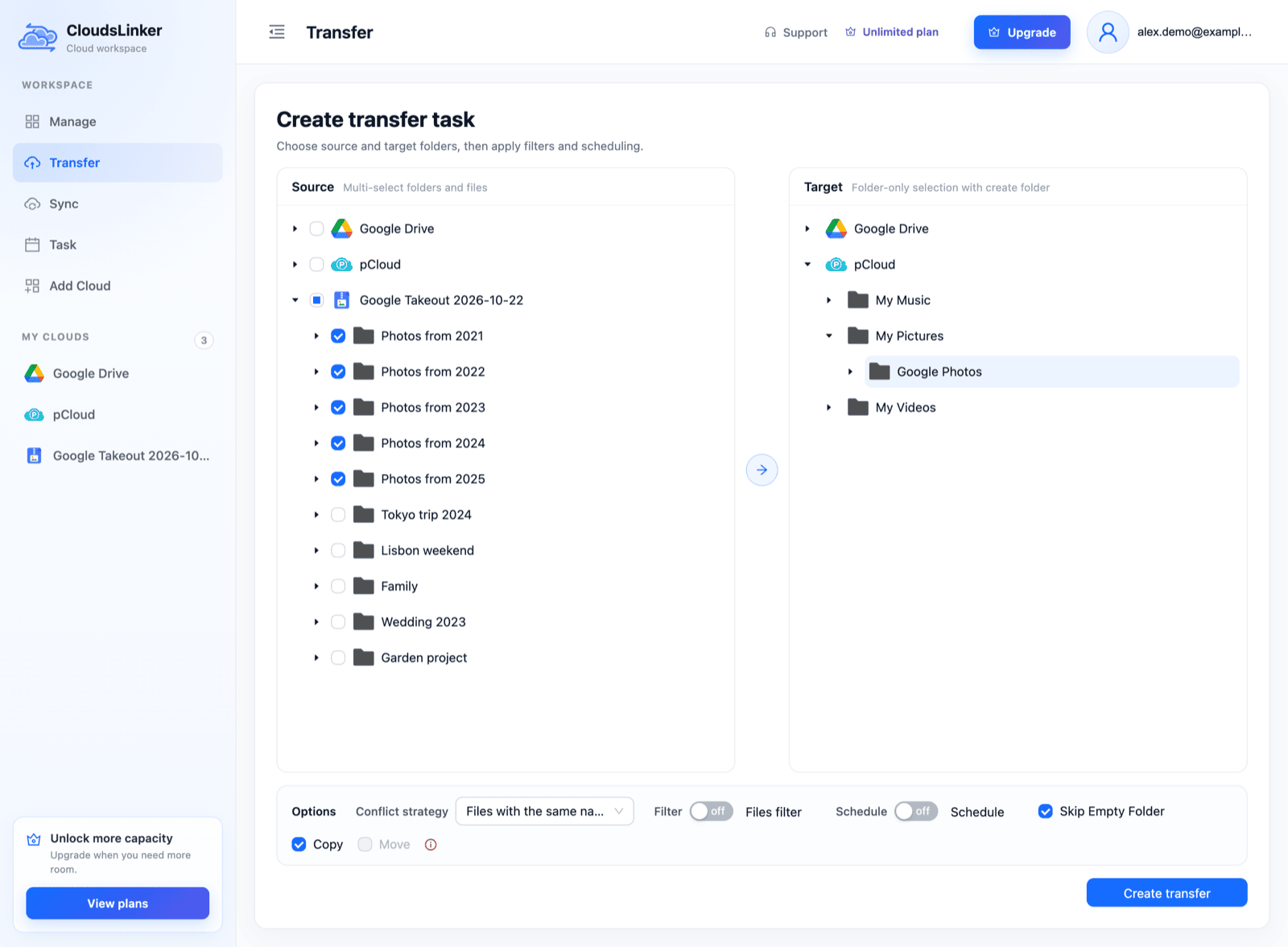
pCloud shows folders exactly as they arrive, so choose deliberately: year folders for a complete archive, album folders for your curated sets, both if duplicates don't bother you. Exclude json with Filter to skip the metadata file Takeout adds to every photo. Delete the zips in Drive afterwards. Details: Unzip Google Takeout in the Cloud.
Maximizing pCloud's Potential After Transferring from Google Photos
Organizing Your Photo Library Effectively in pCloud
Once your migration to pCloud is complete, it's time to fine-tune your photo organization to ensure smooth navigation and access:
- Create a structured folder hierarchy: Group your images into folders by event, date range, or themes—this makes browsing easier and improves long-term organization in pCloud.
- Utilize pCloud’s share management features: Use pCloud’s link-based sharing options with password protection and expiration dates to manage access to albums and photos securely.
- Enable file versioning for important media: pCloud’s version history helps you recover previous versions of edited photos, offering peace of mind when making changes or accidental deletions.
Strengthening Photo Security with pCloud
Protecting your newly migrated photo collection is key—pCloud offers several features to help you secure your content:
- Enable two-step login protection: Add an extra layer of defense to your pCloud account by activating two-step authentication, helping prevent unauthorized access.
- Use strong and regularly updated passwords: Change your pCloud password periodically and ensure it’s unique and complex to reduce the risk of breaches.
- Audit and update your sharing settings: Check who has access to your shared files and albums and revoke any outdated or unnecessary links to maintain control.
Making the Most of pCloud’s Features Post-Migration
Take full advantage of pCloud’s productivity tools and integrations to enhance your photo management experience:
- Use the pCloud mobile app for accessibility: Easily view, upload, and share your images on the go using the pCloud mobile app, available for both Android and iOS devices.
- Integrate with third-party apps: Connect pCloud with your other productivity or creative tools to streamline workflows and keep your media accessible across platforms.
- Review and upgrade your storage plan: Explore pCloud’s flexible plans—including lifetime options—to ensure you have ample space for growing photo collections.
Frequently Asked Questions: Google Photos to pCloud Migration
How do I keep my photos safe during the migration?
What are the advantages of switching from Google Photos to pCloud?
Is it possible to automate the transfer process?
How can I avoid data loss when moving my photos?
Will there be any costs involved in migrating to pCloud?
Can I move my whole Google Photos library to pCloud with its albums?
Watch Our Step-by-Step Video Tutorial
learn how to backup photos from Google Photos to Pcloud using Cloudslinker. Experience the convenience of cloud-to-cloud transfers with zero local effort! Let Cloudslinker handle the heavy lifting while you sit back and relax.
Conclusion
To close our step-by-step journey, we highlight the key benefits of moving from Google Photos to pCloud, offering valuable insights into how this change can optimize your storage capabilities. If you are moving everything, the Google Takeout route carries the albums and Google's original files over to pCloud in one task.
Online Storage Services Supported by CloudsLinker
Transfer data between over 62 cloud services with CloudsLinker

OneDrive

Google Drive

Google Photos

Google Takeout

Shared Drive

OneDrive for Business

Dropbox

Box

Mega

pCloud

Yandex

ProtonDrive

AWS

GCS

iDrive

Storj

DigitalOcean

Wasabi

1fichier

PikPak

TeleBox

OpenDrive

Backblaze B2

Fastmail file
SharePoint

Nextcloud

ownCloud

Premiumize me

HiDrive

Put.io

Sugar Sync

SmugMug

Jottacloud

Seafile

Ftp

SFtp

NAS

WebDav

4shared

Icedrive

Cloudflare R2

Scaleway

Hetzner Object Storage

Synology C2 Object Storage

S3 Compatible

Doi

iCloud Drive

iCloud Photos

FileLU

Zoho WorkDrive

Telia Cloud / Sky

Drime

Filen

TeraBox

Internxt

Degoo

Gofile

Pixeldrain

Shade

Koofr

Dosya

Infomaniak kDrive
Didn' t find your cloud service? Be free to contact: support@cloudslinker.com
Further Reading
Effortless FTP connect to google drive: Transfer Files in 3 Easy Ways
Learn More >
Google Photos to OneDrive: 3 Innovative Transfer Strategies
Learn More >
Google Photos to Proton Drive: 3 Effective Transfer Techniques
Learn More >