Google Takeout to OneDrive: Unpack the Zips Without Downloading Them
Takeout can add a Google Photos export to OneDrive, but OneDrive can't open a zip. Unpack the parts in place, size the storage, or use the manual fallback.
Introduction
Google Takeout has an Add to OneDrive option, so a Google Photos export can go straight from Google to Microsoft without touching your computer. What arrives, though, is a stack of zip files — 2 GB each by default — and OneDrive can't do anything with them: open one in the browser and you get Can't preview this file and a Download button. Microsoft's own advice for Takeout zips is to sync them to a PC and extract them there.
This guide covers the whole OneDrive path: how the export gets in (and why some Google accounts don't offer OneDrive at all), what OneDrive does with the zips, how much storage the move really takes on a 2026 Microsoft 365 plan, and two ways to turn the parts into photo folders — server-side with CloudsLinker's Google Takeout import, or by downloading, extracting and using Folder upload.
- The Short Answer
- Getting the Export Into OneDrive
- What OneDrive Does With a Takeout Zip
- Plan the Space: Zips, Photos and Album Copies
- Choose a Route
- Method 1: Unpack the Export in the Cloud With CloudsLinker
- Method 2: Download, Extract, Folder Upload
- In OneDrive Afterwards
- Video walkthrough
- Frequently Asked Questions
The Short Answer
Takeout can write a Google Photos export into OneDrive, but only as zip files, and OneDrive can't
extract a zip on the web. Turn the zips into folders either by letting
CloudsLinker read them in place and copy the photos into
Pictures, or by downloading and extracting them on a
computer and uploading the result.
If Takeout doesn't offer Add to OneDrive for your account, export to Google Drive and copy from there — the photos end up in OneDrive just the same.
Getting the Export Into OneDrive
At takeout.google.com, select Google Photos only and go to Choose file type, frequency & destination. In Transfer to, choose Add to OneDrive. Takeout says it will upload the files to OneDrive and email you a link to their location; the button at the bottom becomes Link accounts and create export, which opens Microsoft's permission prompt.
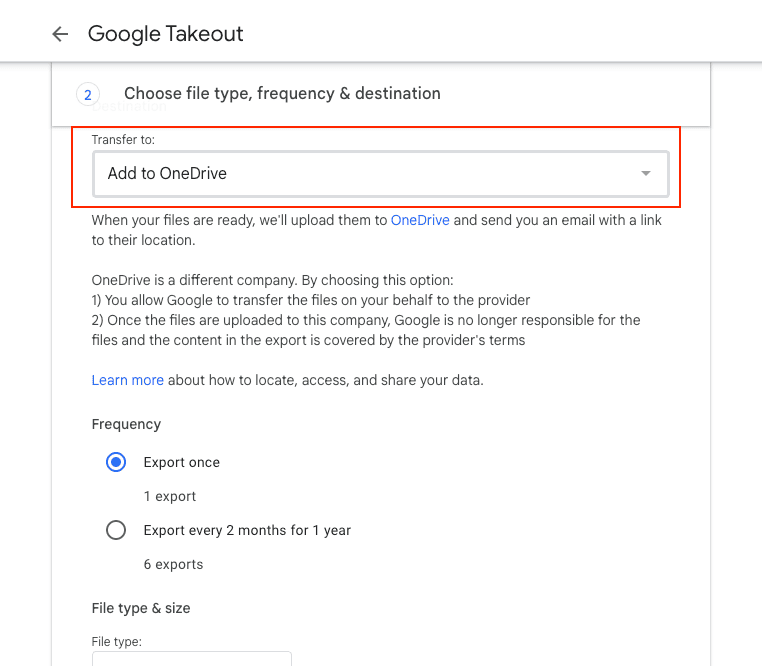
Three details matter before you start:
- Each OneDrive export needs a fresh approval. Google's help notes that for future exports to OneDrive you'll need to give Google access again (Google help).
-
The parts land in an Apps folder. Takeout writes into
Apps › Google Download Your
                    Data
; the email's View in OneDrive button opens it. The photos are not mixed intoPictures. - Not every account offers OneDrive. On the Google Workspace account we used for testing, Transfer to listed Send download link via email, Add to Drive, Add to Dropbox and Add to Box — no OneDrive. Choose Add to Drive then, and copy from Drive to OneDrive in Method 1.
Keep the file type at .zip (the other choice is .tgz) and the part size at 2 GB or 10 GB; the menu offers 1, 2, 4, 10 and 50 GB.
What OneDrive Does With a Takeout Zip
We put a real Takeout part — the one holding the photos of a small test export — into OneDrive and opened it in the browser. OneDrive showed Can't preview this file. Open the file or download it to view in your desktop app. and a Download button. There is no list of the files inside and no extract command, in the viewer or in the folder toolbar.
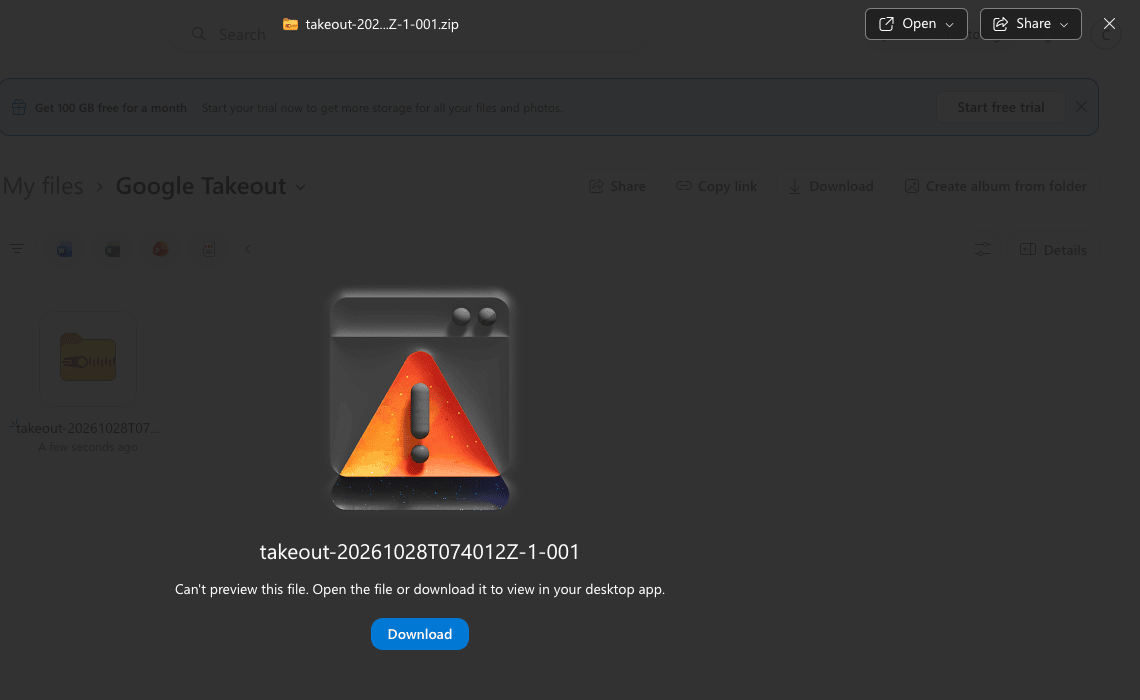
Microsoft's own community answer to people holding Takeout zips in OneDrive is the same: sync them to a PC and extract them there (Microsoft Q&A). Dropbox at least extracts zips up to 512 MB in the browser — see Google Takeout to Dropbox — but OneDrive doesn't extract any size, and the OneDrive Photos view doesn't look inside zips either.
Plan the Space: Zips, Photos and Album Copies
The zips count against your OneDrive storage, and so do the photos you extract from them. Until the zips are
deleted you need room for both. On top of that, Takeout stores every album photo twice — once in its
Photos from YYYY folder and again in the album folder — so copying everything adds the album
photos a second time.
| OneDrive storage (2026) | Room for |
|---|---|
| Free, 5 GB | A test export only |
| Microsoft 365 Basic, 100 GB ($1.99/month) | About 50 GB of photos, if the zips and the extracted copy share the space |
| Microsoft 365 Personal, 1 TB | About 500 GB of photos delivered as zips, more if the export goes to Google Drive instead |
| Microsoft 365 Family, 2 TB shared by up to six people (plans bought from 8 October 2026) | Depends on what the others use; extra storage can be added up to 10 TB per subscription |
Existing Family subscriptions move to the shared 2 TB pool at their first renewal on or after 2 May 2027 (Microsoft). A single file can be up to 250 GB in OneDrive (limits), so even 50 GB Takeout parts fit, but smaller parts are easier to handle on both routes.
Choose a Route
| Your situation | Route |
|---|---|
| Export already in OneDrive, any size | Method 1, with OneDrive as both the export and the target |
| No Add to OneDrive option, or OneDrive too small for zips plus photos | Export to Google Drive, then Method 1 from Drive to OneDrive |
| A few gigabytes, a fast connection and free disk space | Method 2, download, extract and Folder upload |
Method 1: Unpack the Export in the Cloud With CloudsLinker
CloudsLinker adds the zips as a read-only Google Takeout: it reads each part's table of contents, merges all parts into one folder tree, and copies photos straight out of the zips into OneDrive, checking each against the CRC-32 checksum stored in the archive.
Step 1: Export Google Photos to OneDrive (or Drive)
Create the export as described in Getting the Export Into OneDrive: Google Photos
only, .zip, 2 GB or 10 GB parts, Add to
OneDrive — or Add to Drive if OneDrive isn't offered. Wait for Google's email
saying the export is complete. Then connect OneDrive in CloudsLinker with Add Cloud →
OneDrive; it signs in on Microsoft's page at login.microsoftonline.com. Connect Google
Drive too if the export went there.
Step 2: Add the Export as a Google Takeout
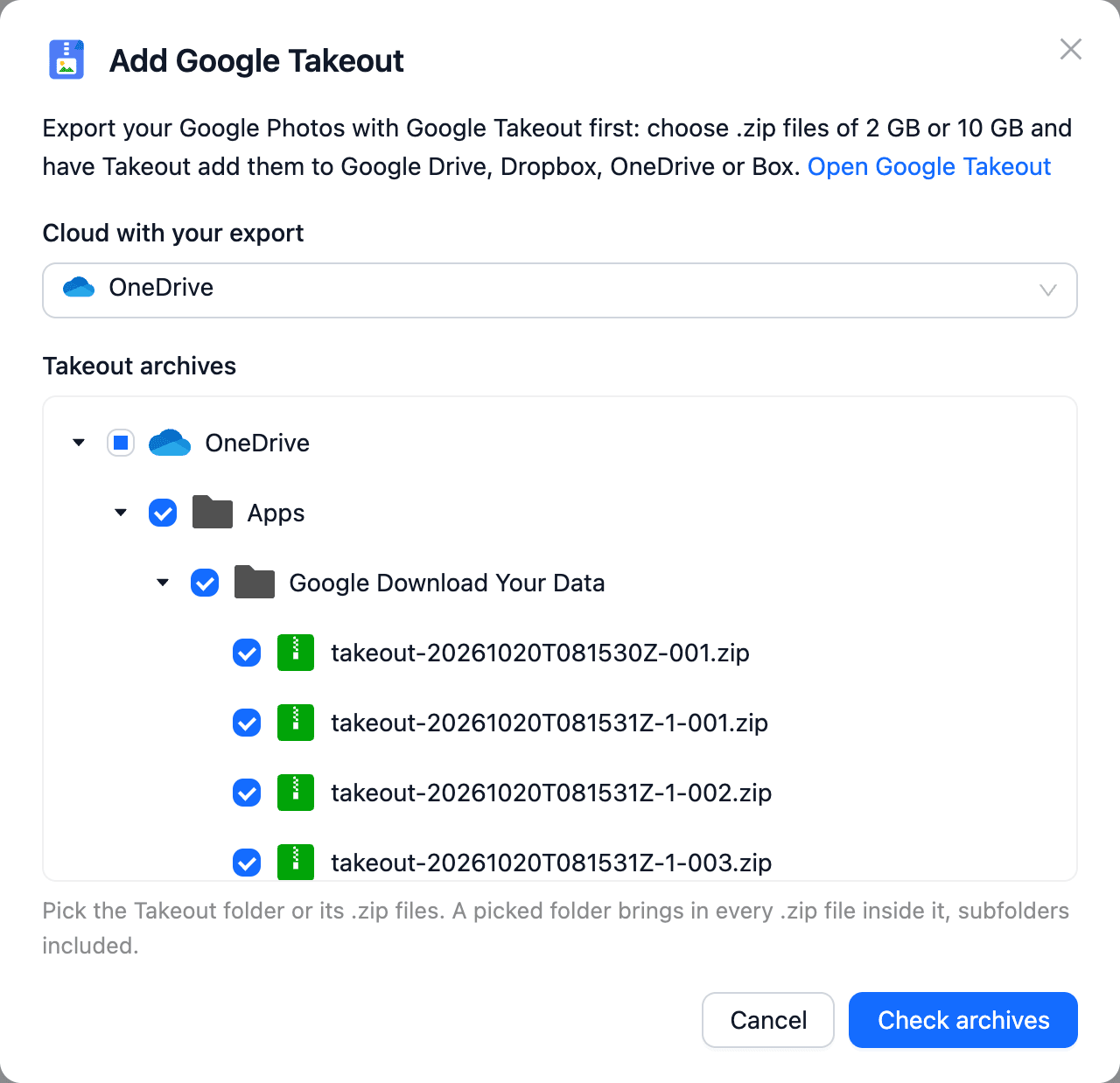
Open Add Cloud, search for takeout and choose Google Takeout. Set
Cloud with your export to OneDrive, expand Apps and tick
Google Download Your Data — a ticked folder includes every .zip inside it. (For an export in
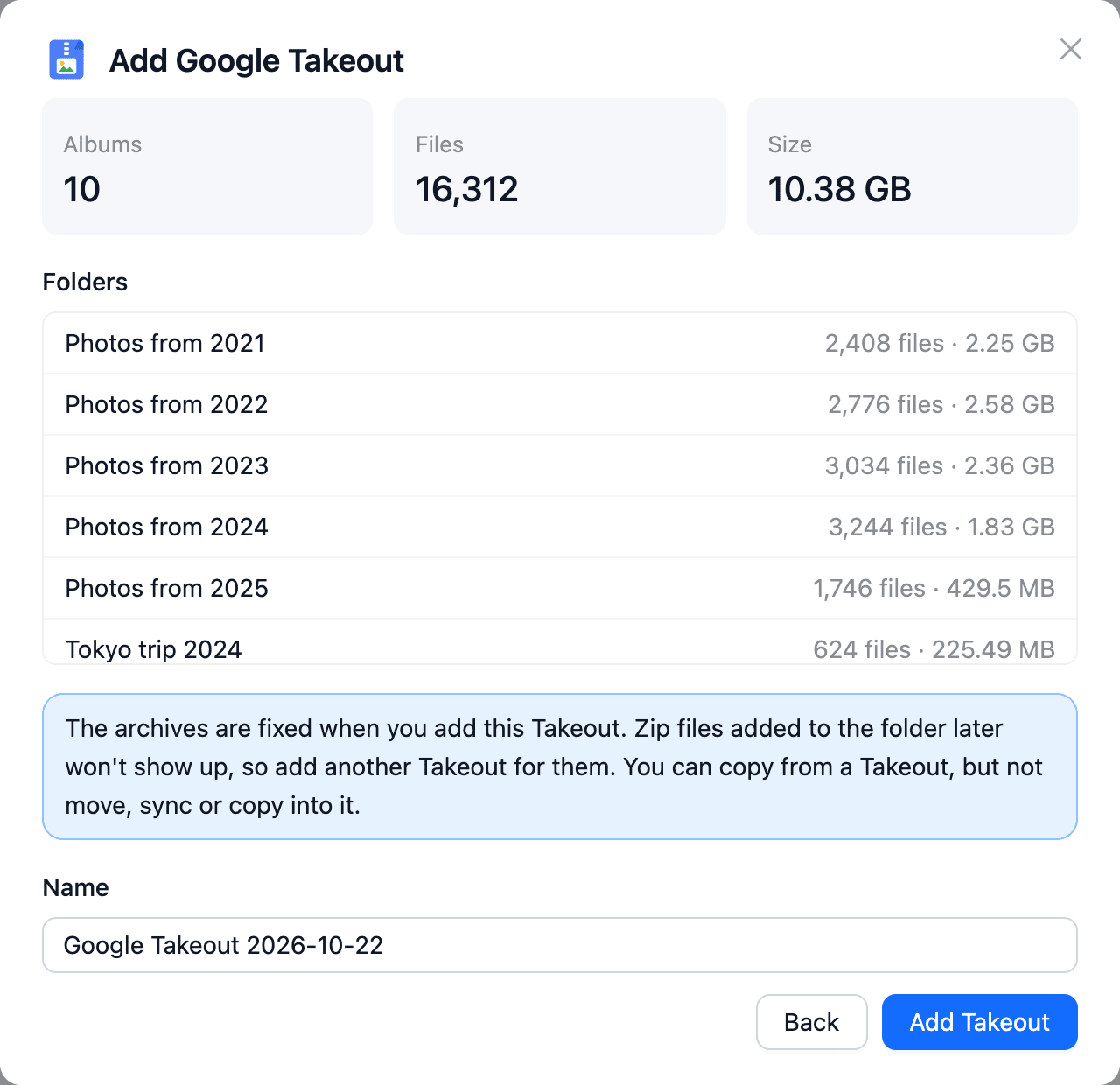
Drive, pick Google Drive and tick its Takeout folder.) Click Check archives,
review the folders and file count, name the Takeout and click Add Takeout.
Step 3: Copy the Folders Into OneDrive Pictures
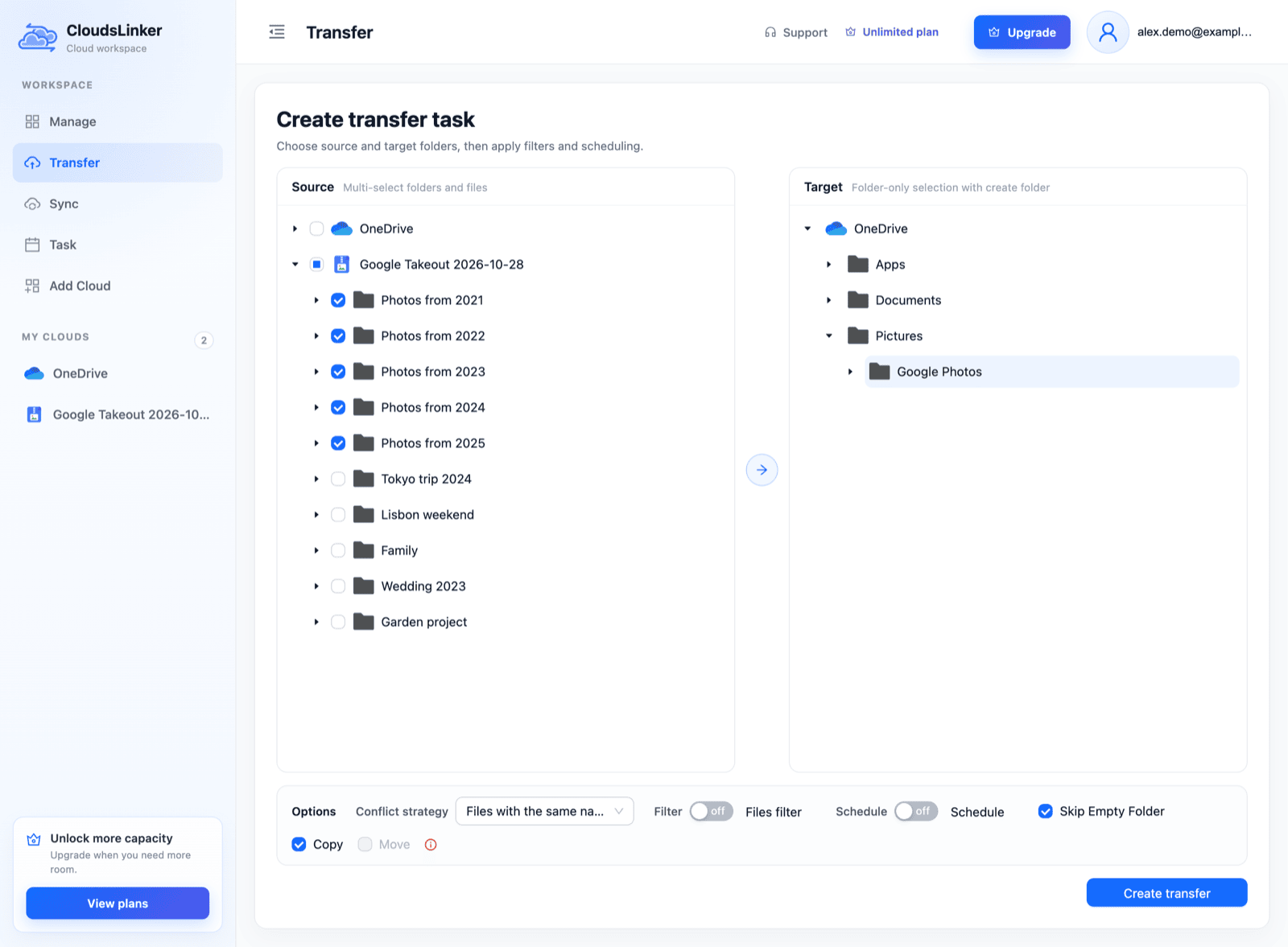
Open Transfer. In Source, expand the Takeout and tick the
Photos from YYYY folders for one copy of every photo; add album folders only if you want them as
separate folders as well. In Target, expand OneDrive, open Pictures and create
a folder such as Google Photos. Copy is selected and Move is
unavailable because a Takeout is read-only. Click Create transfer.
Step 4: Follow the Task, Then Clean Up
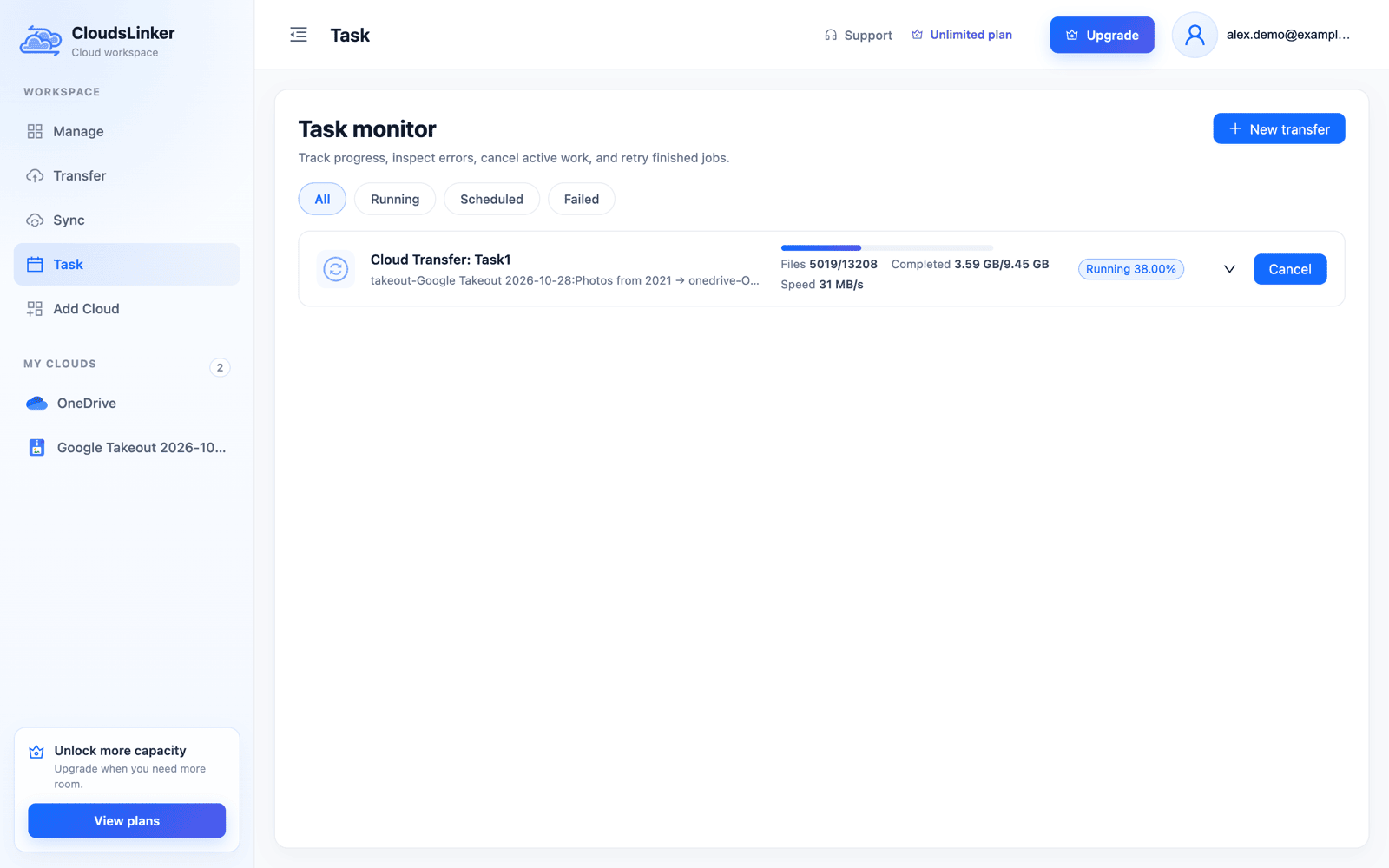
The copy runs on CloudsLinker's servers, so the browser can be closed. Task monitor shows files and bytes done and the current speed; running the task again after an interruption skips files already in OneDrive with the same size. Transfer volume is the unpacked size of what you copy.
When the folders are complete, delete the zips from Apps › Google Download Your Data and remove
the Google Takeout from CloudsLinker; it can't read zips that are gone.
Method 2: Download, Extract, Folder Upload
Without a third-party service, the zips have to make a round trip through your computer. Free disk space for the zips and the photos at the same time.
-
Download every part. In OneDrive, open
Apps › Google Download Your Dataand download each zip (the Download button in the screenshot above). If you haven't exported yet, Send download link via email skips the OneDrive detour; those links expire in about 7 days and each archive can be downloaded 5 times. - Extract all parts into one folder so album folders split across zips merge. On Windows, 7-Zip copes better than the built-in extractor with parts over 4 GB.
-
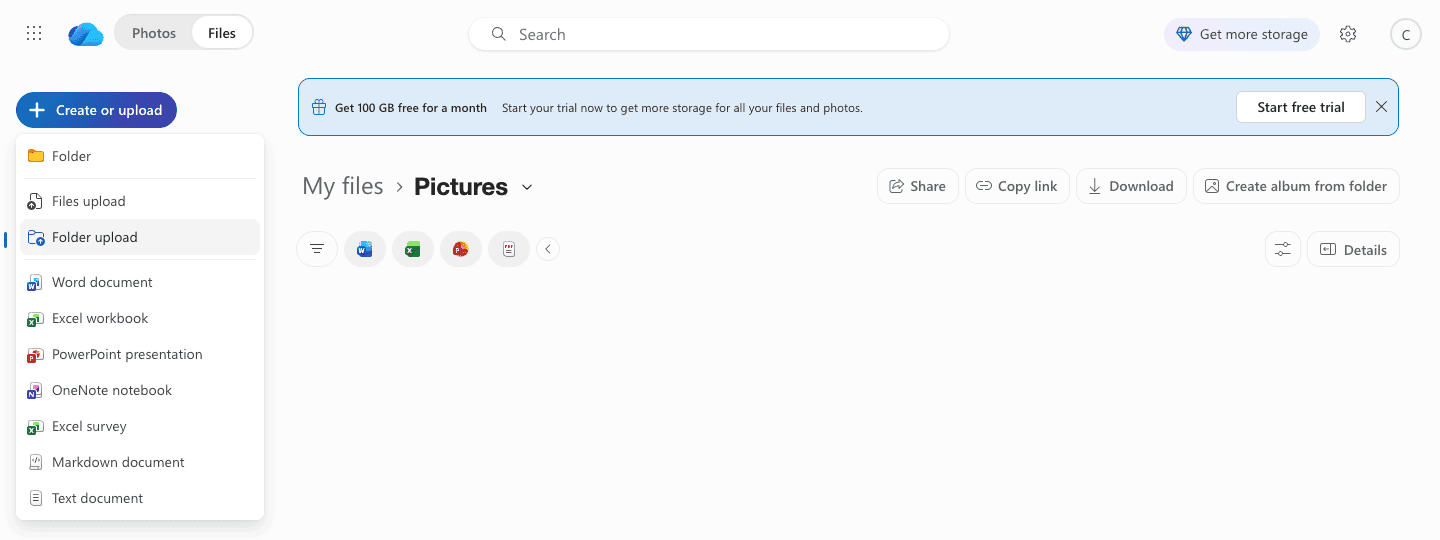
Upload the result. In OneDrive, open
Pictures, choose Create or upload → Folder upload and select the extractedGoogle Photosfolder. For very large libraries, moving the folder into the OneDrive folder on a PC with the OneDrive app is more robust than a browser upload. - Delete the zips from OneDrive and from your disk.
In OneDrive Afterwards
- Albums are folders. Open an album folder and click Create album from folder to get an OneDrive album with the same photos.
-
Names OneDrive refuses. OneDrive doesn't allow
" * : < > ? / \ |or leading and trailing spaces in names. If an album or file name in the export uses one of them, CloudsLinker substitutes a full-width look-alike (:for:) instead of failing the file. -
JSON files. Each photo has a
.supplemental-metadata.jsonwith Google's capture time, description and location, and each album ametadata.json. They are plain files in OneDrive. Exclude thejsonextension with a file filter if you don't want them. - Dates. The capture date inside each photo is unchanged, so the Photos view sorts phone and camera pictures correctly. The files' modified date is the export date.
- Access. Remove Google from the apps with access to your Microsoft account (account.live.com/consent/Manage), and delete the Google Takeout in CloudsLinker.
Watch: Unzip a Google Takeout Into OneDrive Without Downloading
A narrated walkthrough of the CloudsLinker route with the export in Google Drive: adding the Takeout zips as a Google Takeout (Check archives, then Add Takeout), connecting OneDrive on Microsoft's own sign-in page and copying the Photos from year folders to OneDrive on CloudsLinker's servers. The steps are the same when the zips are already in OneDrive.
Frequently Asked Questions
Conclusion
OneDrive can store a Takeout but not open it, so the zips need a reader. CloudsLinker reads them where Takeout put them and copies the year or album folders into OneDrive's Pictures, without a download and without your PC's disk. The manual route — download, extract all parts into one folder, Folder upload — works for exports your computer and connection can carry. Size the OneDrive plan for the zips and the photos at the same time, delete the zips when the folders are complete, and remove Google's access to OneDrive afterwards. If your Google account doesn't offer Add to OneDrive, send the export to Google Drive and copy across from there.
Related: unzip Google Takeout in the cloud, Google Photos to OneDrive, Google Takeout to Dropbox and OneDrive connection notes.
Online Storage Services Supported by CloudsLinker
Transfer data between over 60 cloud services with CloudsLinker

OneDrive

Google Drive

Google Photos

Google Takeout

Shared Drive

OneDrive for Business

Dropbox

Box

Mega

pCloud

Yandex

ProtonDrive

AWS

GCS

iDrive

Storj

DigitalOcean

Wasabi

1fichier

PikPak

TeleBox

OpenDrive

Backblaze B2

Fastmail file

SharePoint

Nextcloud

ownCloud

Premiumize me

HiDrive

Put.io

Sugar Sync

SmugMug

Jottacloud

Seafile

Ftp

SFtp

NAS

WebDav

4shared

Icedrive

Cloudflare R2

Scaleway

Hetzner Object Storage

Synology C2 Object Storage

S3 Compatible

Doi

iCloud Drive

iCloud Photos

FileLU

Zoho WorkDrive

Telia Cloud / Sky

Drime

Filen

TeraBox

Internxt

Degoo

Gofile

Pixeldrain

Shade

Koofr
Didn' t find your cloud service? Be free to contact: [email protected]
Further Reading
Effortless FTP connect to google drive: Transfer Files in 3 Easy Ways
Learn More >
Google Photos to OneDrive: 3 Innovative Transfer Strategies
Learn More >
Google Photos to Proton Drive: 3 Effective Transfer Techniques
Learn More >