Google Takeout to Dropbox: Unzipping Past the 512 MB Extract Limit
Takeout can add Google Photos zips to Dropbox, but Dropbox's Extract all stops at 512 MB and Takeout parts start at 1 GB. What we tested, and what works.
Introduction
Google Takeout can deliver a Google Photos export directly into Dropbox, and Dropbox — unlike Google Drive or OneDrive — has an Extract all button for zip files. That looks like the whole job done in the browser. It isn't, for one number: Dropbox only extracts zips of 512 MB or less, and Takeout splits exports into parts of 1, 2, 4, 10 or 50 GB. Any library big enough to be worth moving arrives in parts Dropbox won't open.
We ran the whole path on a test account: a Takeout export to Dropbox, Extract all on the small part it produced, and the same button on a 600 MB zip. This guide shows what Takeout writes into your Dropbox, where Extract all works and where it stops, and two ways to turn multi-gigabyte parts into normal Dropbox folders — server-side with CloudsLinker's Google Takeout import, or by extracting on a computer and uploading.
- The Short Answer
- What Takeout Puts in Your Dropbox
- Dropbox's Extract All: Where It Works and Where It Stops
- Pick a Route by Export Size
- Method 1: Unpack the Parts in Place With CloudsLinker
- Method 2: Extract on a Computer, Upload to Dropbox
- After the Copy: Duplicates, JSON Files and Cleanup
- Frequently Asked Questions
The Short Answer
Choose Add to Dropbox in Google Takeout and the export arrives as zip files in
Apps › Google Download Your Data. Dropbox can extract a zip in the browser, but only up to
512 MB, and Takeout parts are 1 GB or larger. So:
- Export smaller than 512 MB in total → Dropbox's Extract all is enough.
- Anything bigger → read the parts in place with CloudsLinker, or extract on a computer and upload the folders.
What Takeout Puts in Your Dropbox
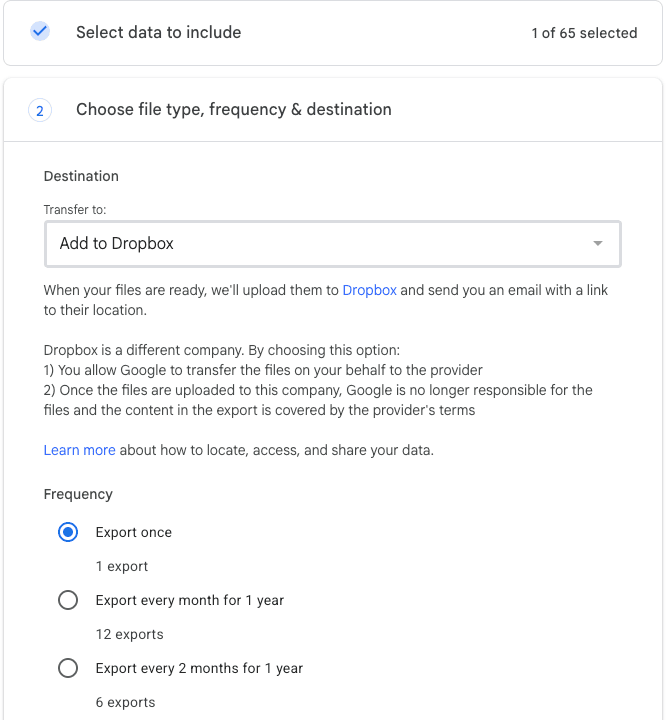
At takeout.google.com, the second step, Choose file type, frequency & destination, has a Transfer to list. Pick Add to Dropbox and Takeout explains that it will upload the files to Dropbox and email you a link to their location. The same step offers Export once, a monthly export for a year (12 exports) or one every two months for a year (6 exports).
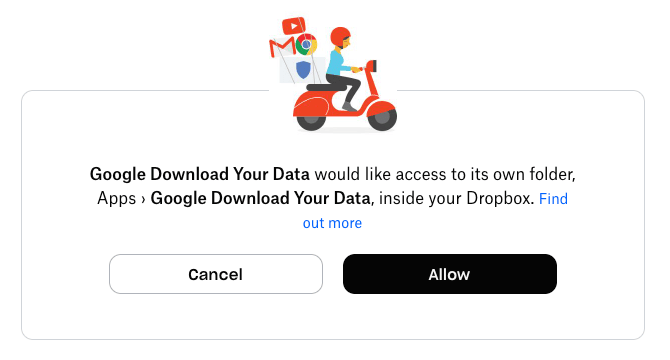
Link accounts and create export sends you to Dropbox, which asks for something narrower than full access: Google Download Your Data would like access to its own folder, Apps › Google Download Your Data, inside your Dropbox. Google can write there and nowhere else.
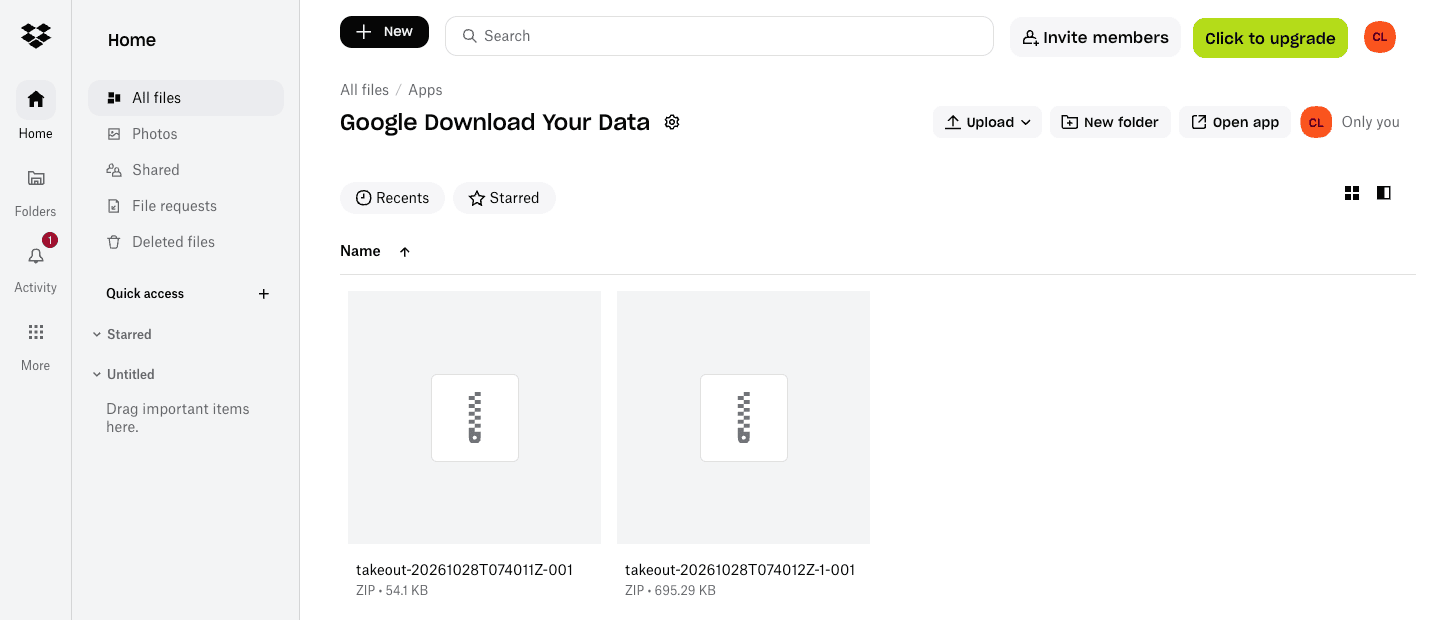
Our test export — six photos in one album — was in Dropbox within minutes as two zips. The small one, ending
in -001, holds Takeout's index page (archive_browser.html); the photos were in the
part ending in -1-001. A bigger library is split into more parts, each up to the size you
chose — a 300 GB library in 2 GB parts is about 150 zips.
Everything in that folder counts against your Dropbox storage. Dropbox Basic's 2 GB holds only a small export next to your existing files; Plus gives 2 TB for $9.99 a month billed yearly, and team plans start at 3 TB (Dropbox plans).
Dropbox's Extract All: Where It Works and Where It Stops
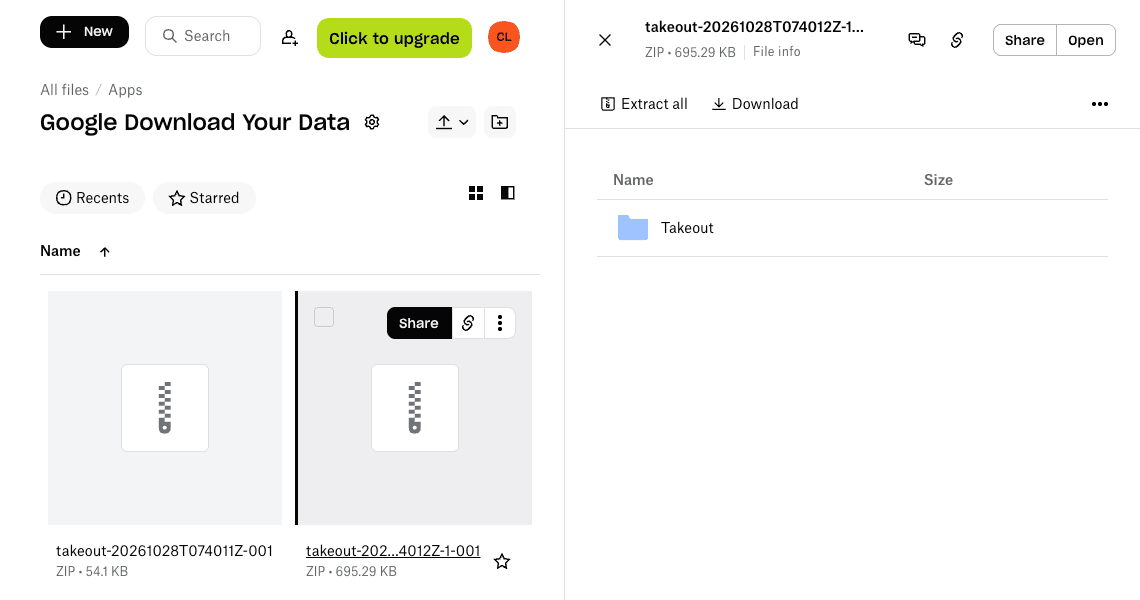
Click a zip in Dropbox and the preview panel lists the folders inside it, with Extract all
and Download above the list. For our 695 KB photo part, the list showed one
Takeout folder.
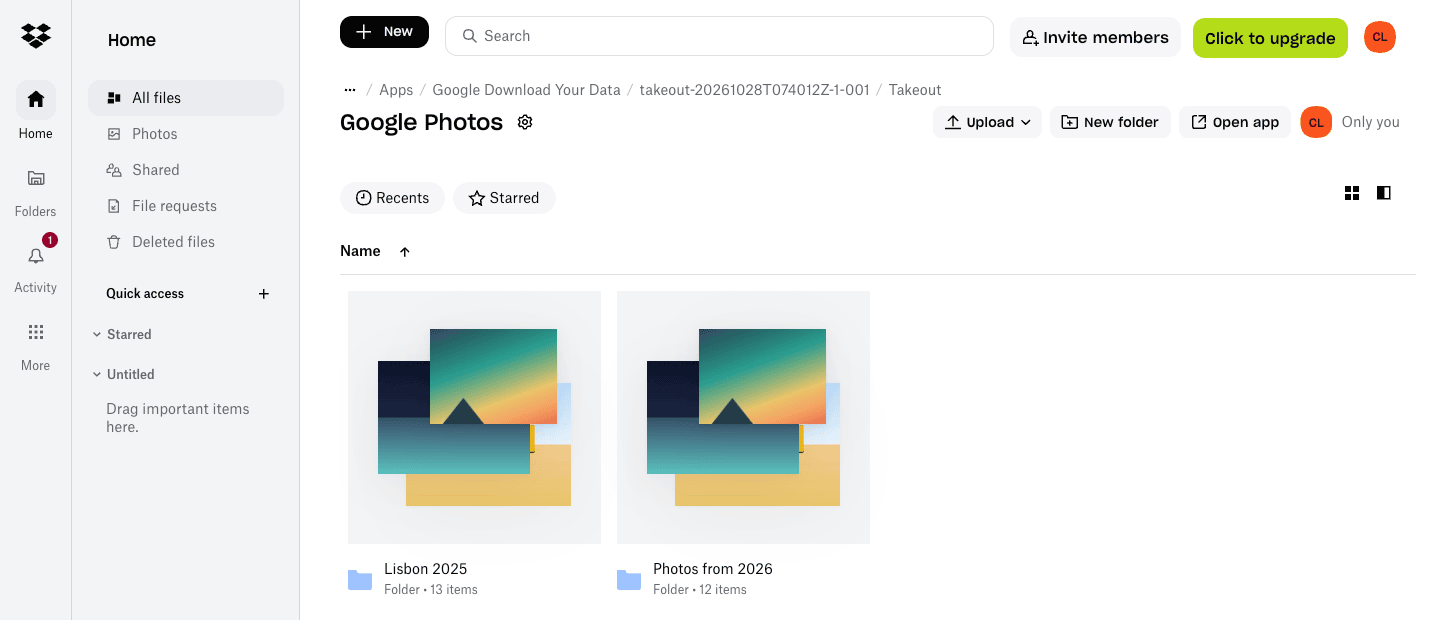
Extract all created a new folder next to the zip, named after it
(takeout-20261028T074012Z-1-001), and unpacked the export into it unchanged:
Takeout/Google Photos/ with the album folder Lisbon 2025 (six photos, six JSON files
and the album's metadata.json) and the year folder Photos from 2026 holding the same
six photos again with their JSON files.
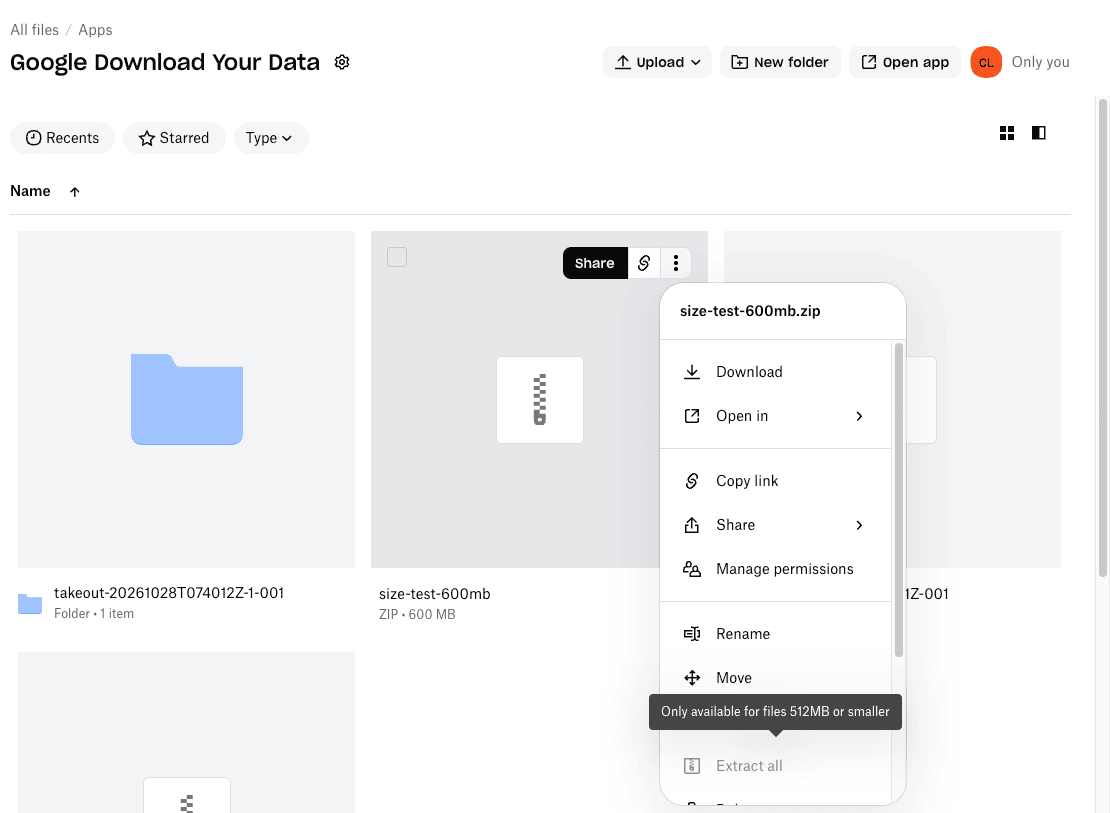
Then we uploaded a 600 MB zip to the same folder. Its preview said Too big to load, the Extract all button disappeared from the panel, and in the file's menu the option was greyed out with the tooltip Only available for files 512MB or smaller. Dropbox's help center gives the same 512 MB ceiling for previewing zip contents (Dropbox help).
| Takeout part | Dropbox Extract all |
|---|---|
| Whole export under 512 MB (one small part) | Works; unpacks into a new folder next to the zip |
| 1 GB, 2 GB, 4 GB, 10 GB or 50 GB parts | Not available — every full part is over the limit |
| The last part of a split export | Only if it happens to be under 512 MB, and then it extracts on its own, apart from the other parts |
Even when Extract all works, each zip is unpacked into its own folder. An album that Takeout split across two parts ends up as two partial folders, which is the opposite of what you want for a photo library.
Pick a Route by Export Size
| Route | Fits | What it costs you |
|---|---|---|
| Dropbox Extract all | Exports under 512 MB in total | Nothing extra; move the extracted folder out of the Apps folder afterwards |
| CloudsLinker reads the parts in place | Any size, up to 500 zips per Takeout | Dropbox space for the zips plus the copied folders until you delete the zips; transfer volume on your CloudsLinker plan |
| Extract on a computer and upload | Any size, if your disk and connection can take it | Local disk for zips and photos at once; download and upload time |
Sending the export to Dropbox only makes sense if the photos are meant to stay in Dropbox. If they're going somewhere else, deliver the Takeout to whichever of Drive, Dropbox, OneDrive or Box has room, and copy from there — see unzipping Google Takeout in the cloud.
Method 1: Unpack the Parts in Place With CloudsLinker
CloudsLinker can add the zips in your Dropbox as a read-only Google Takeout: it reads each part's table of contents, merges all parts into one folder tree, and copies photos straight out of the zips into a normal Dropbox folder. Nothing goes through your computer, and the parts don't have to be under 512 MB.
Step 1: Send the Takeout Export to Dropbox
At takeout.google.com, click Deselect all, tick Google Photos, then Next step. Set Transfer to to Add to Dropbox, keep .zip and choose 2 GB or 10 GB parts — CloudsLinker reads .zip only, not .tgz. Click Link accounts and create export and Allow on Dropbox's page (both shown above). Wait for the email saying the export is done, then connect that Dropbox account to CloudsLinker with Add Cloud → Dropbox if it isn't connected yet; it signs in on Dropbox's own page.
Step 2: Add the Parts as a Google Takeout
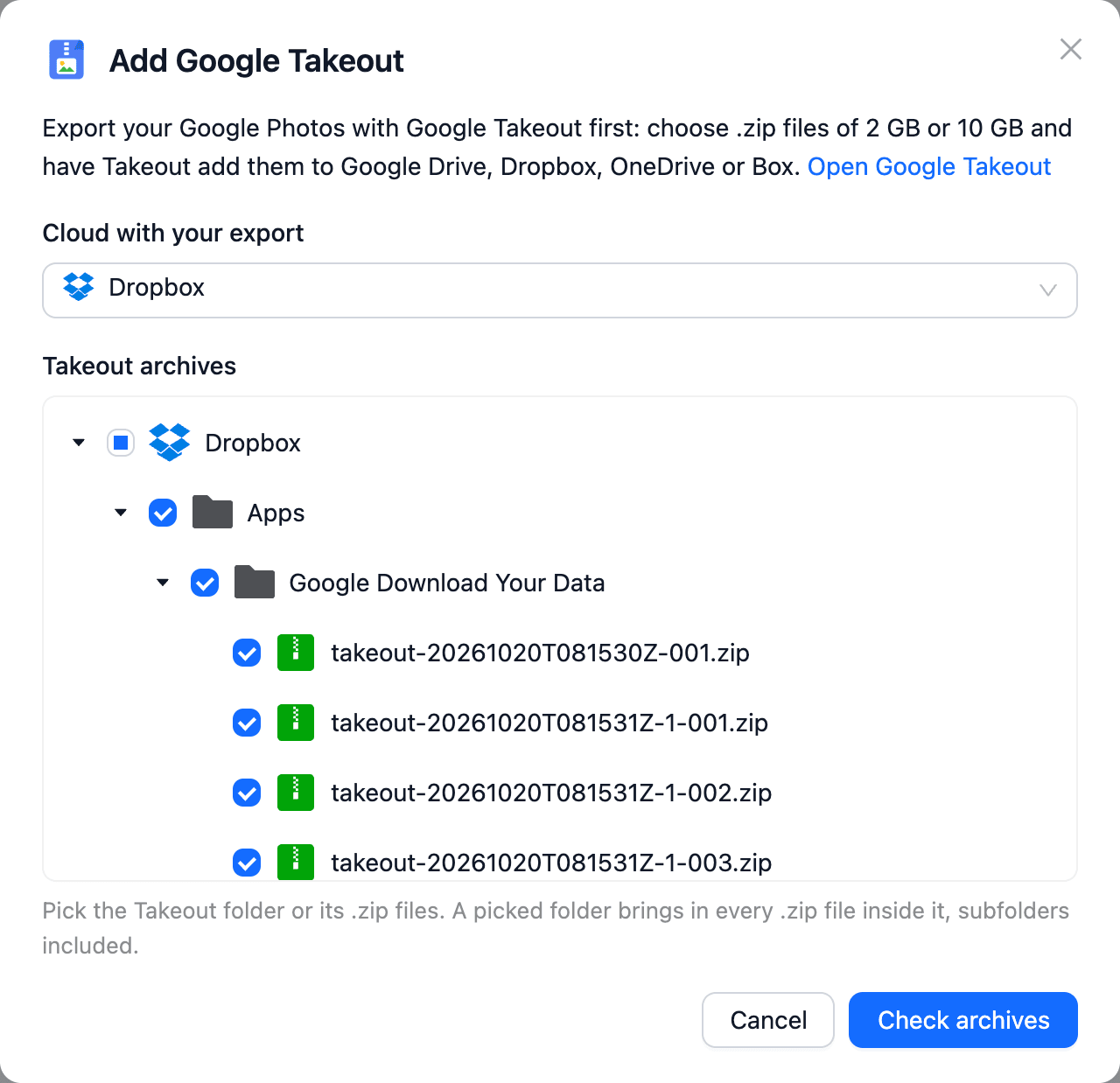
Open Add Cloud, search for takeout and choose Google Takeout. Set
Cloud with your export to the Dropbox account, expand Apps and tick
Google Download Your Data. A ticked folder brings in every .zip inside it, so all parts are
included without selecting them one by one. Click Check archives.
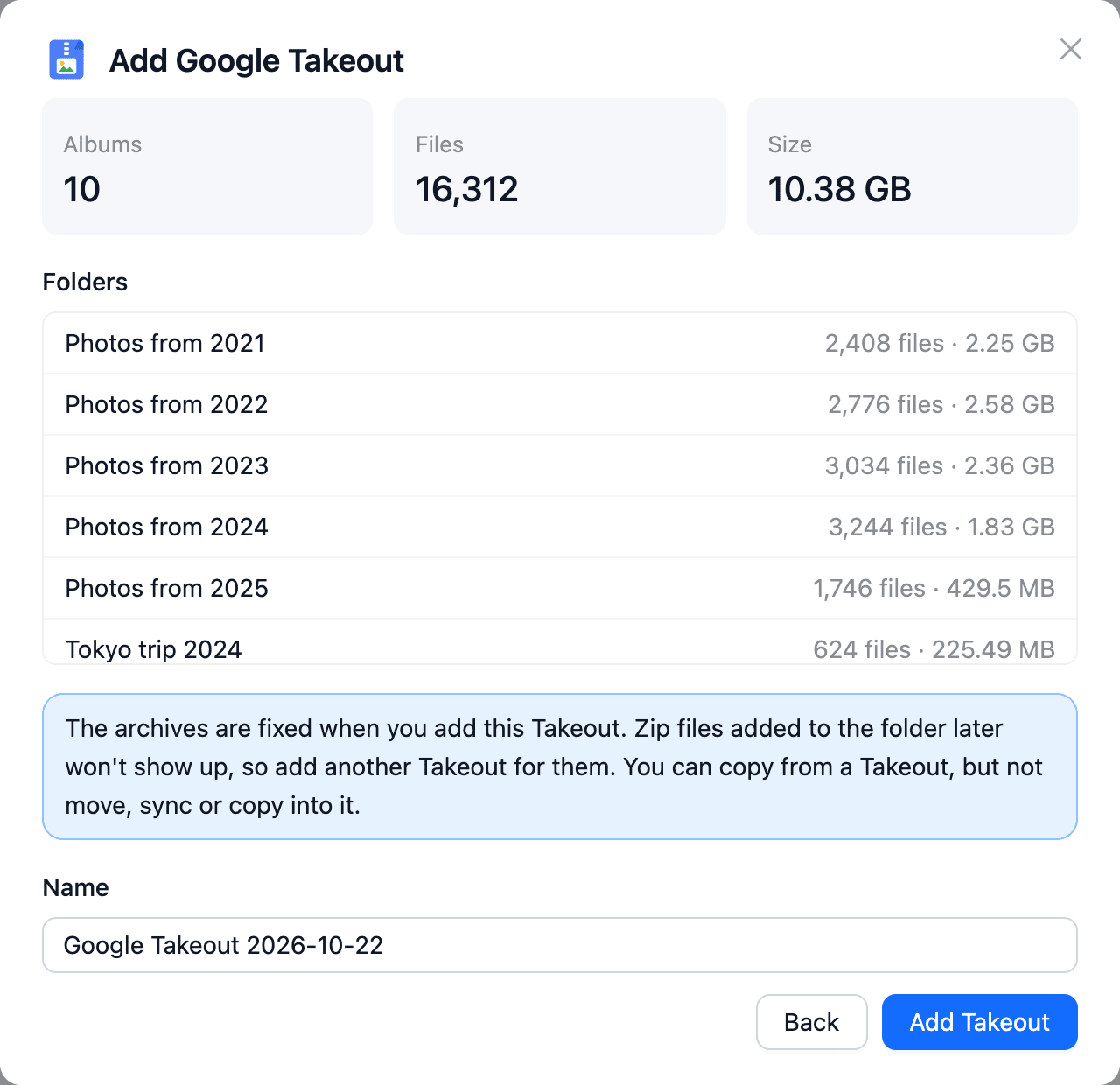
CloudsLinker lists what it found — top-level folders, file count, unpacked size — and any part it couldn't read, such as a .tgz or damaged file. Name the Takeout and click Add Takeout. The list of zips is fixed at this point, so add it after every part has arrived.
Step 3: Copy the Folders Into Dropbox
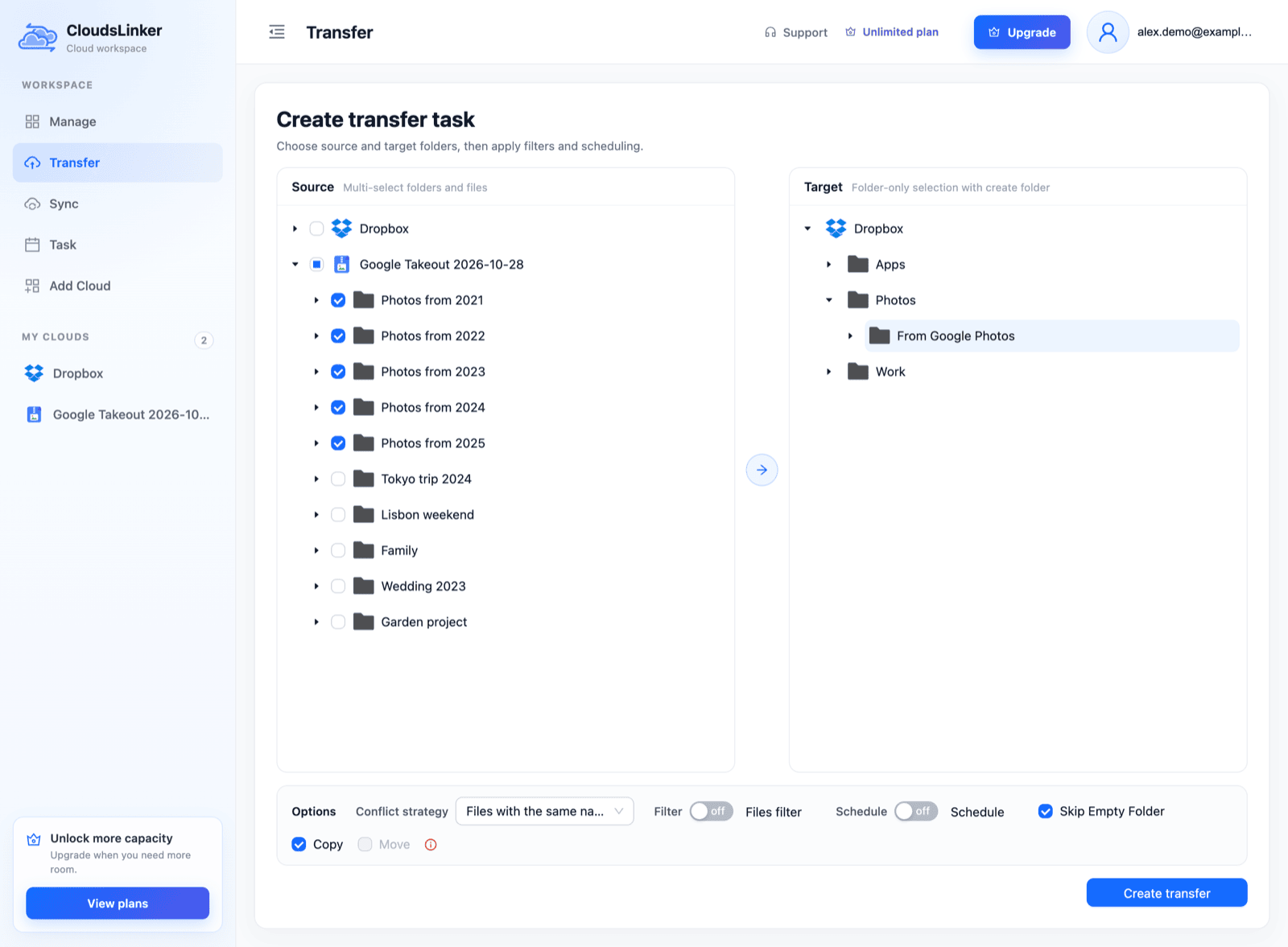
Open Transfer. In Source, expand the Takeout and tick the
Photos from YYYY folders for one copy of every photo, or album folders if you want albums as
folders (see duplicates below). In Target, expand Dropbox and pick or
create a normal folder — here Photos/From Google Photos — rather than the Apps folder.
Copy is selected and Move is unavailable, because a Takeout is read-only.
Click Create transfer.
Step 4: Follow the Task and Remove the Zips
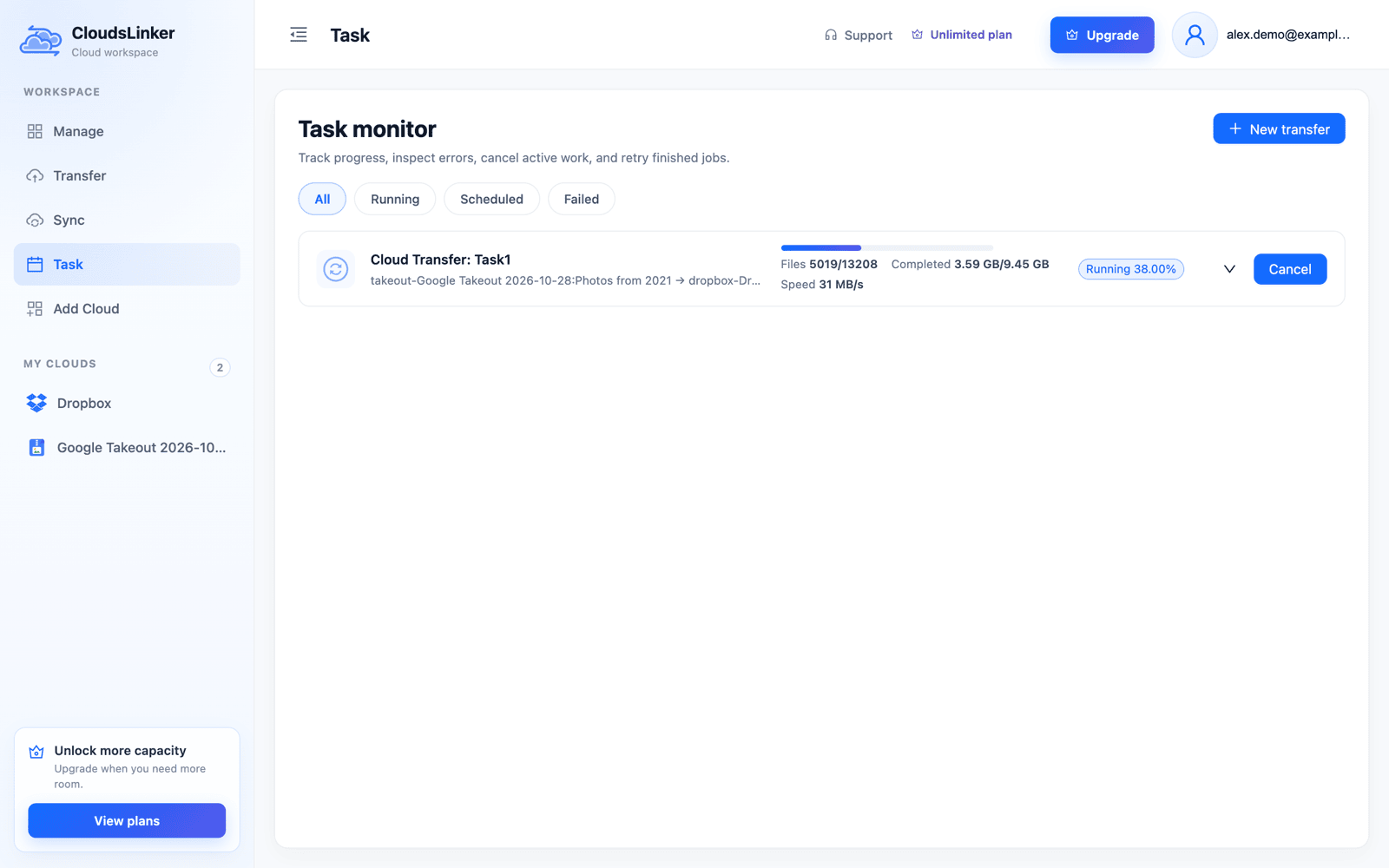
The copy runs on CloudsLinker's servers; Task monitor shows files and bytes done and the speed. Each file is checked against the CRC-32 checksum stored in its zip, so a damaged part shows up as errors rather than broken photos. If the task is interrupted, run it again: files already in Dropbox with the same size are skipped.
When the folder counts look right, delete the zips from Apps › Google Download Your Data. Then
remove the Google Takeout from CloudsLinker too — it can't read zips that no longer exist.
Method 2: Extract on a Computer, Upload to Dropbox
This route needs no third-party service, only disk space and time. Plan for the zips and the extracted photos on disk at once, about twice the export size.
-
Get the parts onto your computer. If the export is already in Dropbox, open each part in
Apps › Google Download Your Dataand click Download in the preview panel (shown in the Extract all screenshot), or let the Dropbox desktop app sync that folder. If you haven't exported yet, choose Send download link via email instead; the links expire in about 7 days and each archive can be downloaded 5 times (Google help). - Extract every part into the same folder. Album folders split across parts merge back together this way. Use 7-Zip on Windows or The Unarchiver on macOS for parts over 4 GB.
-
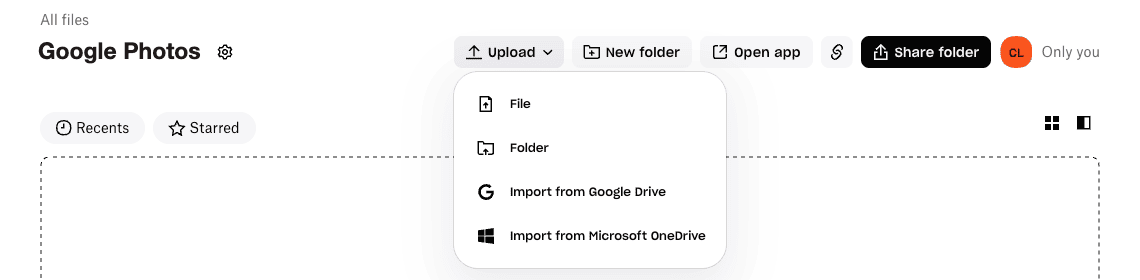
Upload the
Google Photosfolder. In Dropbox, open the destination folder and choose Upload → Folder. The Upload menu only offers imports from Google Drive and Microsoft OneDrive, not from Google Photos. Dropbox warns that browser uploads larger than 375 GB may time out, so for big libraries move the folder into the Dropbox desktop app's folder instead (Dropbox upload limits). - Delete the zips from Dropbox (and from your disk) once the upload has finished.
After the Copy: Duplicates, JSON Files and Cleanup
| What you see in Dropbox | Why, and what to do |
|---|---|
The same photo in Photos from 2026 and in an album folder |
Takeout stores album photos twice. Copy year folders only for one copy of everything, or album folders only for curated sets |
A .supplemental-metadata.json next to each photo |
Google's record of capture time, description and location. Keep it to restore dates of images
without EXIF later, or filter out the json extension when copying |
metadata.json in each album folder |
The album title, description and creation date |
| Modified dates all on the export day | Zip entries carry the export time. The capture date inside each photo (EXIF) is unchanged |
Photos you thought were from another year under Photos from 2026 |
Google files photos by its own capture time. Our test images had no EXIF date, and Google used
the files' last-modified time as photoTakenTime |
When you're done, check two permissions. In Dropbox, Settings → Apps lists Google Download Your Data under View Dropbox content; disconnect it unless you set up recurring exports. In CloudsLinker, delete the Google Takeout, and the Dropbox connection too if you no longer need it.
Frequently Asked Questions
Conclusion
If your whole export fits in one zip under 512 MB, Dropbox's own Extract all is enough: open the part, click Extract all, and move the Google Photos folder where you want it. Anything larger needs the zips read somewhere else. CloudsLinker reads the parts where Takeout left them in Apps › Google Download Your Data and copies the year or album folders into a normal Dropbox folder, so nothing is downloaded and the extracted copy only has to fit once. Extracting on a computer works too, as long as the disk holds the zips and the photos at the same time. Either way, delete the zips afterwards — Dropbox counts them against your storage — and disconnect Google Download Your Data under Settings → Apps once the export is done.
Related: unzip Google Takeout in the cloud, back up Google Photos to Dropbox, Google Takeout to OneDrive and Dropbox connection notes.
Online Storage Services Supported by CloudsLinker
Transfer data between over 60 cloud services with CloudsLinker

OneDrive

Google Drive

Google Photos

Google Takeout

Shared Drive

OneDrive for Business

Dropbox

Box

Mega

pCloud

Yandex

ProtonDrive

AWS

GCS

iDrive

Storj

DigitalOcean

Wasabi

1fichier

PikPak

TeleBox

OpenDrive

Backblaze B2

Fastmail file

SharePoint

Nextcloud

ownCloud

Premiumize me

HiDrive

Put.io

Sugar Sync

SmugMug

Jottacloud

Seafile

Ftp

SFtp

NAS

WebDav

4shared

Icedrive

Cloudflare R2

Scaleway

Hetzner Object Storage

Synology C2 Object Storage

S3 Compatible

Doi

iCloud Drive

iCloud Photos

FileLU

Zoho WorkDrive

Telia Cloud / Sky

Drime

Filen

TeraBox

Internxt

Degoo

Gofile

Pixeldrain

Shade

Koofr
Didn' t find your cloud service? Be free to contact: [email protected]
Further Reading
Effortless FTP connect to google drive: Transfer Files in 3 Easy Ways
Learn More >
Google Photos to OneDrive: 3 Innovative Transfer Strategies
Learn More >
Google Photos to Proton Drive: 3 Effective Transfer Techniques
Learn More >