OneDrive to Google Photos: Moving Photo Folders After Gallery Sync Ended
Samsung Gallery's OneDrive sync ended on September 30, 2026. How to move OneDrive photo folders to Google Photos: limits, albums, storage and two ways to copy.
Introduction
Google Photos is a photo library, not a folder store: it sorts pictures by capture date, finds them by search, and shares them with a link. OneDrive keeps the same pictures as files in folders, usually under Pictures. That was enough while a phone kept the two in step. For Galaxy owners it stopped on September 30, 2026, when Samsung Gallery's Sync with OneDrive was discontinued. Nothing was deleted, so years of phone photos now sit in OneDrive while new ones go somewhere else.
Neither Microsoft nor Google has a button that sends OneDrive photos to Google Photos. A move also has three questions to answer first: which files Google Photos refuses, whether your folders should become albums or go straight into the library, and how much Google storage the copy will use. This guide answers those, then covers a server-side copy with CloudsLinker and the download-and-import route in a browser.
- The Short Answer
- If You Are Here Because Gallery Sync Ended
- Question 1: What Will Google Photos Refuse?
- Question 2: Albums or the Main Library?
- Question 3: How Much Storage Will It Use?
- Method 1: Copy Photo Folders Server-Side With CloudsLinker
- Method 2: Download From OneDrive, Then Google's Uploader
- Reading the Result in Google Photos
- Frequently Asked Questions
The Short Answer
There is no official transfer between the two. For one or two folders, download them from onedrive.com and use Import photos at photos.google.com (Method 2). For a whole Pictures tree, copy it server-side with CloudsLinker (Method 1), which can turn each folder into an album.
Before either one, check three things: Google Photos takes photos up to 200 MB and videos up to 10 GB, it has no folders, and everything you add counts against the storage you share with Gmail and Drive.
If You Are Here Because Gallery Sync Ended
On Galaxy phones, the Gallery app used to keep its pictures in OneDrive. Samsung's support page states that "Gallery Sync with Microsoft OneDrive was discontinued on the 30th of September 2026", that the link between the Samsung and Microsoft accounts was removed, and that nothing was deleted: photos and videos stored through the sync remain in OneDrive (Samsung support).
Three consequences follow for a move to Google Photos:
-
The old photos are files in OneDrive now. Open onedrive.com and look under
Pictures. Users commonly report a
Samsung Galleryfolder there, withDCIMandCamerainside; the path varies by device, so sort by date if you can't find it. - Your phone may no longer hold them. Pictures that were only kept in the cloud can't be backed up by the Google Photos app on the phone, because that app backs up what is on the device. They have to be copied out of OneDrive.
- New photos need their own backup. Samsung points to the OneDrive app's Camera backup; turning on backup in the Google Photos app is the alternative if Google Photos is where the old ones are going.
The rest of this guide applies to any OneDrive photo folder, whether it came from a Galaxy phone, from the OneDrive app's Camera Roll upload, or from a PC's Pictures folder.
Question 1: What Will Google Photos Refuse?
OneDrive stores any kind of file, so a picture folder can hold things a photo library doesn't take. The limits below decide what arrives.
| File | OneDrive accepts | Google Photos accepts | Who should care |
|---|---|---|---|
| Photo size | Any file up to 250 GB | Up to 200 MB or 200 megapixels | Large scans, stitched panoramas, layered TIFFs |
| Video | Any file up to 250 GB | Up to 10 GB | Long 4K or 8K recordings |
| RAW | Stored as ordinary files | "Most RAW files", within the 200 MB limit | Camera owners; test a sample first |
| Very small images | No minimum | Must be larger than 256 x 256 | Icons, stickers and thumbnails saved from apps |
| Documents in picture folders | Yes | No: photos and videos only | PDFs, receipts and zip files saved next to photos |
Sources: Google Photos help, Google Photos upload guide and Microsoft's OneDrive download limits. Files over these limits aren't resized. They fail to upload, so leave them in OneDrive or send them to a folder-based store such as Google Drive.
Question 2: Albums or the Main Library?
Google Photos has no folders, so a tree such as Pictures/Camera Roll/2024 can't arrive as it is. In
CloudsLinker, a Google Photos connection shows two places that can receive files, and the choice decides what
happens to your structure:
Target album |
Target upload |
|
|---|---|---|
| Result | One album per source folder, and the photos appear in the library as well | Photos in the main library only, with no albums |
Folder Camera Roll ticked directly |
Album Camera Roll |
No album; filenames only |
Parent folder Pictures ticked |
Album Pictures/Camera Roll, one per subfolder |
No album; filenames only |
| Item limit | 20,000 per album | No item limit |
| Fits | Trips, events and scans you filed in named folders | A phone camera roll you'll find through search and the timeline |
A phone's camera folder is usually one long list, and a long-used one can pass 20,000 items, so
upload suits it better than an album. Named folders are the opposite case. Running two tasks, one
for each kind, is fine. One restriction comes from Google: apps can only add to albums they created themselves
(Google's album rules),
so an existing album in your Google Photos can't be chosen as a target.
Question 3: How Much Storage Will It Use?
Start from the OneDrive side: on onedrive.com, select the Pictures folder and open Details to see its size. A free Microsoft account holds 5 GB, Microsoft 365 Basic 100 GB and Microsoft 365 Personal 1 TB, so a paid OneDrive library can be far larger than Google's free 15 GB, which is shared with Gmail and Drive. Listed Google One plans include 100 GB at $1.99 a month and 2 TB at $9.99, and prices vary by country (Google One plans, OneDrive plans).
The route changes what the copy costs. Files sent through Google's API, which is how CloudsLinker writes, are stored at original quality and count in full (Google API limits). Google's own uploader follows your backup quality setting instead, so Storage saver can reduce size at the cost of quality (backup quality help). If the library is close to your plan's size, copy one folder first and watch the storage figure in your Google account before sending the rest.
Method 1: Copy Photo Folders Server-Side With CloudsLinker
CloudsLinker reads the folders through Microsoft's API and uploads each file to Google Photos through Google's API, so OneDrive's 10 GB-per-zip download limit never comes into it and nothing lands on your disk. Uploading to Google Photos goes file by file and is slower than a copy between two folder-based clouds; a library of tens of thousands of photos can run for a day or more.
Step 1: Connect OneDrive and Google Photos
- Sign in at app.cloudslinker.com and click Add Cloud.
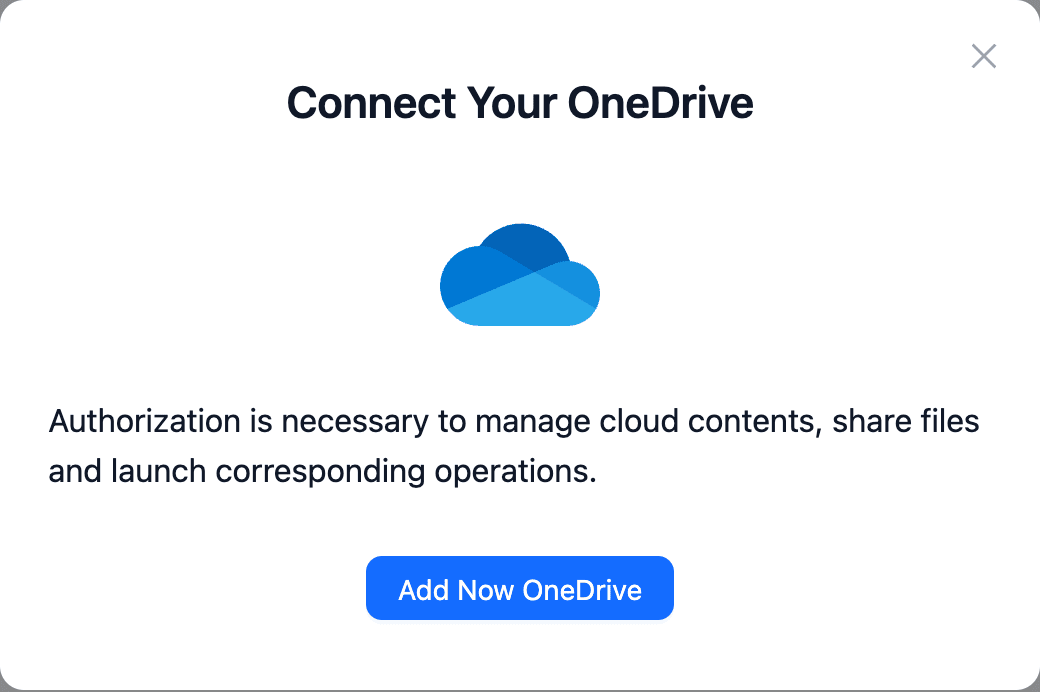
- Choose OneDrive for a personal Microsoft account (a work or school account uses OneDrive for Business), click Add Now OneDrive and sign in on Microsoft's page.
- Go back to Add Cloud, search for google photos and choose New Google Photos.
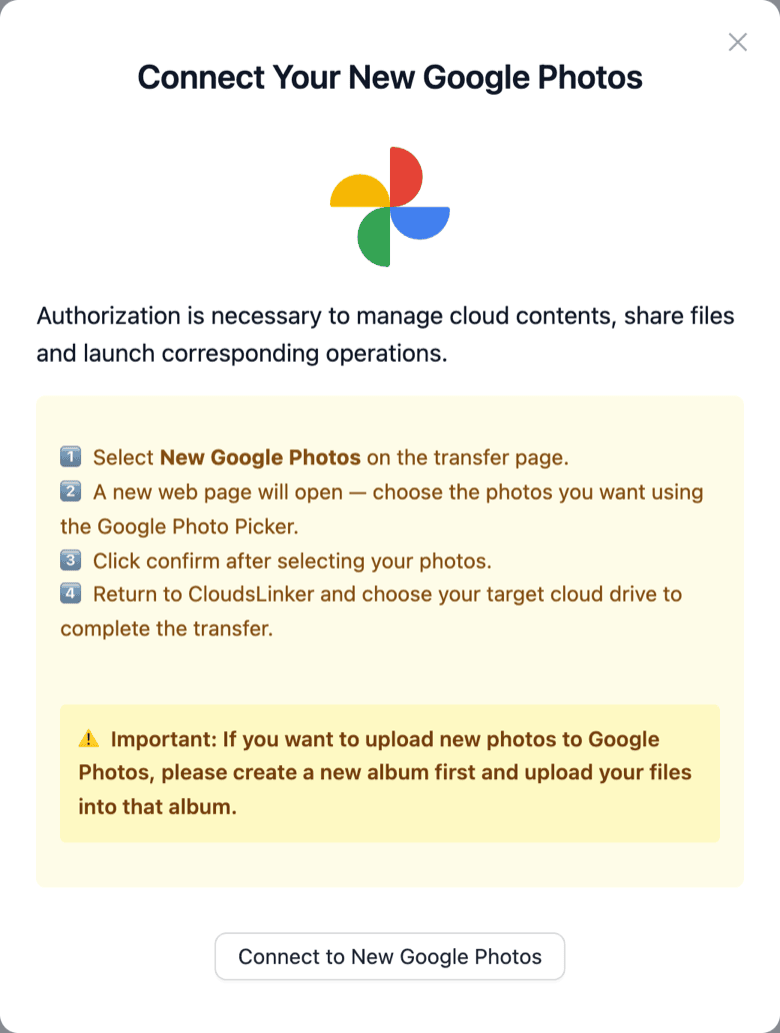
- Click Connect to New Google Photos and approve on Google's own consent page.
Step 2: Tick Photo Folders and Choose album or upload
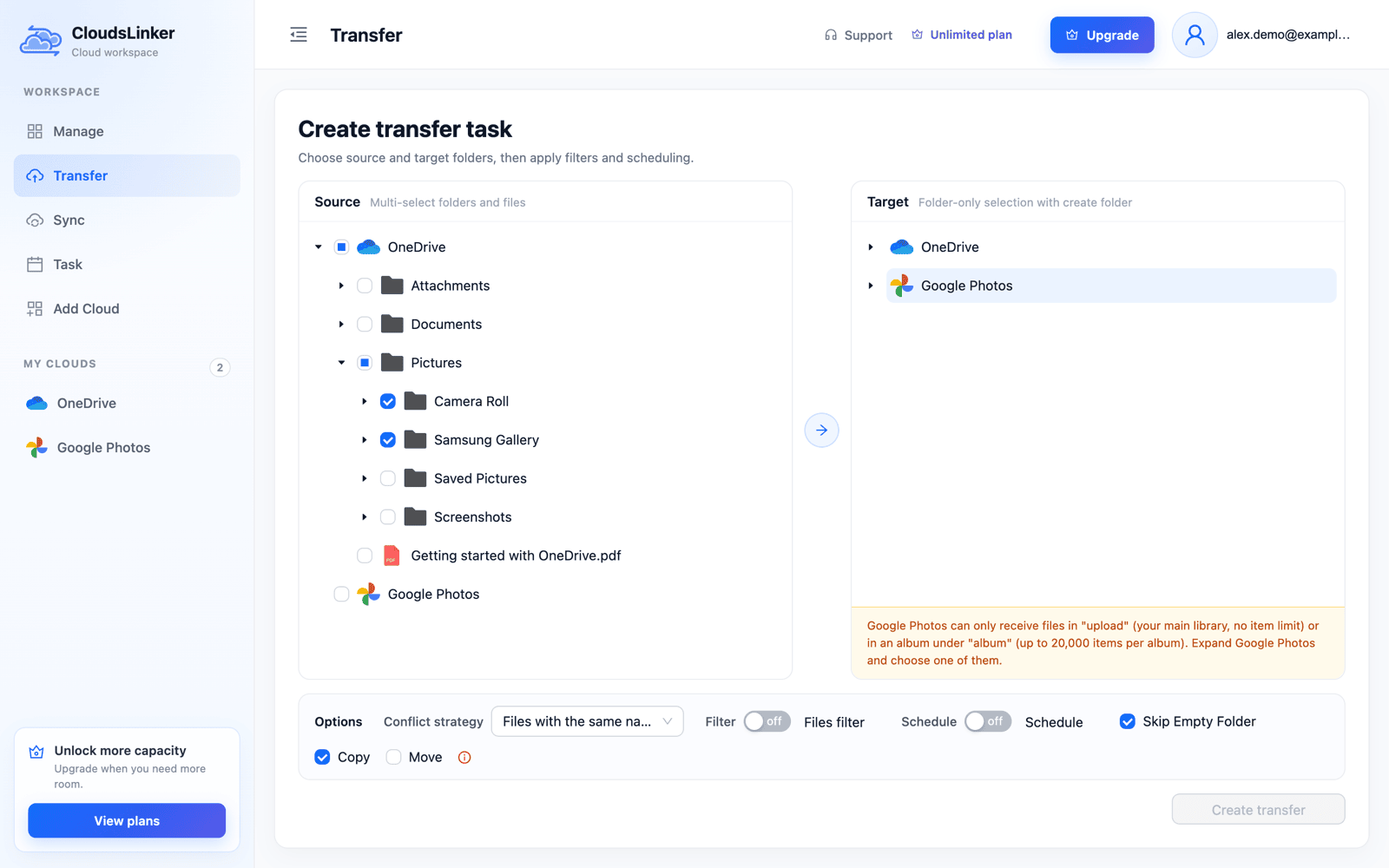
- Open Transfer. In Source, expand OneDrive, then Pictures.
-
Tick the photo folders themselves, such as
Camera RollandSamsung Gallery, rather thanPictures, if you want short album titles. - In Target, clicking Google Photos itself doesn't work: Create transfer stays disabled and a note explains where files can go.
-
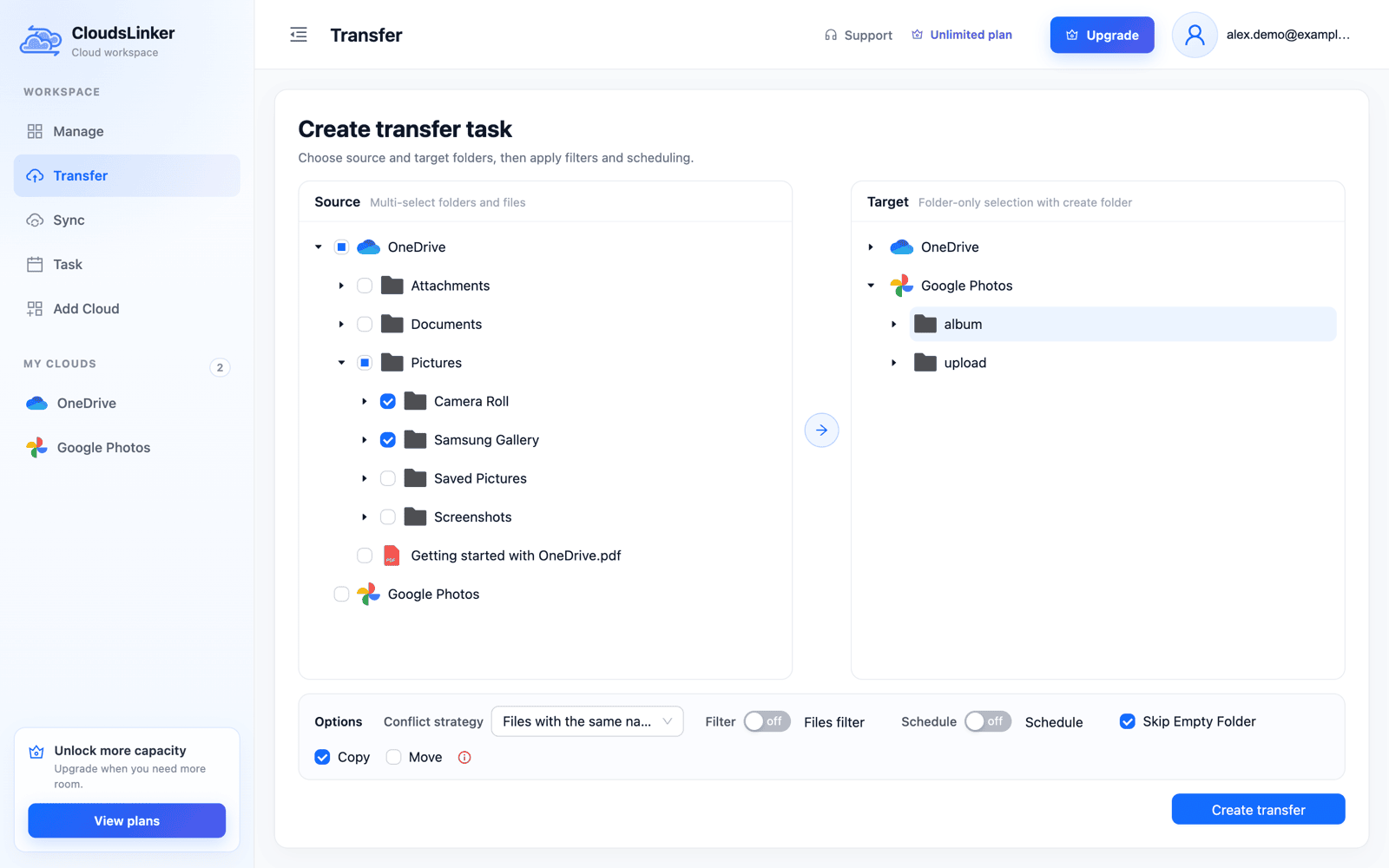
Expand Google Photos and select
albumorupload, according to Question 2. Withalbumselected, each ticked folder that holds photos becomes its own album.
Step 3: Filter Out Files Google Would Refuse
- If Question 1 flagged anything, turn on Files filter in the options.
-
Include only photo and video extensions such as
jpg,heic,pngandmp4, or excludepdfandzip; a maximum size in MB keeps out videos Google won't take. - Leave the mode on Copy. Move deletes each file from OneDrive after it is copied, which removes your fallback before you have checked the result.
A filter keeps the task's result easy to read, because every remaining failure then needs a look.
Step 4: Run the Copy and Compare Each Folder
- Click Create transfer.
- Open Task. Task monitor shows files and bytes done and the speed, and the task continues after you close the browser.
- When it ends, open Google Photos and compare the item counts of your largest albums with the OneDrive folders.
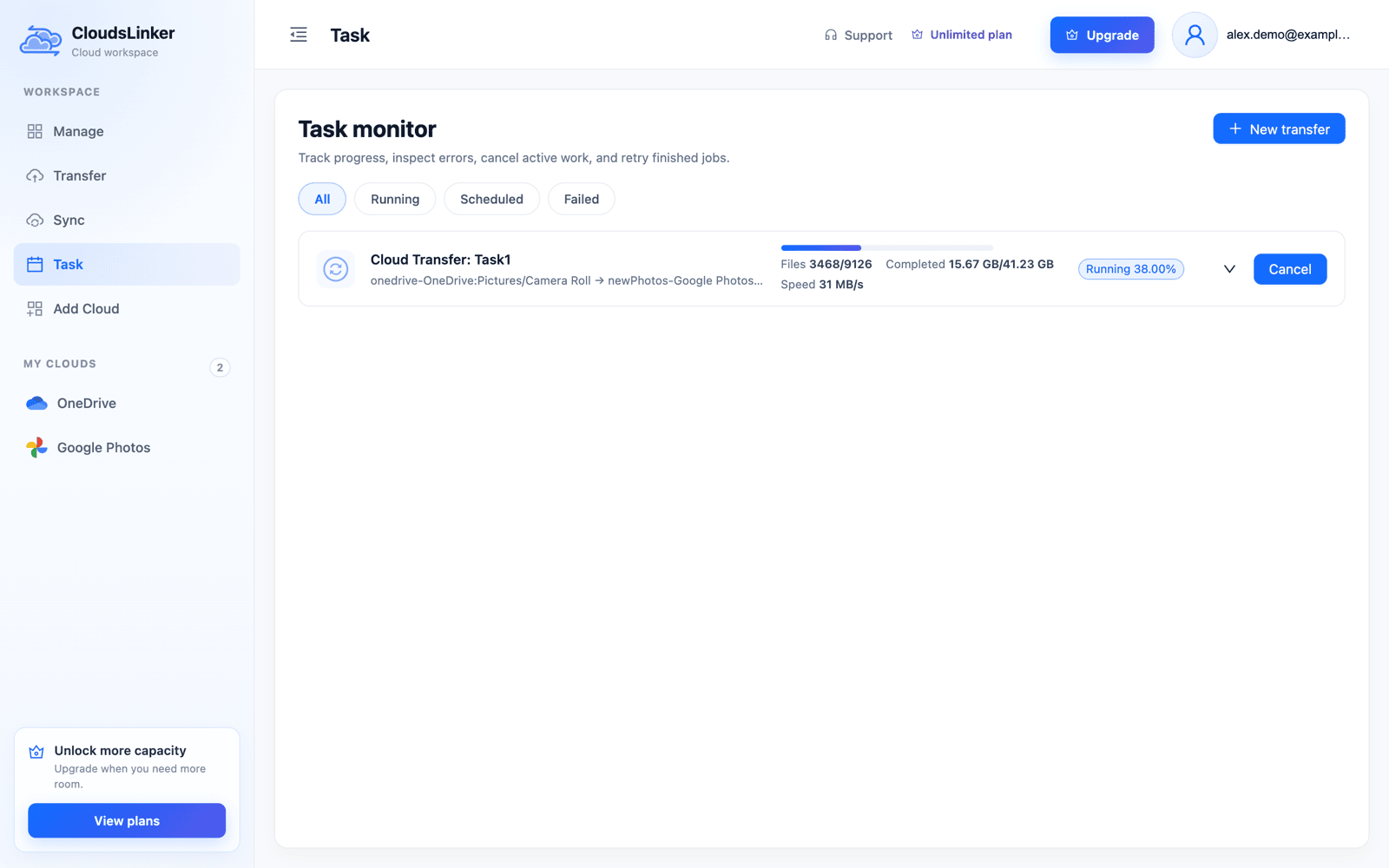
A free CloudsLinker account includes 10 GB of transfer a month, which is enough to test one folder; a larger library stops when the allowance runs out, so check your plan first.
Method 2: Download From OneDrive, Then Google's Uploader
This suits a few folders, and it's the only route where Storage saver can apply. Everything passes through your computer, so you need disk space for each download and enough upload bandwidth.
Step 1: Download the Folders From onedrive.com
- Sign in at onedrive.com and open My files → Pictures.
- Select a folder, open its ⋯ menu and choose Download.
- Extract the zip into a folder with the same name.
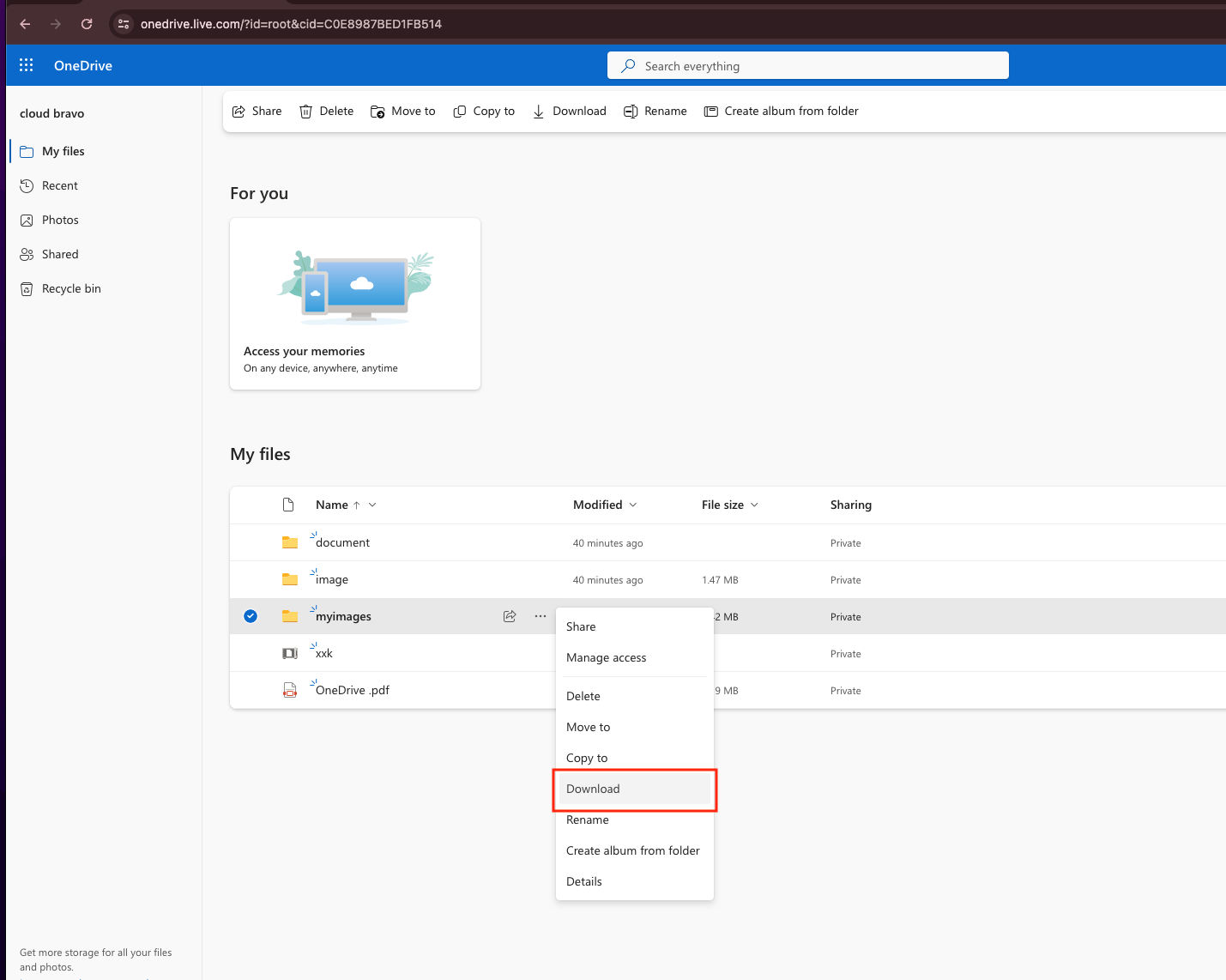
Microsoft limits these downloads to 10 GB per zip file and 20 GB overall, and to 10,000 files (Microsoft support), so download a large camera folder year by year. If the OneDrive app already syncs Pictures to a PC or Mac, skip the download and use that local folder.
Step 2: Import Into Google Photos
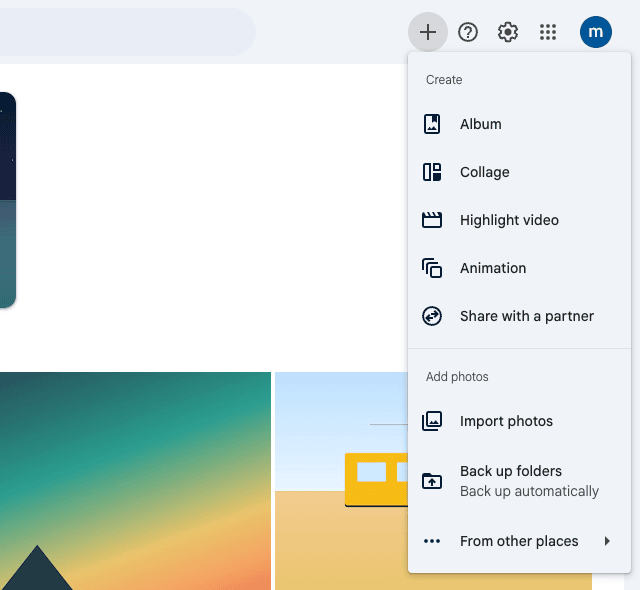
- Open photos.google.com and click the + button.
- To keep a folder together, choose Album first and name it after the folder.
- Choose Import photos, select the extracted files and add them to that album.
Step 3: For a Synced Pictures Folder, Back Up the Folder
- In the same + menu choose Back up folders.
- Pick the local Pictures folder and click Allow.
- Keep the Google Photos tab open until the backup finishes.
Folder backup needs a Chromium browser such as Chrome or Edge, and it only runs while the Google Photos tab stays open (Google help). It adds photos to the library without recreating folders as albums. Older guides suggest Drive for desktop, but Google ended its Google Photos backup on August 10, 2026.
Reading the Result in Google Photos
| What you see | Likely reason | What to do |
|---|---|---|
| Task ends as PartialSuccess | Some files failed, or a limit stopped the task; the status alone doesn't say which | Compare completed files with the folder's count, and look for documents and oversized videos |
| An album is smaller than its OneDrive folder | Non-media files, files over the limits, or more than 20,000 items for one album | Leave those files in OneDrive; split the folder or use upload |
| Album titles with slashes | A parent folder such as Pictures was ticked, so the title includes the path | Rename in Google Photos, or tick the photo folders directly next time |
| Screenshots or scans dated today | The file has no capture date inside it | Edit the date in Google Photos |
| The same photo twice in the library | The phone's Google Photos backup already uploaded it, or it sat in two OneDrive folders | Check a few before deleting, and copy each folder only once |
| Storage warning from Google | API uploads count at original quality against the shared quota | Upgrade the plan or copy fewer folders; see Question 3 |
Keep the OneDrive copies until the counts match. OneDrive albums, share links and the Personal Vault lock belong to OneDrive and don't move with the files; share again from Google Photos where you need to.
Watch: Copy OneDrive Photo Folders Into Google Photos Albums
A narrated 2:40 walkthrough of Method 1: connecting OneDrive on Microsoft's own sign-in page and New Google Photos on Google's, opening Pictures and ticking two photo folders, the note that Google Photos' top level can't receive files, choosing album so each folder becomes its own album, keeping Copy selected and following the server-side copy to the end.
Frequently Asked Questions
Conclusion
Phone photos and videos from OneDrive almost always fit Google Photos; the files to look for are videos over 10 GB, very large scans, and documents that happen to sit in picture folders. For one or two folders, download them from onedrive.com and use Import photos at photos.google.com. For a whole Pictures tree, CloudsLinker copies it from its own servers: target album to keep folders apart as albums, or upload to add everything to the main library. Keep the OneDrive copies until the counts match.
Related: OneDrive connection notes, Google Photos, OneDrive to Google Drive for documents, and Google Takeout to another cloud for the opposite direction.
Online Storage Services Supported by CloudsLinker
Transfer data between over 60 cloud services with CloudsLinker

OneDrive

Google Drive

Google Photos

Google Takeout

Shared Drive

OneDrive for Business

Dropbox

Box

Mega

pCloud

Yandex

ProtonDrive

AWS

GCS

iDrive

Storj

DigitalOcean

Wasabi

1fichier

PikPak

TeleBox

OpenDrive

Backblaze B2

Fastmail file

SharePoint

Nextcloud

ownCloud

Premiumize me

HiDrive

Put.io

Sugar Sync

SmugMug

Jottacloud

Seafile

Ftp

SFtp

NAS

WebDav

4shared

Icedrive

Cloudflare R2

Scaleway

Hetzner Object Storage

Synology C2 Object Storage

S3 Compatible

Doi

iCloud Drive

iCloud Photos

FileLU

Zoho WorkDrive

Telia Cloud / Sky

Drime

Filen

TeraBox

Internxt

Degoo

Gofile

Pixeldrain

Shade

Koofr
Didn' t find your cloud service? Be free to contact: [email protected]
Further Reading
Effortless FTP connect to google drive: Transfer Files in 3 Easy Ways
Learn More >
Google Photos to OneDrive: 3 Innovative Transfer Strategies
Learn More >
Google Photos to Proton Drive: 3 Effective Transfer Techniques
Learn More >