SmugMug to Dropbox: Move Every Gallery Into Folders You Can Share
Dropbox has no SmugMug import. Get originals out per gallery with SmugMug's zip download, or copy every gallery server-side, then re-share them from Dropbox.
Introduction
Dropbox's Upload menu can import from Google Drive and Microsoft OneDrive, but not from SmugMug, and SmugMug has no button that sends galleries to Dropbox. Moving a SmugMug library means either downloading originals and uploading them again, or letting a third service read SmugMug and write into Dropbox for you.
Photographers usually make this move for a practical reason: client galleries need to keep working after a SmugMug plan ends, or the archive should live where the rest of the studio's files already are. This guide covers what a SmugMug library becomes in Dropbox, how much Dropbox space to plan, SmugMug's own per-gallery zip download step by step, a server-side copy of whole folder trees with CloudsLinker, and how to replace client links before you cancel.
- The Short Answer
- What a SmugMug Library Becomes in Dropbox
- Sizing Dropbox for a SmugMug Library
- Three Ways to Move It
- Method 1: SmugMug Zip Download, Then Upload to Dropbox
- Method 2: Copy Galleries Server-Side With CloudsLinker
- Re-Share Client Galleries From Dropbox
- Before You Cancel SmugMug
- Frequently Asked Questions
The Short Answer
There is no SmugMug-to-Dropbox button on either side. For a handful of galleries, download each gallery as a zip from SmugMug's Site Organizer and upload the extracted folder with Dropbox's Upload → Folder (Method 1).
For a whole library, copy the folder and gallery tree from SmugMug to Dropbox on CloudsLinker's servers with read-only access to SmugMug (Method 2). In both cases, photos that are only in SmugMug's Library need to be added to a gallery or downloaded separately.
What a SmugMug Library Becomes in Dropbox
SmugMug keeps photos in a private Library and shows them through folders and galleries on your Site. Dropbox has only folders, so the Site's tree becomes a folder tree and everything that made a gallery a web page stays behind:
| In SmugMug | In Dropbox |
|---|---|
Folder Clients with gallery Miller wedding 2025 |
Folder Clients/Miller wedding 2025 |
| Original JPEG, HEIC or TIFF (up to 500 MB) | The same file, with its EXIF and IPTC data (capture date, camera, Lightroom keywords and copyright) |
| RAW file with SmugMug Source (up to 3 GB) | The RAW file as uploaded |
| Photo only in the Library, in no gallery | Not included until added to a gallery or downloaded from the Library |
| Title, caption and keywords typed into SmugMug | Not carried over — they are SmugMug fields, not part of the file |
| Gallery theme, cover, sort order, password, proofing and sales | Nothing equivalent; Dropbox shows a file grid and a Photos timeline |
| Gallery share link or custom domain | Replaced by a Dropbox share link per folder (see below) |
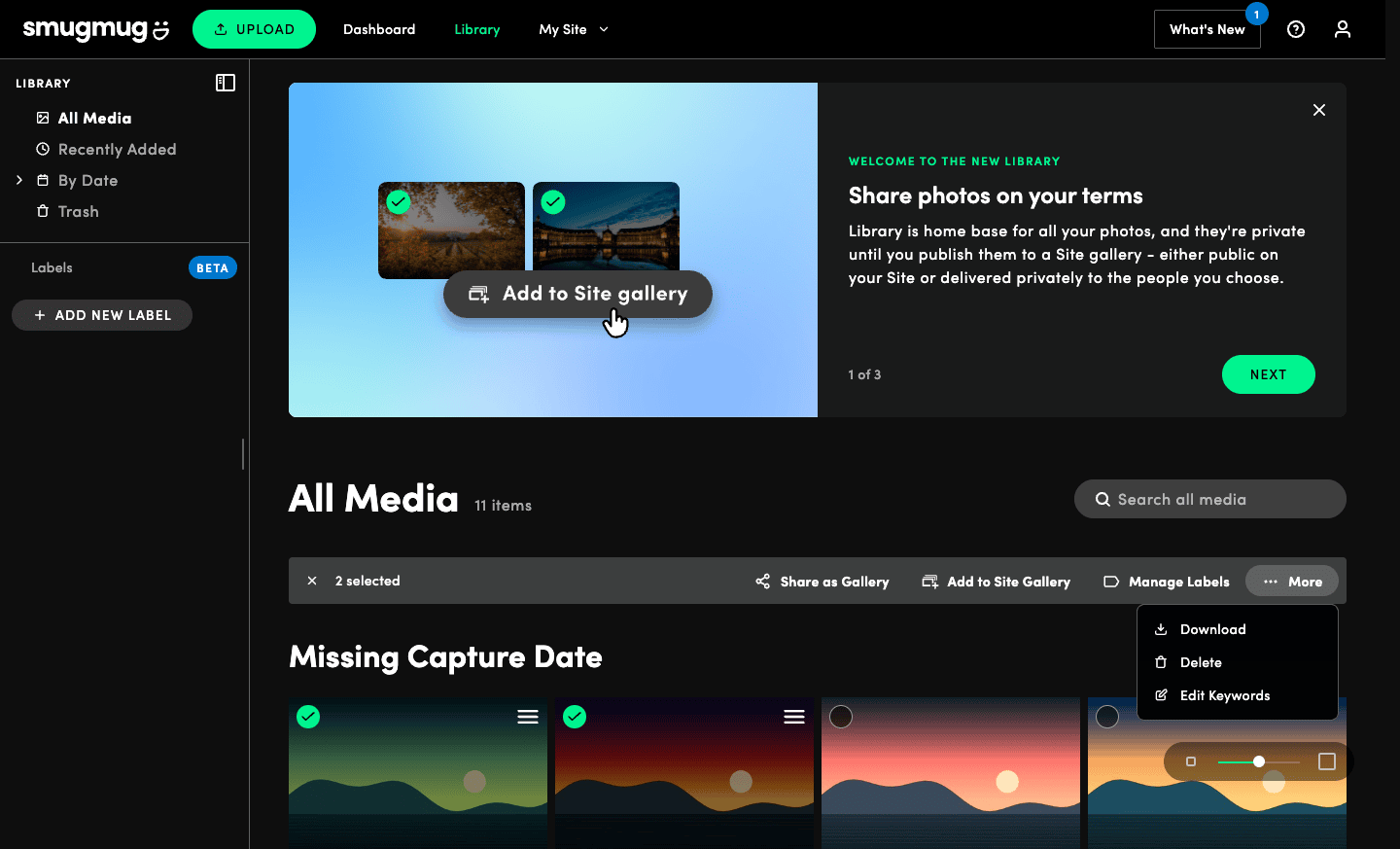
To find Library-only photos, open SmugMug's Library, set Media Location to Only in Library, select them and choose Add to Site Gallery (an Unlisted or Private gallery is fine), or More → Download to save them directly.
Sizing Dropbox for a SmugMug Library
SmugMug has no storage quota, so it never shows a library total. Estimate from your largest galleries — a wedding in RAW plus JPEG is easily tens of gigabytes — or copy one top-level folder at a time and watch Dropbox's usage grow.
| Dropbox plan | Storage | Version history |
|---|---|---|
| Basic (free) | 2 GB | 30 days |
| Plus, $9.99/month billed yearly | 2 TB | 30 days |
| Standard, from $15/user/month | From 3 TB for the team | 180 days |
| Advanced, from $24/user/month, three users minimum | From 15 TB for the team | 365 days |
Single files are no problem: Dropbox takes files up to 2 TB, and SmugMug's largest are 3 GB RAW files. What can fail is a very large browser upload — Dropbox warns that uploads over 375 GB in a web browser may time out (Dropbox help) — so upload gallery by gallery, or use the Dropbox desktop app, if you go the download route.
Three Ways to Move It
| Route | Suits | Limits |
|---|---|---|
| SmugMug zip download + Dropbox Upload → Folder | A few galleries | One request per gallery; local disk for each zip; manual upload |
| Desktop downloader (Folio on macOS, WinMug on Windows) + Dropbox desktop app | Whole libraries, with enough local disk | The library must fit on your disk; upload over your home connection |
| CloudsLinker server-side copy | Whole libraries, repeat copies of new galleries | Library-only photos must be in a gallery; transfer volume on your CloudsLinker plan |
The desktop downloaders are listed in SmugMug's own help center (SmugMug's list); they recreate the folder tree on your disk, and the Dropbox desktop app then uploads it from the Dropbox folder.
Method 1: SmugMug Zip Download, Then Upload to Dropbox
SmugMug's owner download packs one gallery's originals into a zip. It includes photos you hid in the gallery, and RAW and sidecar files if you have SmugMug Source and are logged in (SmugMug help).
Step 1: Select the Gallery in Site Organizer
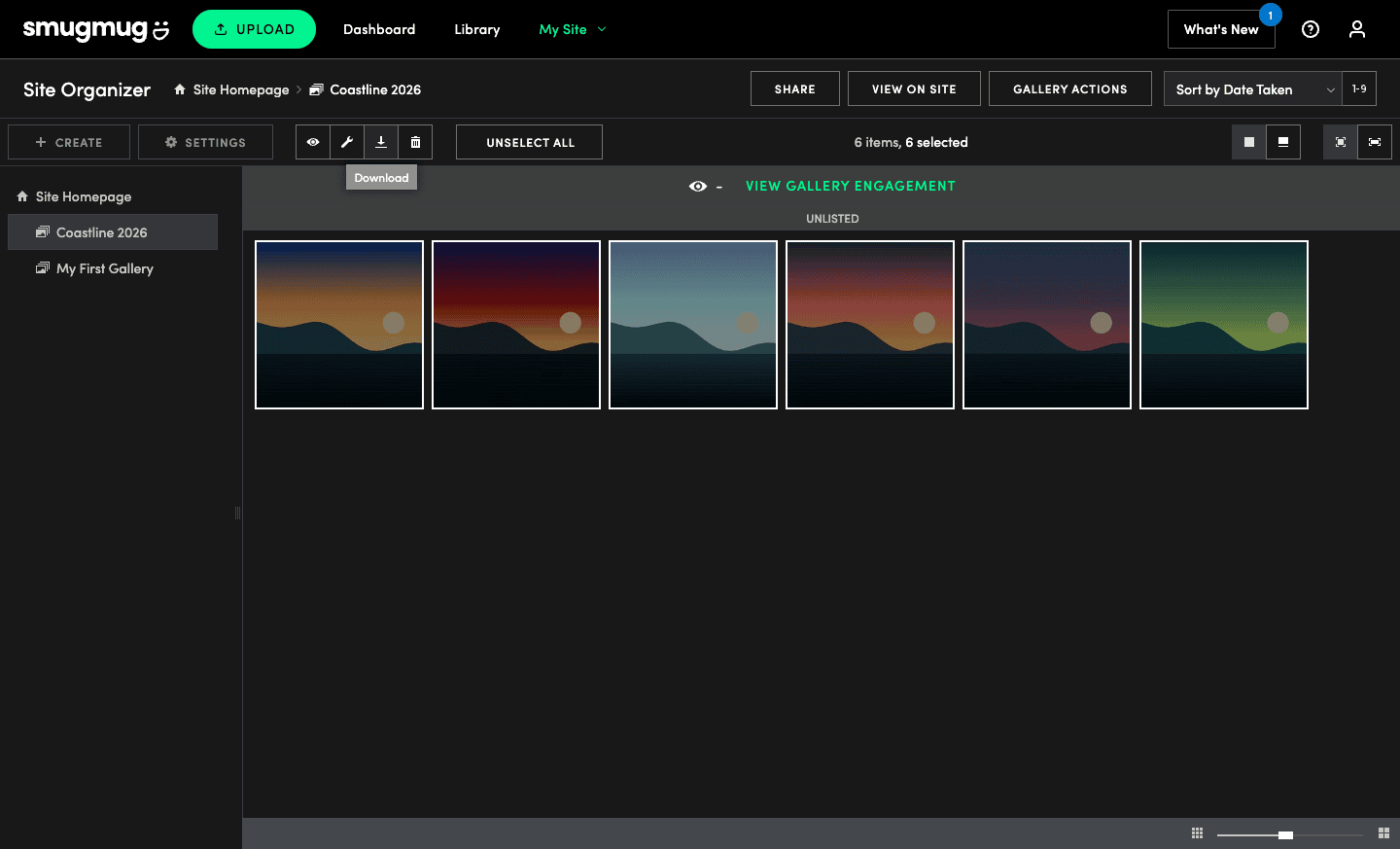
Logged in to SmugMug, open My Site → Site Organizer, open the gallery, click Select All and then the Download icon in the toolbar.
Step 2: Download the Archive
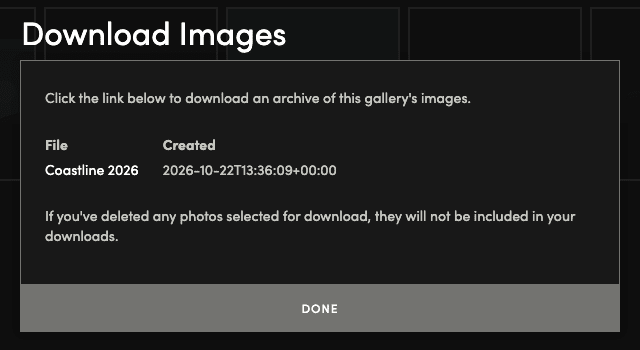
SmugMug prepares the archive and lists it in a Download Images dialog, named after the gallery. Click the name to download the zip. Photos deleted after you made the selection are not included.
Step 3: Extract and Upload the Folder to Dropbox
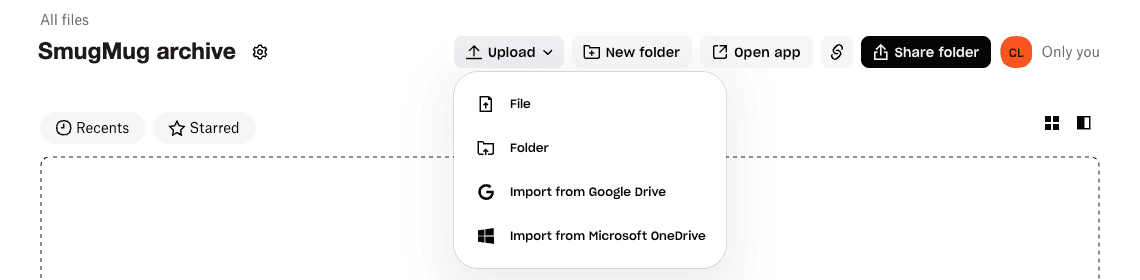
Extract the zip into a folder named after the gallery. In Dropbox, open the folder that will hold your
SmugMug archive — here SmugMug archive — and choose Upload → Folder, then
select the gallery folder. The menu's only imports are from Google Drive and Microsoft OneDrive.
Step 4: Repeat Per Gallery and Rebuild the Folder Tree
Each zip is one gallery, so recreate SmugMug's folders in Dropbox as you go (Clients,
Portfolio and so on) and upload each gallery into the right one. Delete the zip and the local
copy after checking the file count in Dropbox. This is manageable for ten galleries and slow for a few
hundred.
Method 2: Copy Galleries Server-Side With CloudsLinker
CloudsLinker reads your Site's folders and galleries through SmugMug's API with read-only access and writes them into Dropbox from its own servers. Your disk and upload speed aren't involved, and the whole tree is copied in one task.
Step 1: Connect SmugMug Read-Only
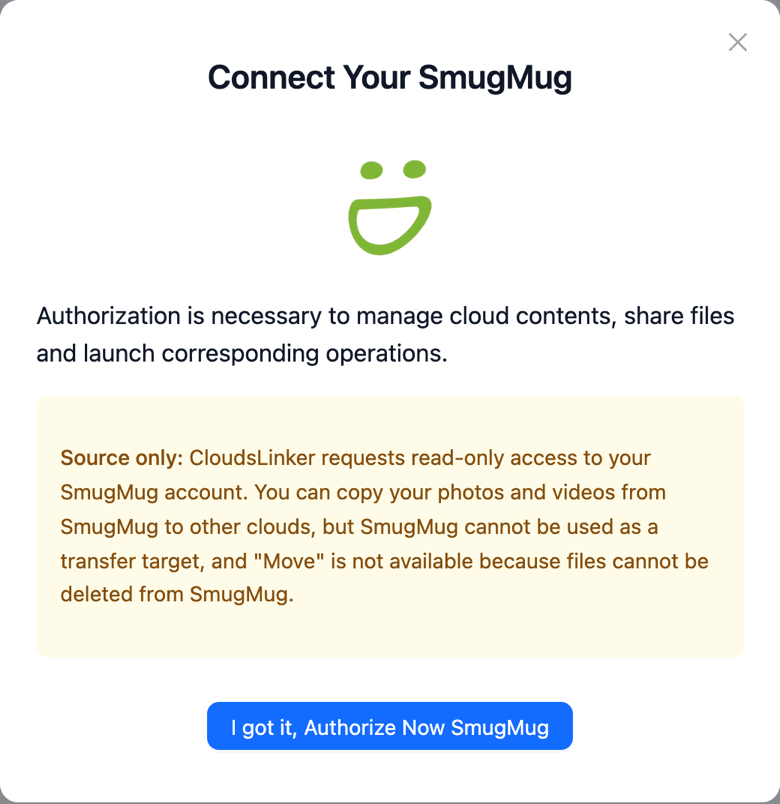
Click Add Cloud and choose SmugMug. The dialog marks SmugMug as source only. Click I got it, Authorize Now SmugMug and approve on SmugMug's page. SmugMug asks for full access because private galleries and originals aren't visible otherwise; the permission level is read, and CloudsLinker's servers refuse any write to SmugMug.
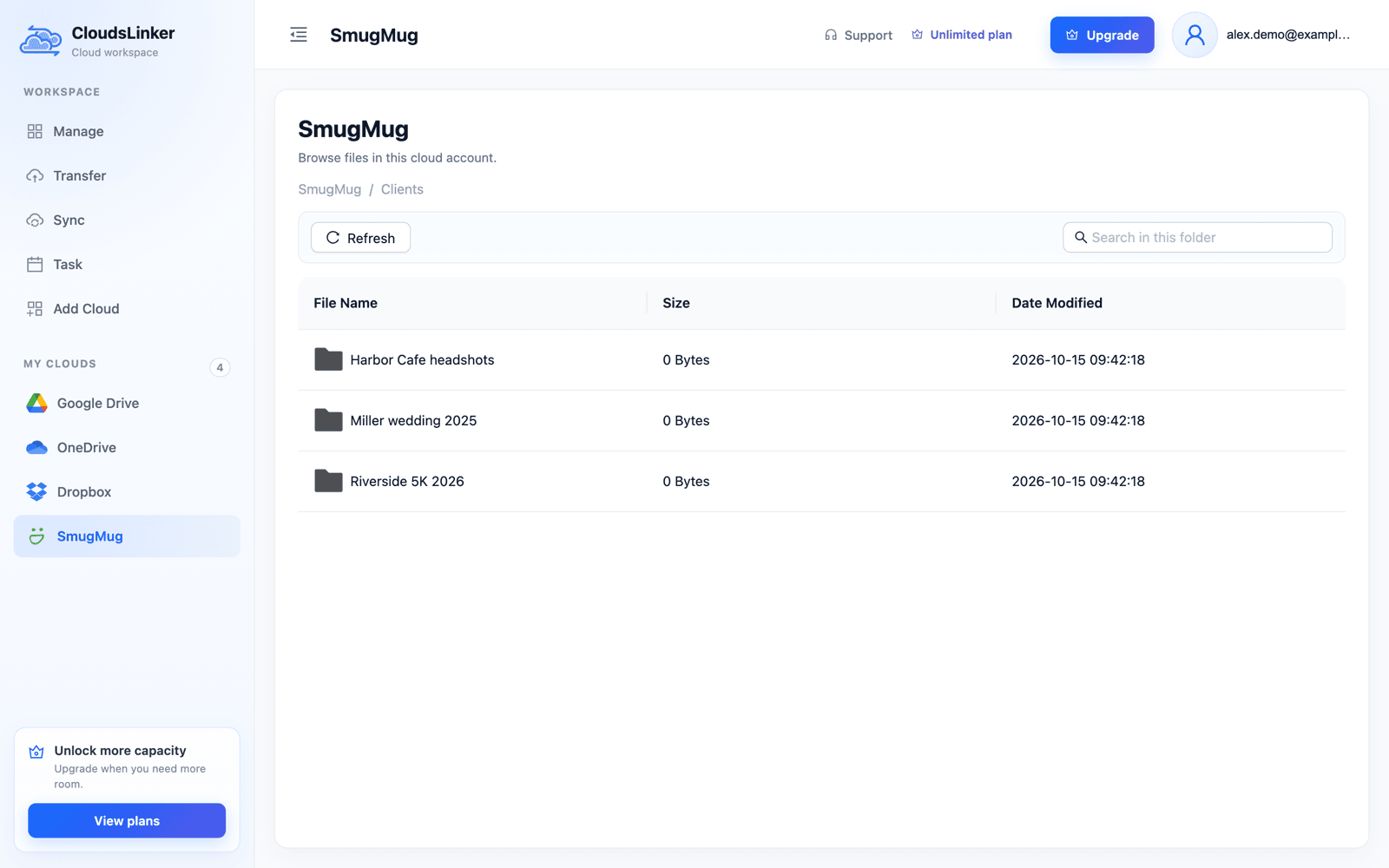
Once connected, SmugMug opens like a drive with your Site's folders and galleries.
Step 2: Connect Dropbox
Choose Add Cloud → Dropbox and click I got it, Authorize Now Dropbox.
Approval happens on Dropbox's own consent page at www.dropbox.com; CloudsLinker never sees your
Dropbox password.

Step 3: Tick Galleries and a Dropbox Folder
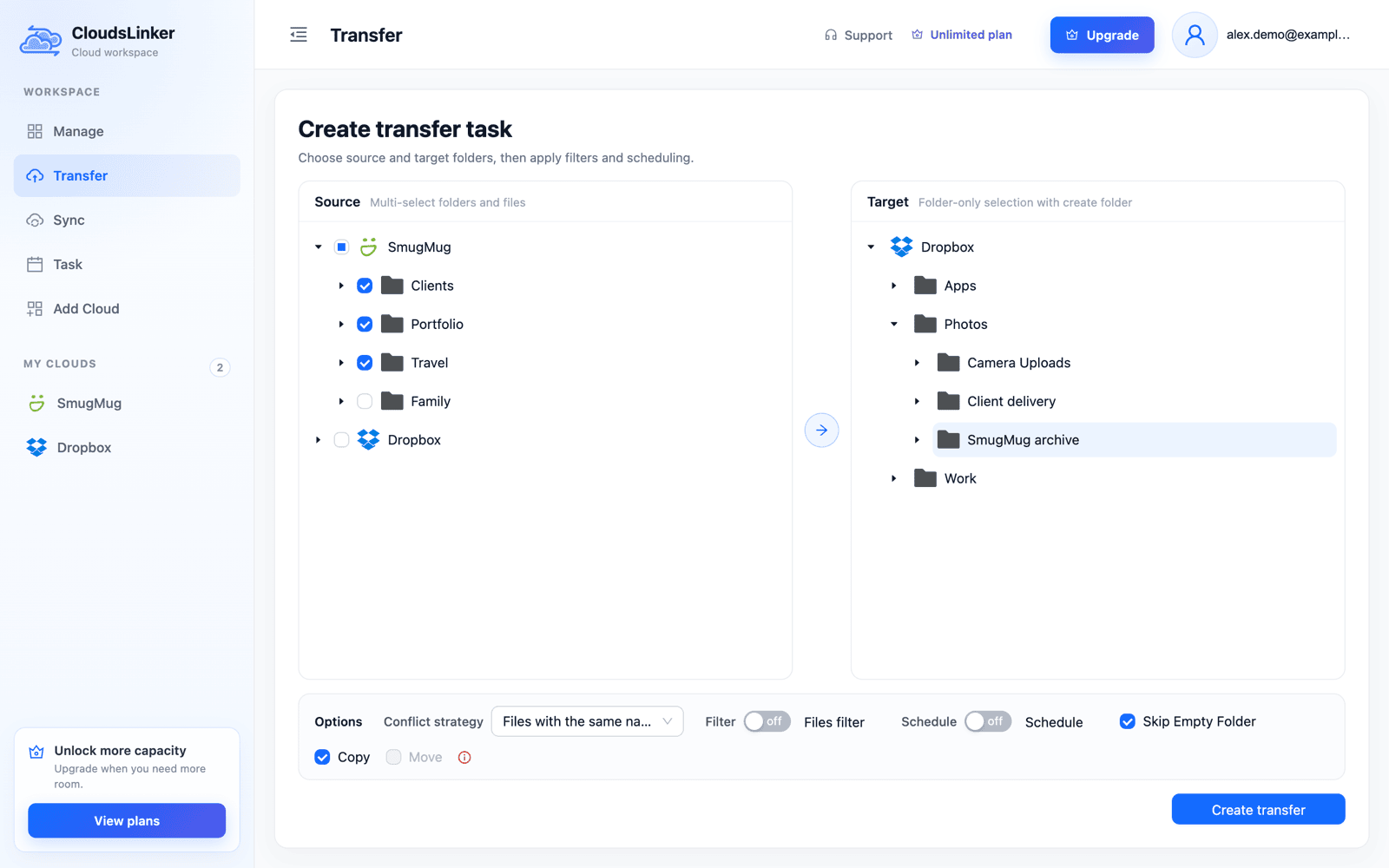
Open Transfer. In Source, expand SmugMug and tick whole folders such as
Clients, Portfolio and Travel, or individual galleries inside them. In
Target, expand Dropbox, open Photos and create SmugMug archive.
Copy is selected and Move is greyed out, because nothing can be deleted
from SmugMug. A size or file-type filter can leave out RAW files if you only want JPEGs in Dropbox.
Step 4: Run the Copy and Check Each Gallery
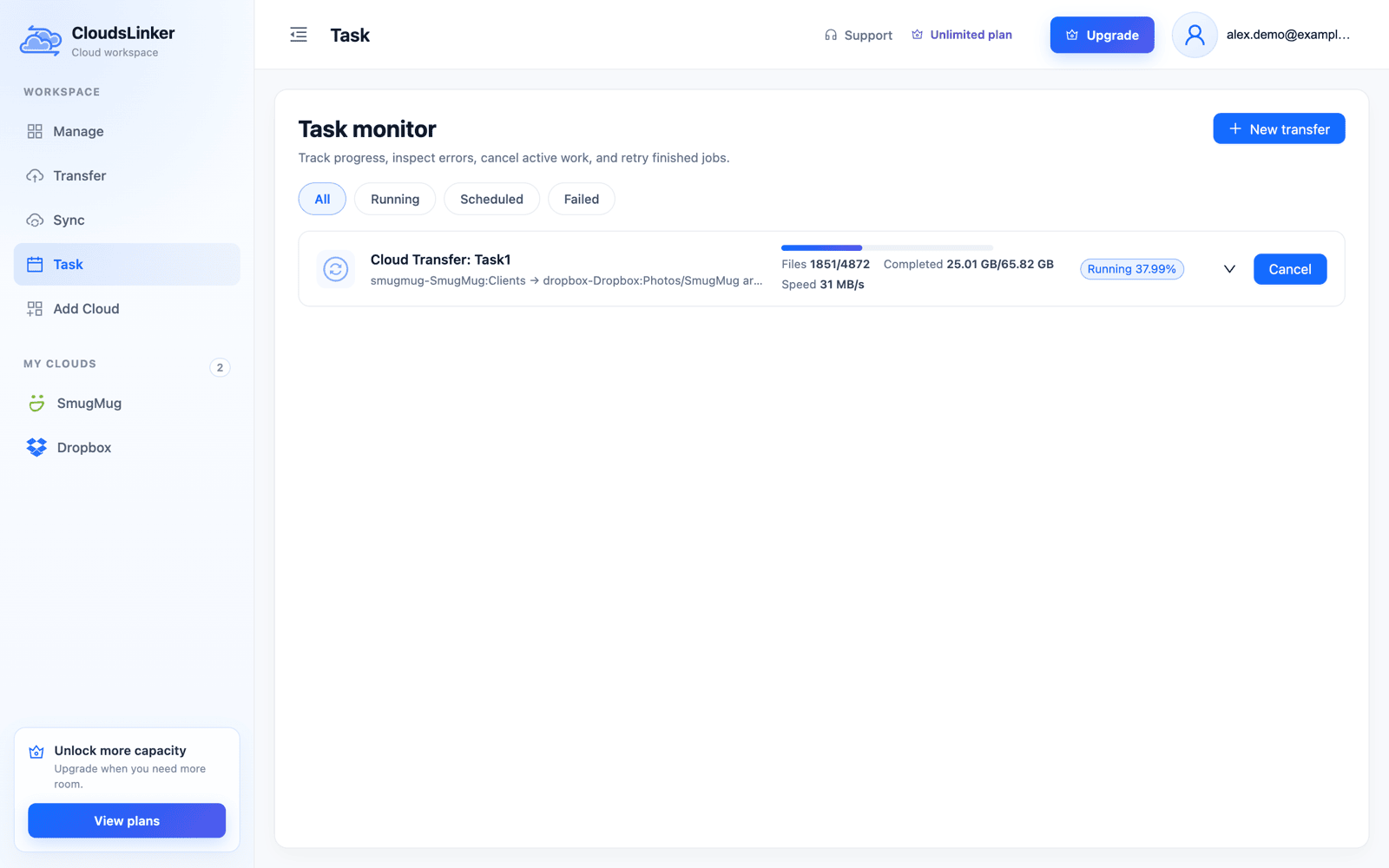
Click Create transfer. Task monitor shows files and bytes done and the speed, and the task continues after you close the browser. When it finishes, compare file counts for a few large galleries, including one with RAW files and one with hidden photos. Running the task again later copies only what's new; on paid plans it can run weekly or monthly.
Re-Share Client Galleries From Dropbox
Every link you've sent to a client points at SmugMug and stops working with the account. For galleries that are still in use:
- In Dropbox, hover over the gallery's folder and click Share, then create a link that anyone with the link can view.
- Send the new link to the client, and update the links on your website and in email templates.
- For galleries that relied on SmugMug passwords, proofing or print sales, decide what replaces them before cancelling — Dropbox share links are plain folder links unless your plan adds link controls.
- Use Dropbox's File requests if clients used to upload their own picks or files to SmugMug.
Before You Cancel SmugMug
- Library check. Media Location → Only in Library should be empty, or those photos saved separately.
- Counts. File counts match for your biggest galleries, including RAW and video galleries.
- Spot checks. Open a RAW file and a full-size JPEG in Dropbox and compare their size with SmugMug.
- Non-photo data. Export client lists and order history you need; captions typed into SmugMug aren't in the files.
- Links. Live client links replaced with Dropbox links.
- Access. Disconnect CloudsLinker in Dropbox (Settings → Apps) and in SmugMug's account settings, then cancel the subscription.
Frequently Asked Questions
Conclusion
For a few galleries, SmugMug's zip download and Dropbox's Upload → Folder are all you need. For a library of client folders built up over years, CloudsLinker copies the folder and gallery tree from SmugMug into Dropbox on its own servers with read-only access to SmugMug, and a second run picks up galleries added since. Either way, add Library-only photos to a gallery first, check file counts per gallery, create Dropbox share links for the galleries clients still use, and only then cancel SmugMug.
Related: SmugMug connection notes, SmugMug to Google Drive, Dropbox and Google Takeout to Dropbox.
Online Storage Services Supported by CloudsLinker
Transfer data between over 60 cloud services with CloudsLinker

OneDrive

Google Drive

Google Photos

Google Takeout

Shared Drive

OneDrive for Business

Dropbox

Box

Mega

pCloud

Yandex

ProtonDrive

AWS

GCS

iDrive

Storj

DigitalOcean

Wasabi

1fichier

PikPak

TeleBox

OpenDrive

Backblaze B2

Fastmail file

SharePoint

Nextcloud

ownCloud

Premiumize me

HiDrive

Put.io

Sugar Sync

SmugMug

Jottacloud

Seafile

Ftp

SFtp

NAS

WebDav

4shared

Icedrive

Cloudflare R2

Scaleway

Hetzner Object Storage

Synology C2 Object Storage

S3 Compatible

Doi

iCloud Drive

iCloud Photos

FileLU

Zoho WorkDrive

Telia Cloud / Sky

Drime

Filen

TeraBox

Internxt

Degoo

Gofile

Pixeldrain

Shade

Koofr
Didn' t find your cloud service? Be free to contact: [email protected]
Further Reading
Effortless FTP connect to google drive: Transfer Files in 3 Easy Ways
Learn More >
Google Photos to OneDrive: 3 Innovative Transfer Strategies
Learn More >
Google Photos to Proton Drive: 3 Effective Transfer Techniques
Learn More >