PikPak to Google Drive: Server-Side Transfer, No Local Download (2026)
Move PikPak files to Google Drive server-side — connect with your PikPak email and password (WebDAV as fallback) and land cloud downloads in permanent storage.
Introduction
PikPak fills up fast — magnet downloads, Telegram saves and shared folders accumulate until the 6 GB free tier (or even the 10 TB Premium cap) runs out, and PikPak's March 2026 policy now purges long-inactive free accounts. Google Drive is the natural permanent home: 15 GB free, stable retention, and apps on every device. Connecting is simpler than it used to be: CloudsLinker signs in to PikPak directly with your account email and password — if you registered through Google or Facebook, set a password in PikPak first — and a WebDAV fallback (Premium feature, dedicated credentials under Settings → Experimental Features) covers the rare case where the direct connection fails. This guide walks the whole path server-side, so a multi-hundred-GB library moves without a single local download.
Google Drive is a widely used cloud storage service offered by Google, providing users with a secure and convenient way to store, share, and access files from any device. It is integrated with Google's suite of productivity tools like Docs, Sheets, and Slides, making it an ideal solution for collaborative work. Google Drive offers 15GB of free storage for personal use, with options for expanded storage through Google One. Its key features include robust file sharing capabilities, powerful search functionality, and a user-friendly interface, making it a top choice for personal and professional data management.
PikPak is a versatile cloud storage service that offers up to 10TB of space, catering to both personal and professional storage needs. Its standout feature is the ability to save files quickly, including content from social media platforms and Torrent/Magnet links. PikPak also allows online playback of stored videos, supporting various quality settings, including 4K. With its integration with Telegram through a powerful bot, users can effortlessly forward files and links for storage. Additionally, PikPak emphasizes secure backups and user privacy, ensuring a safe and efficient cloud storage experience.
Moving from PikPak to Google Drive presents several benefits, enhancing the way you handle digital files:
- Superior Collaboration Tools: Google Drive stands out with its advanced collaborative features, offering real-time editing and efficient file sharing capabilities, making it a prime choice for team-based projects over PikPak.
- Google Workspace Integration: Google Drive seamlessly integrates with Google Workspace tools (like Docs, Sheets, and Slides), enhancing productivity and workflow efficiency.
- Enhanced Security: Google Drive offers robust security features, including SSL encryption and two-factor authentication, providing a more secure storage option compared to PikPak.
- Intuitive User Interface: The user-friendly interface of Google Drive simplifies file management and navigation, offering an improved user experience over PikPak.
While PikPak offers a private cloud storage solution with features like Telegram Bot integration and secure backup technology, its limitations in collaborative tools, integration with productivity applications, and a less intuitive user interface make Google Drive a more versatile and secure choice for effective digital file management.
Migrating from PikPak to Google Drive with Cloudslinker begins with a thorough assessment of your current data storage and preparing your accounts. Understanding the volume of data on PikPak is crucial, as it directly influences which Google Drive storage plan best fits your needs. Google Drive offers a variety of storage plans through Google One, starting with 15GB of free storage. Evaluating your data ensures you select a plan that accommodates your files without unnecessary expense.
Before proceeding with the migration, ensuring you have a Google account set up is essential. If you're not already using Google services, creating an account is a straightforward process. This account will be your gateway to accessing Google Drive and other Google services, providing a seamless integration across Google's ecosystem for your migrated data.
Before initiating the migration process, it's imperative to back up your data. Data loss, while rare, can occur during such transitions, and having a backup ensures your information remains safe. Consider using local storage devices like external hard drives or another cloud storage service as a backup repository. This step is about safeguarding your data against any unforeseen issues that might arise during the migration process.
Creating multiple backups, including both local and cloud-based options, provides an extra layer of security. Services like Cloudslinker facilitate the transfer process, but ensuring you have control over your data before, during, and after the migration is key to a successful transfer.
A lot of PikPak content starts as someone else's share. If what you're holding is a shared link or shared folder, save it into your own PikPak first (Save / Add to My Cloud) — the transfer below reads your account, not raw links, and share links can be revoked by their owner at any time. The PikPak shared-link guide walks through saving and downloading shares, including large video folders. Unsure about the service itself? See is PikPak safe for an honest assessment, and the PikPak connection page for every limit that matters (4 GB web-upload cap, monthly transfer quota, the March 2026 inactive-account purge).
Transfer PikPak to Google Drive in the Cloud with CloudsLinker
About CloudsLinker:
CloudsLinker signs in to PikPak with your account credentials, reads the library, and writes straight into Google Drive over OAuth — one of 150+ supported clouds. The copy runs on data-center bandwidth, so a library of cloud-downloaded videos moves without saturating your home connection for days, and resumes on its own if PikPak throttles.
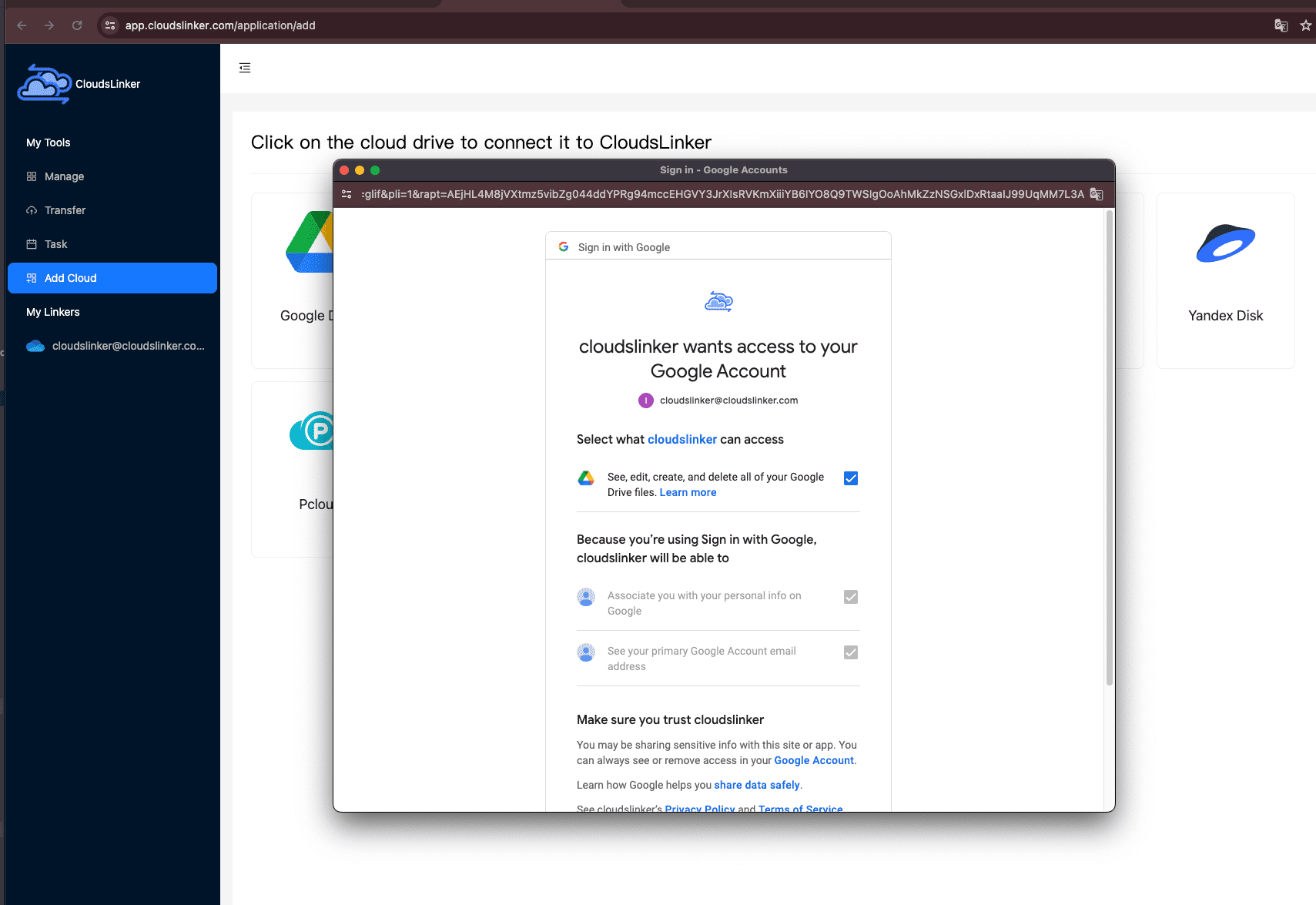
Step 1: Connect Google Drive
Sign in to CloudsLinker, click Add Cloud → Google Drive, and approve access on Google's OAuth consent page. The grant is a revocable token — no password is shared.
Step 2: Connect PikPak
Click Add Cloud → PikPak and sign in with your PikPak account email and password. Credentials travel over TLS and are stored encrypted.
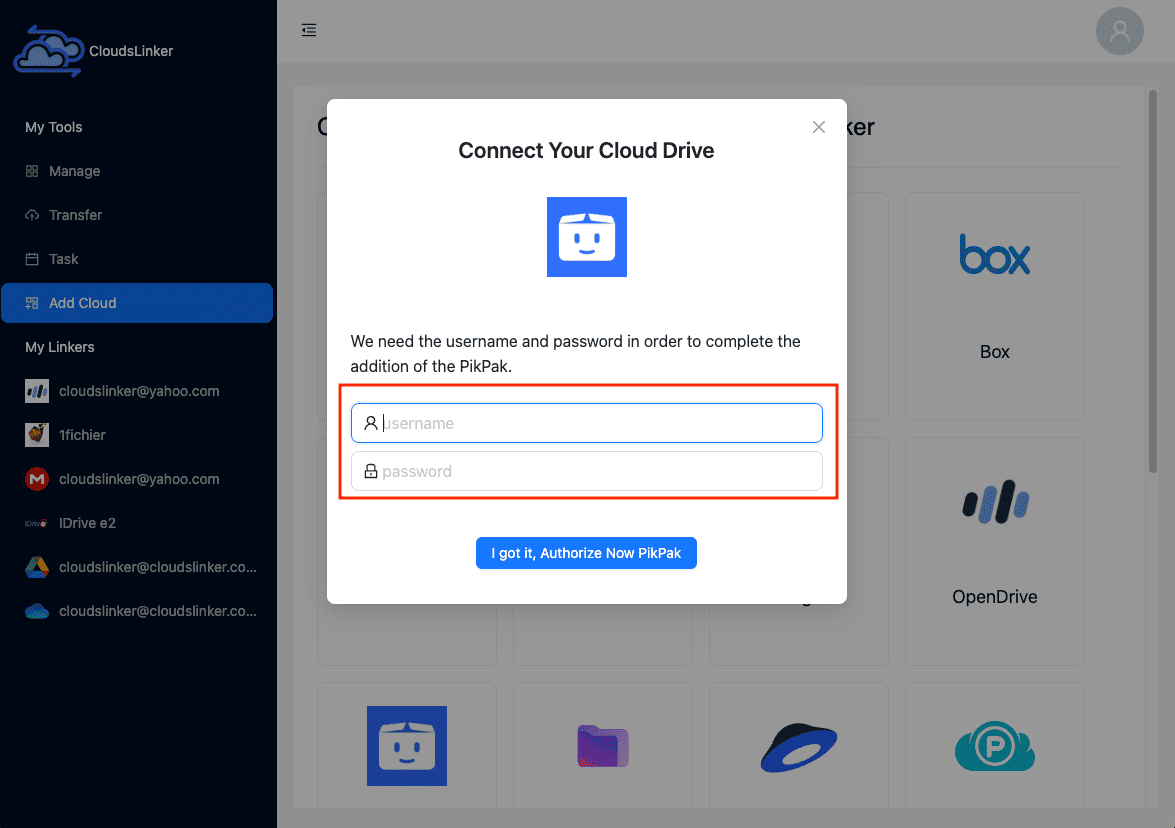
Signed up through Google or Facebook? Set a password first: on the
PikPak web page, hover the avatar →
Account and Security → Password → Set Password.
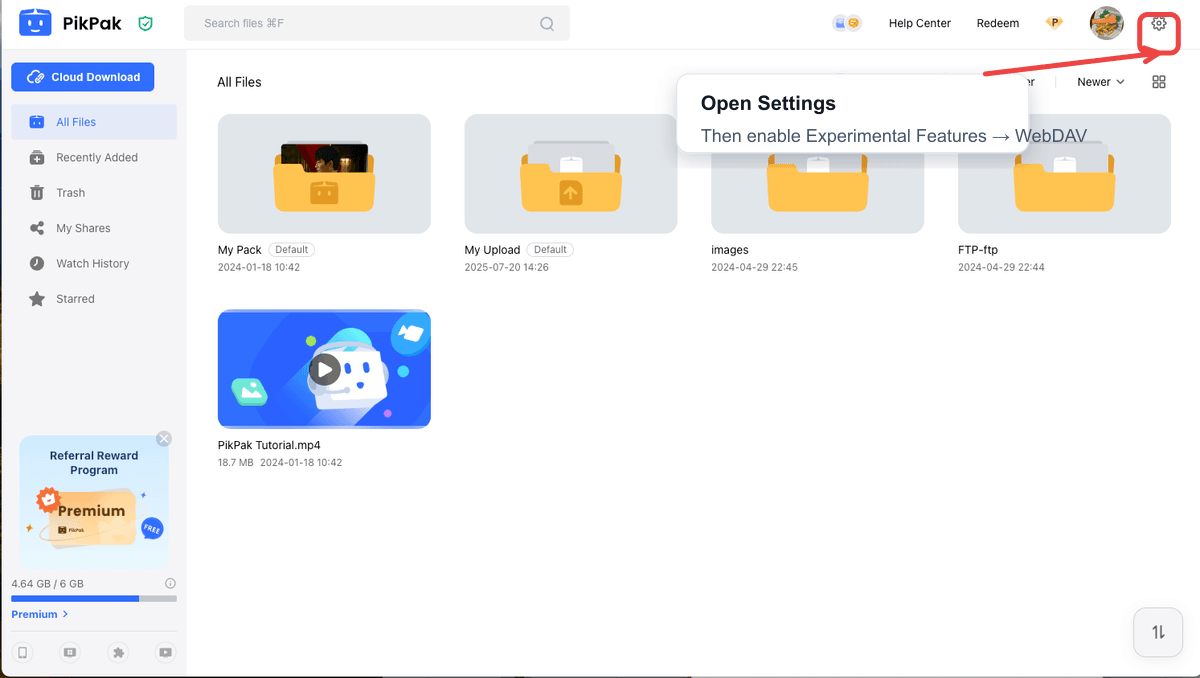
If the direct connection fails, use the WebDAV fallback: in PikPak,
open Settings → Experimental Features, enable WebDAV (a Premium feature) and PikPak
generates dedicated credentials — enter those in CloudsLinker's WebDAV connection method
instead. Note the fallback is read-only. The
PikPak connection page explains both routes field by field.
Step 3: Configure the Transfer
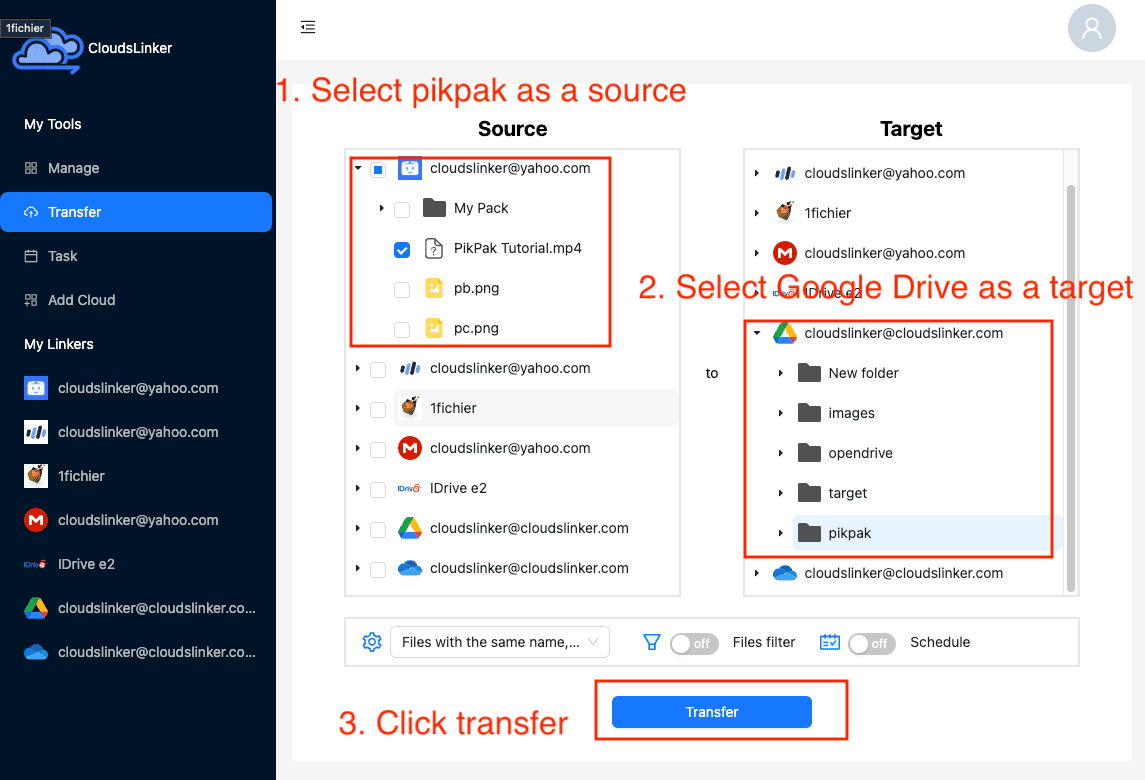
Within Cloudslinker's 'Transfer' section, define your source and destination for the transfer. In this case, choose your PikPak account as the source and Google Drive as the destination.
Use Cloudslinker’s filtering options to select specific file types or sizes for the transfer. For more information on setting filters, refer to the Cloudslinker Filter Settings. Additionally, Cloudslinker supports setting up scheduled transfers. You can arrange these transfers to occur on a weekly, daily, or specific date basis, or as a one-off event. Further details can be found in the Cloudslinker Schedule Settings guide.
Step 4: Monitor and Verify the Transfer
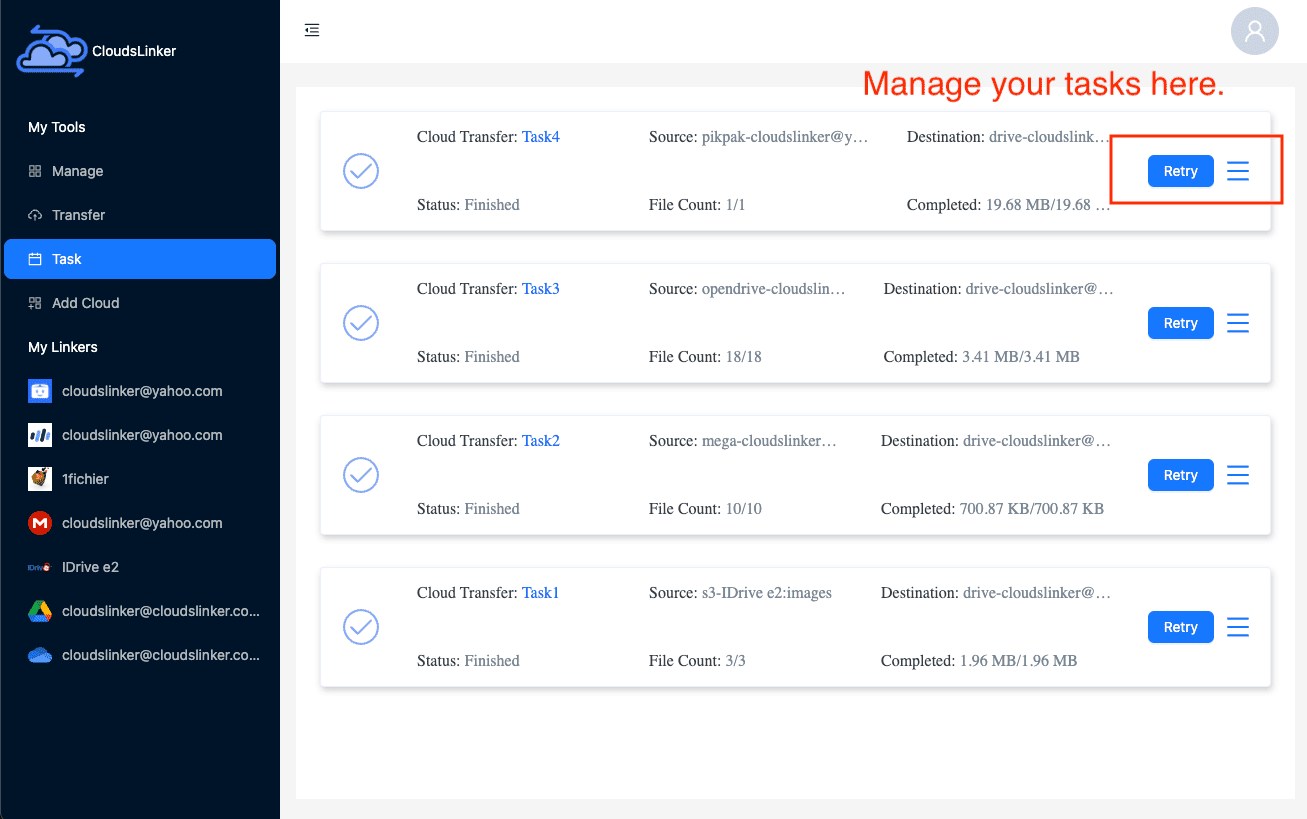
Follow the job in the Task section — files moved, current speed, and anything skipped. The transfer runs on CloudsLinker's servers, so it continues after you close the browser; transfer reads count toward PikPak's monthly quota, and the job resumes automatically if throughput is throttled.
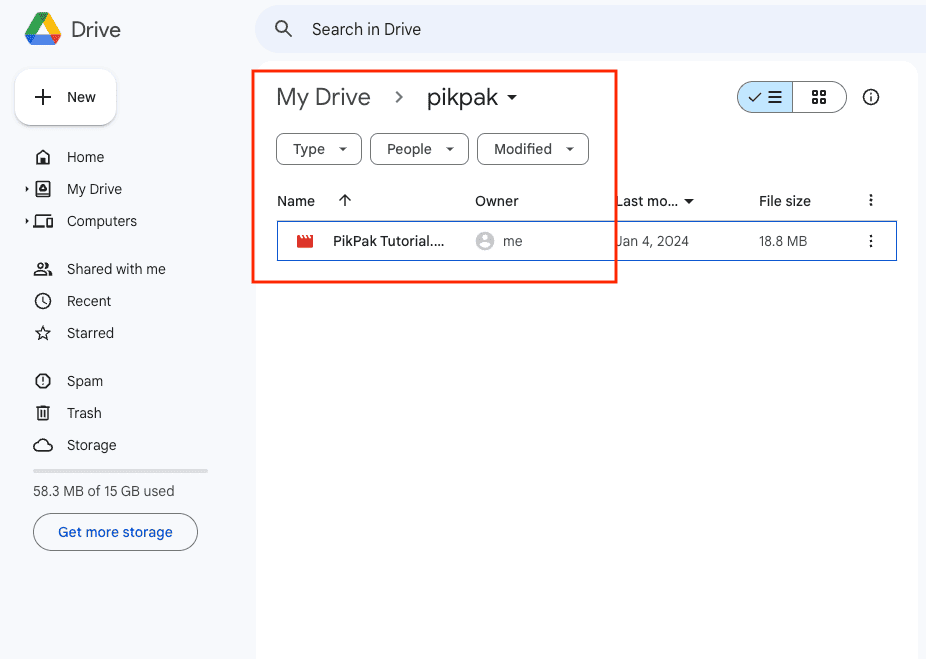
When it completes, spot-check the arrivals in Google Drive — compare file counts and open one or two videos — before deleting anything from PikPak to reclaim space.
Optimizing Google Drive Usage
Organizing Files and Folders
After migrating to Google Drive, organizing your files and folders is a pivotal step towards maximizing efficiency. Utilize Google Drive's folder hierarchy to categorize your data logically, making use of color coding and naming conventions to enhance findability and access speed.
Sharing and Collaboration Features
Leverage Google Drive's robust sharing and collaboration tools to edit documents, spreadsheets, and presentations in real time with your team. Set appropriate permissions to control who can view, comment on, or edit your files, facilitating a collaborative environment regardless of location.
Advanced Google Drive Features and Add-ons
Dive into Google Drive's advanced features and add-ons to enhance your productivity. Whether it's accessing files offline or utilizing add-ons for project management, Google Drive offers a suite of tools designed to streamline your workflow and increase efficiency.
Troubleshooting Common Migration Issues
Handling Data Loss or Corruption
In the unlikely event of data loss or corruption, having a solid backup strategy is your first line of defense. We'll explore methods to minimize these risks and provide actionable steps to recover your data should these issues arise.
Resolving Compatibility Issues
Encountering compatibility issues with certain file types or sizes during migration is not uncommon. We'll discuss strategies for addressing these challenges, ensuring a smooth transition to Google Drive.
Future of Cloud Storage
Emerging Trends in Cloud Storage
The landscape of cloud storage is continually evolving, with emerging trends focusing on enhanced security measures, the integration of artificial intelligence, and more. Staying informed about these developments is crucial for leveraging the full potential of cloud storage solutions.
PikPak and Google Drive: What's Next
Looking forward, both PikPak and Google Drive are poised for continued innovation, promising to deliver new features and functionalities that further enhance user experience and data management capabilities.
Watch Our Step-by-Step Video Tutorial
Learn how to transfer files from PikPak to Google Drive with our detailed video tutorial. This guide offers a visual and practical approach to managing your files in the cloud. Suitable for both beginners and experienced users, our video provides clear step-by-step instructions. Enhance your cloud storage management skills, learn valuable tips, and make your file transfer process smooth and efficient. Watch now to master file migration between PikPak and Google Drive!
Frequently Asked Questions
Conclusion
The transfer itself is four steps: PikPak connected with your email and password (or WebDAV credentials as the fallback), Google Drive connected by OAuth, folders picked, and the job running server-side while you do something else. If what you actually have is someone else's shared link rather than your own library, save it to your PikPak first; the shared-link guide linked above covers that flow end to end. Whichever route you take, verify the arrivals in Drive before clearing PikPak space — the March 2026 inactivity rules make PikPak the wrong place for sole copies.
Online Storage Services Supported by CloudsLinker
Transfer data between over 60 cloud services with CloudsLinker

OneDrive

Google Drive

Google Photos

Google Takeout

Shared Drive

OneDrive for Business

Dropbox

Box

Mega

pCloud

Yandex

ProtonDrive

AWS

GCS

iDrive

Storj

DigitalOcean

Wasabi

1fichier

PikPak

TeleBox

OpenDrive

Backblaze B2

Fastmail file

SharePoint

Nextcloud

ownCloud

Premiumize me

HiDrive

Put.io

Sugar Sync

SmugMug

Jottacloud

Seafile

Ftp

SFtp

NAS

WebDav

4shared

Icedrive

Cloudflare R2

Scaleway

Hetzner Object Storage

Synology C2 Object Storage

S3 Compatible

Doi

iCloud Drive

iCloud Photos

FileLU

Zoho WorkDrive

Telia Cloud / Sky

Drime

Filen

TeraBox

Internxt

Degoo

Gofile

Pixeldrain

Shade

Koofr
Didn' t find your cloud service? Be free to contact: [email protected]
Further Reading
Effortless FTP connect to google drive: Transfer Files in 3 Easy Ways
Learn More >
Google Photos to OneDrive: 3 Innovative Transfer Strategies
Learn More >
Google Photos to Proton Drive: 3 Effective Transfer Techniques
Learn More >