How to Move Files from Google Drive to PikPak (2026)
Move files from Google Drive to PikPak in 2026: browser, rclone or a server-side copy. Check PikPak's 6 GB free tier and 1 TB monthly upload quota first.
Introduction
Short answer: neither Google nor PikPak offers an importer, so moving from Google Drive to PikPak means one of three routes. A few folders go fastest through the browser (download from Drive, upload with the PikPak desktop app). A one-time bulk copy suits rclone, which speaks to both services but pushes every byte through your own computer. A large or recurring copy is what a server-side service such as CloudsLinker is for: it reads from Drive and writes to PikPak on its own servers. The number to check before any of them is on PikPak's side, not Google's: PikPak's FAQ lists basic monthly quotas of 1 TB of upload, 4 TB of downstream and 40 TB of cloud download, so a 3 TB Drive library needs about three calendar months of quota unless you buy extra. A free PikPak account holds only 6 GB, against Drive's 15 GB. Going the other way? That is a separate guide: PikPak to Google Drive.
Google Drive gives every Google Account 15 GB shared with Gmail and Google Photos; Google One adds tiers such as 100 GB at $1.99/month and 2 TB at $9.99/month (checked July 2026).
- Per-file limit: a single uploaded file can be up to 5 TB.
- Google-native files: Docs, Sheets and Slides have no byte size and are exported to Office formats when they leave Drive.
- What does not travel: sharing permissions, comments and version history stay with the original in Drive.
PikPak is a cloud saver built around cloud-side downloads (magnet, torrent, URL), in-browser video playback and a Telegram bot. A free account holds 6 GB; Premium has a 10 TB base.
- Monthly quotas (basic): 1 TB upload, 4 TB downstream, 40 TB cloud download, measured per calendar month.
- Inactive accounts: from March 1, 2026, a non-Premium account with no login for 12 months can enter deletion.
- Connection: email and password; the WebDAV fallback is read-only and cannot receive files.
Why people move from Google Drive to PikPak, and when not to
The usual reason is a media library: video, courses, camera archives and downloads that fill a 15 GB Drive quickly and get played more than they get edited. PikPak's 10 TB Premium base and its in-browser playback with quality choices fit that use better than Drive does. The trade-offs are real. PikPak is not a collaboration suite, so Docs, Sheets and Slides stop being editable the moment they are exported. Its free tier is smaller than Drive's (6 GB against 15 GB). And its monthly upload quota, not your internet speed, decides how fast a large library can arrive. If most of what you keep in Drive is documents that other people edit, leave those in Drive and move only the media.
Google Drive vs PikPak: the numbers that matter for this move
| Feature | Google Drive (source) | PikPak (destination) |
|---|---|---|
| Free storage | 15 GB, shared with Gmail and Photos | 6 GB |
| Bigger tiers | Google One: 100 GB $1.99/month, 2 TB $9.99/month (checked July 2026) | Premium, 10 TB base; Global and Regional price tiers |
| Largest single file | 5 TB | 4 GB web client, 20 GB desktop client (reported); API cap not published |
| Transfer limits | 750 GB of uploads per user per day | About 1 TB of uploads per calendar month (basic allowance); separate download allowances of 4 TB downstream and 40 TB cloud download |
| Google-native documents | Docs, Sheets, Slides: no byte size, exported on the way out | Arrive as ordinary .docx, .xlsx, .pptx files |
| Inactive accounts | Governed by Google's account policies | Non-Premium: deletion process after 12 months without login, 7-day grace |
| How CloudsLinker connects | OAuth at accounts.google.com | Email and password (WebDAV fallback is read-only) |
Before you start
- Measure what you are moving. In Drive, open Google One storage to see the total, then decide which folders actually belong in PikPak. Media, archives and PDFs move; shared documents usually should not.
- Do the quota arithmetic. Divide the size by 1 TB to get the minimum number of calendar months at PikPak's basic upload quota, or budget for Extra Transfer Quota.
- Choose the PikPak tier. A free account fits 6 GB and is subject to the 12-month inactivity rule; Premium fits libraries up to 10 TB.
- Check the PikPak login. If you signed up with Google or Facebook, set a password first (avatar, Account and Security, Password), otherwise the direct connection has nothing to sign in with.
- Find your largest file. Sort Drive by size. Anything close to 20 GB should be tested first, because PikPak's per-file cap for API uploads is not published.
Method 1: Download from Drive, upload to PikPak
Step 1: Download from drive.google.com
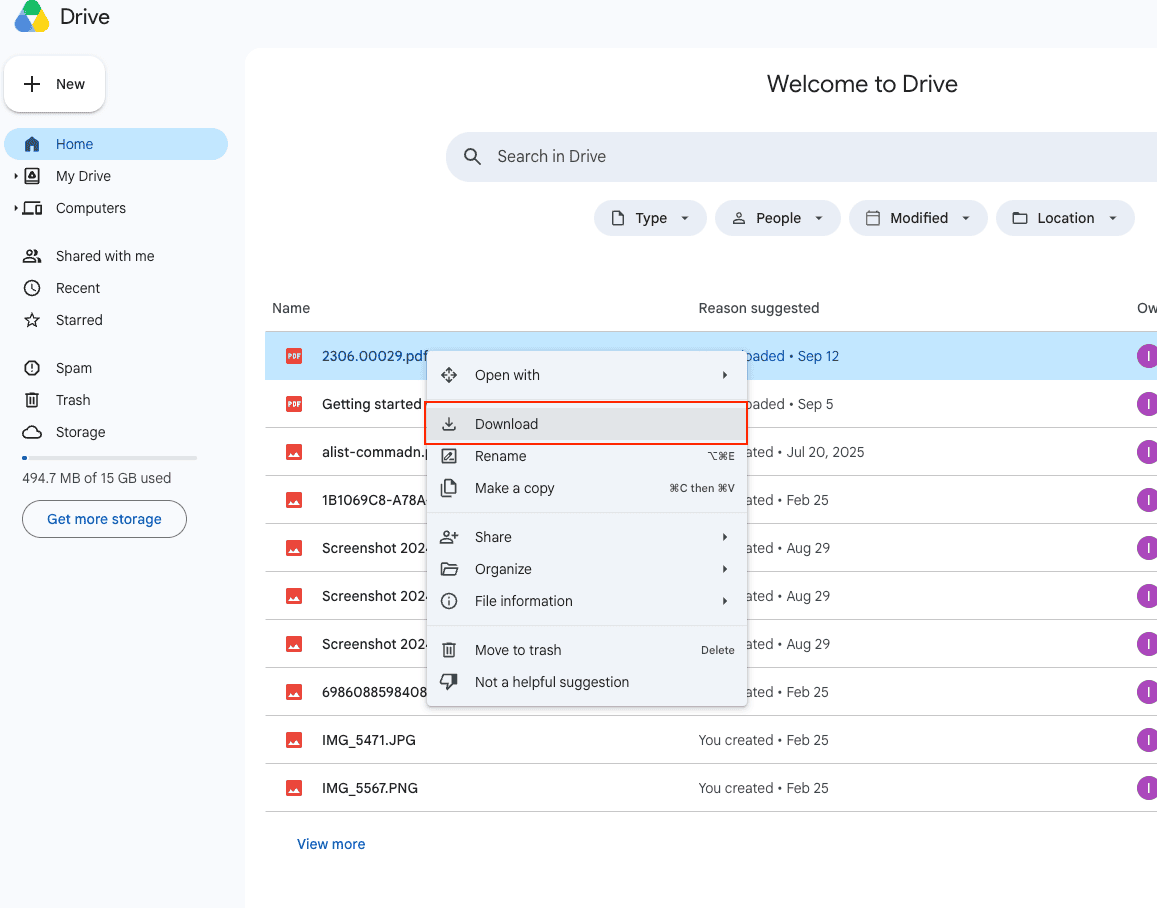
Select the folders in Drive, right-click and choose Download. Drive zips the selection, splits very large ones into several archives, and converts Docs, Sheets and Slides to Office formats inside the ZIP. Unzip everything locally.
Step 2: Upload with the PikPak desktop app
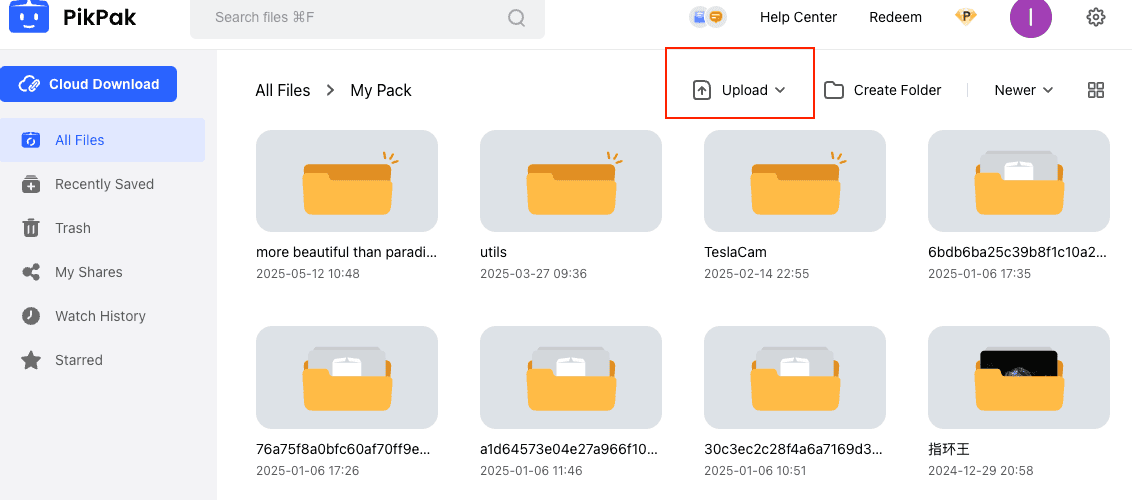
Sign in to PikPak and use the Upload button above the file list in the web client, or drag the folders into the desktop app. Use the desktop app for anything large: our PikPak connection notes record a 4 GB per-file limit in the web client and 20 GB in the desktop client. Every byte crosses your own connection twice, once down from Google and once up to PikPak, and the upload counts against PikPak's monthly upload limit of about 1 TB.
Method 2: rclone on a Mac or PC
Step 1: Configure two remotes
rclone supports both
services. Run rclone config twice: choose drive and finish the browser
authorization for Google, then choose pikpak and enter your PikPak email and password
(rclone stores the password obscured). The
rclone PikPak notes
say PikPak keeps modification times, but warn that its MD5 checksums can come back empty. In August
2026 rclone's developers went further and reported that PikPak returns no MD5 at all for files
rclone uploads
(rclone issue 9826),
so rclone cannot verify these copies by checksum.
Step 2: Dry run, copy, verify
rclone copy gdrive:Media pikpak:GDrive/Media --progress --dry-run
rclone copy gdrive:Media pikpak:GDrive/Media --progress
rclone check gdrive:Media pikpak:GDrive/Media --size-only
copy adds files and deletes nothing; sync would delete PikPak files that are
missing in Drive, so avoid it here. The --size-only check is used because PikPak gives
rclone no checksum to compare, so it confirms that files are present and the same size, not that
every byte is identical. The transfer runs through the machine that runs rclone, so your bandwidth
and uptime matter, and the upload still counts against PikPak's monthly upload limit. Google-native
files are exported to Office formats by default.
Method 3: Server-side copy with CloudsLinker
CloudsLinker is a third-party web service that copies files between cloud accounts on its own servers. Nothing is downloaded to your computer, the browser tab can be closed once the task runs, and the same task can be scheduled to repeat. It reaches Google Drive through Google's public API and PikPak through your account credentials; neither company endorses it.
Step 1: Connect Google Drive (OAuth)
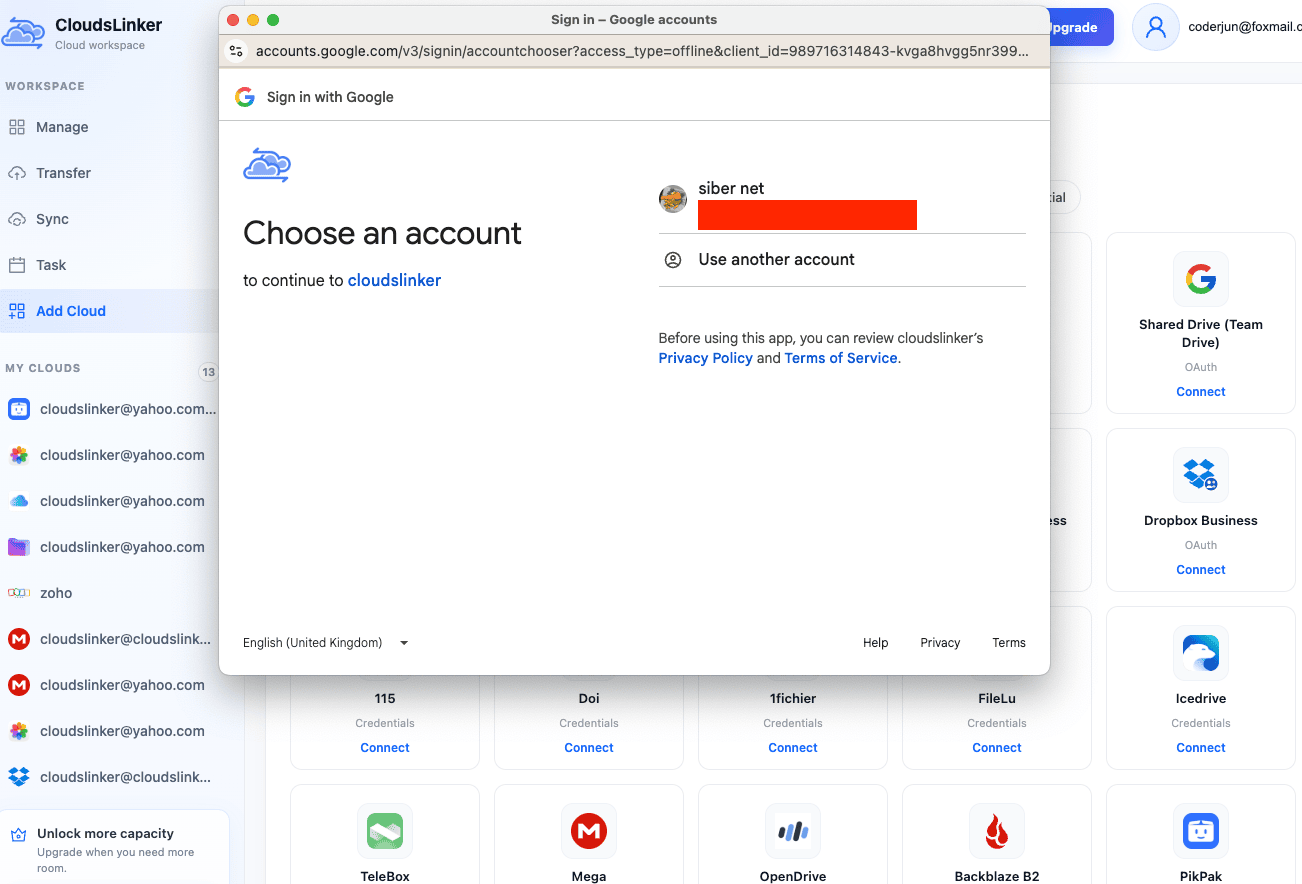
Sign in at app.cloudslinker.com, open Add Cloud and choose Google Drive. A Google window opens on accounts.google.com with the message "Choose an account to continue to cloudslinker". Pick the account that holds your files (or Use another account), then approve the access Google lists on the next screen, including permission to see, edit, create and delete your Drive files. Drive then appears under My Clouds. Your Google password is never entered in CloudsLinker.
Step 2: Connect PikPak (email and password)
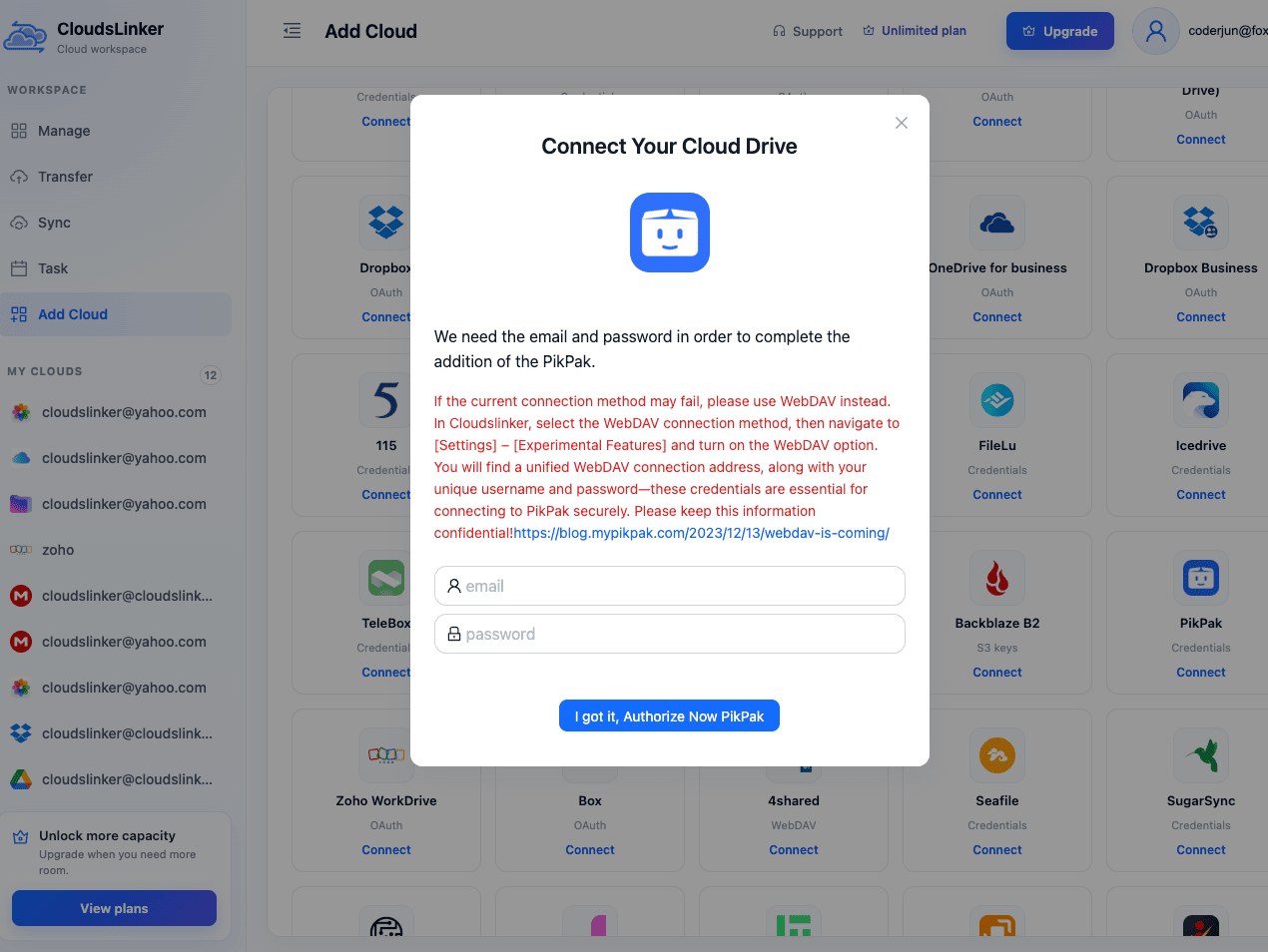
Choose PikPak in Add Cloud and enter your PikPak email and password in the dialog. Accounts created through Google or Facebook need a password first (PikPak avatar, Account and Security, Password). The dialog also suggests WebDAV as a fallback if the direct connection fails. Do not use it for this job: PikPak's WebDAV option is read-only and cannot receive files.
Step 3: Choose folders, filters and schedule
Open Transfer. Under Source, tick the Google Drive account, or
expand it and tick individual folders. Under Target, expand PikPak and select or
create the destination folder, for example a folder called GDrive.
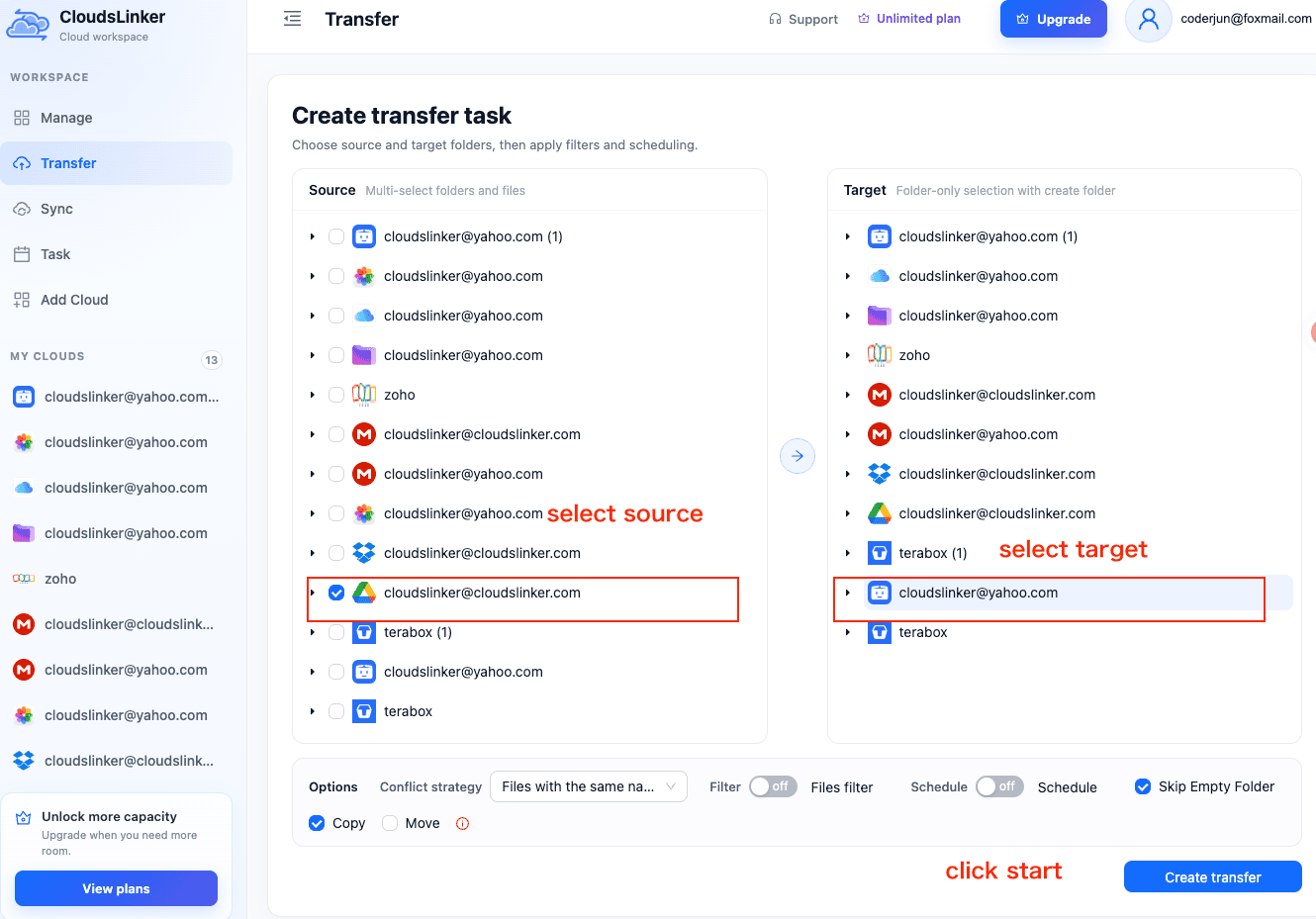
- Conflict strategy (the list under Options): by default a file is transferred only if its size differs or the date is more recent. You can also skip files with the same name, or force overwriting.
- Filter: switch it on, then open Files filter to include or exclude extensions and set a minimum and maximum file size in MB. A maximum below your PikPak per-file ceiling keeps oversized files out of a run.
- Schedule: switch it on to run Once, Weekly (weekdays and a time) or Monthly (a day). Scheduling is available on paid plans. Monthly runs on different folders are an easy way to stay under PikPak's upload limit.
- Skip Empty Folder is ticked by default, so empty folders are skipped.
- Copy or Move: keep Copy. Move deletes the files from Google Drive once they have been transferred.
Step 4: Start, monitor, verify
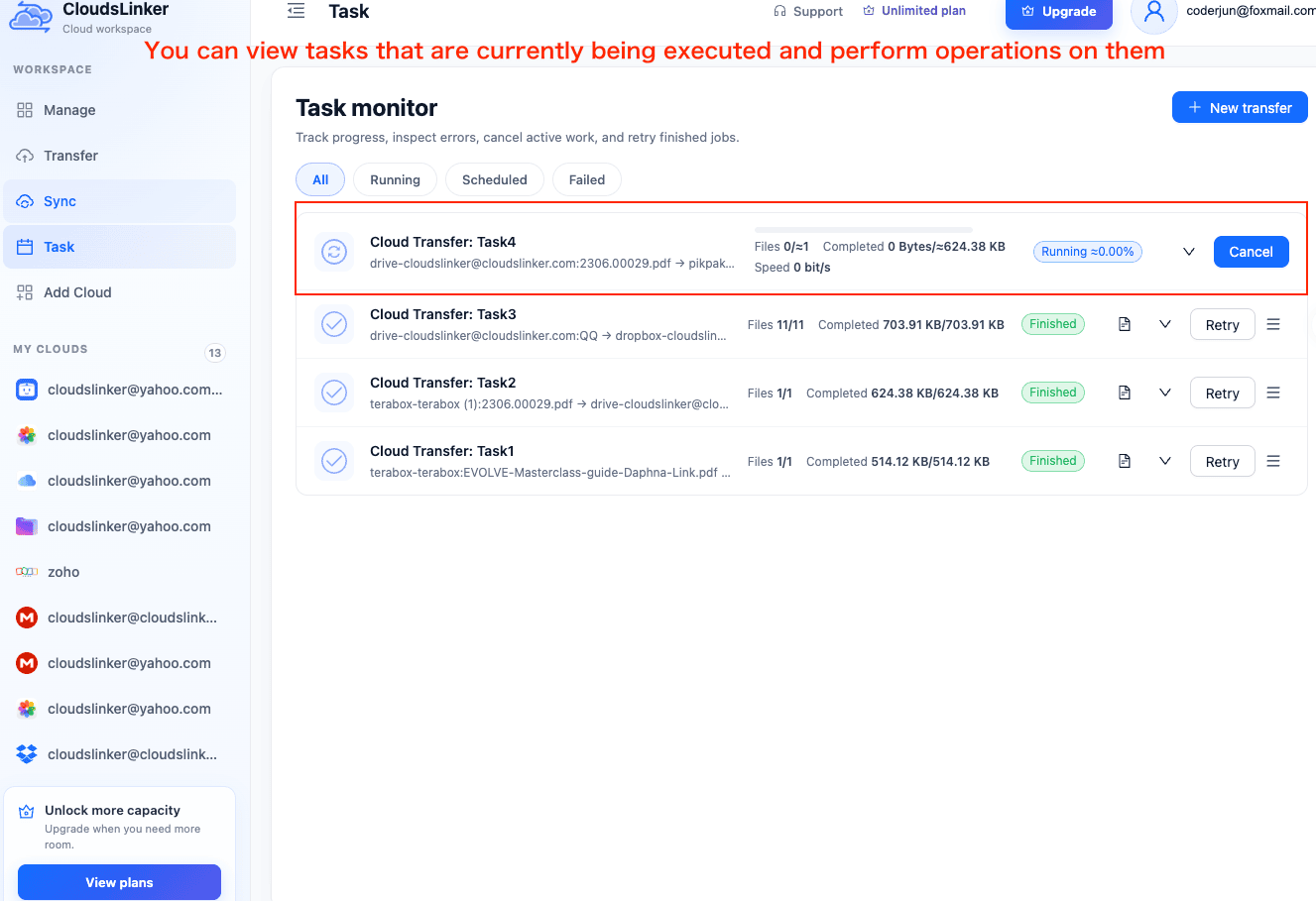
Click Create transfer. The job shows up under Task with file counts, completed bytes, speed and Cancel or Retry buttons. When it finishes, open PikPak and check a few folders, especially a large video, then decide whether to free space in Drive.
PikPak's upload limit, in plain words
PikPak limits how much you can upload in a month, not how many files. A basic account can upload about 1 TB per calendar month, and it counts whichever tool puts the files there: the PikPak app, rclone or CloudsLinker. When the month ends, the counter starts again. PikPak also lists separate download allowances (4 TB downstream and 40 TB cloud download), but they do not come into play when you move files in.
| Your Drive library | Roughly how long it takes to move in |
|---|---|
| 500 GB | Fits in one month |
| 1 TB | About one month; leave some room |
| 3 TB | About three months, moved in slices |
If your library is bigger than 1 TB, you have three options:
- Move it in slices. Put the folders you cannot lose in first and the bulk media later. With CloudsLinker each slice is one task with a different folder selection, or one Monthly schedule per group of folders.
- Buy more room. PikPak sells Extra Transfer Quota, and says it may also raise the basic allowance for some accounts.
- Wait for next month. The allowance starts over with the new calendar month.
The PikPak pages we read do not say what happens when you reach the limit, so leave some headroom instead of aiming for exactly 1 TB. Single files have their own size limit as well: our PikPak connection notes record about 4 GB in the web client and about 20 GB in the desktop app, and PikPak does not publish a limit for uploads from other tools, so try your biggest file first.
The three methods side by side
| Method | Best for | Data passes through your device | Repeats on a schedule | Setup |
|---|---|---|---|---|
| 1. Browser download + PikPak upload | A few folders, one time | Yes, twice | No | None; desktop app for files over 4 GB |
| 2. rclone | One large copy from a computer that stays on | Yes, through the machine running it | Yes, with cron or launchd | Two remotes; PikPak password |
| 3. CloudsLinker | Large libraries and recurring Drive → PikPak copies | No, server to server | Yes: Once, Weekly, Monthly | OAuth for Drive; email and password for PikPak |
Things to check before you move
- Google-native files are exported, not copied. The result is a static
.docx,.xlsxor.pptxin PikPak with no link back to the Google original. - Sharing and comments do not travel. Drive share links, permissions, comments and version history belong to Drive. Re-share from PikPak if you need to.
- Copy first, delete later. The default Copy option leaves Drive untouched (Move deletes the source files after the transfer). Delete from Drive only after you have opened files in PikPak.
- A free PikPak account is a poor cold archive. Non-Premium accounts with no login for 12 consecutive months may enter deletion, with a 7-day grace period.
- Different revocations. Google access is an OAuth grant removed under your Google Account's Security settings; PikPak access is a password login, ended by deleting the connection in CloudsLinker and changing your PikPak password.
Sources: Google — Files you can store in Google Drive, Google — Storage and upload limits, PikPak — FAQ (storage, monthly quotas, inactive-account policy), PikPak — Transfer quota help, rclone — PikPak backend, rclone issue 9826 — PikPak MD5 hashes (August 2026). PikPak per-file upload limits are as recorded on our PikPak connection page. Prices are US list prices checked July 2026.
Watch: Move Files from Google Drive to PikPak Without Downloading
A real-time walkthrough of Method 3: connecting Google Drive through Google's OAuth page, adding PikPak with its email and password (not the read-only WebDAV option), then picking Drive folders and copying them server-side in Copy mode, with the honest note that PikPak's upload quota of about 1 TB a month applies whatever tool you use, so large libraries move in monthly slices.
Frequently Asked Questions
.docx, .xlsx, .pptx). The copy in PikPak is a static snapshot: it no longer syncs with the Google original and it will not open as an editable Google Doc. Keep collaborative documents in Drive and move the media, archives and PDFs.
rclone check with --size-only. It compares sizes instead of checksums because rclone's developers report that PikPak returns no MD5 checksum for files uploaded through rclone (rclone issue 9826, August 2026), so a count-and-size check is what is available.
Conclusion
Choose by volume and by how patient you are with PikPak's quota. A handful of files: the browser and the PikPak desktop app need no setup, though the web client caps a single upload at 4 GB. One large copy from a Mac or PC you can leave running: rclone gives you dry runs and filters for free, at the cost of a terminal and your own bandwidth. A big library, or a Drive folder that should keep landing in PikPak on a weekly or monthly schedule: CloudsLinker connects Drive by OAuth and PikPak by email and password, and runs the copy on its servers, ideally in monthly slices that fit PikPak's 1 TB upload quota. Whichever route you take, decide first whether the PikPak account is Premium (10 TB base storage) or free (6 GB), because a free account that sits idle for 12 months can enter PikPak's deletion process.
Online Storage Services Supported by CloudsLinker
Transfer data between over 58 cloud services with CloudsLinker

OneDrive

Google Drive

Google Photos

Shared Drive

OneDrive for Business

Dropbox

Box

Mega

pCloud

Yandex

ProtonDrive

AWS

GCS

iDrive

Storj

DigitalOcean

Wasabi

1fichier

PikPak

TeleBox

OpenDrive

Backblaze B2

Fastmail file

SharePoint

Nextcloud

ownCloud

Premiumize me

HiDrive

Put.io

Sugar Sync

Jottacloud

Seafile

Ftp

SFtp

NAS

WebDav

4shared

Icedrive

Cloudflare R2

Scaleway

Hetzner Object Storage

Synology C2 Object Storage

S3 Compatible

Doi

iCloud Drive

iCloud Photos

FileLU

Zoho WorkDrive

Telia Cloud / Sky

Drime

Filen

TeraBox

Internxt

Degoo

Gofile

Pixeldrain

Shade

Koofr
Didn' t find your cloud service? Be free to contact: [email protected]
Further Reading
Effortless FTP connect to google drive: Transfer Files in 3 Easy Ways
Learn More >
Google Photos to OneDrive: 3 Innovative Transfer Strategies
Learn More >
Google Photos to Proton Drive: 3 Effective Transfer Techniques
Learn More >