How to Move Files from Dropbox to iCloud Drive (2026): 4 Methods
Four verified ways to move files from Dropbox to iCloud Drive in 2026: iPhone Files app, browser, rclone, or a server-side transfer that skips the download.
Introduction
Short answer: neither Apple nor Dropbox ships an importer, so moving files from Dropbox to iCloud Drive comes down to four routes. A handful of documents is quickest through the Files app on an iPhone or iPad (Dropbox → Save to Files → iCloud Drive) or a browser download-and-upload. A whole archive is better served by rclone (free, command line, iCloud Drive backend since v1.69) or by a cloud-to-cloud service such as CloudsLinker, which copies Dropbox into iCloud Drive server-side so nothing passes through your Mac or your home connection. Two numbers decide the plan before you start: iCloud Drive rejects any single file or folder larger than 50 GB, and every Apple Account begins with only 5 GB — a full Dropbox Plus library (2 TB) needs the 2 TB iCloud+ tier ($9.99/month) first. Going the other direction? That is a separate guide: iCloud Drive to Dropbox.
Dropbox started in 2007 and still runs on every desktop and mobile platform plus the web. The free Basic plan holds 2 GB and syncs to three devices; Plus gives one user 2 TB for $9.99/month billed annually (checked July 2026).
- Per-file limit: up to 2 TB through the desktop app or API; browser uploads above 375 GB may time out.
- Version history: 30 days on Basic and Plus, 180 days on Essentials and Standard, 365 days on Advanced and Enterprise.
- Dropbox Transfer: send-once packages of 2 GB on Basic, 50 GB on Plus, 100 GB on Standard and Essentials.
- Online-only files: the desktop app can keep items cloud-only, which matters for manual copies (see tips).
iCloud Drive is the file half of iCloud, built into Finder, the Files app, iCloud for Windows and iCloud.com. Every Apple Account starts with 5 GB; iCloud+ adds 50 GB ($0.99), 200 GB ($2.99), 2 TB ($9.99), 6 TB ($29.99) or 12 TB ($59.99) per month, shareable with up to five family members.
- Per-file limit: a single file or folder item cannot exceed 50 GB on any plan.
- Desktop & Documents sync: a Mac can keep both folders in iCloud Drive, so files show up on iPhone and iPad automatically.
- Advanced Data Protection: optional end-to-end encryption that also switches off web access to your files — relevant to every tool below.
- No third-party importer: Apple provides no way to pull from Dropbox; you bring the data yourself.
Why people move from Dropbox to iCloud Drive
The usual trigger is a household that has gone all-Apple: iPhone, iPad and a Mac, with iCloud Photos already on. Keeping Dropbox alongside means a second sync client, a second monthly bill and a second place to search. iCloud Drive costs $9.99/month for 2 TB versus Dropbox Plus at $9.99/month (annual) for the same 2 TB, so the money is a wash — the gain is that the 2 TB also covers iCloud Photos, device backups and the Desktop & Documents folders of every Mac in the family. The trade-off is honest too: Dropbox's 2 TB per-file allowance, longer version history on higher tiers, Linux support and third-party integrations have no equivalent in iCloud Drive. If your work depends on those, keep Dropbox for that project and move only the rest.
Dropbox vs iCloud Drive: the numbers that affect a migration
| Feature | Dropbox | iCloud Drive |
|---|---|---|
| Free storage | 2 GB (Basic, 3 devices) | 5 GB (every Apple Account) |
| 2 TB tier | Plus, $9.99/month billed annually | iCloud+, $9.99/month, monthly billing only |
| Largest single file | 2 TB (desktop app / API); browser uploads unreliable above 375 GB | 50 GB per file or folder item |
| Largest plan | Plus 2 TB for individuals; team plans scale further | 12 TB |
| Deleted-file / version window | 30 days (Basic, Plus); 180 or 365 days on business tiers | 30 days in Recently Deleted |
| Platforms | Windows, macOS, Linux, iOS, Android, web | macOS, iOS, iPadOS, Windows (iCloud for Windows), web |
| Encryption | In transit and at rest, keys held by Dropbox | At rest by default; optional end-to-end with Advanced Data Protection |
| How CloudsLinker connects | OAuth at www.dropbox.com | Apple Account email + password + 6-digit code |
Before you start
- Measure the source. On dropbox.com open Settings → Plan to see the exact usage. That number, plus what iCloud already holds, is the iCloud+ tier you need.
- Find files over 50 GB. Disk images, video masters and archived project folders are the usual offenders. iCloud Drive will not take them; split them, or keep them in Dropbox.
- Buy the iCloud+ plan first. Settings → your name → iCloud → Manage Storage on an iPhone, or System Settings → Apple Account → iCloud on a Mac. Upgrading mid-transfer means re-running the stalled part.
- Decide about Advanced Data Protection. With ADP on, iCloud.com, rclone and CloudsLinker cannot read or write your iCloud Drive. Turn it off for the migration and back on afterwards if you rely on it.
- Make Dropbox files available offline if you plan to use Finder or the Files app — online-only stubs cannot be copied.
Method 1: Download from Dropbox, upload at iCloud.com
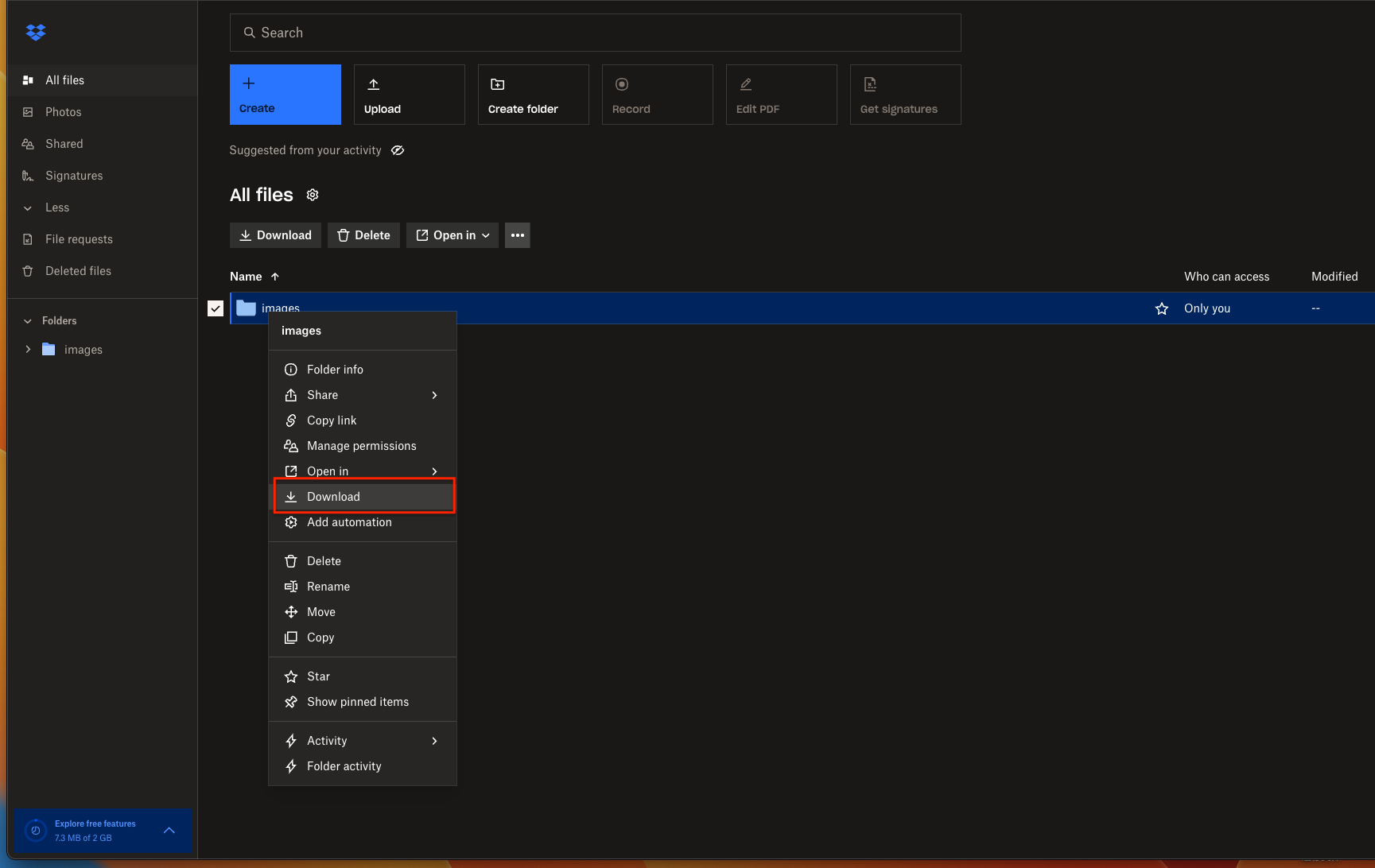
Step 1: Download a ZIP from dropbox.com
Sign in at dropbox.com, select the folders you want (Ctrl or Command-click for several) and click Download. Dropbox packages the selection as a ZIP; very large selections are split into several archives. Unzip locally when the download finishes.
Step 2: Upload the folders at iCloud.com
Open iCloud.com/iclouddrive, sign in with your Apple Account, create the folder structure you want and drag the unzipped folders into the browser window (or use the upload button). Each file must stay under 50 GB, and a browser tab has to remain open until the upload ends. Everything crosses your connection twice — down from Dropbox, up to Apple — which is fine for a few gigabytes and impractical for a few hundred.
Method 2: On an iPhone or iPad with the Files app
Option A: copy inside the Files app
Once the Dropbox app is installed and signed in, Dropbox is listed in Apple's Files app under Browse → Locations. Open it, long-press a file or folder, tap Copy, switch to iCloud Drive, long-press an empty area and tap Paste. Folders keep their structure. The phone downloads each item from Dropbox and uploads it to iCloud, so keep the app in the foreground for anything larger than a few hundred megabytes.
Option B: Save to Files from the Dropbox app
In the Dropbox app, tap the three-dot menu next to a file, choose Export or Save a copy, then Save to Files and pick a folder in iCloud Drive. This handles one file at a time and is the right tool for a PDF or a photo you need on the Mac tonight, not for a folder tree.
Method 3: rclone on a Mac or PC (command line)
Step 1: Configure two remotes
rclone has had a
Dropbox backend for years and gained an iclouddrive backend in v1.69, still marked
experimental. Run rclone config twice: first choose dropbox and complete
the browser authorization; then choose iclouddrive and enter your Apple Account email,
your normal password (app-specific passwords are not accepted) and the 2FA code Apple sends. The
resulting trust token lasts about 30 days, after which rclone reconnect repeats the
code step. As with every web client, Access iCloud Data on the Web must be on and Advanced Data
Protection off.
Step 2: Copy, verify, then sync if you want
rclone copy dropbox:/Projects icloud:/Projects --progress --dry-run
rclone copy dropbox:/Projects icloud:/Projects --progress
rclone check dropbox:/Projects icloud:/Projects --size-only
copy adds files without deleting anything at the destination; sync would
also delete iCloud files that no longer exist in Dropbox, so use it only when you mean it. Add
--max-size 50G to skip files iCloud Drive would reject. The backend reports no
modification times or hashes, hence the --size-only check. rclone runs on your machine:
the data still flows through your connection, but resumes, filters and cron scheduling are free.
Method 4: Cloud-to-cloud with CloudsLinker
CloudsLinker is a third-party web service that copies files between cloud accounts on its own servers — Dropbox and iCloud Drive are two of the 50-plus services it connects. Nothing is downloaded to your computer, the browser tab can be closed once the task is running, and the same task can be scheduled to repeat. It reaches Dropbox through Dropbox's public API and iCloud Drive through an Apple Account login; Apple and Dropbox neither endorse nor restrict it.
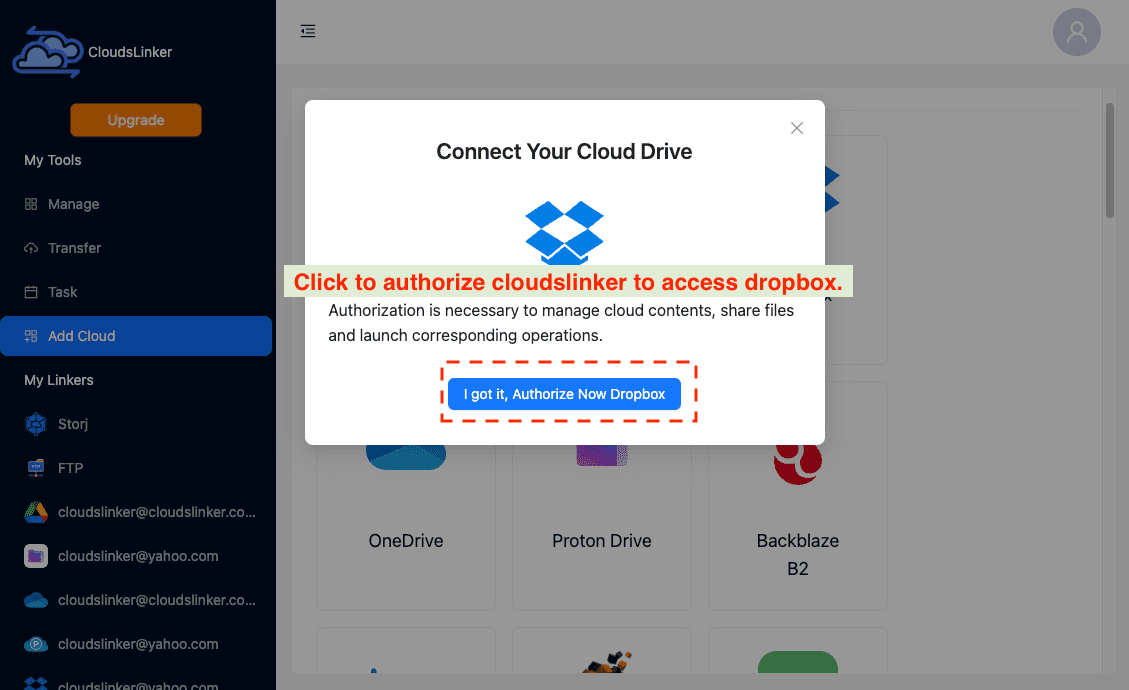
Step 1: Connect Dropbox (OAuth)
Sign in at app.cloudslinker.com, open Add Cloud and choose Dropbox. You are sent to www.dropbox.com, Dropbox's own consent page; approve and you are back with Dropbox listed under My Linkers. Your Dropbox password is never entered in CloudsLinker, and the grant is revocable from Dropbox Settings → Apps → Connected apps.
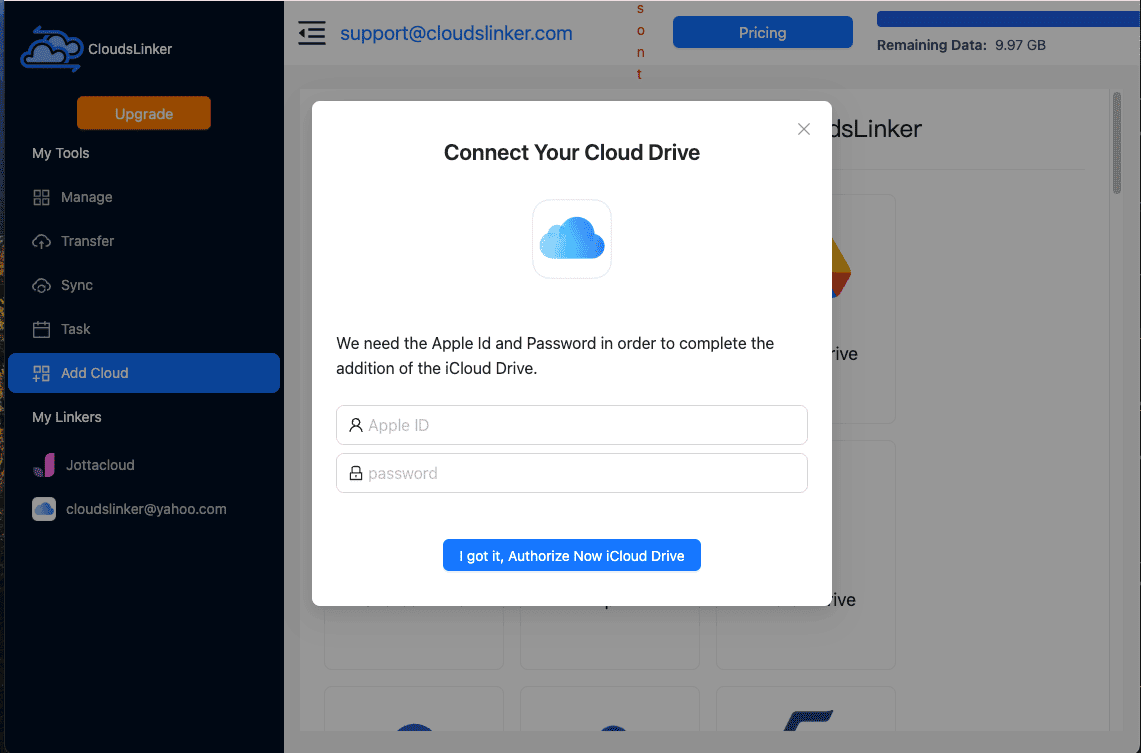
Step 2: Connect iCloud Drive (Apple Account + verification code)
Choose iCloud Drive. The dialog asks for your Apple ID and password — Apple offers
no OAuth for iCloud Drive, so this is a direct account login — then Apple sends a six-digit code to
a trusted device; enter it and the connection is saved. Before you try: turn on
Access iCloud Data on the Web (Settings → your name → iCloud) and turn off
Advanced Data Protection. Accounts that still get ACCESS_DENIED or no
code at all can follow the iCloud authorization guide.
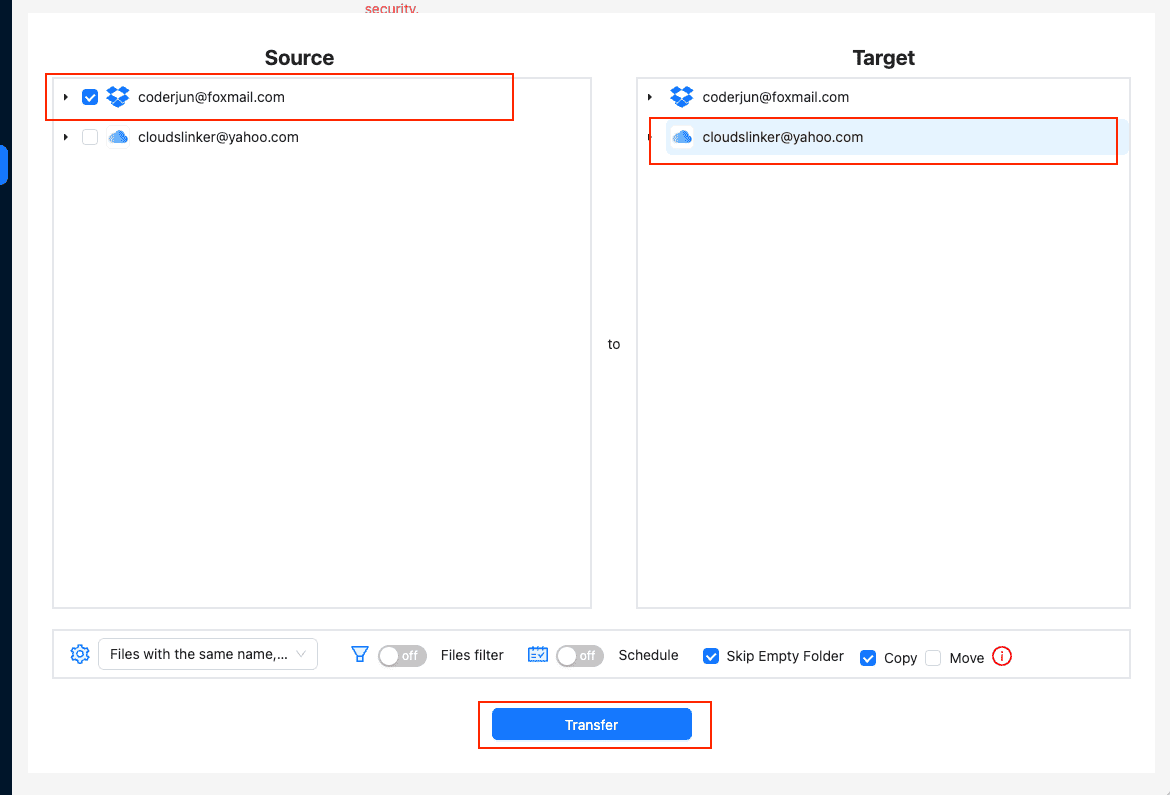
Step 3: Choose Dropbox folders, the iCloud Drive destination, filters and schedule
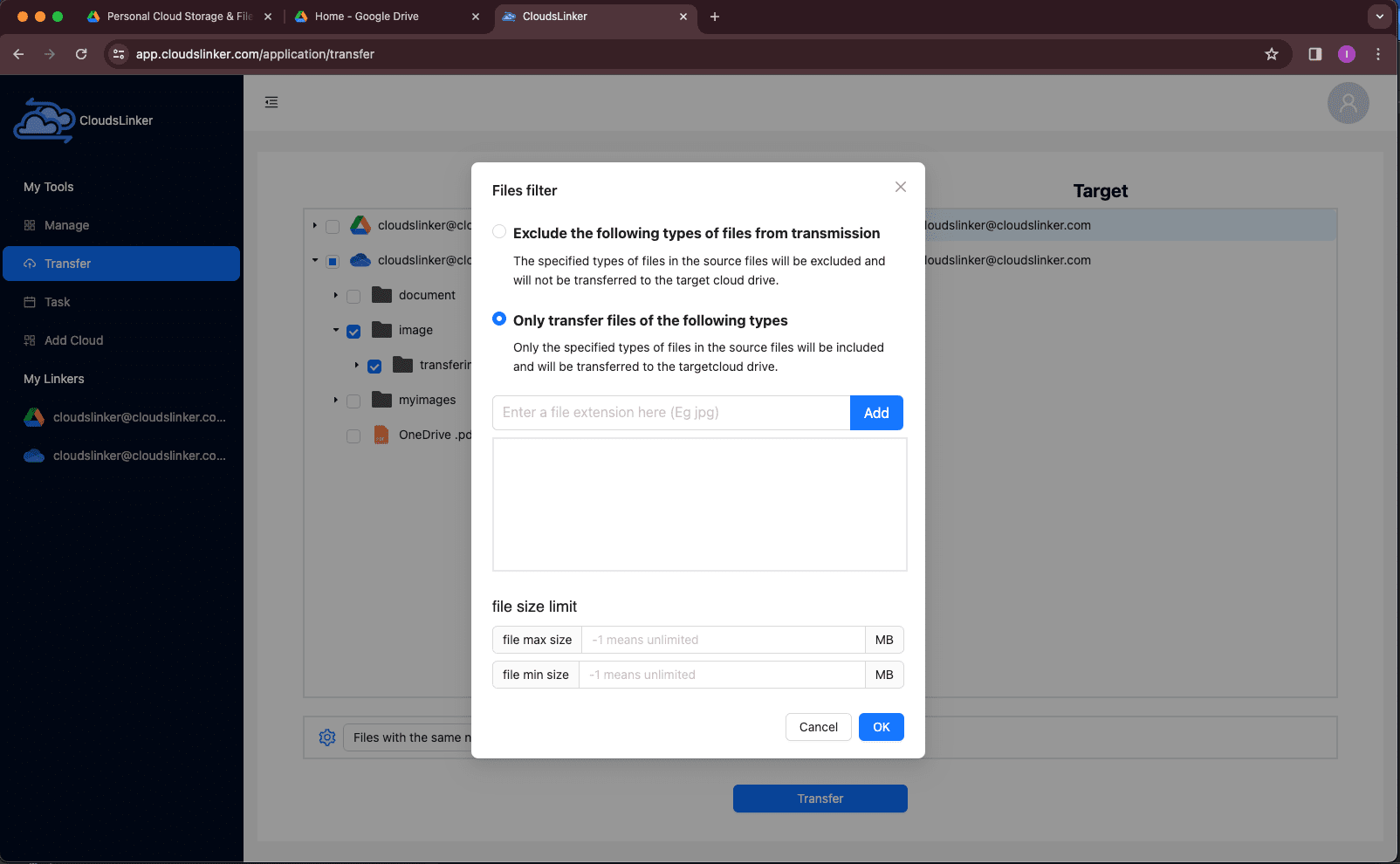
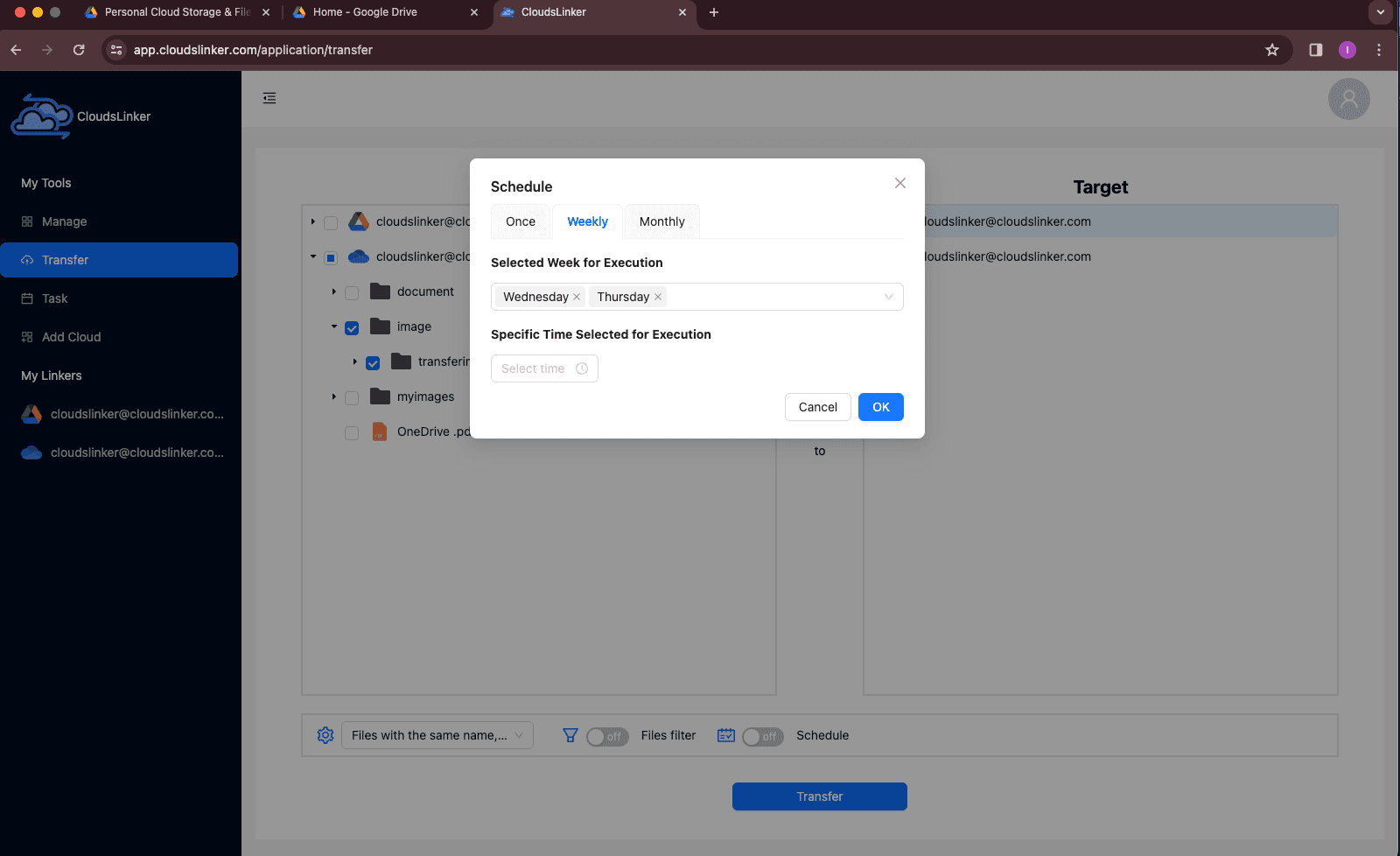
Open Transfer. Tick the Dropbox folders on the left; on the right select or create the destination folder inside iCloud Drive. Two optional switches sit under the file tree:
- Files filter — either exclude or only include files by extension (type
jpg,mov, …), plus a minimum and maximum file size in MB. Setting the maximum to 51200 keeps everything above 50 GB out of the job. - Schedule — Once, Weekly (pick weekdays and an execution time) or Monthly (pick a day). This is how a Dropbox folder keeps landing in iCloud Drive without a computer being on.
Step 4: Start, monitor, verify
Click Transfer. The job shows under Task with progress and a per-file outcome; failed files are retried, and anything that still fails is listed so you can re-run only those. When it finishes, open the destination in Finder or the Files app and spot-check a few files, then remove the connections under My Linkers if you are done. Paid plans include 800 GB of transfer traffic per month with an accumulating balance; the free tier has 10 GB for testing the two connections before buying.
Can Dropbox and iCloud Drive stay in sync?
Not in the two-way sense. Apple has no Dropbox integration, Dropbox has no iCloud export, and Dropbox's own help pages tell you to keep its folder out of other providers' synced folders (iCloud Drive, OneDrive, Google Drive) on a Mac. What you can have is a scheduled one-way copy: rclone under cron or launchd on a machine that stays on, or a CloudsLinker task set to Weekly or Monthly that copies whatever is new in the Dropbox folder into iCloud Drive and skips files already there. Deletions in Dropbox are not propagated, which for a migration is usually what you want.
The four methods side by side
| Method | Best for | Data passes through your device | Can repeat on a schedule | Setup |
|---|---|---|---|---|
| 1. Browser download + iCloud.com upload | A few folders, one time | Yes, twice | No | None |
| 2. iPhone / iPad Files app | Single documents while mobile | Yes, through the phone | No | Dropbox app installed |
| 3. rclone | Bulk one-time moves by people comfortable in a terminal | Yes, through the computer running it | Yes, with cron / launchd | Two remotes, 2FA every ~30 days |
| 4. CloudsLinker | Large libraries and recurring Dropbox → iCloud Drive copies | No — server to server | Yes: Once, Weekly, Monthly | OAuth for Dropbox, Apple Account login for iCloud |
Things to check before you move
- Online-only Dropbox files. The desktop app can leave items as cloud-only stubs; Finder and the Files app cannot copy them. Choose Make available offline first, or use a server-side method that reads Dropbox directly.
- The 50 GB ceiling is Apple's, not the tool's. No method — including CloudsLinker — can place a 60 GB file in iCloud Drive. Split it or leave it in Dropbox.
- Advanced Data Protection blocks every web client. With ADP on, Apple's servers cannot decrypt your files for iCloud.com, rclone or CloudsLinker. Turn it off for the migration.
- Shared links and folder permissions do not travel. Dropbox share links and member lists are Dropbox objects; re-share from iCloud Drive after the move.
- Different logins, different revocations. Dropbox access is an OAuth grant you remove at Settings → Apps → Connected apps; iCloud Drive access is an account session you end by turning off Access iCloud Data on the Web or changing your Apple Account password.
- Optimize Mac Storage. After the move, a Mac set to optimise storage keeps only recent files locally; that is expected behaviour, not missing data.
Sources: Apple — iCloud+ plans and pricing, Apple — Set up iCloud Drive (50 GB per-file limit), Apple — Manage web access to your iCloud data, Apple — Advanced Data Protection, Dropbox — file size limits, Dropbox — version history, Dropbox — Transfer limits, rclone — iCloud Drive backend. Prices are US list prices checked September 2026.
Watch: Dropbox to iCloud Drive with CloudsLinker
A walkthrough of Method 4: connecting Dropbox through its OAuth page, adding iCloud Drive with an Apple Account login and verification code, picking the source folders and the iCloud Drive destination, and letting the copy run server-side.
Frequently Asked Questions
iclouddrive backend added in v1.69) and cloud-to-cloud services such as CloudsLinker, which is a third-party product, not an Apple or Dropbox partner.
Conclusion
Pick the route by volume and by how often you need it. A few files: the Files app on iPhone or iPad, or a browser download and upload — no setup, but everything crosses your device. A one-time bulk move on a Mac or PC: rclone with the iclouddrive backend gives you dry runs, filters and resumable copies for free, at the cost of a terminal session and a 30-day trust token. A large library, or a Dropbox folder that must keep landing in iCloud Drive on a weekly or monthly schedule without a computer switched on: CloudsLinker connects Dropbox by OAuth, iCloud Drive by Apple Account login, and runs the copy on its own servers. Whatever you choose, stay under iCloud's 50 GB per-file cap and buy the iCloud+ tier before, not after, the transfer starts.
Online Storage Services Supported by CloudsLinker
Transfer data between over 58 cloud services with CloudsLinker

OneDrive

Google Drive

Google Photos

Shared Drive

OneDrive for Business

Dropbox

Box

Mega

pCloud

Yandex

ProtonDrive

AWS

GCS

iDrive

Storj

DigitalOcean

Wasabi

1fichier

PikPak

TeleBox

OpenDrive

Backblaze B2

Fastmail file

SharePoint

Nextcloud

ownCloud

Premiumize me

HiDrive

Put.io

Sugar Sync

Jottacloud

Seafile

Ftp

SFtp

NAS

WebDav

4shared

Icedrive

Cloudflare R2

Scaleway

Hetzner Object Storage

Synology C2 Object Storage

S3 Compatible

Doi

iCloud Drive

iCloud Photos

FileLU

Zoho WorkDrive

Telia Cloud / Sky

Drime

Filen

TeraBox

Internxt

Degoo

Gofile

Pixeldrain

Shade

Koofr
Didn' t find your cloud service? Be free to contact: [email protected]
Further Reading
Effortless FTP connect to google drive: Transfer Files in 3 Easy Ways
Learn More >
Google Photos to OneDrive: 3 Innovative Transfer Strategies
Learn More >
Google Photos to Proton Drive: 3 Effective Transfer Techniques
Learn More >