Move iCloud Drive to Dropbox (2026): What Transfers, What Doesn't, 5 Methods
Moving iCloud Drive to Dropbox in 2026: what arrives intact, what needs zipping first, which Dropbox plan fits your iCloud+ tier, and 5 ways to copy it.
Introduction
Short answer: on a Mac that has both iCloud Drive and the Dropbox app, select your folders in Finder and Option-drag them into Dropbox — a plain drag moves them out of iCloud. Without a Mac, or when the library is bigger than your free disk, copy it server-side with rclone or CloudsLinker. File size never blocks this direction: iCloud Drive caps a file at 50 GB, Dropbox accepts up to 2 TB. What does need attention is the inventory: .app bundles and other macOS packages cannot be read by server-side tools until you zip them (CloudsLinker does copy Pages, Numbers and Keynote documents; rclone doesn't), shares and collaborators stay behind, and Dropbox's largest individual plan is Plus at 2 TB — a 6 TB or 12 TB iCloud+ library needs a Dropbox team plan. Moving the other way? Read Dropbox to iCloud Drive instead.
- What is in your iCloud Drive, and how each part arrives
- The one real snag: macOS package documents
- Sizing Dropbox to your iCloud+ usage
- Which method fits your situation
- Method 1: Finder on a Mac
- Method 2: iPhone or iPad
- Method 3: iCloud.com and dropbox.com
- Method 4: rclone
- Method 5: Server-side copy with CloudsLinker
- After the copy: switching your devices over
- FAQ
What is in your iCloud Drive, and how each part arrives in Dropbox
iCloud Drive looks like one folder tree, but it mixes ordinary files with things that only make sense inside Apple's apps. Go through this list before choosing a method — it decides what you have to prepare.
| What you have in iCloud Drive | How it arrives in Dropbox | What to do |
|---|---|---|
| Ordinary files and folders (PDFs, Office files, images, videos, archives) | Identical, same folder tree. Every file fits: iCloud's limit is 50 GB per file, Dropbox's is 2 TB. | Nothing — check your Dropbox quota. |
| Desktop and Documents (if Desktop & Documents Folders is on) | Two ordinary folders at the top of iCloud Drive. | Copy them, then turn the feature off (see switching over). |
| App folders such as Pages, Keynote, Preview, Shortcuts | Plain folders named after the app (iCloud.com lists them as Application Library). The app will no longer see them. | Copy the ones holding your documents; skip empty ones. |
| Pages, Numbers and Keynote documents | CloudsLinker copies them as .pages, .numbers and .key files; rclone does not handle them reliably; Finder copies package-format ones as folders. |
Export to Office formats if you are leaving Apple apps (details). |
.app bundles and other macOS packages |
Server-side tools cannot read them; Finder copies them as folders. | Zip them first (details). |
| Files and folders other people shared with you | They belong to the owner's iCloud account, not yours. | Copy what you need into one of your own folders, or ask the owner for a copy. |
| Your share links and collaborators | Not transferred — they are iCloud objects. | Re-share from Dropbox and send the new links. |
| Items in Recently Deleted | Not part of the folder tree, so no method copies them. | Recover anything you want within Apple's 30-day window first. |
| Your photo library | Not in iCloud Drive at all — iCloud Photos is a separate service. | Use the iCloud Photos to Dropbox guide. |
The one real snag: macOS package documents
A package is a folder that macOS displays as a single file — .app bundles, many
GarageBand and Logic projects, and Pages, Numbers or Keynote documents saved in package format. In
Finder you can tell by right-clicking: a package offers Show Package Contents.
On a Mac this causes no trouble; the Dropbox app syncs a package as the folder it really is. The
problem appears when a tool reads iCloud Drive over Apple's web service, as iCloud.com, rclone and
CloudsLinker do. iCloud does not serve a package as a file; it builds an archive on the fly whose size
does not match the listed size and which can stall mid-download. CloudsLinker handles the three iWork
types by downloading that archive to a temporary file, checking it and uploading a working
.pages, .numbers or .key document, retrying if the download
stalls. Every other package, such as an .app, stops with the error "compress it to a
zip file first" and the job carries on with the rest. rclone has no special handling for any of
them.
- Staying on a Mac? Select
.appbundles and other packages in Finder and choose Compress; the.zipcopies with everything else and unzips back into a working document. - Leaving Apple devices? Open each document and use File → Export To
Word, Excel or PowerPoint. Dropbox previews Office files on every platform; it cannot open
.pages,.numbersor.keyfor you. - Many of them? Copy just those folders with Finder (Method 1) and send everything else server-side.
Sizing Dropbox to your iCloud+ usage
Size the Dropbox plan by what you use, not by the iCloud+ tier you pay for: on an iPhone open Settings → your name → iCloud → Manage Account Storage, which lists iCloud Drive separately from Photos and Backups. Only the iCloud Drive figure (plus any photos you also plan to move) has to fit in Dropbox.
| iCloud Drive usage | Typical iCloud+ tier today | Dropbox plan that holds it | Version history in Dropbox |
|---|---|---|---|
| Under 2 GB | Free 5 GB | Basic, free — 3 linked devices | 30 days |
| 2 GB – 2 TB | 50 GB ($0.99), 200 GB ($2.99) or 2 TB ($9.99) per month | Plus, 2 TB, $9.99/month billed yearly | 30 days |
| 2 TB – 15 TB | 6 TB ($29.99) or 12 TB ($59.99) per month | Standard, from 3 TB, $15 per user per month | 180 days |
| Over 15 TB, or a whole family's files | 12 TB, shared with up to five family members | Advanced, from 15 TB, $24 per user per month, 3 users minimum | 1 year |
iCloud+ prices are Apple's US monthly prices; Dropbox prices are as listed on dropbox.com/plans in October 2026. Dropbox Basic's three-device limit matters if you plan to sign in on a Mac, a phone and a tablet plus a work PC.
If iCloud Photos and device backups stay with Apple, you will still need some iCloud+ after the move — downgrade only to what remains, and only after the 30-day Recently Deleted window has passed.
Which method fits your situation
| Your situation | Method | Handles packages | Data path | Can repeat on a schedule |
|---|---|---|---|---|
| A Mac with iCloud Drive and the Dropbox app, enough free disk | 1. Finder | Yes | Through the Mac | No |
| Only an iPhone or iPad, a few folders | 2. Files app | Zip first to be safe | Through the phone | No |
| No Apple device left, a few folders (downloads are file by file) | 3. iCloud.com + dropbox.com | Zip first to be safe | Down and up through your connection | No |
| Comfortable in a terminal, any amount of data | 4. rclone | No — zip first | Through the computer running it | Yes, with cron or launchd |
| Large library, no Mac, or a folder that must keep landing in Dropbox | 5. CloudsLinker | iWork documents yes; zip other packages | Server to server | Yes: Once, Weekly, Monthly (paid plans) |
Method 1: Finder on a Mac
With the Dropbox desktop app installed and signed in, Dropbox appears in the Finder sidebar next to iCloud Drive. This is the only free route that copies package documents without zipping them.
- Bring offloaded files down first. If Optimize Mac Storage is on, files with a cloud icon exist only in iCloud. Right-click the folders you want and choose Download Now, and keep free disk space at least the size of the batch.
- Copy, do not move. Select the folders in iCloud Drive and drag them into Dropbox while holding Option (a green + appears), or use Copy and Paste. A plain drag moves the files out of iCloud Drive and off your other Apple devices.
- Let Dropbox finish uploading before closing the lid — the menu-bar icon shows the
remaining count. Dropbox skips system files such as
.DS_Storeon purpose.
On Windows the same idea works with iCloud for Windows and the Dropbox app in File Explorer: mark the iCloud Drive folders Always keep on this device, wait for the download, then copy and paste into Dropbox. Everything passes through your computer twice, so a 1 TB library needs hours of upload bandwidth and 1 TB of free disk.
Method 2: iPhone or iPad
Install the Dropbox app and sign in; Dropbox then appears in Apple's Files app under Browse → Locations. Open iCloud Drive, long-press a folder, tap Copy, open Dropbox, long-press an empty area and tap Paste. Copy and Paste leaves the original in iCloud Drive until you have checked the Dropbox side.
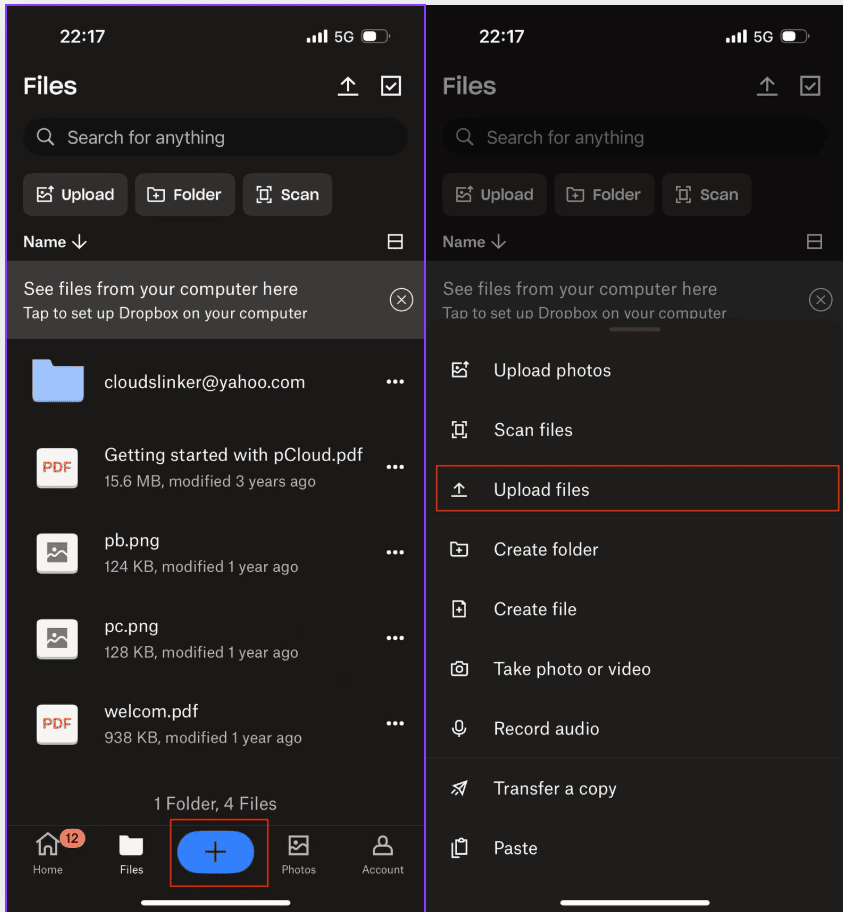
From inside the Dropbox app the route is + → Upload files, then pick iCloud Drive in the file picker. Both ways download each file to the phone and upload it again, so keep the app in the foreground and use this for documents, not for a multi-gigabyte archive.
Method 3: iCloud.com and dropbox.com
Useful when your Apple devices are already gone and only a few folders matter. Everything goes down to your computer and back up, and iCloud.com has one limit that decides how much work this is: it downloads files, not folders.
Step 1: Open the folder on iCloud.com
Sign in at icloud.com/iclouddrive, click Browse and open the folder you want. If Advanced Data Protection is on, first turn Access iCloud Data on the Web back on and approve the sign-in on a trusted device; Apple then asks for approval again after an hour.
Step 2: Select the files and click Download
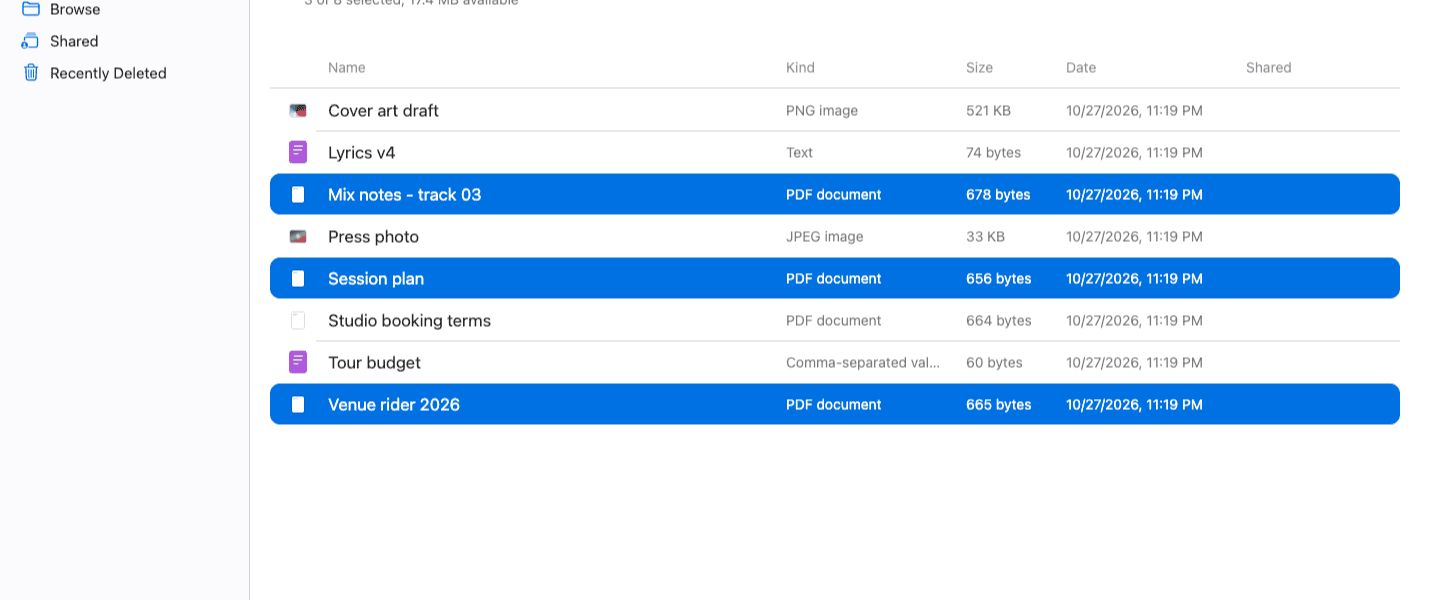
Click the first file, then Command-click (Mac) or Ctrl-click (Windows) the others, and click the Download button (the cloud with a down arrow) in the toolbar. Each selected file lands separately in your browser's download folder — in our test, three selected PDFs arrived as three PDFs, not as a ZIP. Select a folder instead and the Download button stays greyed out, so a folder tree has to be opened and downloaded level by level. Recreate the same folders on your computer as you go.
Step 3: Create the destination in Dropbox and choose Upload
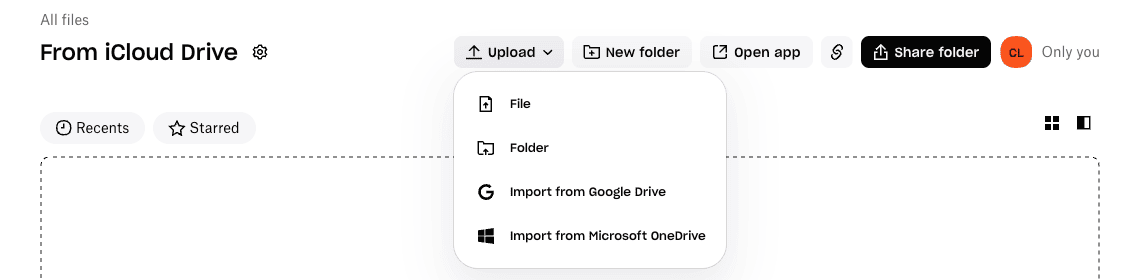
Sign in at dropbox.com, click New folder, name it (for example From iCloud Drive), leave Only me selected and click Create. Inside it, open Upload: File takes the files you just downloaded, and Folder uploads a whole local folder with its subfolders, which is the quicker choice once you have rebuilt the tree on your computer. The same menu offers Import from Google Drive and Import from Microsoft OneDrive; there is no iCloud import.
Step 4: Check the Uploads panel
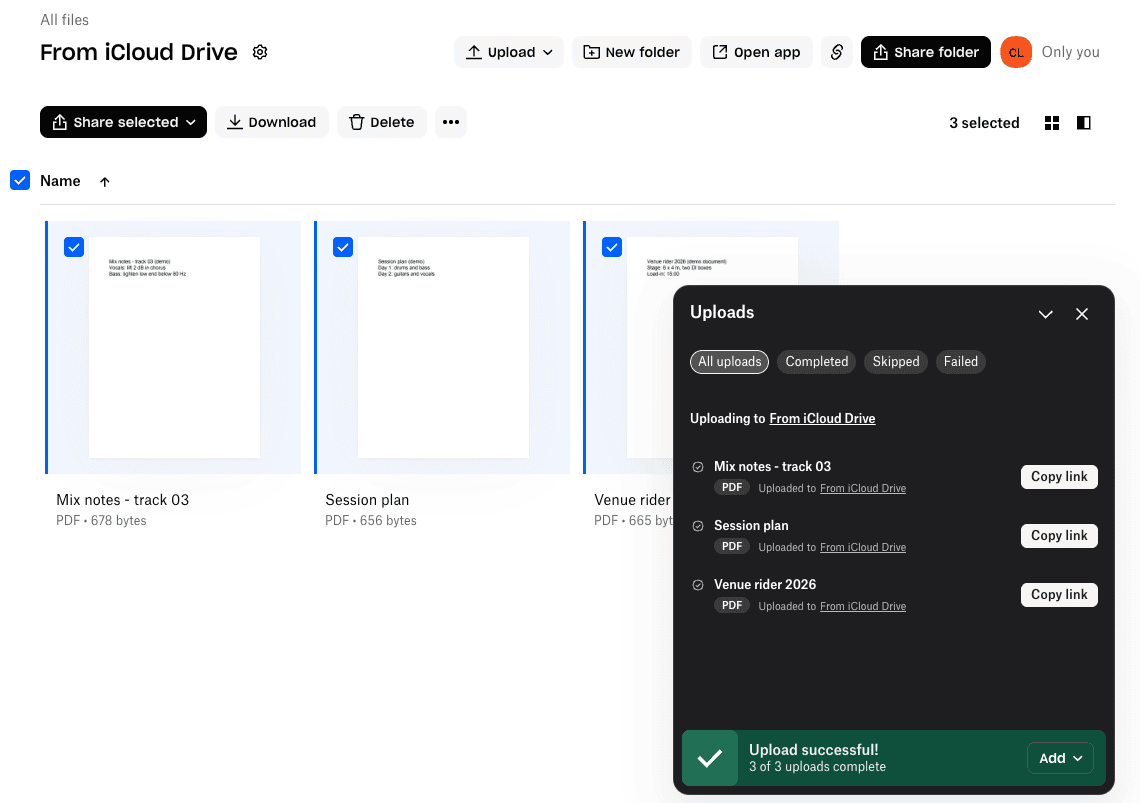
Dropbox lists every file in the Uploads panel and ends with Upload successful! and a count such as 3 of 3 uploads complete. The Skipped and Failed tabs show anything that did not make it. Size is not a concern here: Dropbox only warns that browser uploads above 375 GB may time out, and no iCloud Drive file can be larger than 50 GB.
Method 4: rclone
rclone's
iclouddrive backend (added in v1.69, still marked experimental) reads iCloud
Drive over Apple's web service, and the Dropbox backend writes through Dropbox's API. It runs on your
computer, so the data crosses your connection, but it handles whole folder trees, resumes, filters
and logs — and it is free.
Step 1: Install rclone 1.69 or newer
brew install rclone        # macOS with Homebrew; Windows/Linux: rclone.org/downloads
rclone version             # must report v1.69.0 or later
Older copies have no iclouddrive storage type. On macOS, Homebrew is the easiest
route: a binary downloaded by hand is quarantined by Gatekeeper and may refuse to run until you
allow it.
Step 2: Add iCloud Drive as a remote
Run rclone config and answer the prompts as below. Use your regular Apple Account
password — app-specific passwords are not accepted — and type the six-digit code Apple shows on a
trusted device (or type sms to get it by text).
rclone config
n) New remote            n/s/q> n
name> icloud
Storage> iclouddrive
service>                 (press Enter: the default is drive, not photos)
apple_id> you@example.com
y) Yes, type in my own password   y/g> y
password:                (your Apple Account password, twice)
Edit advanced config?    y/n> n
config_2fa> 123456       (the code from your iPhone, iPad or Mac)
y) Yes this is OK        y/e/d> y
Access iCloud Data on the Web must be on. With Advanced Data Protection on, Apple also asks for an
approval on a trusted device; if rclone later reports Missing PCS cookies, that
approval did not complete.
Step 3: Add Dropbox as a remote
rclone config create dropbox dropboxrclone opens your browser on Dropbox's consent page (rclone would like to…); click Allow and the terminal confirms the remote. You can remove that permission later under Dropbox Settings → Apps → Connected apps.
Step 4: Look before you copy
rclone lsd icloud:                 # top-level iCloud Drive folders
rclone size icloud:                # file count and total size to move
rclone about dropbox:              # free space left in Dropbox
If size reports more than about shows as free, upgrade Dropbox first (see
plan sizing). Zip package documents on a Mac now — rclone reads iCloud
through Apple's web service with no special handling for them, so .pages, .numbers,
.key and .app packages will not come through as working files.
Step 5: Dry run, then copy
rclone copy icloud: "dropbox:From iCloud Drive" --dry-run
rclone copy icloud: "dropbox:From iCloud Drive" --progress --transfers 8 \
  --log-file icloud-to-dropbox.log --log-level INFO

# or one folder at a time
rclone copy "icloud:Studio projects" "dropbox:From iCloud Drive/Studio projects" --progress
copy never deletes anything; do not use sync unless you want Dropbox to
mirror deletions. Running the same command again only sends files that are missing or changed, so
an interrupted copy simply resumes. Names Dropbox cannot store — a name ending in a space, or
containing a backslash — are saved with a look-alike Unicode character instead of failing.
Step 6: Verify, and renew the Apple login when it expires
rclone check icloud: "dropbox:From iCloud Drive" --size-only --one-way
rclone config reconnect icloud:    # after the 30-day Apple trust token runs out
iCloud Drive and Dropbox share no checksum type, so the comparison is by file size;
--one-way reports only files that are in iCloud Drive but missing or different in
Dropbox. The Apple trust token behind the icloud remote lasts 30 days, after which
rclone config reconnect icloud: asks for a fresh verification code. For a repeat copy,
put the Step 5 command in cron or launchd on a computer that stays on.
Method 5: Server-side copy with CloudsLinker
CloudsLinker is a third-party web service that copies between cloud accounts on its own servers: it reads iCloud Drive, writes to Dropbox, and nothing is downloaded to your computer, so the tab can be closed once the task is running. It is the practical option when the Mac is already gone or the library is larger than your free disk. Paid plans include 800 GB of transfer traffic per month, with unused traffic carried over; the free tier has 10 GB, enough to test both connections.
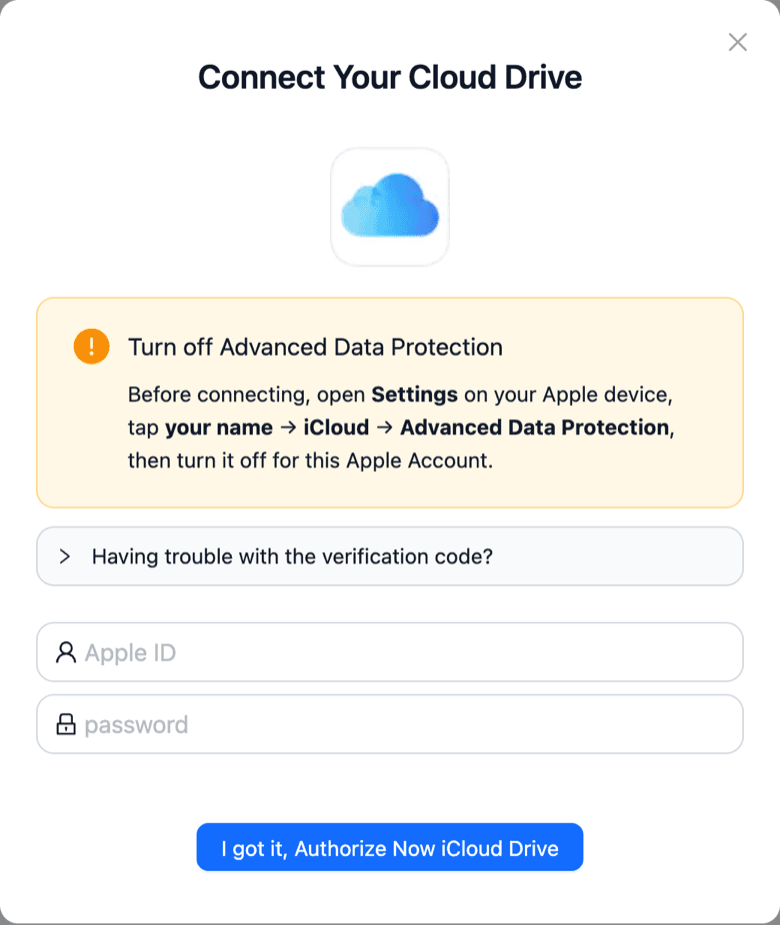
Step 1: Connect iCloud Drive (Apple Account password + verification code)
Open app.cloudslinker.com, choose Add Cloud → iCloud Drive, and enter your Apple ID and regular password — the dialog rejects anything that looks like an app-specific password. Apple then sends a six-digit code to a trusted iPhone, iPad or Mac. The dialog itself reminds you to turn off Advanced Data Protection; Access iCloud Data on the Web must be on as well. If Apple says the Apple ID needs updating or accepting new terms, finish that at appleid.apple.com and connect again; persistent errors are covered in the iCloud authorization guide.
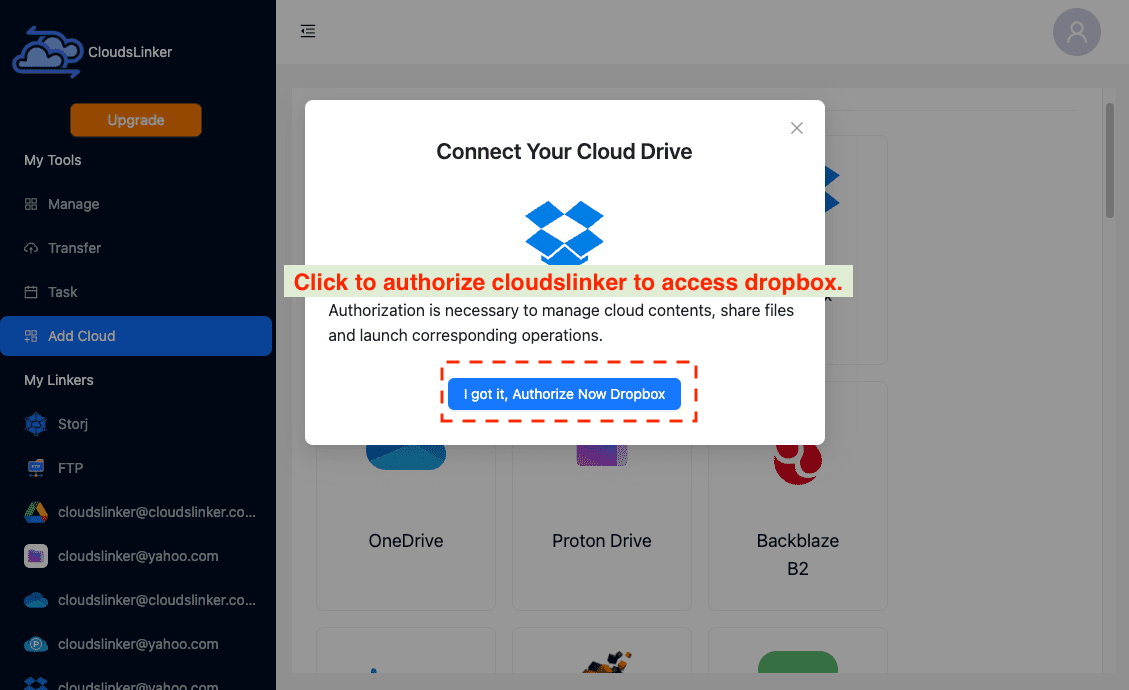
Step 2: Connect Dropbox (OAuth at www.dropbox.com)
Choose Dropbox. CloudsLinker hands you to Dropbox's own consent page at www.dropbox.com; approve and you are back with Dropbox under My Clouds. The permission can be withdrawn at any time from dropbox.com/account/connected_apps.
Step 3: Choose the folders and the options
Open Transfer. In Source, expand your Apple ID and tick the folders; in Target, select a Dropbox folder or create one (for example From iCloud Drive) with the new-folder button.
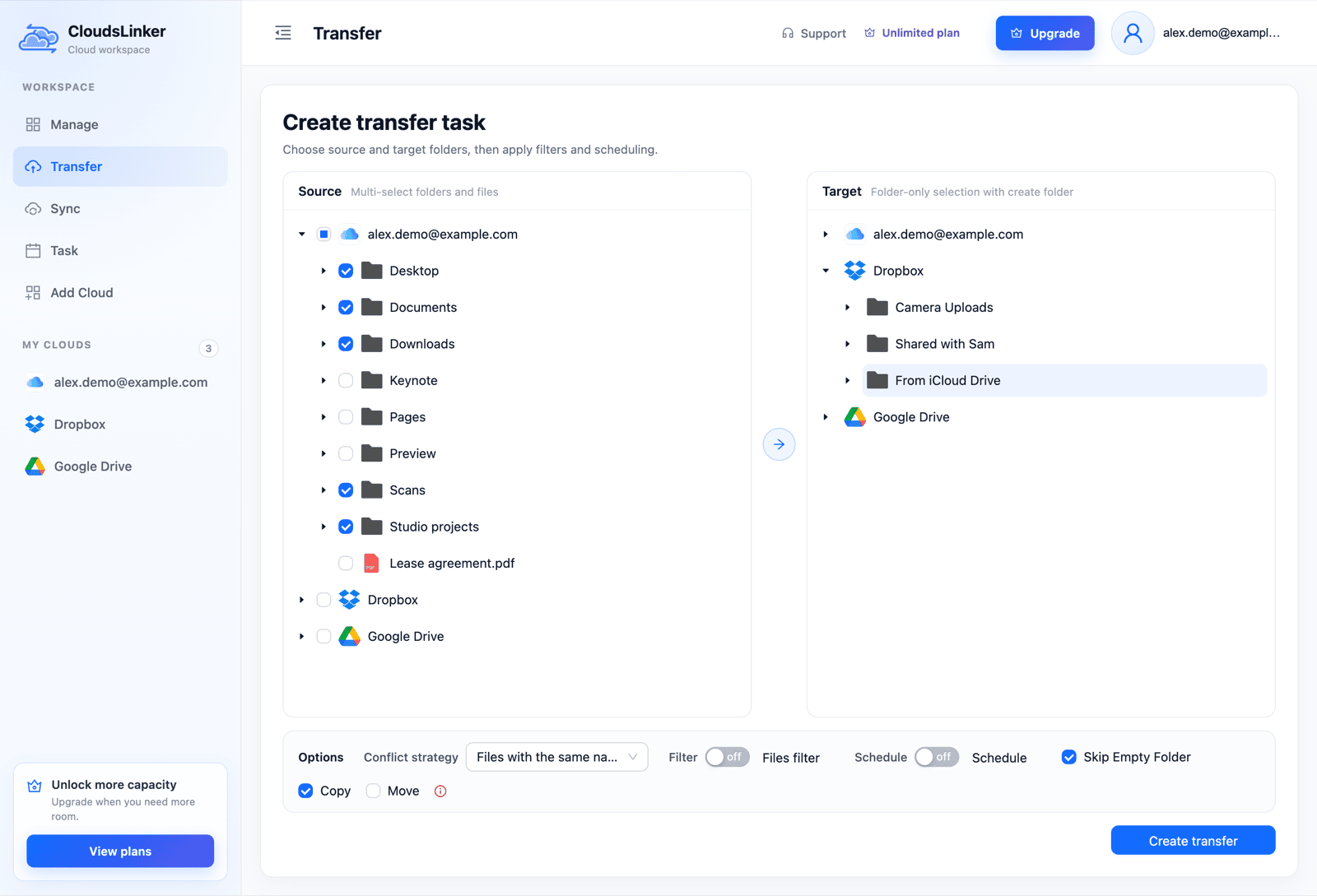
- Copy or Move — keep Copy. Move deletes each file from iCloud Drive after it is transferred; switch to it only for a second pass once you have verified the result.
- Conflict strategy — the default transfers a same-named file only if its size differs or it is newer; the alternatives skip same-named files or always overwrite them. The default makes a re-run cheap.
- Filter — include or exclude by file extension, and set a minimum and maximum size in MB.
- Schedule — Once, Weekly or Monthly, on paid plans; useful if an iPhone keeps saving into an iCloud folder that should also reach Dropbox.
- Skip Empty Folder — on by default; turn it off if you want the empty app folders recreated.
Step 4: Create the transfer and check the result
Click Create transfer. The job appears under Task with progress
and a per-file result; .app bundles and other packages you forgot to zip show up there as failed items with the
compress-first message, and can be re-sent once zipped. Compare file counts on both sides before
deleting anything in iCloud.
After the copy: switching your devices over
- Verify before deleting. Compare a few folders' item counts and total sizes in
iCloud Drive and Dropbox (Get Info in Finder, or
rclone sizeon both remotes). - Turn off Desktop & Documents Folders in System Settings → your name → iCloud → Drive. Apple keeps the existing files in iCloud Drive and creates new, empty Desktop and Documents folders on the Mac — copy back only what you work on locally.
- Change where you save. Pages, Numbers, Keynote and TextEdit offer iCloud Drive first in the Save dialog; pick Dropbox (or a folder on your Mac) there, or new documents keep landing in iCloud.
- Watch the device count. Dropbox Basic links 3 devices; Plus and the team plans have no such limit.
- Keep iCloud+ for 30 days. Files you then delete from iCloud Drive sit in Recently Deleted for 30 days, which is your fallback if something turns out to be missing.
- Revoke access. Remove CloudsLinker at dropbox.com/account/connected_apps, change your Apple Account password or turn off Access iCloud Data on the Web, and delete both connections under My Clouds.
Sources: Apple — iCloud Drive (50 GB per-file limit), Apple — iCloud+ plans and pricing, Apple — Manage web access to your iCloud data, Apple — Turn off Desktop & Documents Folders, Dropbox — file size limits, Dropbox — plans, Dropbox — version history, rclone — iCloud Drive backend. Prices are US list prices checked October 2026.
Watch: iCloud Drive to Dropbox With CloudsLinker
A narrated 3:10 walkthrough of Method 5: the Advanced Data Protection notice, signing in to iCloud Drive with your Apple ID, regular password and six-digit code, connecting Dropbox on its own sign-in page, ticking whole folders, the transfer options, keeping Copy mode so the originals stay in iCloud Drive, and following the server-side copy to the finished task.
Frequently Asked Questions
Conclusion
Choose by what you still own. A Mac with both apps installed: copy in Finder with Option held down, after downloading anything Optimize Mac Storage has offloaded — it is free and it is the only route that carries macOS package documents across untouched. Only an iPhone or iPad: the Files app copies folder by folder. Already on Windows or Android, or a library larger than your disk: rclone (free, terminal, 30-day Apple trust token) or CloudsLinker, which connects iCloud Drive with your Apple Account password and a verification code, connects Dropbox through Dropbox's own sign-in page, and copies server-side. Whichever you pick, zip .app bundles and other packages first (with rclone, iWork documents too), choose Copy rather than Move until you have checked the result, and keep iCloud+ for the 30-day Recently Deleted window before you downgrade.
Online Storage Services Supported by CloudsLinker
Transfer data between over 60 cloud services with CloudsLinker

OneDrive

Google Drive

Google Photos

Google Takeout

Shared Drive

OneDrive for Business

Dropbox

Box

Mega

pCloud

Yandex

ProtonDrive

AWS

GCS

iDrive

Storj

DigitalOcean

Wasabi

1fichier

PikPak

TeleBox

OpenDrive

Backblaze B2

Fastmail file

SharePoint

Nextcloud

ownCloud

Premiumize me

HiDrive

Put.io

Sugar Sync

SmugMug

Jottacloud

Seafile

Ftp

SFtp

NAS

WebDav

4shared

Icedrive

Cloudflare R2

Scaleway

Hetzner Object Storage

Synology C2 Object Storage

S3 Compatible

Doi

iCloud Drive
iCloud Photos

FileLU

Zoho WorkDrive

Telia Cloud / Sky

Drime

Filen

TeraBox

Internxt

Degoo

Gofile

Pixeldrain

Shade

Koofr
Didn' t find your cloud service? Be free to contact: support@cloudslinker.com
Further Reading
Effortless FTP connect to google drive: Transfer Files in 3 Easy Ways
Learn More >
Google Photos to OneDrive: 3 Innovative Transfer Strategies
Learn More >
Google Photos to Proton Drive: 3 Effective Transfer Techniques
Learn More >