How to Move Files from TeleBox (LinkBox) to Google Drive (2026)
Move files from TeleBox (LinkBox) to Google Drive in 2026 by browser, rclone or a scheduled server-side copy. TeleBox now needs a token plus your login.
Introduction
Short answer: neither TeleBox nor Google offers an importer, so moving files from TeleBox to Google Drive means one of three routes. A few files go fastest through the browser (download from TeleBox, upload to Drive). A one-time copy suits rclone's Linkbox backend, which routes every byte through your own computer. A large library, or a TeleBox account you want to empty into Drive every week, is what a server-side service such as CloudsLinker is for. One detail catches most people: since July 2026 connecting TeleBox takes three credentials, not one. Besides the API token from your TeleBox account page it needs your TeleBox email and password, because TeleBox only returns usable download links to a signed-in web session. A free TeleBox account holds about 5 GB, against Drive's 15 GB, so this move is usually about keeping TeleBox from filling up. Going the other way? See Google Drive to TeleBox.
TeleBox, formerly LinkBox, is a cloud drive where free uploads and shareable links have made it a common place to pass files around on Telegram. A new free account starts with about 5 GB; the Standard plan is 2 TB at $3.99/month or $39.99/year (checked September 2026).
- Token: shown on My Account at linkbox.to/admin/account.
- Login: email and password are also needed to list and download files.
- Per-file limit: none published that we could find.
Google Drive gives every Google Account 15 GB shared with Gmail and Google Photos; Google One adds 100 GB at $1.99/month and 2 TB at $9.99/month (checked July 2026).
- Per-file limit: up to 5 TB per file.
- Daily limit: 750 GB of uploads per user per day.
- Connection: OAuth at accounts.google.com; no Google password is shared.
Why people move from TeleBox to Google Drive
A free TeleBox account is small (about 5 GB) and it fills quickly, because saving one shared video folder from a Telegram channel can take all of it. Drive's free tier is three times larger, its sharing and search are familiar, and it does not depend on a chain of bonus storage. Moving the files out also protects them: shares that circulate through Telegram tend to vanish when an uploader or a channel is removed, and a copy in your own Drive does not. The trade-off is that TeleBox is where friends and channels expect to find the links you posted, so keep the TeleBox copy until you have moved anything you publicly shared.
TeleBox vs Google Drive: the numbers that matter for this move
| Feature | TeleBox (source) | Google Drive (destination) |
|---|---|---|
| Free storage | About 5 GB | 15 GB, shared with Gmail and Photos |
| Paid tier | Standard, 2 TB: $3.99/month or $39.99/year (checked September 2026) | Google One: 100 GB $1.99/month, 2 TB $9.99/month (checked July 2026) |
| Largest single file | Not published | 5 TB |
| Daily transfer limit | Not published | 750 GB of uploads per user per day |
| Credentials CloudsLinker needs | API token + account email + account password | OAuth consent at accounts.google.com |
| Former name / domains | LinkBox; linkbox.to and telebox.online | Google Drive |
Before you start
- Check how much TeleBox holds. The My Account page at linkbox.to/admin/account shows your used space against your plan.
- Check room in Drive. Google One's storage page shows what Gmail and Photos already use of the shared 15 GB.
- Have all three TeleBox credentials ready. The token from the account page, and the email and password you sign in with. If your TeleBox account was created without a password, set one in TeleBox first, because the connection signs in with it.
- Save any shared links you still need. A link that only exists as someone else's share is not in your account yet; save it into TeleBox first.
Method 1: Download from TeleBox, upload to Drive
Step 1: Download from TeleBox
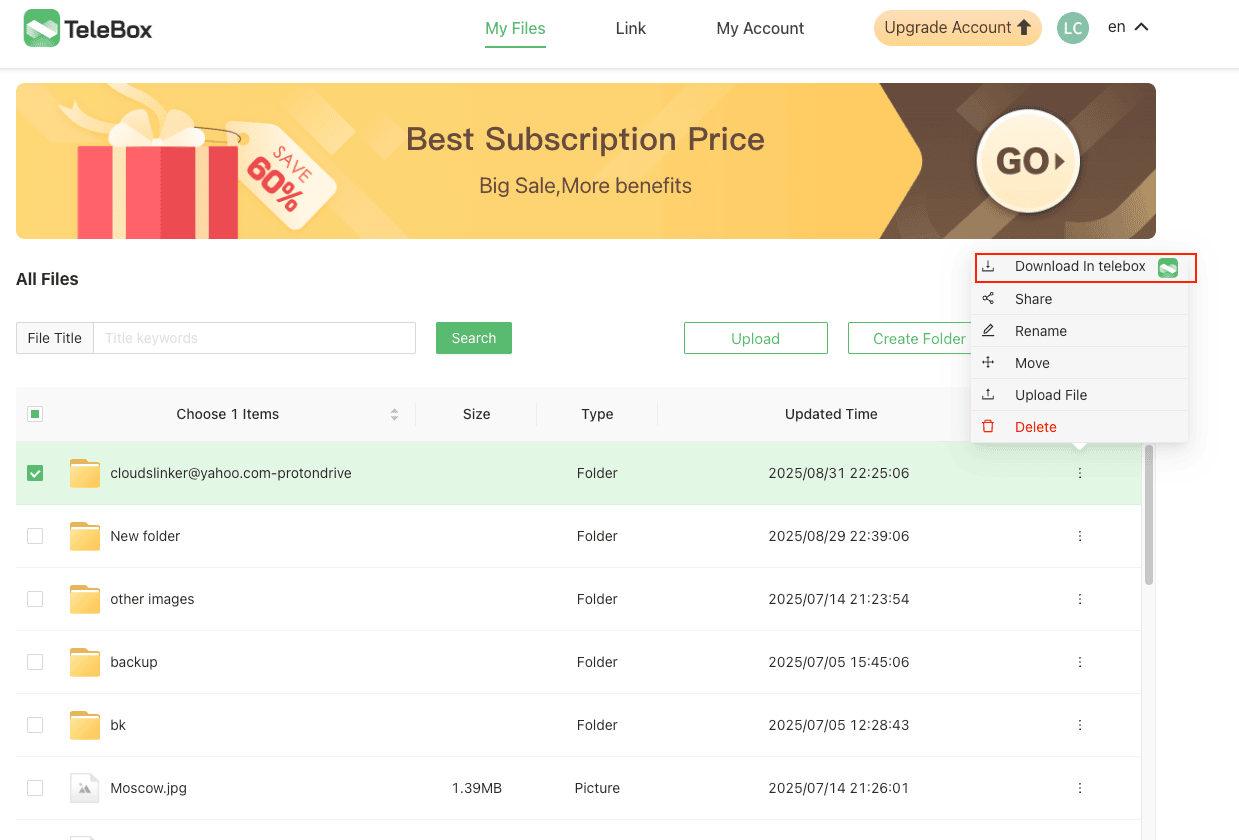
Sign in to TeleBox in a browser or the mobile app and open My Files. Tick the folders or files, or open the three-dot menu at the end of a row and choose Download In telebox.
Step 2: Upload to Google Drive
In Drive use New → Folder upload or drag the folders into the browser window. Keep the tab open until the upload ends. Everything crosses your own connection twice, once down from TeleBox and once up to Google, which is fine for a few gigabytes and slow for a Standard-plan library.
Method 2: rclone's Linkbox backend
Step 1: Configure two remotes
rclone has a
Linkbox backend that
asks for the same three credentials: the API token from linkbox.to/admin/account plus your email and
password. Its documentation explains the split: "The API token is used for uploads and modifications,
while email/password authentication is used for listing and downloading files." Run
rclone config twice, once choosing linkbox and once choosing
drive (browser authorization for Google).
Step 2: Dry run, then copy
rclone copy linkbox:/ gdrive:TeleBox --progress --dry-run
rclone copy linkbox:/ gdrive:TeleBox --progress
rclone check linkbox:/ gdrive:TeleBox --size-only
copy adds files and deletes nothing, and --size-only is used for the check
because rclone's Linkbox documentation does not describe hashes or modification times. rclone lists this
backend at Tier 5, its lowest support tier, so treat it as best effort and test on one folder first.
The copy runs through the computer that runs rclone, so your bandwidth and uptime matter.
Method 3: Server-side copy with CloudsLinker
CloudsLinker is a third-party web service that copies files between cloud accounts on its own servers. Nothing is downloaded to your computer, the browser tab can be closed once the task runs, and the same task can be scheduled to repeat. It reaches TeleBox through your token and account credentials and Google Drive through Google's public API; neither company endorses it.
Step 1: Connect TeleBox (token, email, password)
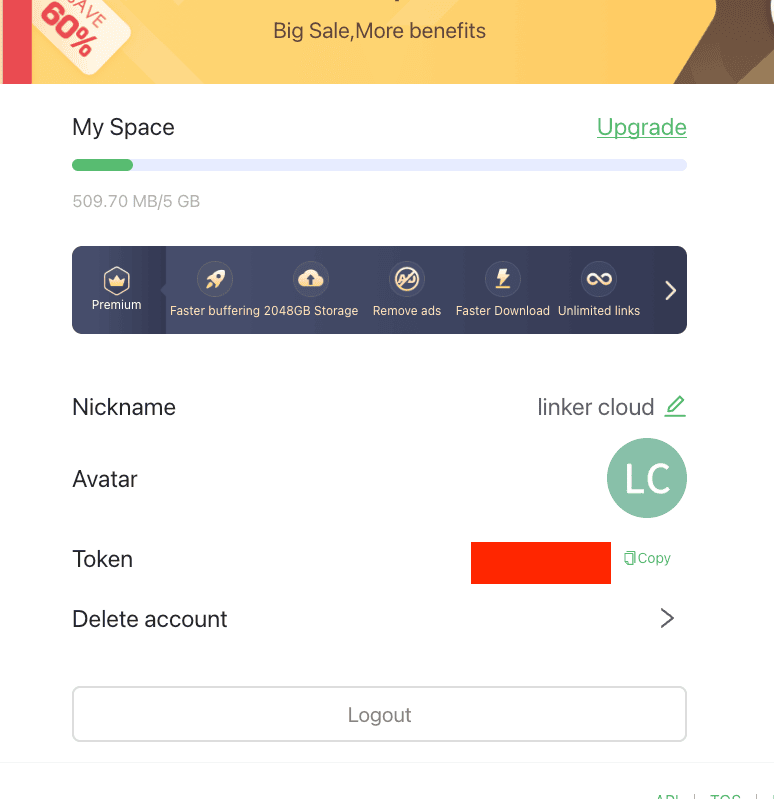
Sign in to TeleBox, open linkbox.to/admin/account, choose My Account and copy the value beside Token. The same page shows how much space you have used; a free account has 5 GB.
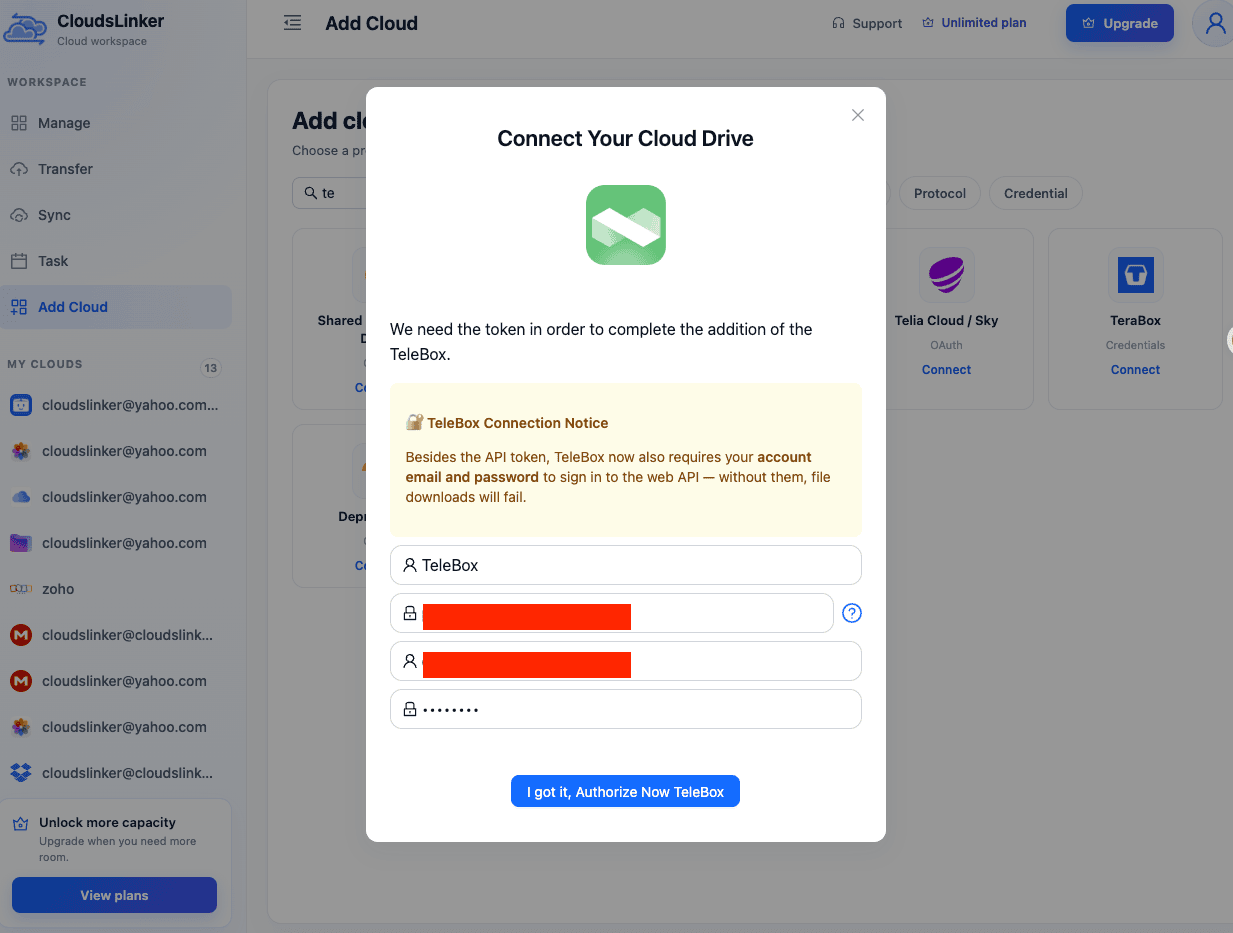
Then open app.cloudslinker.com, click Add Cloud and choose TeleBox. The dialog has four fields: a display name (pre-filled with TeleBox), the token (hover the ? icon beside it for a link to the TeleBox account page), your TeleBox account email and your TeleBox account password. The yellow notice in the dialog says the same thing: the email and password are required to sign in to TeleBox's web API, and without them file downloads fail. Do not paste the token into public screenshots; it is hidden in the ones on this page.
Step 2: Connect Google Drive (OAuth)
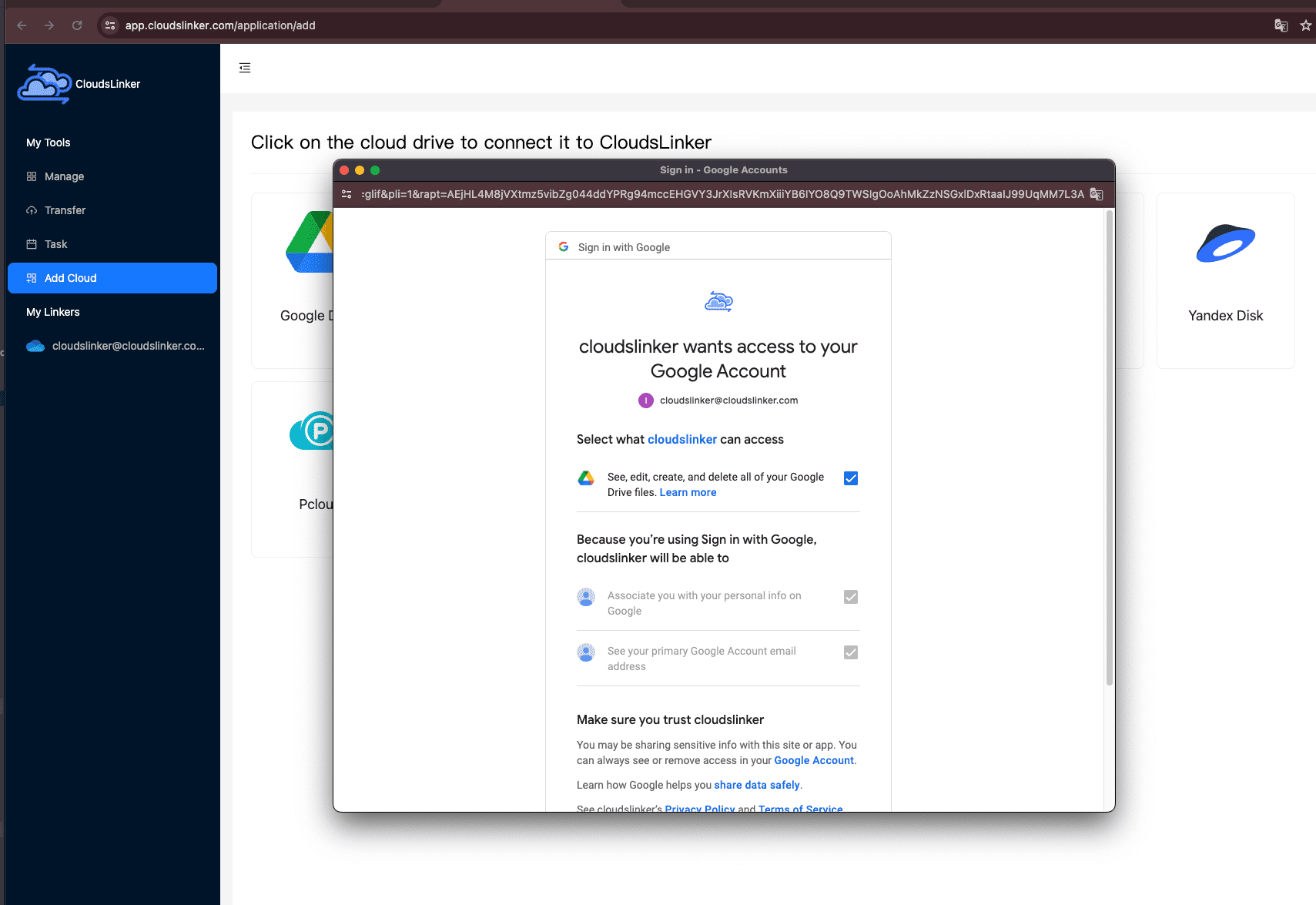
Choose Google Drive in Add Cloud. Google's own consent page at accounts.google.com lists what is requested, including permission to see, edit, create and delete your Drive files. Approve it and Drive appears under My Clouds. Your Google password is never entered in CloudsLinker.
Step 3: Choose folders, filters and schedule
Open Transfer. Under Source, expand TeleBox and tick the folders or files to move. Under Target, expand Google Drive and select or create the destination folder.
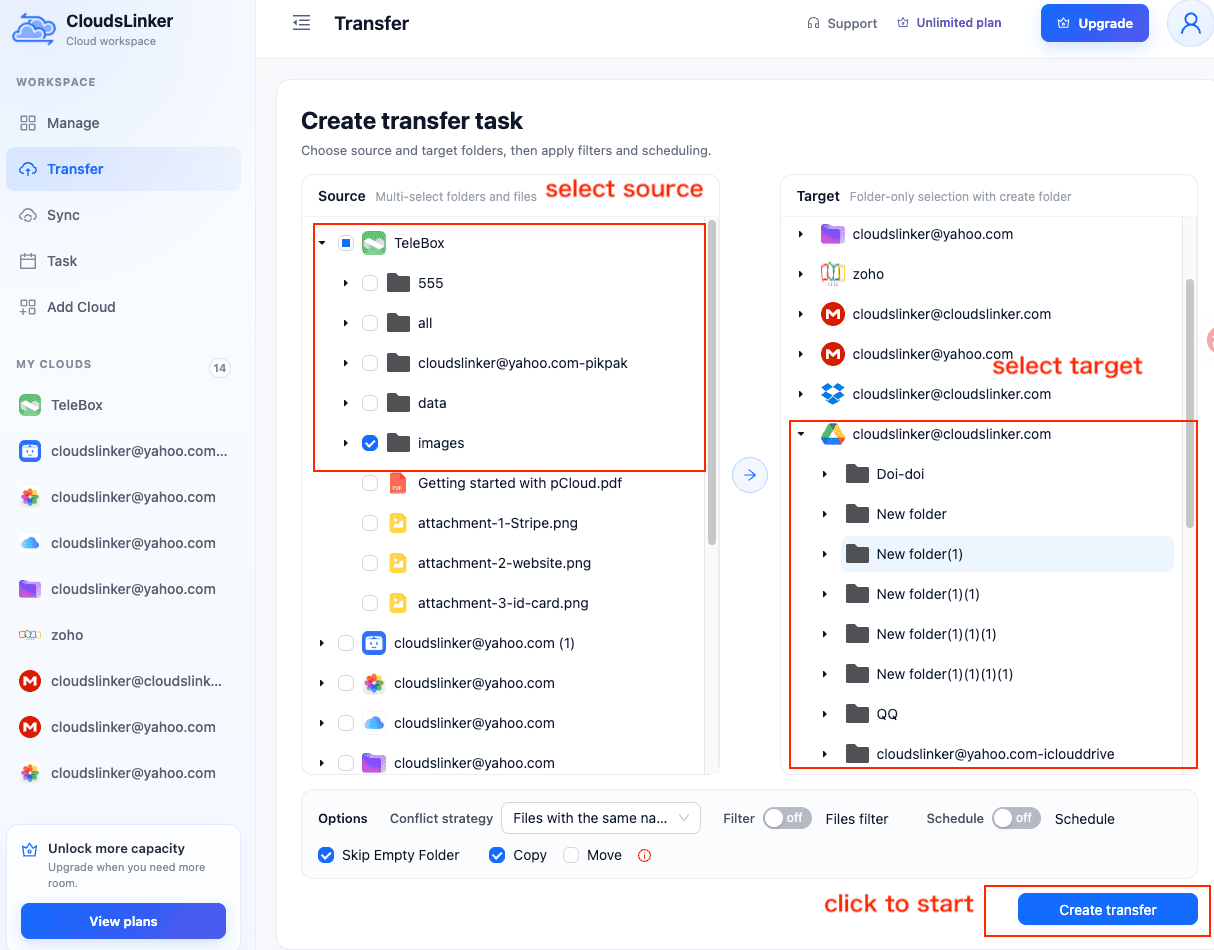
- Conflict strategy (the list under Options): by default a file is transferred only if its size differs or the date is more recent. You can also skip files with the same name, or force overwriting.
- Filter: switch it on, then open Files filter to include or exclude extensions and set a minimum and maximum file size in MB.
- Schedule: switch it on to run Once, Weekly (weekdays and a time) or Monthly (a day). Scheduling is available on paid plans.
- Skip Empty Folder is ticked by default, so empty folders are skipped.
- Copy or Move: keep Copy. Move deletes the files from TeleBox once they have been transferred.
Step 4: Start, monitor, verify
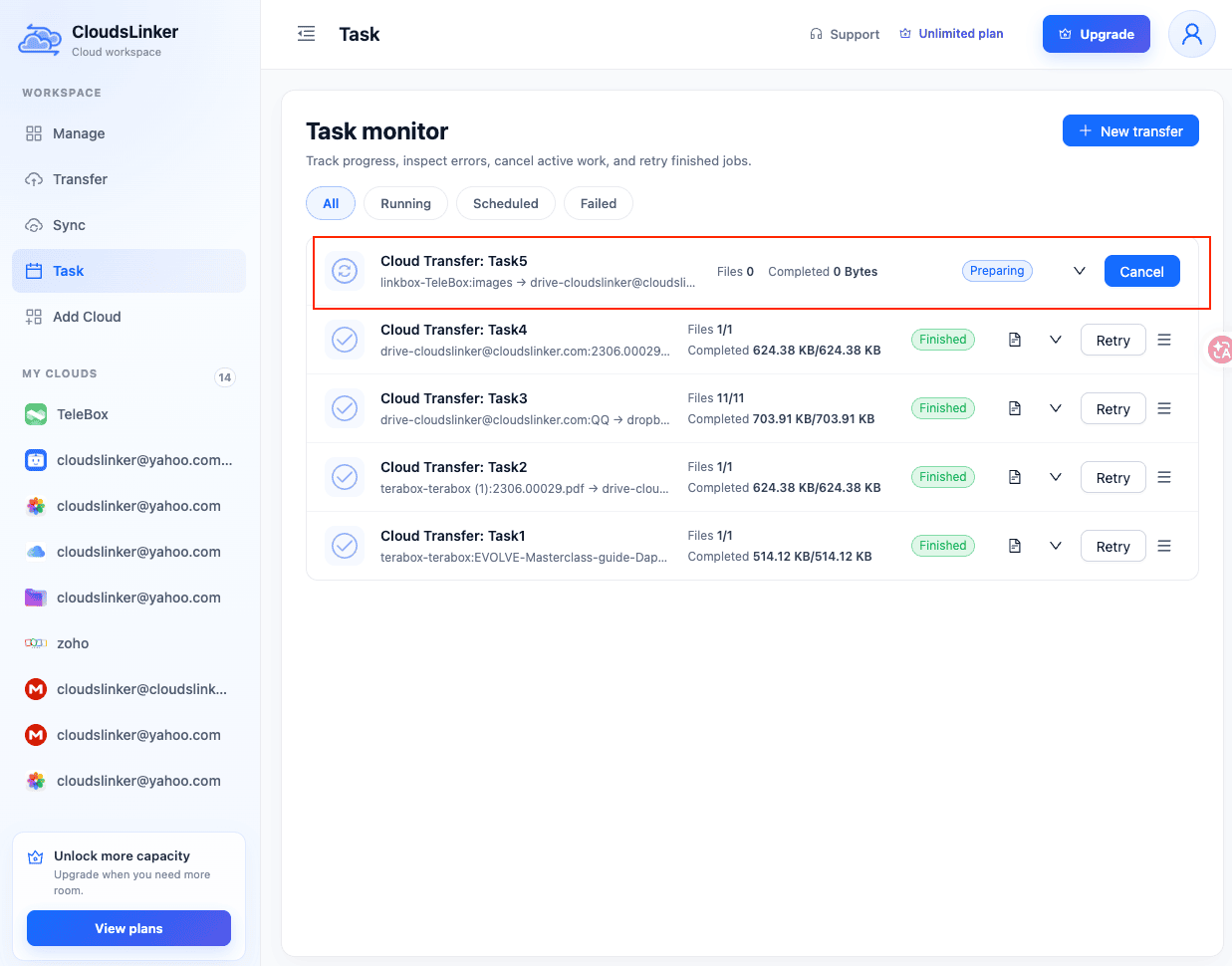
Click Create transfer. The job shows up under Task in the Task monitor, first as Preparing, with file counts, completed bytes and Cancel or Retry buttons. When it finishes, open Google Drive, check folders and a few large files, and only then decide what to delete from TeleBox.
Keeping TeleBox from filling up again
Many TeleBox accounts refill on their own: saved shares, phone backups, files forwarded from Telegram. Instead of repeating the migration by hand, set the same task to run Weekly or Monthly (scheduling is a paid-plan feature). Each run copies what is new since the last one, using the same-name policy you picked, and with Copy selected nothing leaves TeleBox until you delete it there. A simple routine is to let the schedule run, glance at the Task list, and delete the TeleBox originals you have seen in Drive.
The three methods side by side
| Method | Best for | Data passes through your device | Repeats on a schedule | Setup |
|---|---|---|---|---|
| 1. Browser download + Drive upload | A few files, one time | Yes, twice | No | None |
| 2. rclone Linkbox backend | One copy from a computer that stays on | Yes, through the machine running it | Yes, with cron or launchd | Token, email, password; Tier 5 backend |
| 3. CloudsLinker | Whole accounts and recurring offload | No, server to server | Yes: Once, Weekly, Monthly (paid plans) | Token, email, password for TeleBox; OAuth for Drive |
Things to check before you move
- Password use. CloudsLinker uses your TeleBox email and password to sign in to TeleBox's web API so file downloads work. Use a TeleBox password you do not reuse elsewhere, and delete the connection when the migration is done.
- Copy first, delete later. The default Copy option never deletes from TeleBox (Move does delete the source files). Free space there only after you have opened the files in Drive.
- Room in Drive. The 15 GB free tier is shared with Gmail and Photos; a Standard-plan TeleBox library needs a Google One tier and may take more than one day at Google's 750 GB daily upload limit.
- Shares do not travel. TeleBox links and their settings belong to TeleBox. Recreate links from Drive if people still need them.
- Different revocations. Google access is an OAuth grant removed under your Google Account's Security settings; TeleBox access is a login, ended by deleting the connection in CloudsLinker and changing your TeleBox password.
Sources: rclone — Linkbox backend, Google — Files you can store in Google Drive, Google — Storage and upload limits, TeleBox — account page. TeleBox plan prices: TeleBox — App Store listing. Google prices are US list prices checked July 2026.
Watch: Move Files from TeleBox to Google Drive Without Downloading
A real-time walkthrough of Method 3: copying the token from linkbox.to/admin/account, adding TeleBox to CloudsLinker with the token plus your TeleBox email and password (without the login, downloads fail), connecting Google Drive through Google's OAuth page, then picking folders and copying them server-side in Copy mode, which leaves TeleBox untouched.
Frequently Asked Questions
Conclusion
Choose by volume and by how often you need to repeat it. A handful of files: the browser needs no setup, though everything crosses your connection twice. A one-time copy from a computer you can leave running: rclone's Linkbox backend takes the same three credentials and gives you dry runs, but it sits at the lowest support tier rclone lists. A full account, or a TeleBox that keeps filling with saved shares and phone backups: CloudsLinker connects TeleBox with the token plus your login and Google Drive by OAuth, then runs the copy on its servers once, weekly or monthly (scheduling needs a paid plan). In its default Copy mode it never deletes from TeleBox, so free space there yourself after you have checked the files in Drive. Whatever you choose, look at how much room Google Drive has left before you start, because its 15 GB is shared with Gmail and Photos.
Online Storage Services Supported by CloudsLinker
Transfer data between over 58 cloud services with CloudsLinker

OneDrive

Google Drive

Google Photos

Shared Drive

OneDrive for Business

Dropbox

Box

Mega

pCloud

Yandex

ProtonDrive

AWS

GCS

iDrive

Storj

DigitalOcean

Wasabi

1fichier

PikPak

TeleBox

OpenDrive

Backblaze B2

Fastmail file

SharePoint

Nextcloud

ownCloud

Premiumize me

HiDrive

Put.io

Sugar Sync

Jottacloud

Seafile

Ftp

SFtp

NAS

WebDav

4shared

Icedrive

Cloudflare R2

Scaleway

Hetzner Object Storage

Synology C2 Object Storage

S3 Compatible

Doi

iCloud Drive

iCloud Photos

FileLU

Zoho WorkDrive

Telia Cloud / Sky

Drime

Filen

TeraBox

Internxt

Degoo

Gofile

Pixeldrain

Shade

Koofr
Didn' t find your cloud service? Be free to contact: [email protected]
Further Reading
Effortless FTP connect to google drive: Transfer Files in 3 Easy Ways
Learn More >
Google Photos to OneDrive: 3 Innovative Transfer Strategies
Learn More >
Google Photos to Proton Drive: 3 Effective Transfer Techniques
Learn More >